
Staff
Staff are the people who work your shifts: lifeguards, gate and front-desk attendants, snack bar crew, a paid pool manager. They see their own shifts and the shift schedule, and they can work the Front Desk, but they have no admin access. Owners and managers manage the list. Click Staffing in the sidebar, then Staff.
Being staff adds to whatever else someone already is. A member who lifeguards keeps their membership and gets work links beside it. A manager who also works shifts gets a My shifts link under Dashboard. Owners and managers appear here only if you add them as staff too; their admin access lives under Admins & roles.
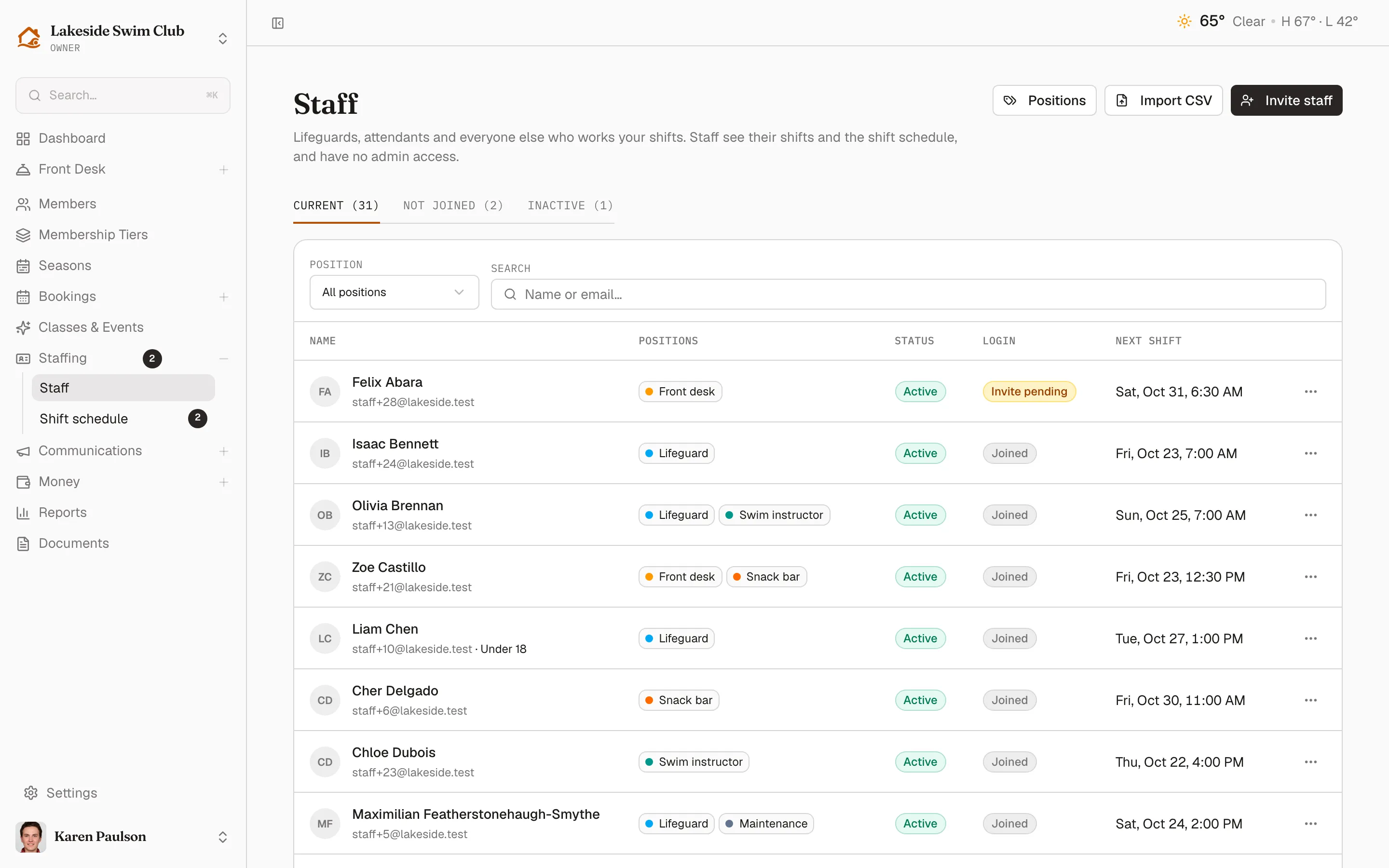
Read the staff list
Section titled “Read the staff list”Three tabs split the list, each with its count:
- Current — everyone on your staff, including people who haven’t set up their login or accepted yet.
- Not joined — the people on Current whose login isn’t ready: invitations still waiting, and ones that expired.
- Inactive — people you’ve deactivated, kept with their past shifts so you can bring them back.
Search matches names, emails and position names. Once you have positions, Position filters to one position or No position.
Each row shows two separate things:
- Status is employment: Active, Invited, or Inactive. Invited means the person already has a Memberley login at another club and hasn’t accepted your invitation yet.
- Login is whether they can sign in: Joined, Invite pending, or Invite expired.
A brand-new lifeguard reads Active and Invite pending: they’re on your staff and you can schedule them, but they haven’t set a password yet. Next shift shows their next upcoming shift, or None scheduled. Teens show Under 18 after their email.
Invite someone
Section titled “Invite someone”- Click Invite staff.
- Enter their Email first. Each person needs their own address, since an email can belong to only one Memberley login. A teen who shares a parent’s inbox can use a plus-address, like [email protected].
- Memberley checks the address as you type and tells you which case you’re in:
- No login yet. Enter their First name and Last name. Memberley creates a login and emails them an invitation to set it up. They show as Invite pending until they do.
- Someone your club already knows, such as a member, an admin, or a joint account holder. The form names them: “This email is Jane Smith’s login at your club. Add Jane Smith as staff?” Click Add Jane Smith to confirm it’s the same person. They join the staff immediately and get an email saying so. If you meant someone else who shares that inbox, click Someone else? Use [email protected] to switch to a plus-address.
- A login at other clubs only. The form doesn’t name them. It says Memberley will invite them to join your staff, and they accept with their existing login. They’re Invited until they accept. Until then you see the names you type; after that, their record shows the name on their login.
- Optionally, add a Phone. Memberley saves it to their login only if the login has no phone yet, and they still need to verify it before they get texts.
- Tick any Positions they hold. You can add them later.
- Tick Under 18 for a teen (see below).
- Click Send invitation, or Add Jane Smith for someone your club already knows.
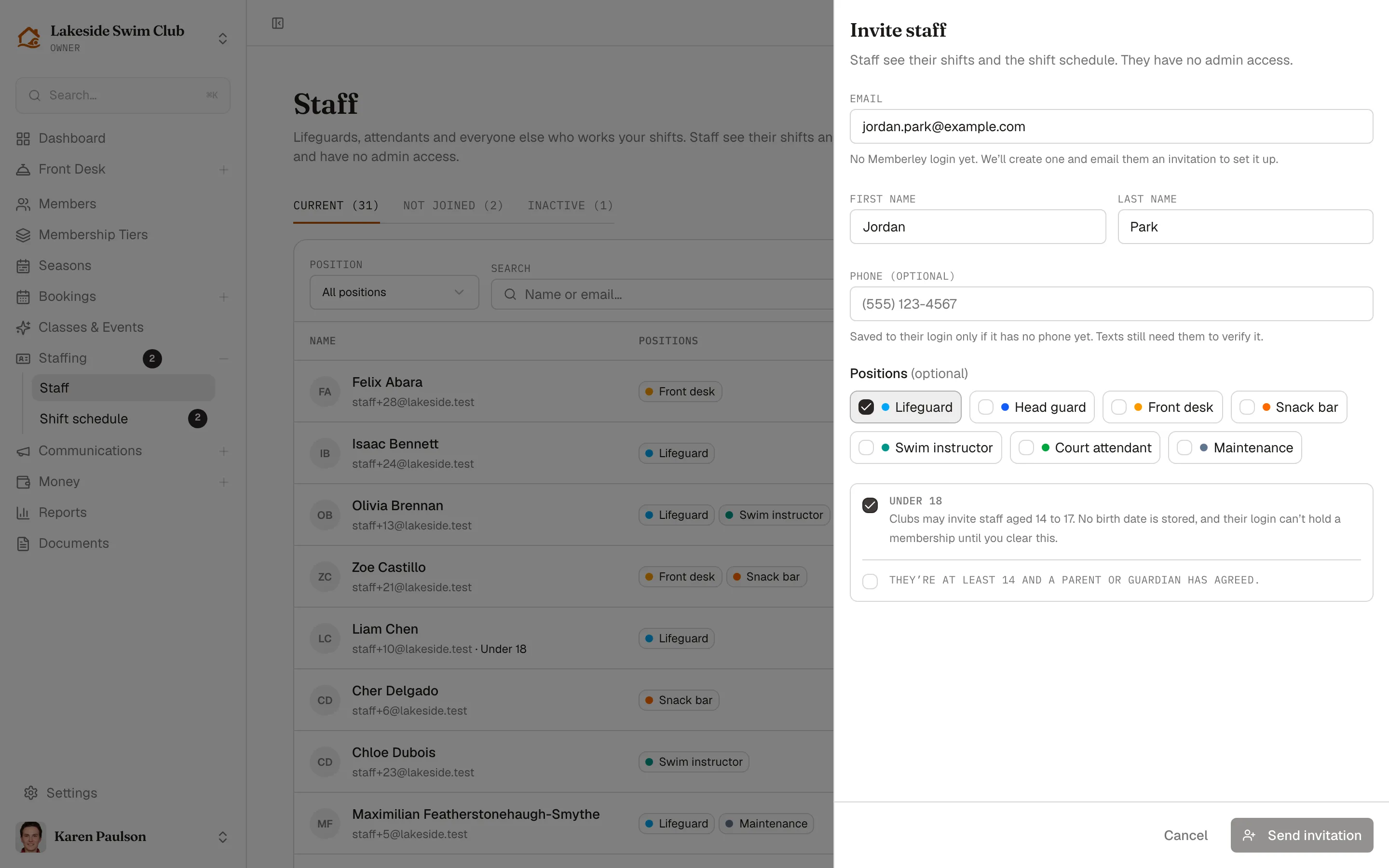
If the address already belongs to someone on your staff, the form says so and links to Open their record. From there you can resend a waiting invitation, or reactivate someone you deactivated.
Invitation links work for seven days. For staff shows what the person sees when they open one.
Staff under 18
Section titled “Staff under 18”Clubs may invite staff aged 14 to 17. Ticking Under 18 adds a second box: They’re at least 14 and a parent or guardian has agreed. You can’t send the invitation until you tick it too. Memberley stores no birth date. Instead, the record keeps Under 18 confirmed with the date and who confirmed it.
While Under 18 is set, that login can’t hold a membership: it can’t become a primary member or a joint account holder. When the teen turns 18, open their record, clear Under 18, and click Save details.
A teen who swims as part of a family keeps that family-member record for check-in. Their staff login is a separate person in Memberley, and the two aren’t linked.
Import a list
Section titled “Import a list”- Click Import CSV.
- Choose a CSV or Excel (.xlsx) file, up to 2 MB and 300 rows, with these columns:
- Required: First name and Last name (or one Name column), and Email.
- Optional: Phone, Under 18 (yes or no), and Positions (separate several with a semicolon). Memberley creates any positions you don’t have yet.
- Click Preview import. Nothing is sent yet. The preview sums up the file, such as “12 rows: 9 to invite, 2 already at your club to add, 1 skipped.”, and marks every row:
- Invite — Memberley creates a new login and sends an invitation.
- Invite to accept — the person has a Memberley login and accepts with it.
- Add — the email already belongs to someone at your club, who’s added at once.
- Skipped — with the reason, such as a missing email or someone already on your staff.
- If any row is marked Under 18, tick Everyone marked Under 18 is at least 14, and a parent or guardian has agreed.
- Click Import 11 people (the button shows the count).
The result lists each row as Invited, Added, or Failed with the reason. Retry 1 failed row sends only the failures again, so nobody who went through is invited twice. Choose another file goes back to the start.
Manage positions
Section titled “Manage positions”Positions are your own labels, such as Lifeguard, Gate or Snack bar, each with a color. Someone can hold several. Positions never change what anyone can access; they help you match people to shifts and color the schedule.
Click Positions to open the drawer. To add one, enter a name under Add a position, pick a color, and click Add. Each position shows how many people hold it. Use the arrows to reorder, the pencil to rename or recolor, and the bin to delete.
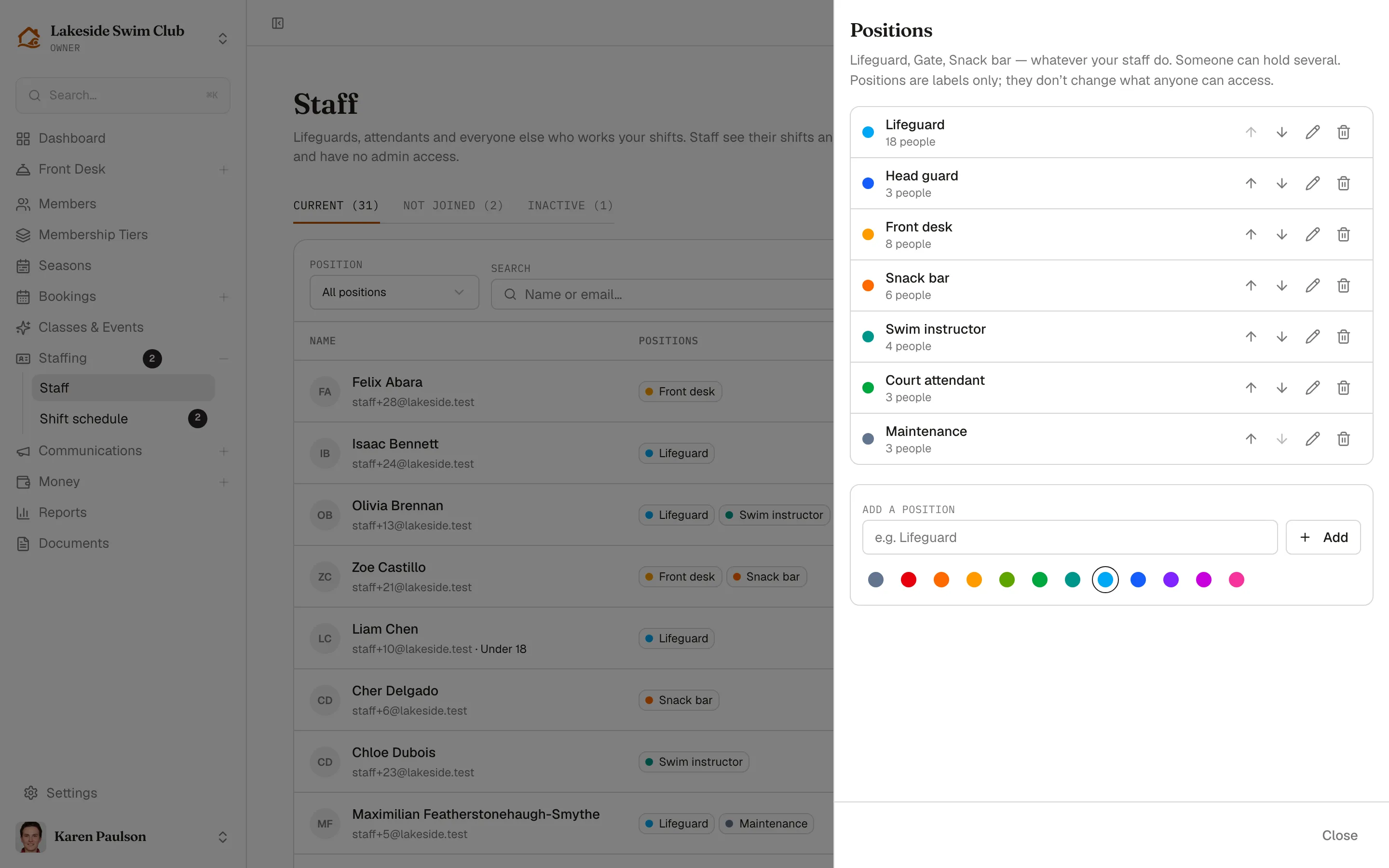
Published shifts keep the position name and color staff were shown until you publish those shifts again. Before you delete a position, Memberley says how many people hold it and how many upcoming shifts ask for it. Confirm with Delete position, or back out with Keep it.
Resend or revoke an invitation
Section titled “Resend or revoke an invitation”Open a person’s ⋯ menu, or their record:
- Resend invitation emails a new link, good for seven days. The link in the earlier email stops working.
- Revoke invitation makes the link stop working and takes them off any upcoming shifts. The confirmation shows the effect on the schedule first.
Memberley never changes the email on a login. To fix a mistyped address, revoke that invitation and invite the right one.
Deactivate or reactivate someone
Section titled “Deactivate or reactivate someone”Deactivate is in the ⋯ menu and on the record. Before anything changes, it shows the effect, such as “Removes Sam from 12 upcoming shifts; 4 published shifts will be short. They won’t be notified.” Confirming ends their staff access right away and takes them off every upcoming shift. Their record and past shifts move to the Inactive tab, so old schedules still show who worked.
Reactivate brings them back. Someone who had joined gets staff access back right away. Someone who never joined gets a new invitation, and a login from another club has to accept it again before they can work.
A staff member’s record
Section titled “A staff member’s record”Click a name, or View staff member in the ⋯ menu. The header shows their status, login and Under 18 pills, their email, and their phone once they’ve joined. A line below sums up their login, such as “They haven’t set up their login yet.” Resend invitation and Reactivate sit beside the header when they apply, and Revoke invitation and Deactivate are in its ⋯ menu.
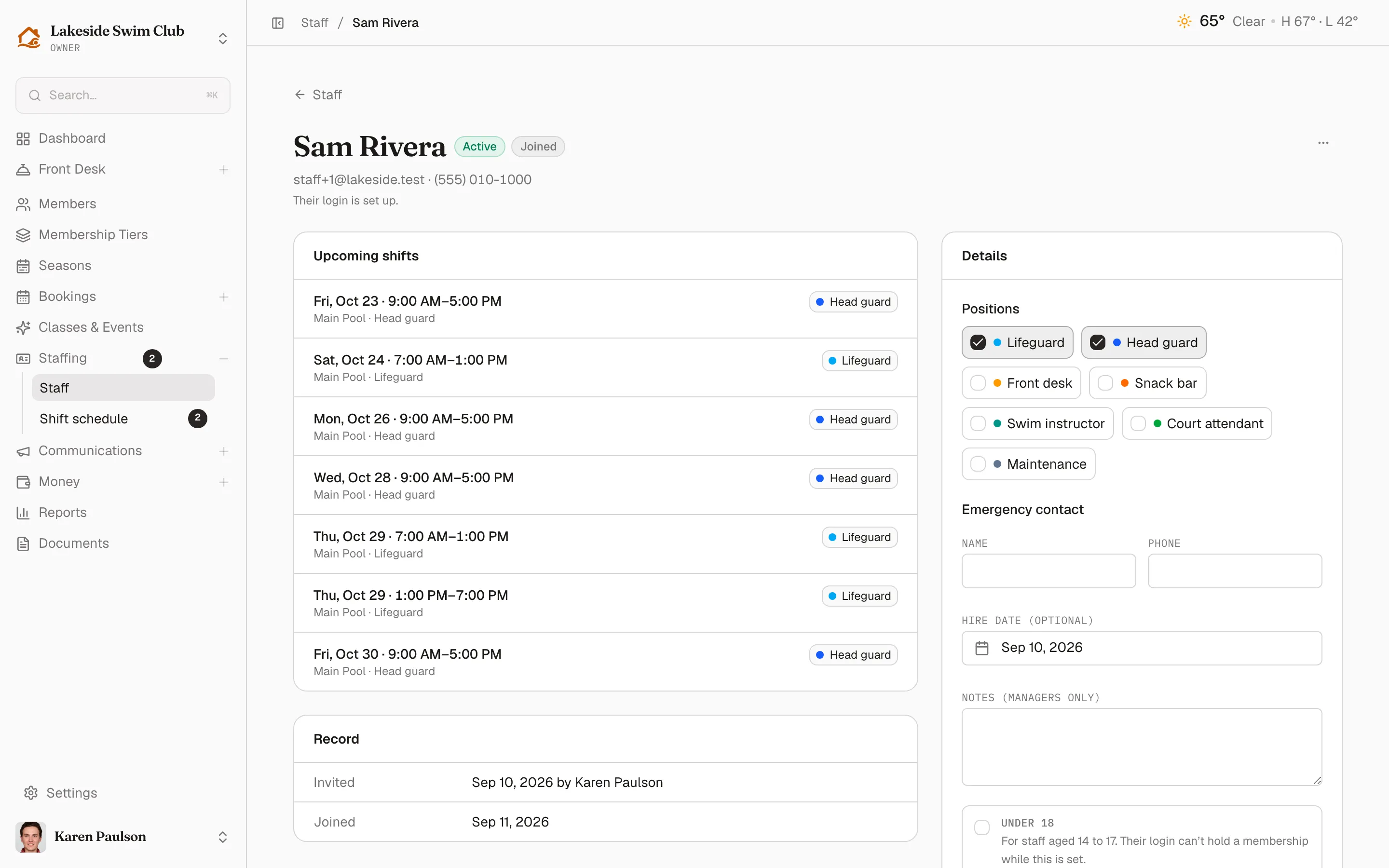
Upcoming shifts lists their next published shifts, up to ten over the next 60 days, with the facility and position. Drafts and unpublished changes don’t appear here.
Record is the history: Invited (with who invited them), Joined, when the invitation expires or expired, Under 18 confirmed, and Deactivated.
Details holds what owners and managers keep about the person, saved with Save details:
- First name and Last name — editable only while an invitation to an existing login is waiting. After that, the record uses the name on their login.
- Positions.
- Emergency contact — a Name and Phone.
- Hire date (optional).
- Notes — for owners and managers only.
- Under 18.