
Managing reservations
Requires the Facilities & Reservations module
The Reservations page is your booking control center: review member requests, book time slots on behalf of members, and see everything scheduled across your facilities. Click Bookings in the sidebar, then Reservations. The page has four tabs — Schedule (with a count of the requests waiting on you), Book, Blocks (Recurring blocks), and Refunds.
Read the schedule
Section titled “Read the schedule”The Schedule tab opens with three tiles — Needs review (click it to open the list filtered to Pending), Booked today, and Next 7 days. A fourth tile, Refunds held, appears only when a cancelled booking’s fee is waiting on a decision.
Underneath, View as switches between the two halves of the same schedule: the calendar (Week at a glance) and the list (All reservations). Approve all sits to the left of the switcher and works from either view.
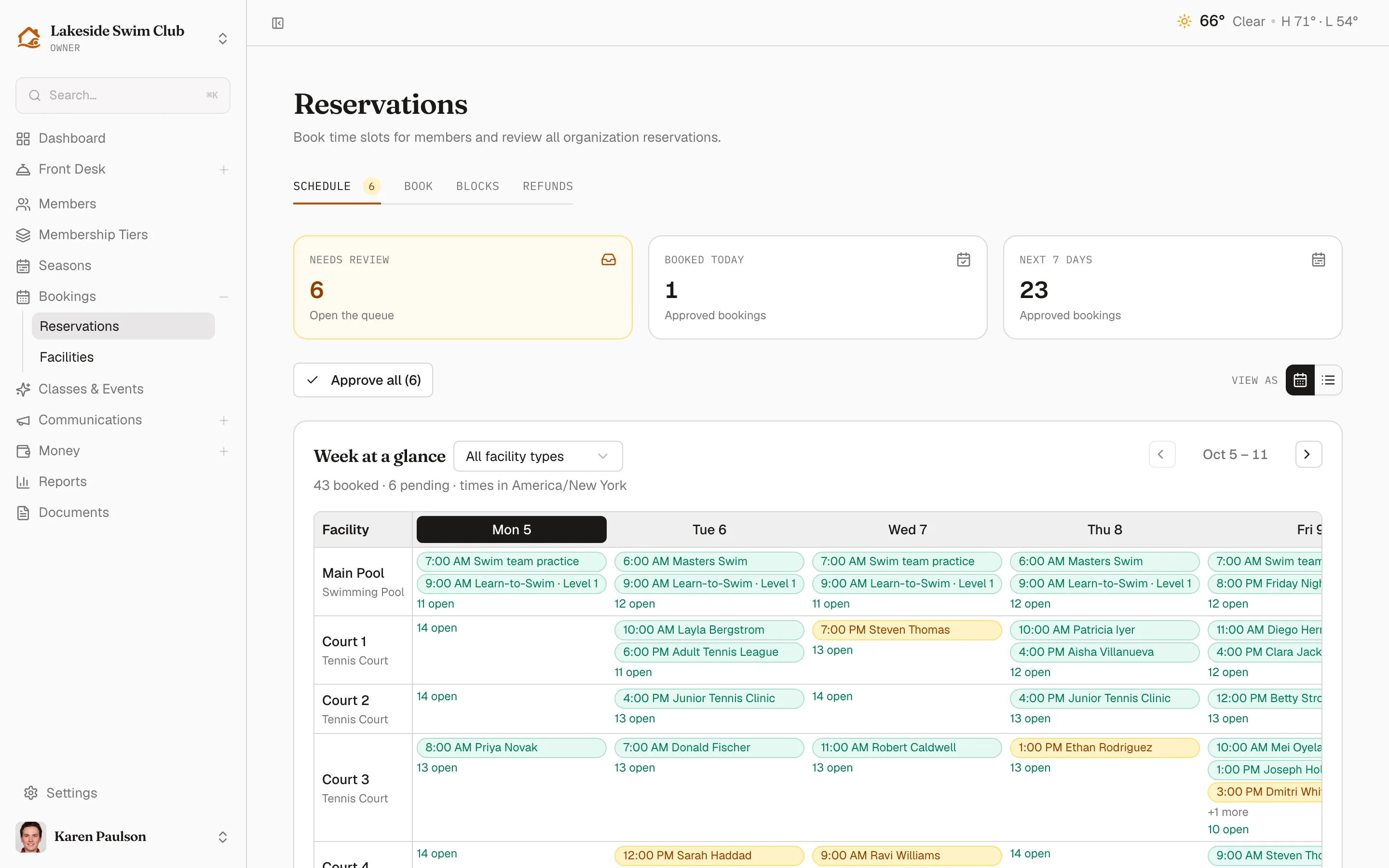
Week at a glance grids your facilities against seven days. Each cell lists that day’s bookings as time-and-name chips, toned by status, and counts the slots still open. Narrow to one type with the All facility types picker, page through weeks with the arrows, and click a day heading — or an open count — to send the Book tab to that date. Clicking a booking opens its detail drawer.
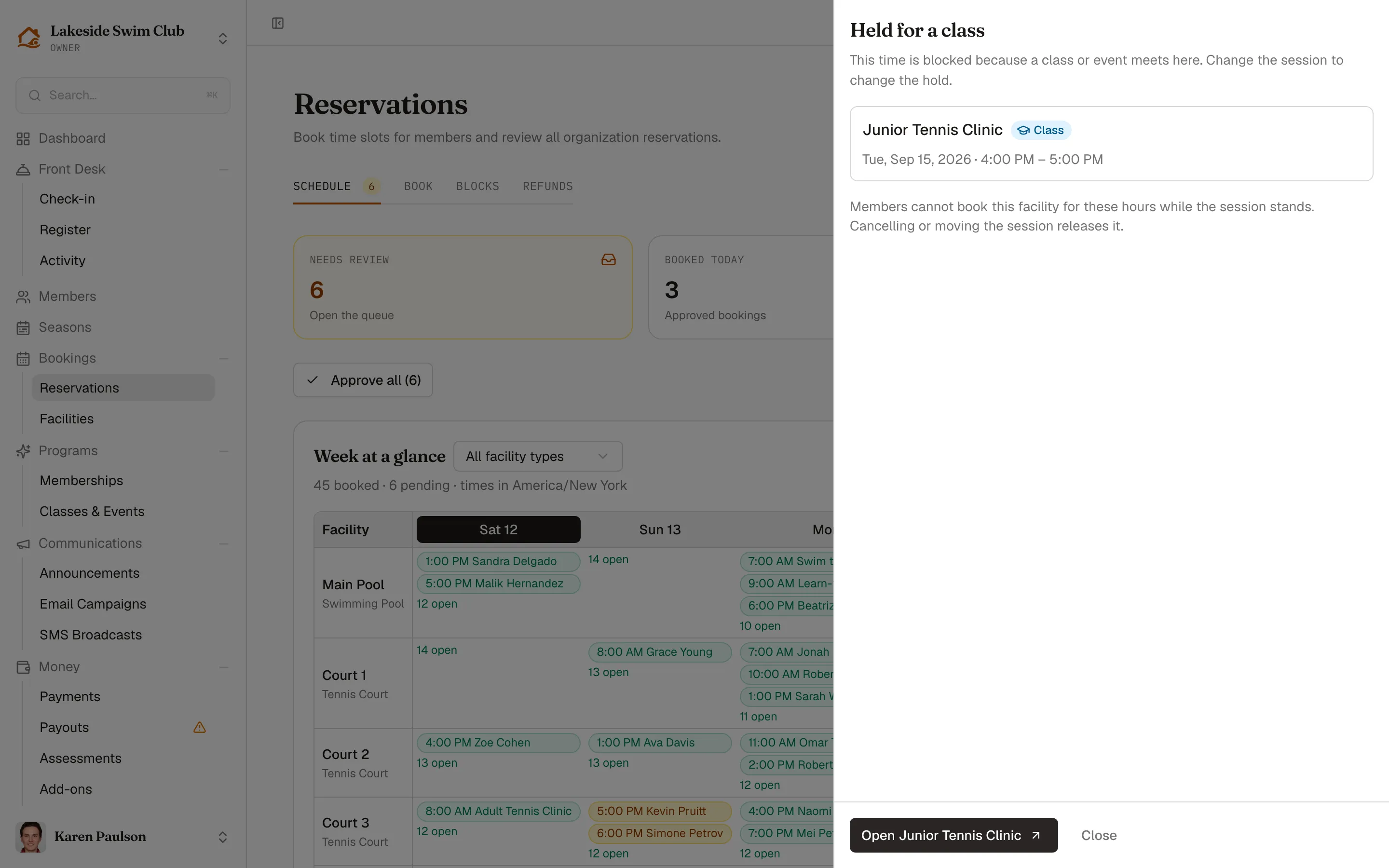
Time held by a class or event opens a Held for a class panel instead, with a link to the offering: the session owns the schedule, so moving or cancelling the session is what releases the court. See Classes & events.
Approve or deny requests
Section titled “Approve or deny requests”-
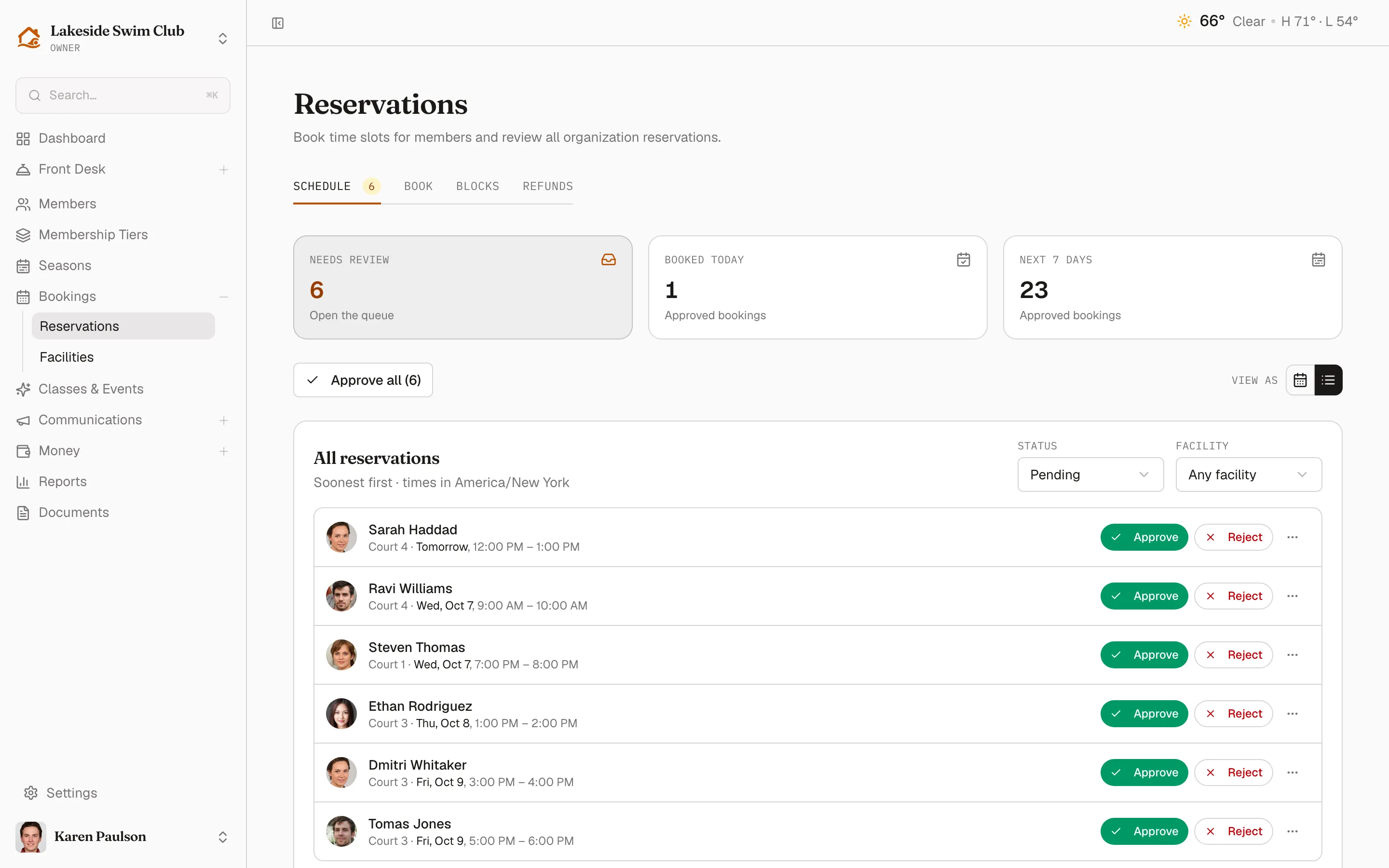
Click the list icon under View as to see All reservations, ordered soonest first with Status and Facility filters. For just the requests awaiting a decision, click Needs review: it opens the list with Status set to Pending and clears the facility filter. Pending rows carry Approve and Reject where an approved row shows its status pill; each row links to the member’s profile and has a ⋯ menu with Edit and Cancel reservation.
-
Click Approve to confirm a request. Approval is when the facility’s reservation fee is billed — charged to the member’s card on file, or left pending on their account. Memberley notifies the member that their reservation is confirmed — by email, and by text where they’ve opted in.
-
If the facility charges a fee and the member has no way to pay it (no saved card or verified bank), a No way to charge this member dialog interrupts with three choices: Not now, Approve without fee, or Approve, fee owed (approves and leaves the fee pending on their account).
-
To turn one down, click Reject. A Reason is required — the member receives it with the rejection notice, and any uncollected fee is voided.
-
To clear the queue at once, click Approve all — the button carries a live count, and its confirmation summarizes the fees it charged. Only the requests that were in the queue when you clicked are approved; anything that arrives mid-review stays pending.
You can also review a single facility’s queue from its card on the Facilities page.
Book on behalf of a member
Section titled “Book on behalf of a member”-
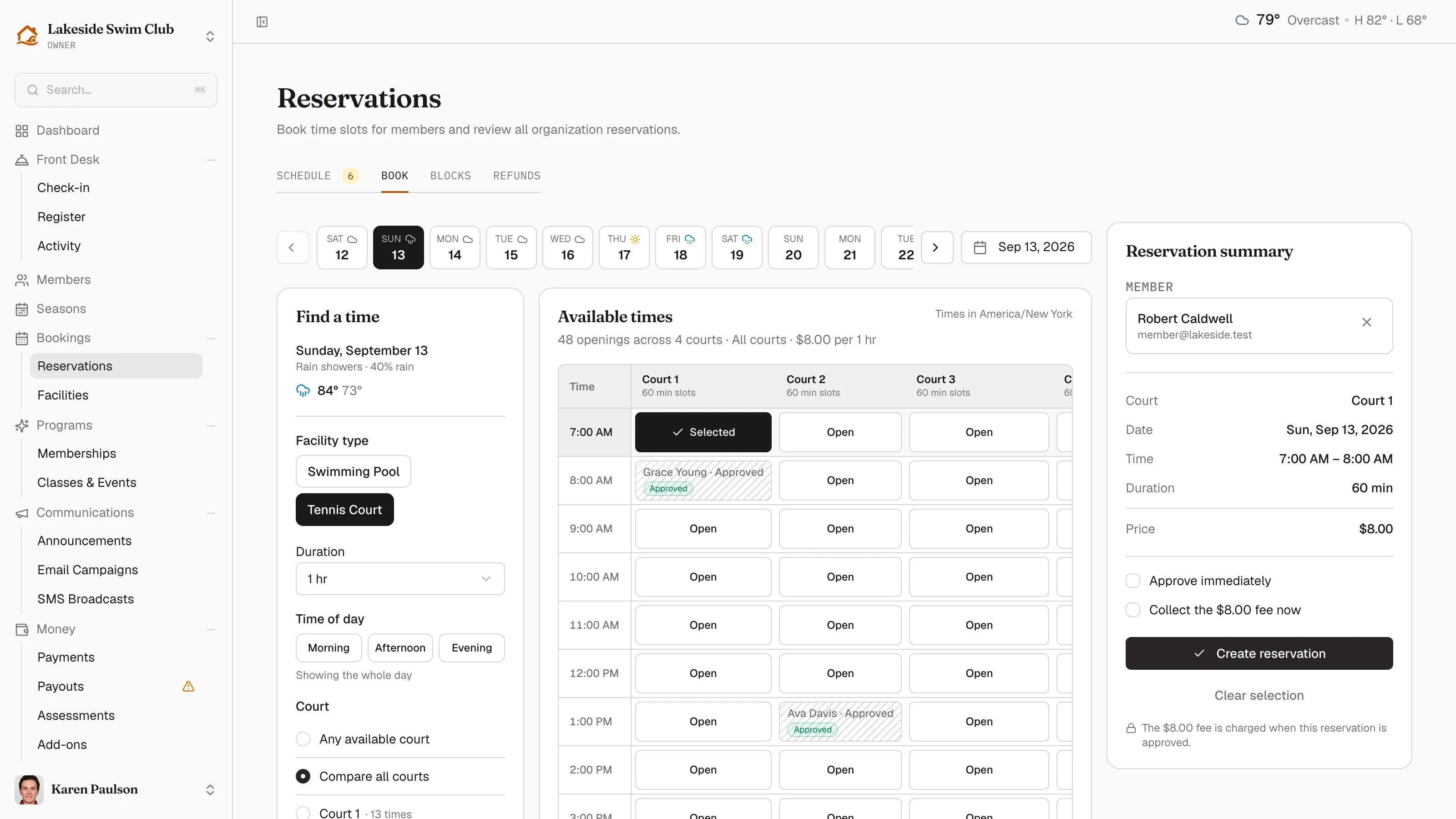
Open the Book tab. The Reservation summary on the right stays on screen throughout — on a narrower window it becomes a bar along the bottom instead.
-
Search for the Member by name or email. You can do this before picking a time; at the front desk the person is usually standing there first.
-
Pick the day on the strip across the top. Each day carries its forecast, which is the difference between booking an outdoor court and calling it off; the date button at the end of the strip jumps further out.
-
In Find a time, choose the Facility type, the Duration you’re booking, and any Time of day to limit it to. These narrow what the grid offers, so every opening on screen is one this booking can actually use. Turn on Show fully booked times to see taken time too.
-
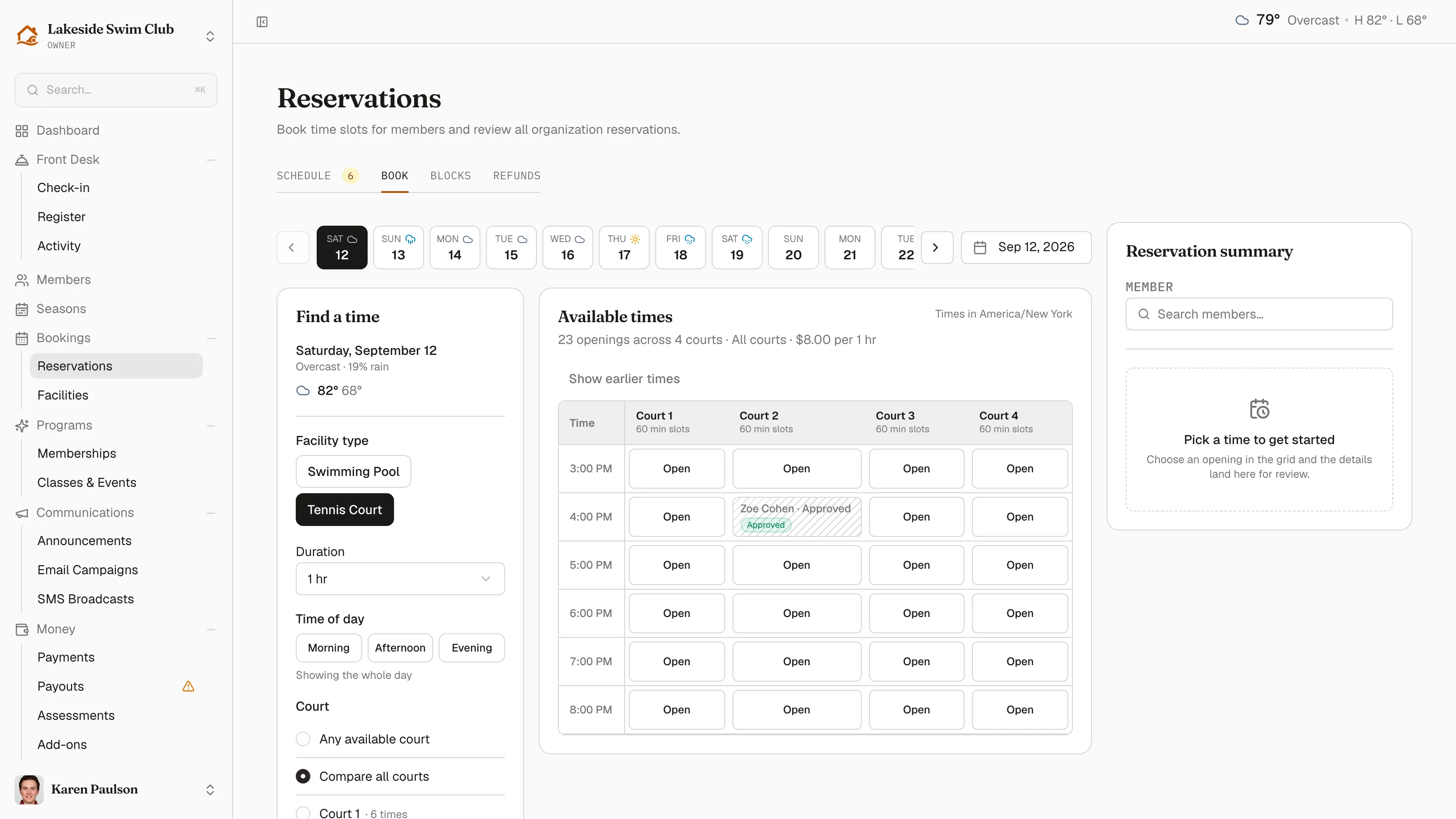
With several facilities of one type, Court asks one question three ways: Any available court merges them into a single list of times, Compare all courts gives each its own column, or pick one court to see only its day. Each court carries its number of openings.
-
Available times is the grid — times down the side, courts across the top, and each cell saying only whether it’s Open. Hatched cells are taken and name who holds them. Above the grid, one line counts the openings and states the price.
-
Click an opening. The summary fills in with Court (a dropdown when the pick came from Any available court), Date, Time, Duration — steppable where the facility allows multi-slot bookings — and Price.
-
Check Approve immediately to skip the review queue, and Collect the fee now — the checkbox names the amount — to bill the facility’s reservation fee: it charges the member’s card on file, or sits on their account as a pending payment if they don’t have one. The line under the button always states what happens to the money.
-
Click Create reservation.
Left unchecked, Approve immediately creates the booking as pending in your own review queue. Staff bookings aren’t subject to the facility’s open-bookings cap, may deliberately overlap a member’s other reservations, and can use a facility the member’s tier doesn’t cover — you’re the review. If the court is taken the instant you submit an Any available court pick, Memberley books the same time on another court of that type at no higher fee and tells you which one.
You can also book for a specific member straight from their profile — see Member profiles.
Reschedule a reservation
Section titled “Reschedule a reservation”- Find the reservation in All reservations, open its ⋯ menu, and click Edit.
- In the drawer, use the Reschedule section to pick a new day and time, adjusting the length if the facility allows multi-slot bookings.
- Click Save new time.
The drawer also shows the booking’s status, payment status, who approved it, and any rejection or cancellation reason. Pending and approved reservations can be rescheduled; a reservation on a facility that is no longer reservable can’t be moved.
Cancel a reservation
Section titled “Cancel a reservation”- Open the reservation’s ⋯ menu and click Cancel reservation (or use the button in the Edit drawer).
- In the confirmation dialog, optionally add a Reason — it’s kept on the reservation record. The dialog states what happens to the reservation fee before you commit.
- Leave Email the member about this cancellation checked to send them the notice (with your reason); uncheck it if they already know.
- Click Cancel reservation (Keep reservation backs out).
Memberley settles the fee for you: an uncollected fee is voided, and a fee charged through Stripe is refunded in full. Only a fee collected off-platform — cash at the desk, say — is left for you to refund by hand.
Members can also cancel their own pending or approved reservations from the member portal; those show up in the list as Cancelled too.
Decide a held refund
Section titled “Decide a held refund”Members can always cancel a booking that hasn’t started, and the club gets the slot back either way. What a late cancellation changes is the money: cancel later than the facility’s Cancellation deadline (see Facilities) and a fee they already paid is held for you rather than refunded automatically.
- Open the Refunds tab. Cancellations awaiting a refund decision lists them oldest first, and the Refunds held tile on the Schedule tab counts them.
- Click Refund in full to send the fee back the way it came, or Keep the fee to leave it with the club.
Either choice settles the cancellation and drops it off the list. Only collected fees land here — an uncollected one is voided at cancellation whatever the deadline says — and cancellations you make on a member’s behalf refund automatically instead of waiting on this queue.
How auto-approval changes the flow
Section titled “How auto-approval changes the flow”Facilities with Approve requests automatically turned on (see Facilities) confirm bookings on the spot:
- The booking lands directly as Approved and never appears in the request queue. The activity log records it as auto-approved rather than naming a staff member.
- The facility’s reservation fee is billed immediately — charged to the member’s card on file, or left pending on their account.
- Members who owe the organization money are the exception: their requests are held as Pending for staff review, the same delinquency signal that gates check-ins.
- Bookings you make on a member’s behalf are confirmed on the spot too, whether or not you checked Approve immediately — the facility has already answered that question, and the fee goes out with the approval.