
Front Desk for staff
Active staff can work the Front Desk whenever they’re signed in: check people in, ring up sales, and serve a member. The rule is simple: staff can do for a member what that member could do for themselves, under the member’s own rules. Staff get no refunds, comps, overrides, catalog edits, history, or member contact details. Owners and managers keep all their usual access.
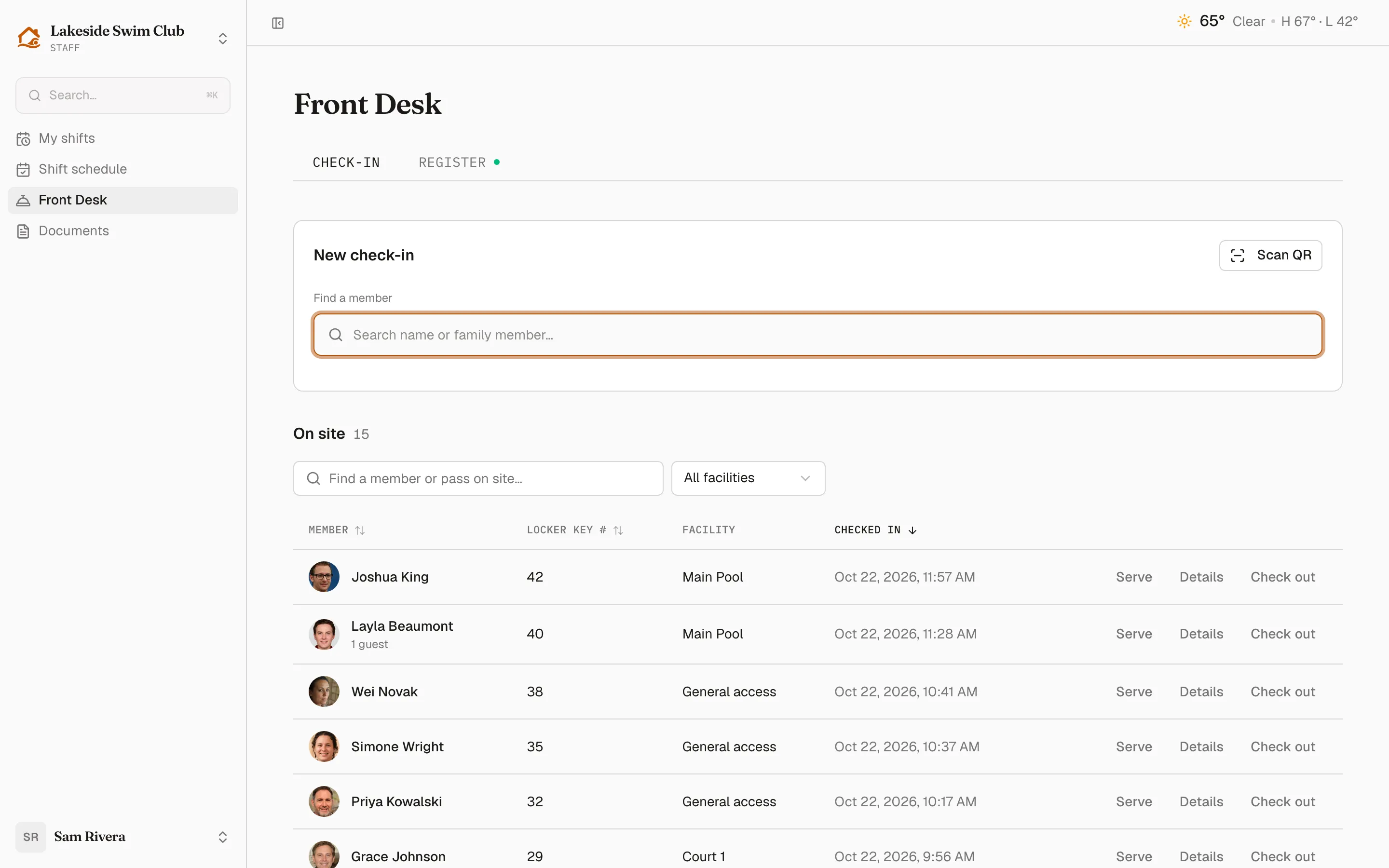
Staff reach the desk from Front Desk in their sidebar, or Open Front Desk on My shifts. It opens on Check-in when your club has the Front Desk & Check-in module, or on the Register when Point of Sale is your only desk module. Deactivating someone, or turning off the Staffing module, ends their desk access immediately. Their records are kept for when access returns.
What staff can do
Section titled “What staff can do”Check-in — everything on Check-in: search, scan a member’s QR code, check members, family and guests in and out, and fill in check-in fields. Staff can check someone out or change their answers only for today’s visits; earlier visits need an admin.
Register — everything on Register except refunds. Staff can open and close the shared drawer, including one someone else opened. They can ring up sales with every payment method: cash, a typed card, the member’s card on file, account credit or prepaid balance. They can void their own sale while the register session is still open.
Serve a member — book a facility, sign someone up for a class or event, and buy guest passes or add-ons for a household, as the member could themselves. See Serve a member below.
What staff don’t see
Section titled “What staff don’t see”Staff identify members; they don’t see into their accounts.
- Search and results show the name, photo, household, tier, guests and add-ons. Search matches names and family members, not email. The account line under a household shows the tier instead of an email address.
- Status flags, such as Waiver missing or Payment issue, appear without amounts. A member who’s behind on payments shows “Payment issue: this account is past due. Let an admin know.” If your club blocks check-in for delinquent members, staff see “This member has a payment issue. Ask an admin to sort it out before checking them in.”
- Balances — at the register, staff see that a member has a Prepaid balance or Account credit, but never how much.
- Check-in fields marked sensitive are hidden from staff.
- Receipts — staff can resend a receipt for their own sale to the address on file, but they never see that address and can’t type a different one.
- Recent orders on the register show only their own sales in the open session. The drawer’s opening cash is hidden.
Links to places staff can’t go are left out. Member names don’t link to profiles. There’s no History, Print or catalog link, no Refund, and no Void on someone else’s sale. The admin-only Closures and Activity pages aren’t in a staff member’s sidebar.
Guest passes that cost money
Section titled “Guest passes that cost money”When a member brings more guests than they have passes left, the extra passes are charged to their card. Before charging, Memberley asks Charge the member’s card? and explains, for example, “This check-in charges $20.00 to the member’s card on file for 2 guest passes.” Click Charge $20.00 and check in to go ahead, or Change guests to adjust. If the amount changes before you confirm, Memberley asks again.
The charge follows your club’s payment consent rules, the same as when an admin checks the member in. Admins don’t get this extra step.
Close the register
Section titled “Close the register”Staff close the drawer blind. Close register asks them to count the cash in the drawer and enter the total, which an admin checks against the day’s sales. Staff don’t see the expected cash or whether the drawer is over or short. Owners and managers see both in the Z-report, recorded in the activity feed.
Serve a member
Section titled “Serve a member”Serve a member is a panel for doing a member’s own tasks for them at the desk. Owners and managers can use it as a shortcut too.
- On Check-in, find the household and click Serve this member next to the account line. Or click Serve on anyone’s row in the on-site list.
- The panel keeps the household in view: the member’s photo and name, their tier (or No active membership), everyone in the household, and any status flags. Change household goes back to search, and warns first if a task is unfinished. Back to Front Desk returns to the tab you came from.
- Under “What can we do for Robert?”, choose a task. Only what your club offers appears:
- Book a facility — with the Facilities & Reservations module.
- Classes & events — with the Classes & Events module.
- Guest passes — when the member’s tier sells guest passes and your Stripe account is connected. Otherwise it’s grayed out with the reason, such as “Their membership doesn’t include guest passes.” or “Guest passes need online payments set up.”
- Add-ons — when you sell add-ons to members.
- Fill in the details, such as who in the household, the date and time, the class, or how many passes. Then click Review.
- Check the review: For, What, When, Charged now, and the cancellation terms under Cancelling. Then click the button, which says what will happen: Book, Request booking (when the facility needs approval), Enroll, Join waitlist, or Buy guest passes · $20.00 with the amount. Change details goes back without losing what you entered.
- The finish screen says what happened: Booked, Request sent, Enrolled, Added to the waitlist, or Purchase complete. From there, choose Serve this member again or Back to Front Desk.
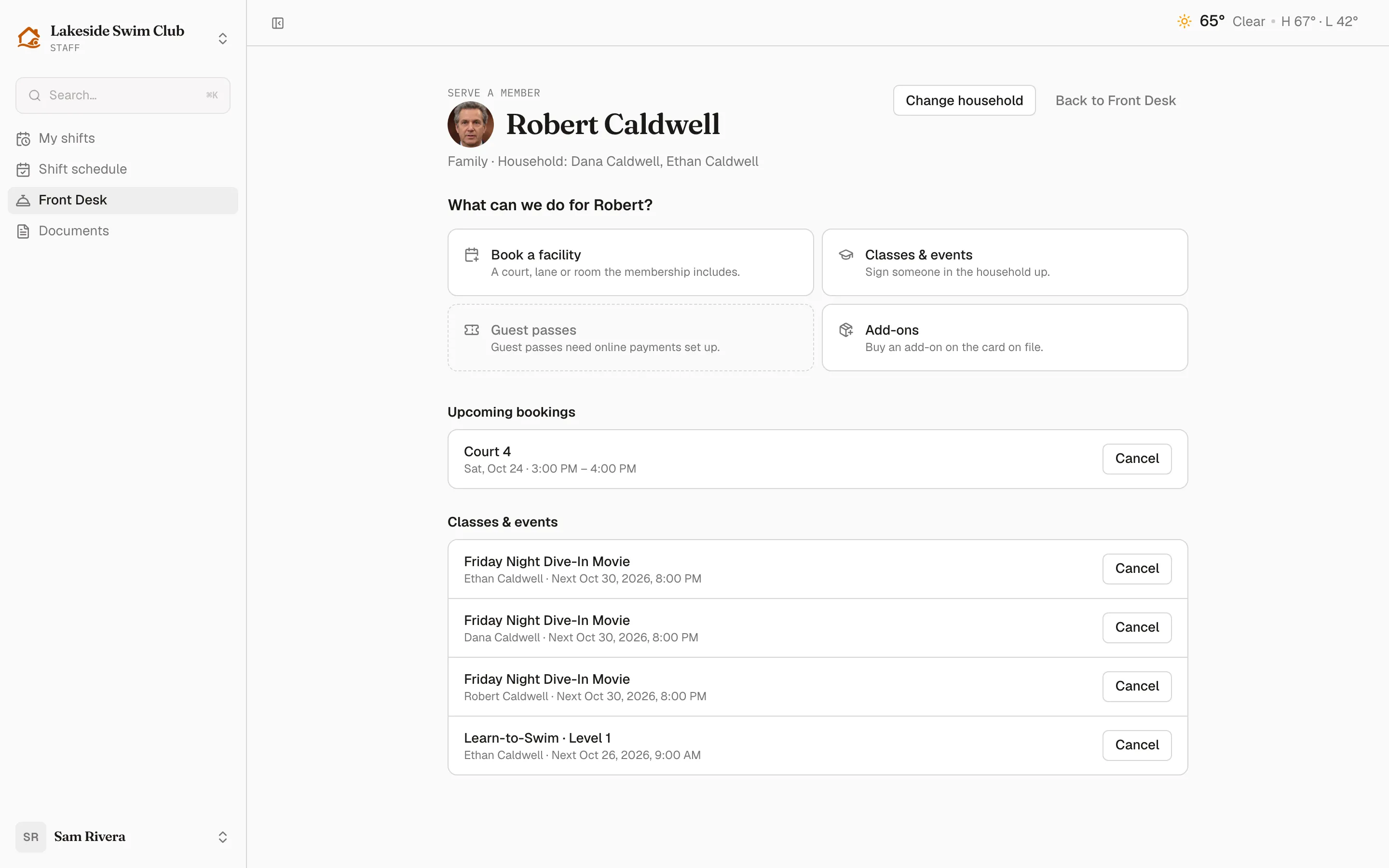
Below the task choices, the panel lists the member’s Upcoming bookings and Classes & events, with Cancel wherever the member could cancel themselves. Before you confirm a cancellation, Memberley says what happens to the money, under the same cancellation windows and refund rules the member gets.
The member’s rules apply
Section titled “The member’s rules apply”Everything runs exactly as if the member did it: booking limits, overlap rules, approvals, prices, cancellation windows, refund policies, age limits, required sign-up questions, and what’s sold online. A booking that needs approval is a request, not a confirmed reservation, and the finish screen says so. Staff can serve only members of your club, and only the people in that member’s household.
When the member can’t be charged
Section titled “When the member can’t be charged”Charges go to the member’s card on file, and only if the member has authorized your club to charge it.
- Guest passes, add-ons and paid classes stop at the review with The member needs to authorize this charge. The member has to add a card and allow the club to charge it from their own account, under Billing; the desk can’t do it for them. Choose another task or Back to Front Desk keeps the household where it is.
- Facility bookings with a fee still go ahead. The fee isn’t charged now. It stays unpaid on the member’s account for them to pay, just as if they’d booked without a card themselves.
- A booking request that needs approval notes that its fee is charged only if an admin approves it.
If the price or availability changes between the review and the click, Memberley shows the new review rather than charging an amount nobody saw.
Who did what
Section titled “Who did what”Memberley logs each desk action with the staff member as the person who did it and the member as the subject. The activity log shows the role beside the name, “(Staff)” or “(Admin)”. Checking someone out leaves a Member checked out entry too.