
Profile
Open My Account in the sidebar, then Profile, to keep your own details current. Here you can update your photo, name, sign-in email, and answers to the club’s profile questions.
Manage the rest of your family on Family Members.
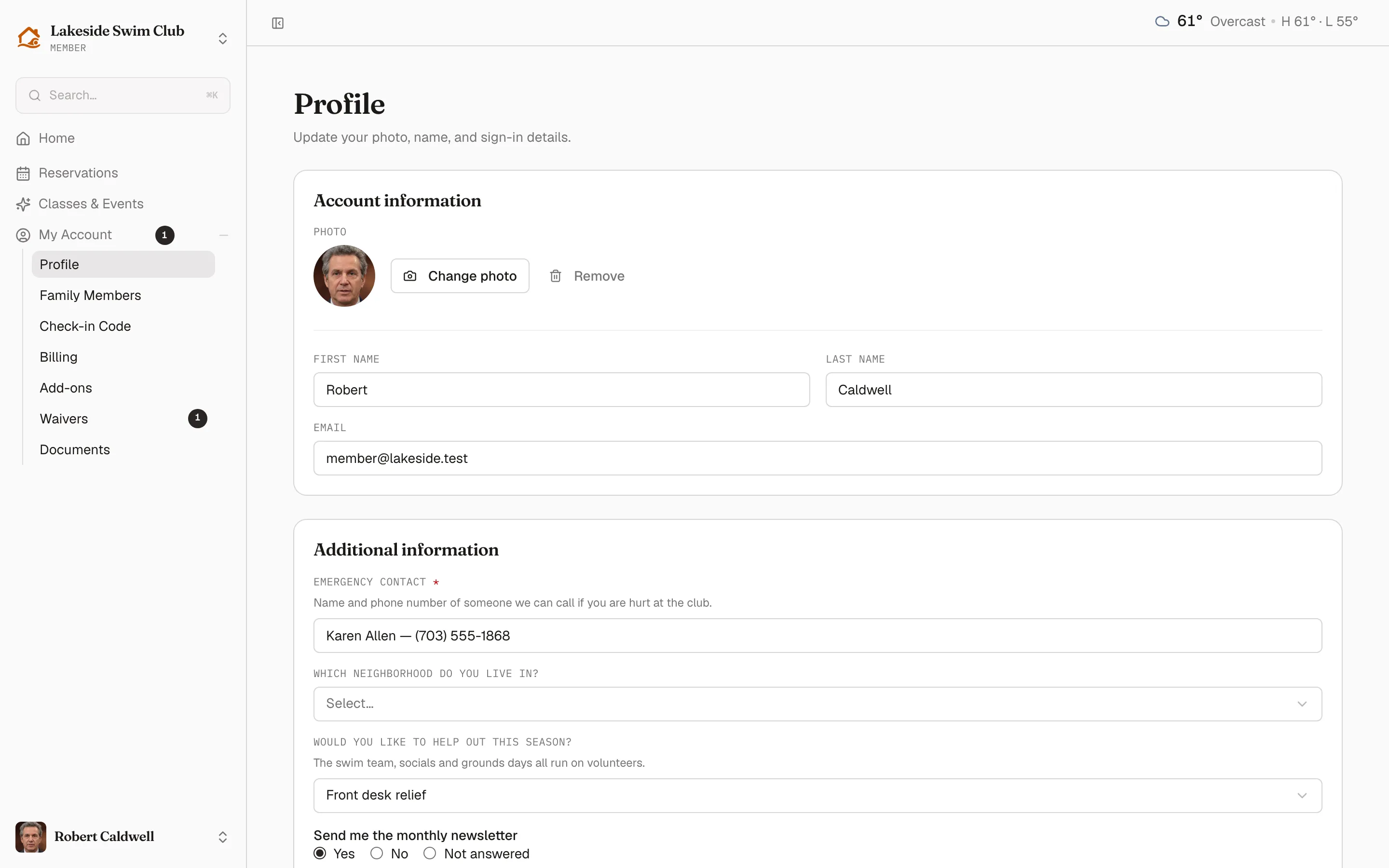
Account information
Section titled “Account information”The photo sits at the top of the card. Change photo uploads a new one, Remove clears it back to initials. It saves on its own the moment a file is chosen — there is no separate save for it.
Below that, First name, Last name, and Email. A Save profile button appears only once something has actually changed, so the card sits quiet until there’s a reason not to.
Changing the email address
Section titled “Changing the email address”The email address is the login, so Memberley asks for the account password before it moves. The password field appears only after the address is edited — a member fixing a typo in their name never sees it.
Once the address changes, the new one has to be verified before the member can get back into the app, and a verification link goes out immediately.
Keep your login and family profile up to date
Section titled “Keep your login and family profile up to date”When you share a membership, Account information still edits your own name, sign-in email, and photo. Each person keeps their own password, two-factor settings, and personal settings.
Your entry on Family Members is a separate family profile. Changing its name, email, birthday, or photo does not update your login profile, and changing your login profile does not update that family entry. After you accept an invitation, an email change in either place does not change who holds the shared access.
Additional information
Section titled “Additional information”If you’ve placed custom fields on the member profile, they render in their own card below, and they save separately. With joint access, Additional information belongs to the primary member’s shared membership. That separation is deliberate: a required question left blank can never block someone from fixing their name or email.
Fields you marked read-only show their value without an input. Fields marked staff-only never appear here at all — see Custom fields for where each placement surfaces.
A member with required questions still unanswered sees a banner on their home page linking straight to this card, which scrolls to it and focuses the first blank one.
What isn’t here
Section titled “What isn’t here”- Password and two-factor live under the account menu at the foot of the sidebar, not on this page.
- Notification preferences and the personal calendar feed are their own pages — see Notifications & calendar sync.
- Membership tier, status, and dates are yours to set, not theirs. A member who wants to change tier has to ask you.
Related
Section titled “Related”- Family members
- Custom fields
- Member profiles — the same person, from the staff side