
Custom fields
Custom fields collect the details Memberley doesn’t ask for out of the box — lot numbers, emergency contacts, t-shirt sizes, the locker key you hand over at the gate. You define each field once, then choose where it appears: registration, the member’s profile, the staff record, the check-in desk, and the roster’s columns, filters, and exports.
Open it with Settings → Custom Fields in the sidebar. (The roster’s ⋯ menu and each class or event link here too.)
Five places an answer can live
Section titled “Five places an answer can live”The page is split by what the answer belongs to, because that decides everything else about the field — when it’s asked, and what it’s saved beside.
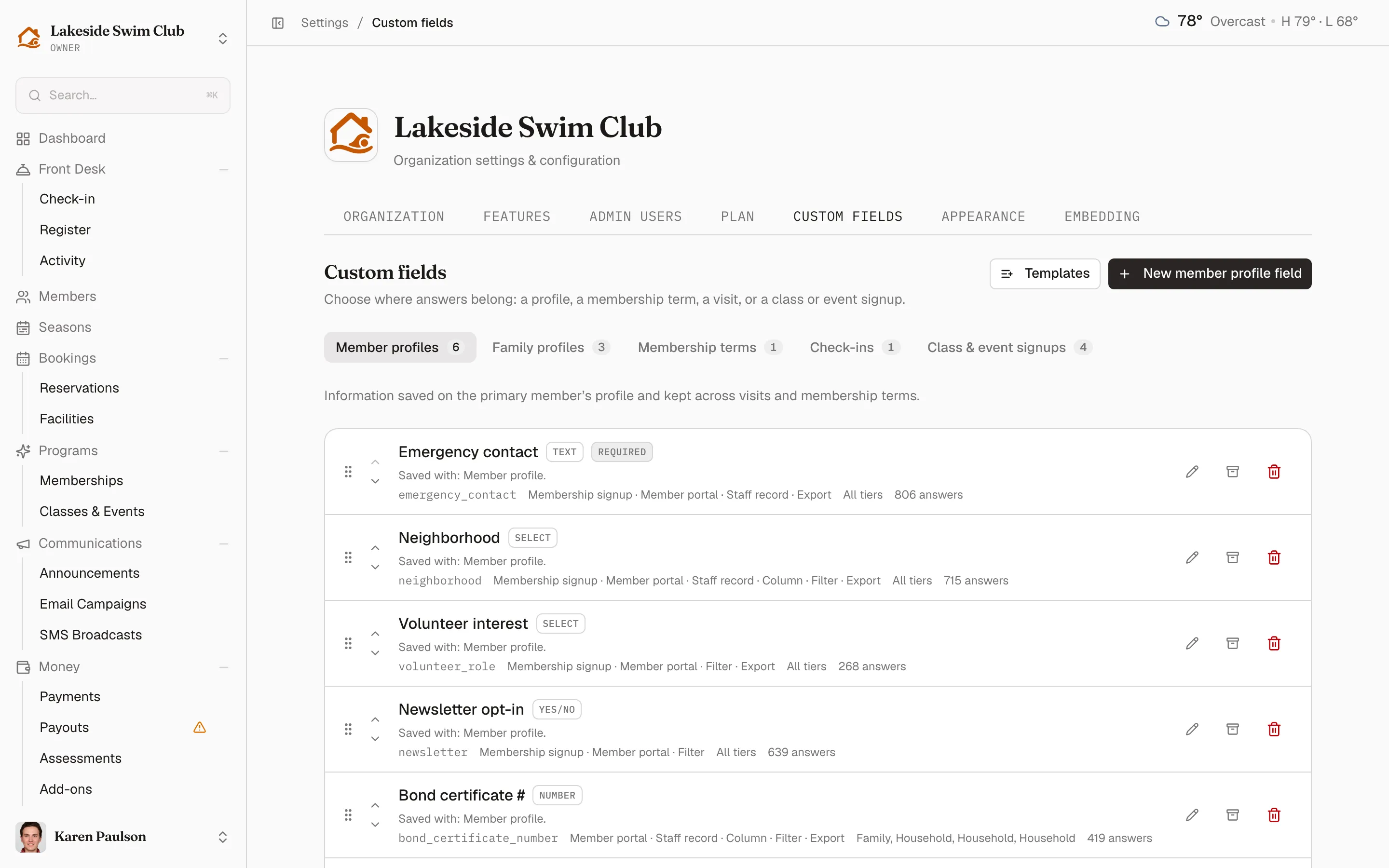
| Tab | The answer belongs to | Typical field |
|---|---|---|
| Member profiles | The primary member, kept across visits and seasons. | Emergency contact, neighborhood |
| Family profiles | Each family member on their own. | T-shirt size, swim test date |
| Membership terms | One membership — blank again when they renew into the next one. | Bag tag number |
| Check-ins | A single visit. Staff type it at the desk. | Locker key #, beach pass number |
| Class & event signups | One enrollment, asked when someone registers. | Swimming level, dietary restrictions |
Each tab counts its active fields, opens with a line explaining what it saves, and its button creates that kind of field: New member profile field, New check-in field, and so on. Each tab is also its own URL under /organization/custom-fields/, so you can bookmark or link straight to the one you work in.
Create a field
Section titled “Create a field”- Open the tab for the kind of answer you’re collecting and click its New … field button — or pick a starter from the Templates menu (Emergency contact name, Emergency contact phone, Lot / unit number, Dietary restrictions, T-shirt size, Photo consent, plus Beach pass number on the Check-ins tab, where it’s the only tab that offers it). Templates prefill the form; nothing saves until you review it.
- In the drawer, enter a Label and pick a Type: Short text, Long text, Number, Select (one of a list), Date, or Yes / No. Select fields take Options; text and number types take optional length or min/max/step constraints. Member-facing label, Placeholder, and Help text are optional.
- Under Who it applies to, choose one subject — The primary member, Family members, or A membership term.
- Check Membership tiers to scope collection to specific tiers, or leave all unchecked to collect from every tier. Tier scope affects collection and what members see — never the roster tools below.
- Under Collected from members, toggle Ask during membership signup — it appears in the “A few more details” section when someone joins — and optionally Required to register. Show on their profile puts it in the member portal with Members can edit or Read-only access, and Required on profile adds a completion nudge aimed at either Members joining from today on or All members, including existing ones.
- Under Staff tools, toggle Show on the staff member record and Filled out at check-in (see below). A Roster tools sub-heading holds the roster placements — Roster column, Roster filter, and CSV export — and Sensitive data sits at the bottom of the same block.
- Click Create field.
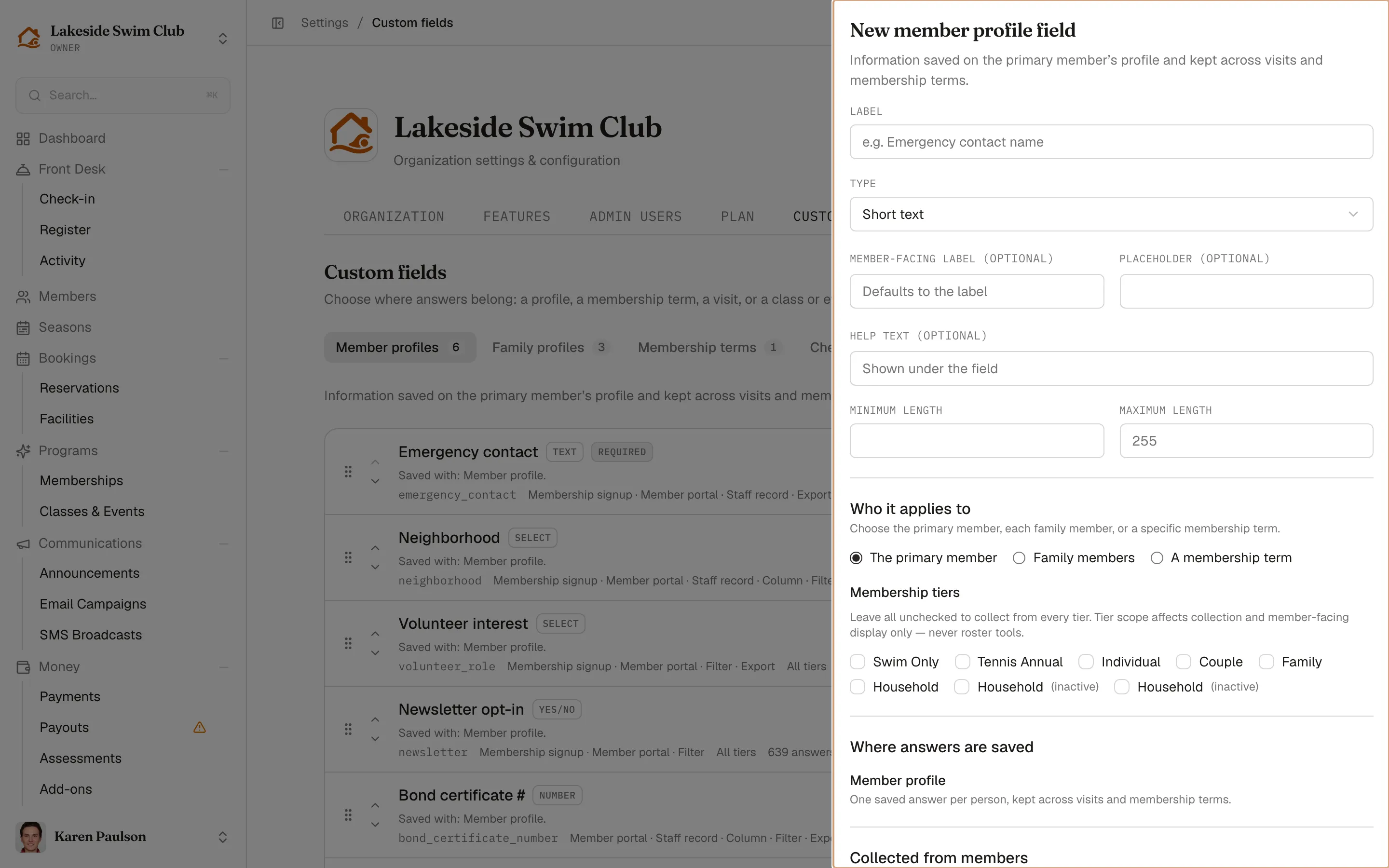
Where answers are saved names every place this field’s answers will land as you toggle, and further down, Preview as a member renders the field exactly as members will see it. The form warns you if the label duplicates a built-in attribute (name, email, phone, birthday are already on every account) and when registration would ask more than 5 custom questions — long forms depress signups.
Ask something at the gate
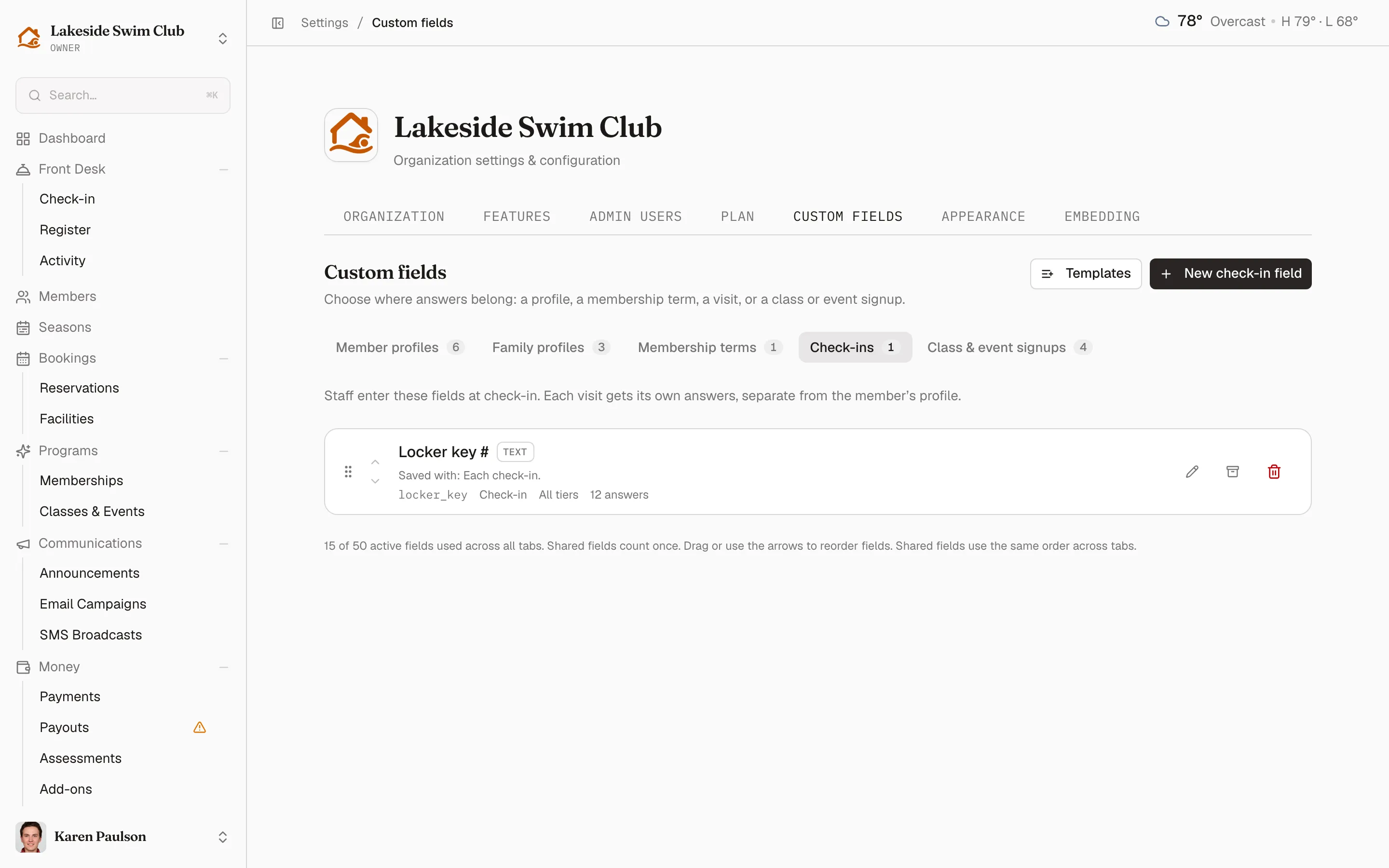
Section titled “Ask something at the gate”A check-in field is a member field with one extra placement: Filled out at check-in, under Staff tools. Staff enter a fresh value on every visit, saved with that visit rather than on the member — so “Locker key #” answers the question which key did they take today, not which key do they always take.
- Standard check-in fields become a column in the on-site table, are searchable, and print on the check-in roster.
- Required at check-in makes staff fill it in before the visit can be saved.
- Sensitive fields are the exception: their answers show in a visit’s Details panel only, never in the table, search, or printout.
Which tab a field lands on follows from its placements. A field that also has a non-check-in placement — asked at signup, shown on the profile, on the staff record — appears on both Member profiles and Check-ins. A check-in-only field, like the Beach pass number starter, lives on the Check-ins tab alone. Shared fields say so on the row: Also used in …, with a reminder that answers are saved separately in each context.
Class & event signup questions
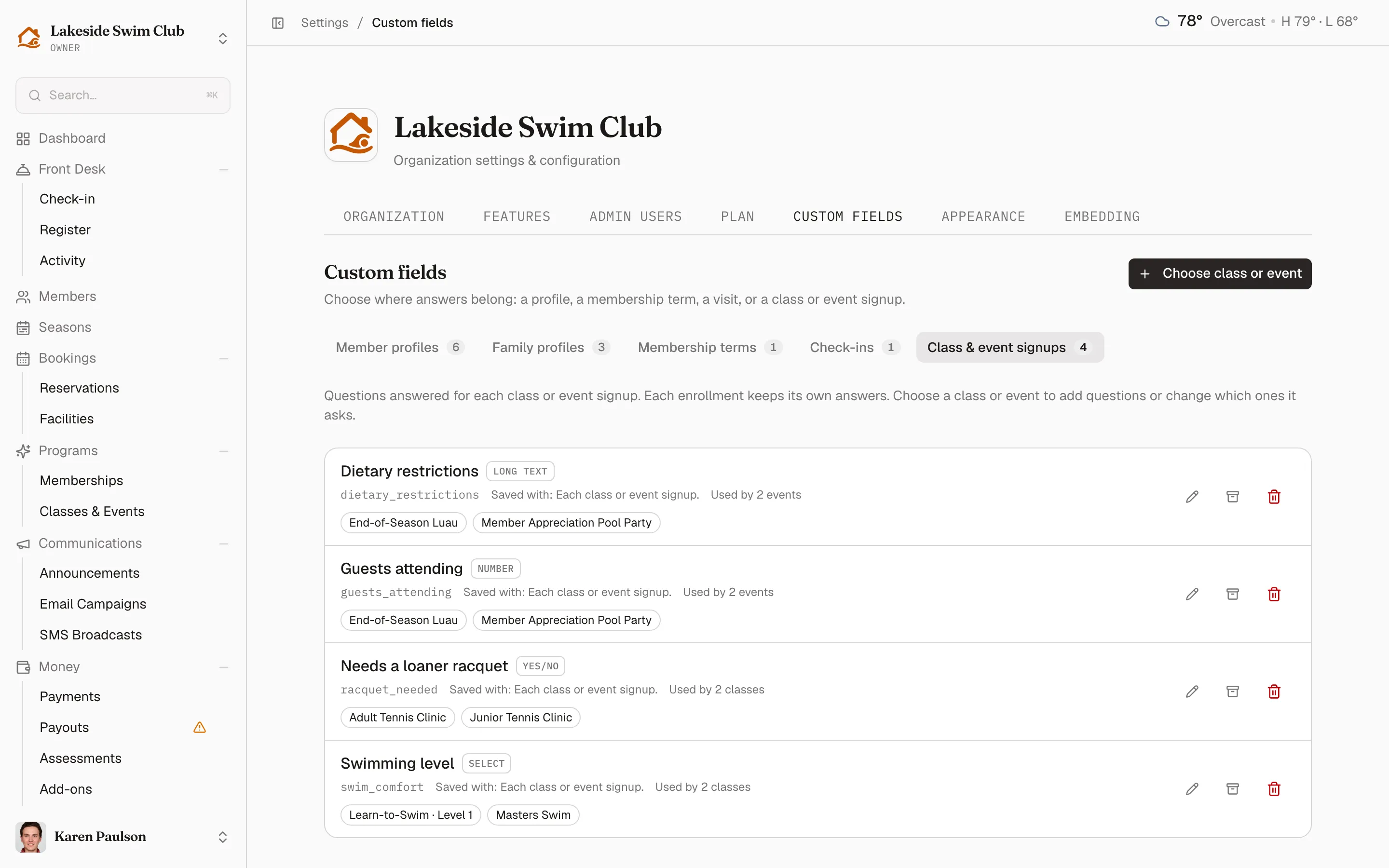
Section titled “Class & event signup questions”The Class & event signups tab lists the questions asked at enrollment, each one naming the classes and events that use it. You can Edit, Archive, and Delete a question from here, and Restore an archived one — what you can’t change here is which offerings ask it. That belongs to the offering, so Choose class or event takes you there — see Classes & events.
Sensitive fields
Section titled “Sensitive fields”Check Sensitive data, at the foot of Staff tools, for anything you wouldn’t want in a spreadsheet — medical notes, for example. Sensitive values are encrypted at rest and excluded from roster columns, filters, CSV exports, check-in tables, and logs; only the registration, profile, staff-record, and check-in-details surfaces can show them. The flag locks once the field has stored answers, as does the field’s type.
Reorder, edit, archive, delete
Section titled “Reorder, edit, archive, delete”Drag the handle or use the arrows to set the order members and staff see everywhere. You can keep up to 50 active fields; the footer counts how many you’ve used across all tabs, and notes that shared fields count once — a shared field is one field, not two, however many tabs it shows on. (The Class & event signups tab has no footer.)
An active row carries three actions. Edit and Archive have tooltips naming what they do; the red delete button doesn’t.
- Edit opens the field in a drawer. Editing is safe at any time: labels, options, and placements change freely while the field’s key and stored answers stay stable. Removing a select option that’s in use archives it rather than deleting answers.
- Archive asks you to confirm in a dialog that names the field, and tells you how many stored answers it holds. Confirming removes the field from forms, completion checks, and imports immediately, while those answers stay on record for staff. Archived fields collect in their own section on the tab.
- Delete permanently removes the field and every answer it holds, including past check-ins and enrollments. The dialog asks you to type the field’s label to confirm, and points at archiving instead.
An archived row drops Edit and offers Restore alongside delete.
The edit drawer’s header carries one more shortcut: Duplicate for family members on a member field, or Duplicate for the primary member on a family one, opens a prefilled create form for the mirror-image version. Membership-term fields and enrollment questions have no counterpart, so the button doesn’t appear on them.
Narrowing a field’s tier scope hides existing answers rather than deleting them; the form warns you exactly how many members and answers are affected.
Where the answers show up
Section titled “Where the answers show up”- Registration — in the “A few more details” section when someone joins.
- Member profile — under “Additional information” in the member portal.
- Staff record — the Details tab on the member’s profile, where staff edit answers directly. That tab only exists once your organization has at least one custom field.
- Roster — as extra columns, filter chips, and export columns on the member roster.
- Check-in — on the check-in form, in the on-site table, and on the printed roster. See Check-in.
- Class & event signups — on the registration form for the offerings that ask them, and on the roster export.
- CSV import — non-sensitive member fields can be filled in bulk, keyed by the field key shown on this page. See Adding & importing members.