
Recording & collecting payments
Most payments arrive on their own — members pay online when they join, book, or register. This page covers everything else: logging money that changed hands at the front desk, settling an invoice a member never paid, and chasing a charge that failed.
Record a manual payment
Section titled “Record a manual payment”Use this when a member hands you cash, a check, or pays through Zelle, PayPal, or Venmo — money that never touches Stripe.
-
Click Money in the sidebar, then Payments.
-
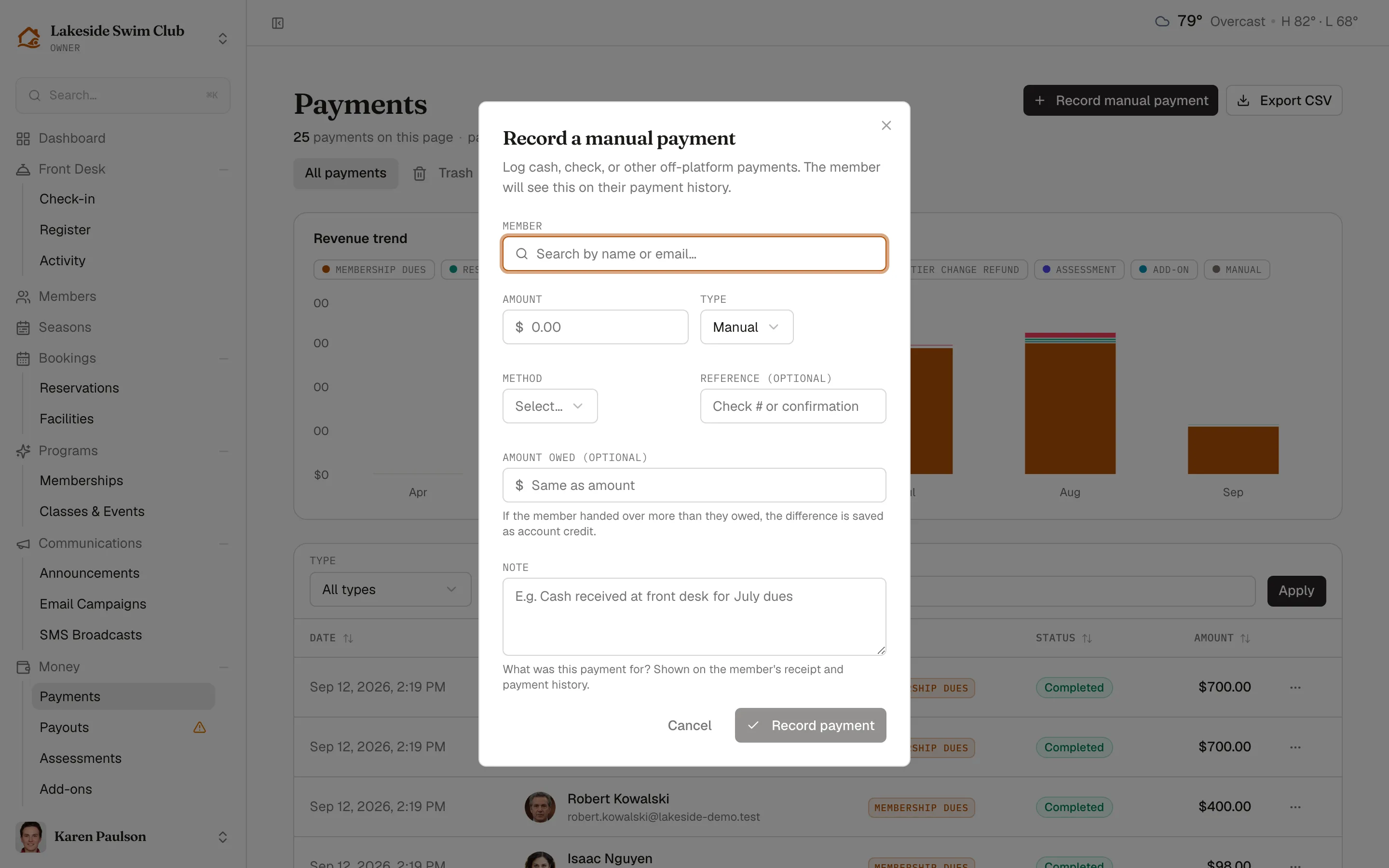
Click Record manual payment.
-
Search for the Member by name or email.
-
Enter the Amount and pick a Type — Membership dues, Reservation fee, Guest pass, or Manual for anything else.
-
Pick the Method (Cash, Check, Zelle, PayPal, Venmo, or Other) and optionally a Reference like a check number.
-
If the member handed over more than they owed, enter what they actually owed in Amount owed (optional) — the difference is saved as account credit instead of inflating your revenue. This requires account credits to be enabled in Features.
-
Write a Note describing what the payment was for — it appears on the member’s receipt and payment history.
-
Click Record payment.
The payment is recorded as completed and shows up with a tender badge on the payments list and on the member’s payment history.
Mark a pending payment as paid
Section titled “Mark a pending payment as paid”When an existing pending or failed charge — dues, a late fee, an invoice — was settled off-platform, mark it paid instead of recording a new payment.
-
Open the ⋯ menu on the payment and click Mark as paid….
-
Pick the Method and optionally a Reference, then click Mark as paid.
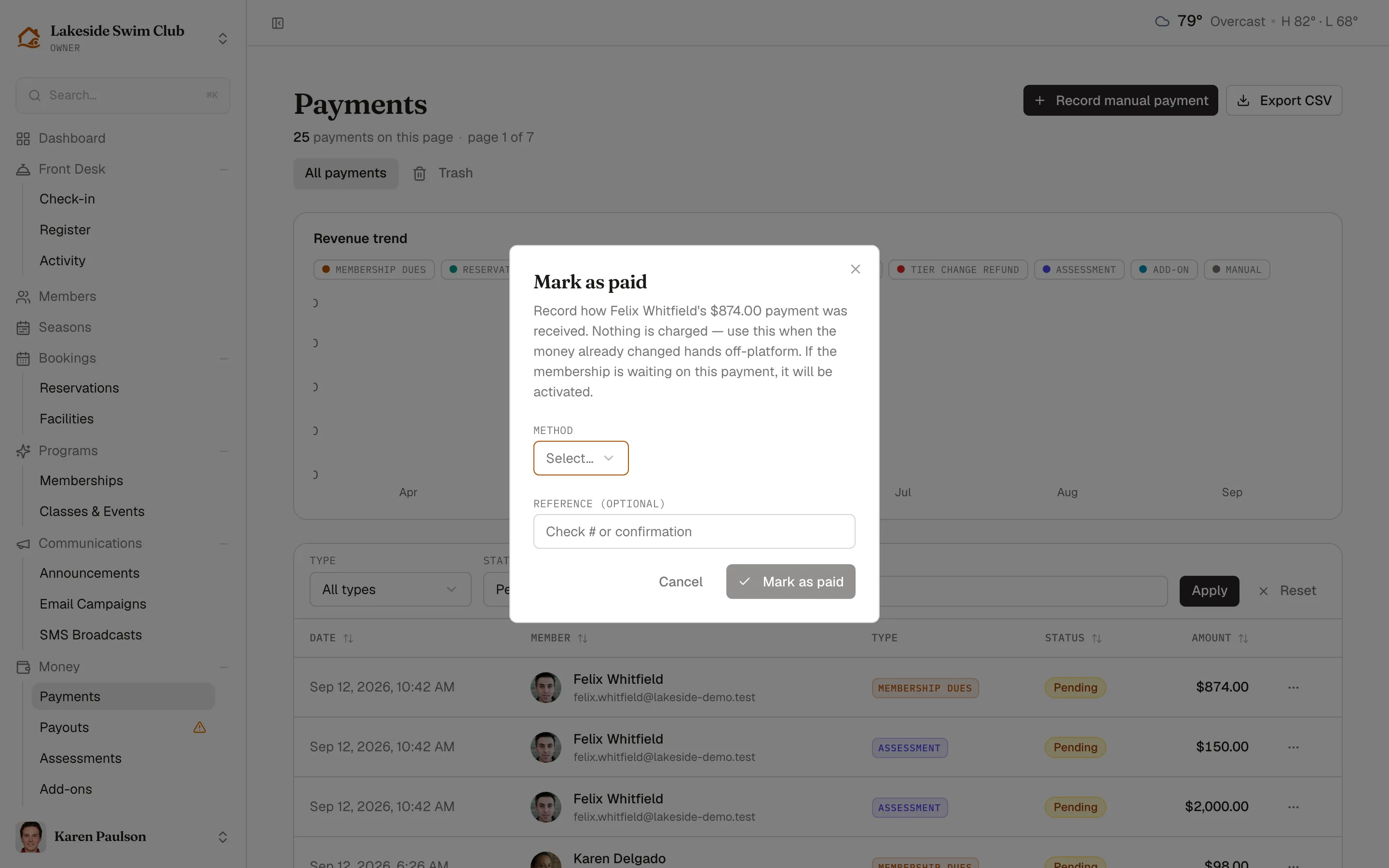
Nothing is charged — this records money that already changed hands. Memberley then runs the same follow-through a successful online payment would: a dues payment activates a membership that was waiting on it, and a reservation-fee payment marks its reservation paid.
You can also use Mark as failed on a pending payment to record that a collection attempt didn’t work out.
Charge a saved card or bank account
Section titled “Charge a saved card or bank account”For pending payments, the ⋯ menu offers Charge saved payment method; for failed ones it reads Retry charge. Either way, confirm in the dialog and Memberley charges the member’s saved card or verified bank account through Stripe immediately. A successful dues charge activates the waiting membership.
Pending installment payments are excluded — the payment plan’s scheduler charges those on their due dates.
A charge can also fail because the member has no saved payment method, their bank account is still awaiting microdeposit verification, the card was declined, or your organization’s Stripe setup isn’t finished. Memberley tells you which it was.
Send a payment request (pay-by-link)
Section titled “Send a payment request (pay-by-link)”A payment request emails the member a secure link to pay one specific invoice — no login or account setup needed, which makes it the best tool for members who haven’t signed in yet.
- Open the member’s profile.
- On the membership card — shown while the membership is awaiting payment — click Send payment request.
The member gets an email with a link that’s valid for 14 days. They enter a card on a simple payment page, the payment settles, and a waiting membership activates. Paying a request also authorizes your organization to charge that saved card in the future.
Send a reminder instead
Section titled “Send a reminder instead”A reminder nudges without collecting: it emails the member about the outstanding membership payment and points them to sign in and pay.
- On the member’s profile, next to Send payment request, click Send reminder.
- Or open the ⋯ menu on a pending or failed membership payment in the profile’s payment history and click Send reminder.