
Discount codes
Discount codes are promo codes members type at checkout — SENIOR25, EARLYBIRD — to take a percentage or a fixed amount off membership dues, the join fee, or both. Both owners and managers can manage them.
Create a code
Section titled “Create a code”-
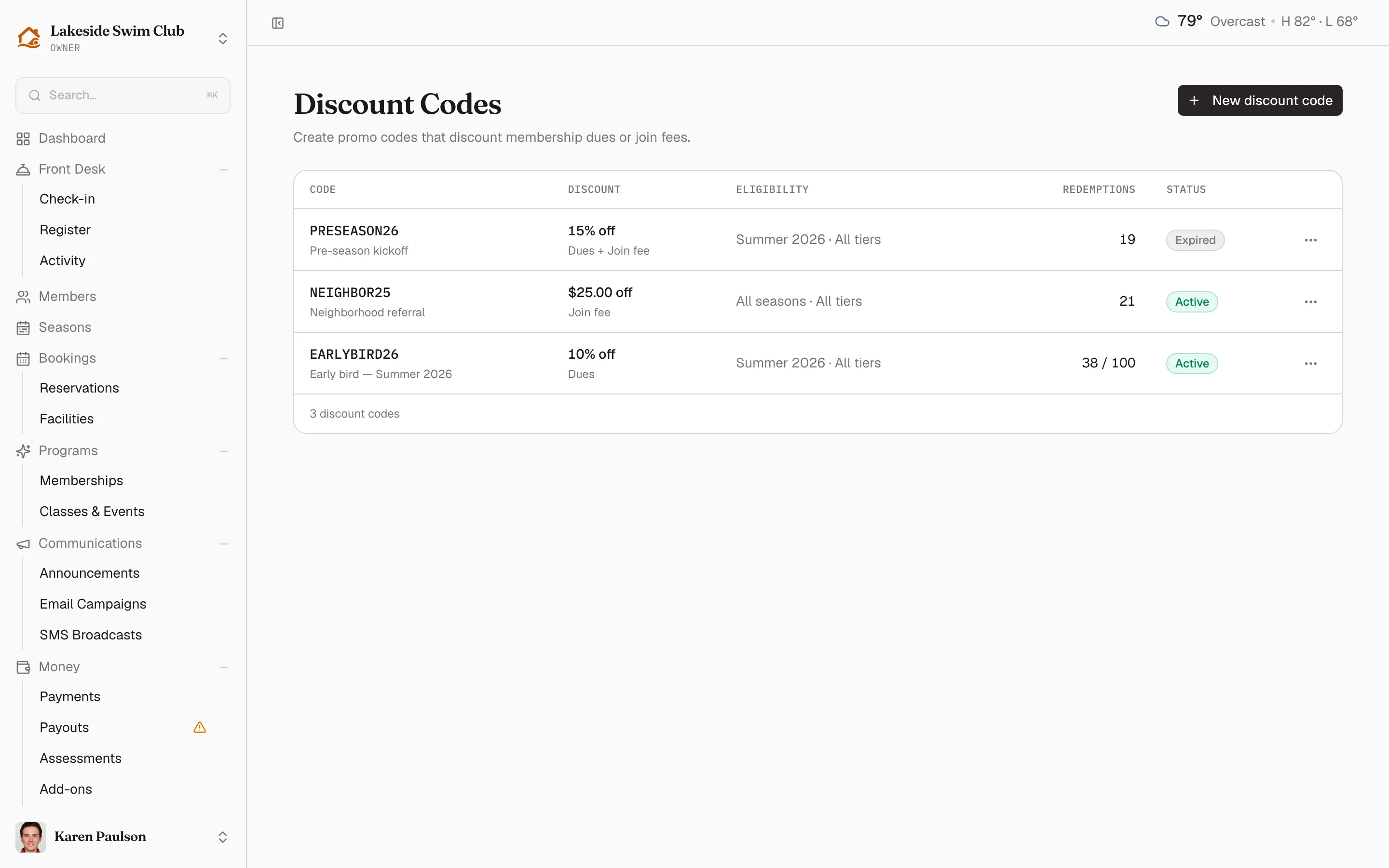
Click Money in the sidebar, then Discount Codes.
-
Click New discount code.
-
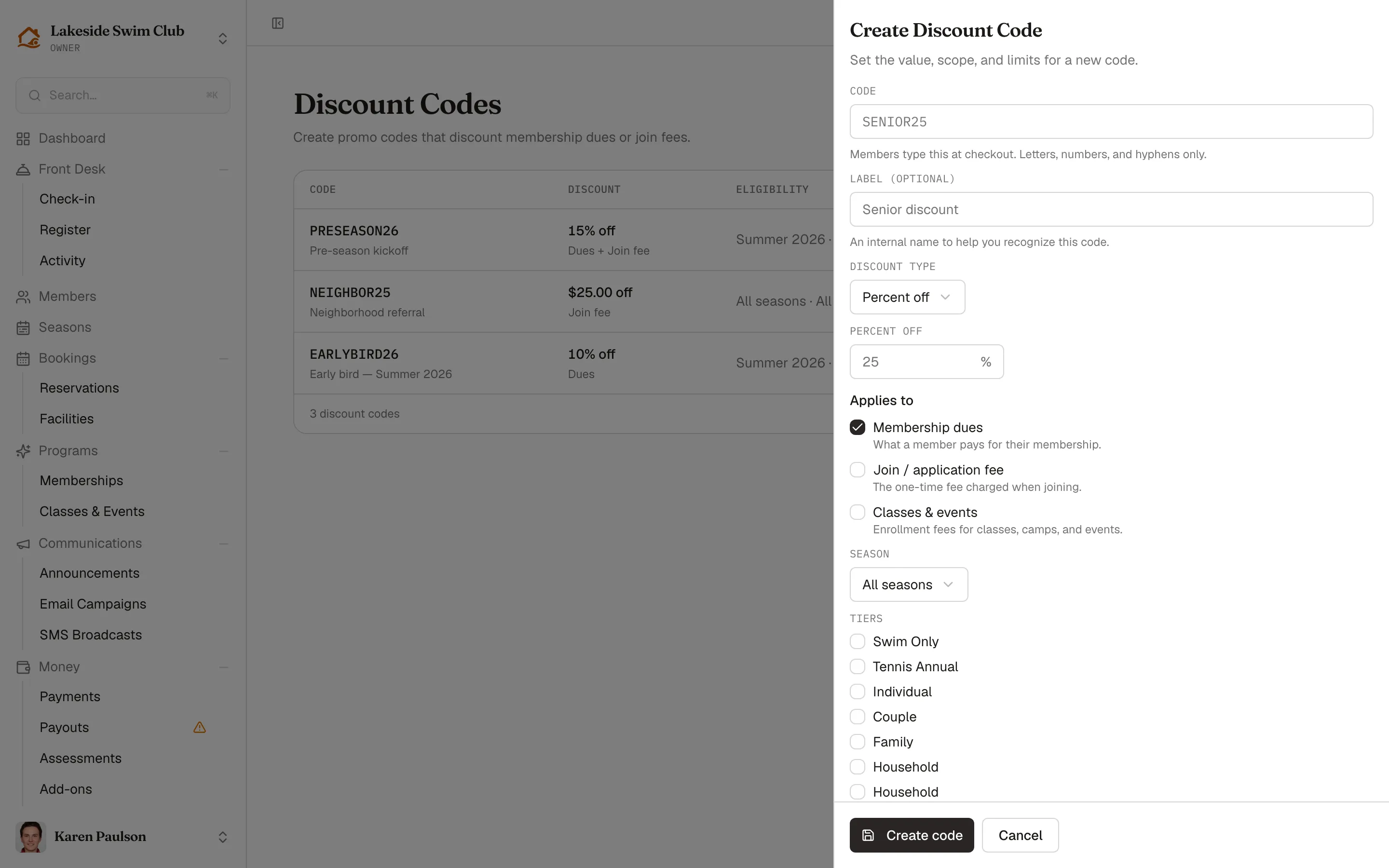
Fill in the form and click Create code.
The code itself
- Code — what members type at checkout. Letters, numbers, and hyphens only; it’s stored uppercase.
- Label (optional) — an internal name so you remember what the code is for. Members who apply the code see this label on the discount line.
Value
- Discount type — Percent off or Fixed amount off.
- Percent off (1–100) or Amount off in dollars, depending on the type.
What it applies to
- Applies to — Membership dues, Join / application fee, or Both.
- Season — limit the code to one season, or leave it at All seasons.
- Tiers — check specific tiers, or leave all unchecked to cover every tier. Picking a season narrows the tier list to that season’s tiers.
Limits
- Starts on (optional) — before this date the code shows as Scheduled and can’t be redeemed. Blank means immediately.
- Expires on (optional) — blank means never.
- Max redemptions (optional) — blank means unlimited.
- Limit to one use per member — on by default.
- Code is active — uncheck to create the code switched off.
Where members enter codes
Section titled “Where members enter codes”Members type the code into the Promo code field at checkout — on your organization’s join portal and on season registration pages. A live preview shows the reduced total before they pay, so there are no surprises.
How it lands depends on what’s being paid:
- A code for the join fee reduces (or eliminates) the fee charged when someone applies.
- A code for dues is held with the registration and applied when the dues are actually charged — the discount appears as its own line against the full price.
- A failed charge never uses up a redemption; the code only counts as used when the discounted payment completes.
Read the table
Section titled “Read the table”One row per code: the Code itself with its label beneath, the Discount and what it applies to, its Eligibility — season and tier scope — and Redemptions, either a bare count or 38 / 100 against a maximum. The Status pill tells you what a member would experience today:
- Active — redeemable right now.
- Scheduled — the start date hasn’t arrived yet.
- Expired — past its expiry date.
- Exhausted — hit its max redemptions.
- Inactive — switched off.
Edit or deactivate a code
Section titled “Edit or deactivate a code”- Open the row’s ⋯ menu.
- Click Edit to change any field, or Deactivate to stop redemptions immediately.
Deactivating keeps the code and its redemption history; re-check Code is active on the edit form to turn it back on.
Delete a code
Section titled “Delete a code”- Open the row’s ⋯ menu and click Delete.
- Confirm with Delete code.
Only codes that have never been redeemed can be deleted. If the code has been used, Memberley refuses the delete and the dialog offers Deactivate instead, so the redemption history behind past payments stays intact.