
Profile & security
These settings are personal — they follow your account, not the organization, so every admin (and member) manages their own. Open them from your name at the bottom of the sidebar.
Profile
Section titled “Profile”Under Settings → Profile:
- Profile information — update Your full name and Email address, and your avatar photo.
- Phone number — add or change your phone with Change phone; a verification code confirms it before it shows Verified. A verified phone is what makes SMS notifications deliverable to you.
- Delete account — permanently removes your personal account. For an owner, transfer ownership first — an organization can’t lose its last owner.
Password
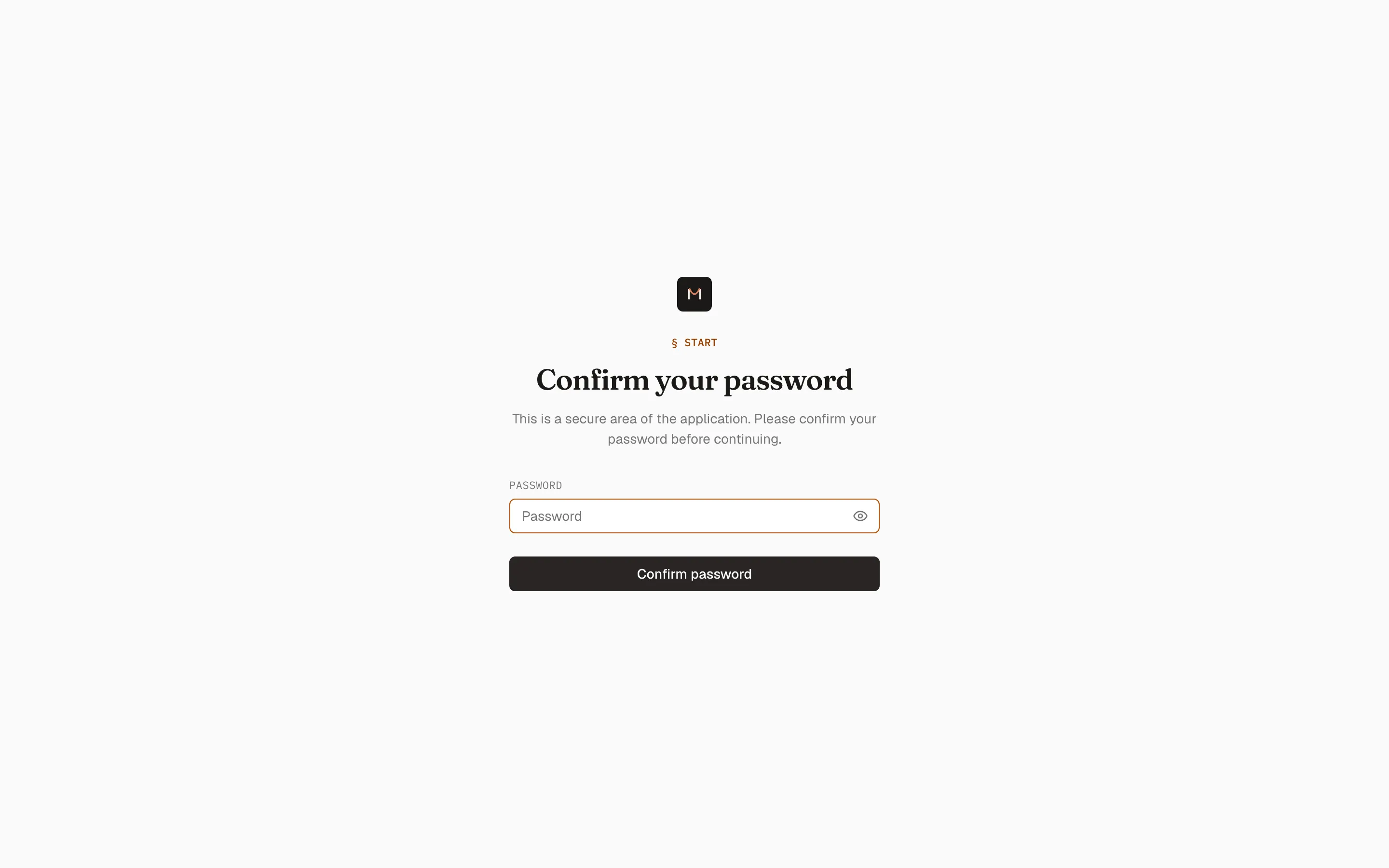
Section titled “Password”Under Settings → Security, use Change password: enter your current password, then the new one twice, and save.
Two-factor authentication
Section titled “Two-factor authentication”Also under Security:
- In the Two-factor authentication section, start enrollment.
- Scan the QR code with an authenticator app (1Password, Google Authenticator, Authy) and enter the code it shows to confirm.
- Store the recovery codes somewhere safe — each one is a single-use sign-in for when your phone is unavailable.
Signing in then asks for a current authenticator code after your password. You can regenerate recovery codes or disable two-factor from the same section.
Appearance
Section titled “Appearance”Under Settings → Appearance, choose Light, Dark, or System for your own admin interface. It’s per-person and doesn’t affect anyone else.