
For staff
This page is for the people who work shifts at your club, like lifeguards and gate attendants. It covers what you see when you sign in: your shifts, the club’s schedule, and what to do when you can’t make a shift. Managers can send it to a new hire as-is.
Accept your invitation
Section titled “Accept your invitation”How you get in depends on whether you already had a Memberley login:
- New to Memberley. Your email, “Join the Lakeside Swim Club staff”, has a Set up your login button. Set a password and you land on My shifts. The link works once, for seven days.
- Already a member or admin at this club. You were added straight away. Your email, “You’ve been added to the Lakeside Swim Club staff”, links to your shifts.
- A login at another club. Click Review invitation, then Sign in to accept with that login, and click Accept and join the staff. Never set a password? Click Set one with your email, then come back to the link.
If you open the link while signed in as someone else, the page says Use the invited login. Click Sign out and sign in as the invited address. Your own login is never added to the staff.
If the link no longer works, the page says why:
- This invitation has expired — the link ran out.
- This link has been replaced — a newer email has a fresh link.
- This invitation is no longer available — the club withdrew it.
Each page offers a way to contact the club, which can send a new invitation.
Your sidebar
Section titled “Your sidebar”If you only work at the club, your sidebar has four links: My shifts, Shift schedule, Front Desk (when the club uses Check-in or the Register) and Documents. Signing in always lands you on My shifts. Your profile and notification settings are in the account menu at the bottom of the sidebar.
If you’re also a member, you keep your member home and My Account links, and get My shifts, Shift schedule and Front Desk too. The role chip under the club’s name reads Staff.
My shifts
Section titled “My shifts”My shifts puts the next thing you need first.
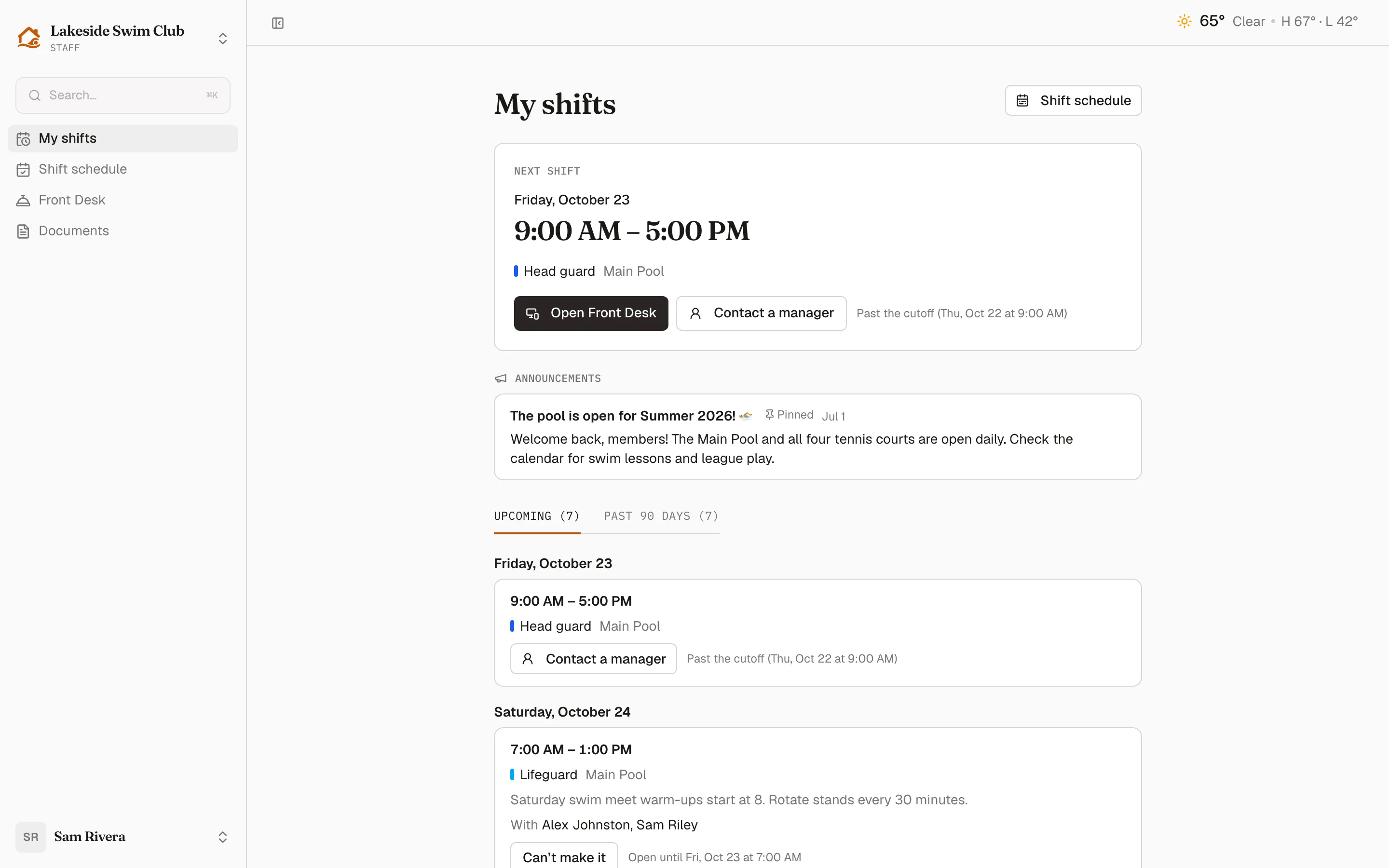
- Closure notices — if the club closes soon, that notice comes first.
- Working now or Next shift — the full date and time (with the end date for overnight work), your position and facility, and Open Front Desk when the club has a desk. A shift under way stays here as Working now, even past midnight.
- Announcements — posts for everyone and for staff, in a compact list with Show more and View all. Posts meant only for members don’t appear here.
- Upcoming and Past 90 days — your shifts by day, each with the time, position, facility, any notes for staff, and who you’re working with.
When nothing is scheduled, the page says “No upcoming shifts”, with Open Front Desk and View shift schedule buttons and who to ask. The page refreshes itself every few minutes, so a phone left open stays current.
If a shift is canceled, you drop it, or you’re taken off it, it stays in your list until it would have ended. It’s marked Canceled, Declined or Removed, with “You are no longer scheduled”, so you’re never left wondering where it went.
Can’t make it
Section titled “Can’t make it”You can drop a published shift yourself until the club’s cutoff, which is 24 hours before the shift unless your club changed it.
- Click Can’t make it on the shift. The hint beside it says how long you have, such as “Open until Sun, Oct 25 at 9:00 AM”.
- Under Why can’t you make it?, give a short reason. Only managers see it.
- Click I can’t make it, or Keep my shift to back out.
Memberley confirms “You’re no longer scheduled” and tells your managers right away. The shift shows as short on the schedule until someone covers it, and stays in your list marked Declined.
After the cutoff, or once the shift has started, the button becomes Contact a manager. It explains that it’s too late to drop the shift here, and shows your club’s scheduling contact with an Email button, plus Call if they gave a phone number. You’ll also find that contact under “Questions about your schedule?” at the bottom of My shifts.
The shift schedule
Section titled “The shift schedule”Shift schedule is the club’s published schedule for everyone, read-only. Your own shifts are also in My shifts. You get the same Day, Week, 2 weeks and Month views as managers, with By facility and By person grouping, Filters, and ⋯ → Print. Click a shift to see its position, facility, time, the staff on it and any notes for staff.
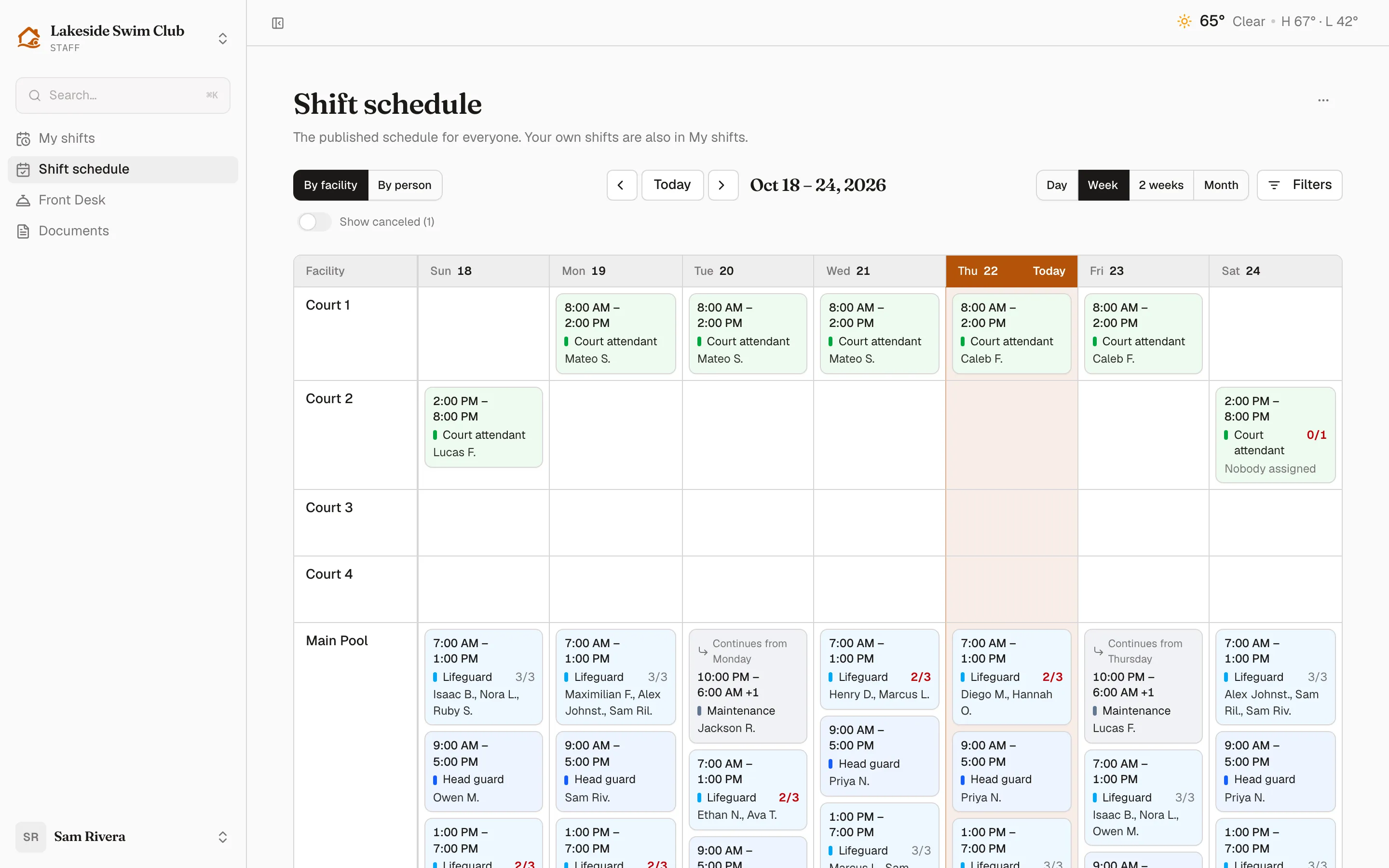
You see only what’s been published. Drafts, unpublished edits, manager notes and other people’s reasons for dropping a shift are visible only to managers.
Notifications
Section titled “Notifications”Memberley emails you when your shifts are published, changed or canceled. Those emails always go out, even if you unsubscribed from a club newsletter. Choose the rest under Settings → Notifications, in the Work section:
- Shift reminders — a reminder shortly before each shift you’re scheduled to work. Email starts on and text starts off. Your club sets how far ahead: 2 hours unless it changed that.
- Shift change texts — a text when a shift in the next 48 hours changes or is canceled. On by default.
Texts need your club to have texting turned on, and a verified phone number on your profile. More on these settings in Notifications & calendar sync.
Your calendar
Section titled “Your calendar”Your personal calendar link, under Settings → Calendar, lists your published shifts alongside any bookings, from a week back to about four months ahead. Each shift appears with its position, such as “Lifeguard shift”, the facility as its location, and your notes and co-workers in the details. Dropped and canceled shifts disappear from it.
The feed follows the club you last had selected in Memberley. If you work for two clubs, it shows whichever one you were in most recently.
Documents
Section titled “Documents”Documents in your sidebar holds the files your club shares with staff, such as a staff handbook or the emergency action plan, along with its public documents. Members don’t see staff documents.
Put Memberley on your phone
Section titled “Put Memberley on your phone”Add Memberley to your home screen and it opens like any other app, straight to My shifts if you only work at the club. The steps for iPhone and Android are on Install the app.