
Creating & cloning seasons
Your first season you create from scratch; every season after that is usually a clone of the last one. Cloning copies your membership tiers forward a year and stages the whole kickoff — renewal invitations and the carried-over waitlist included.
Create a season
Section titled “Create a season”- Click Seasons in the sidebar, then New season.
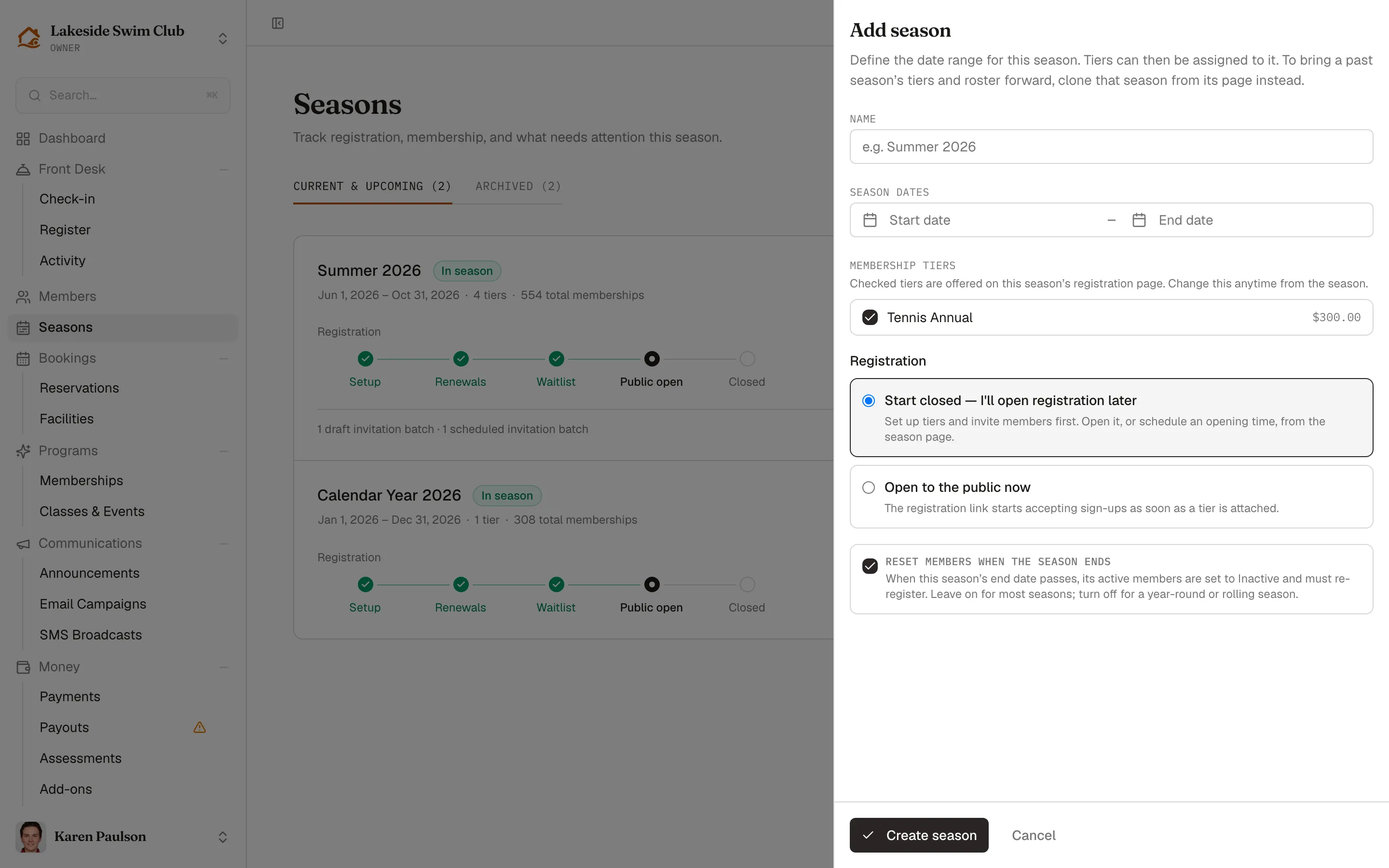
- In the Add season drawer, enter a Name (e.g. Summer 2026).
- Pick the Season dates — a start and end date. The end date can’t be before the start.
- Under Membership tiers, leave checked the tiers this season should offer. Every active tier not already scoped to a season starts checked. You can change the lineup anytime from the season page.
- Under Registration, choose how it opens:
- Start closed — I’ll open registration later (the default) puts the season in the setup phase. Attach tiers and invite members first, then open it — or schedule an opening time — from the season page.
- Open to the public now starts the season in the open phase: the registration link accepts sign-ups as soon as a tier is attached.
- Leave Reset members when the season ends checked for a normal season: when the end date passes, its active members are set to Inactive and must re-register. They leave the roster at that point and are listed on the Expired tab as Season ended, which is also where you’ll find them when it’s time to invite them back. Uncheck it for a year-round or rolling season.
- Click Create season.
Offer tiers in a season
Section titled “Offer tiers in a season”The season page’s Membership tiers card is where the season’s lineup lives. Checked tiers are offered on the season’s registration page; active tiers not scoped to any season appear unchecked, ready to add. New tier opens the tier form already scoped to this season.
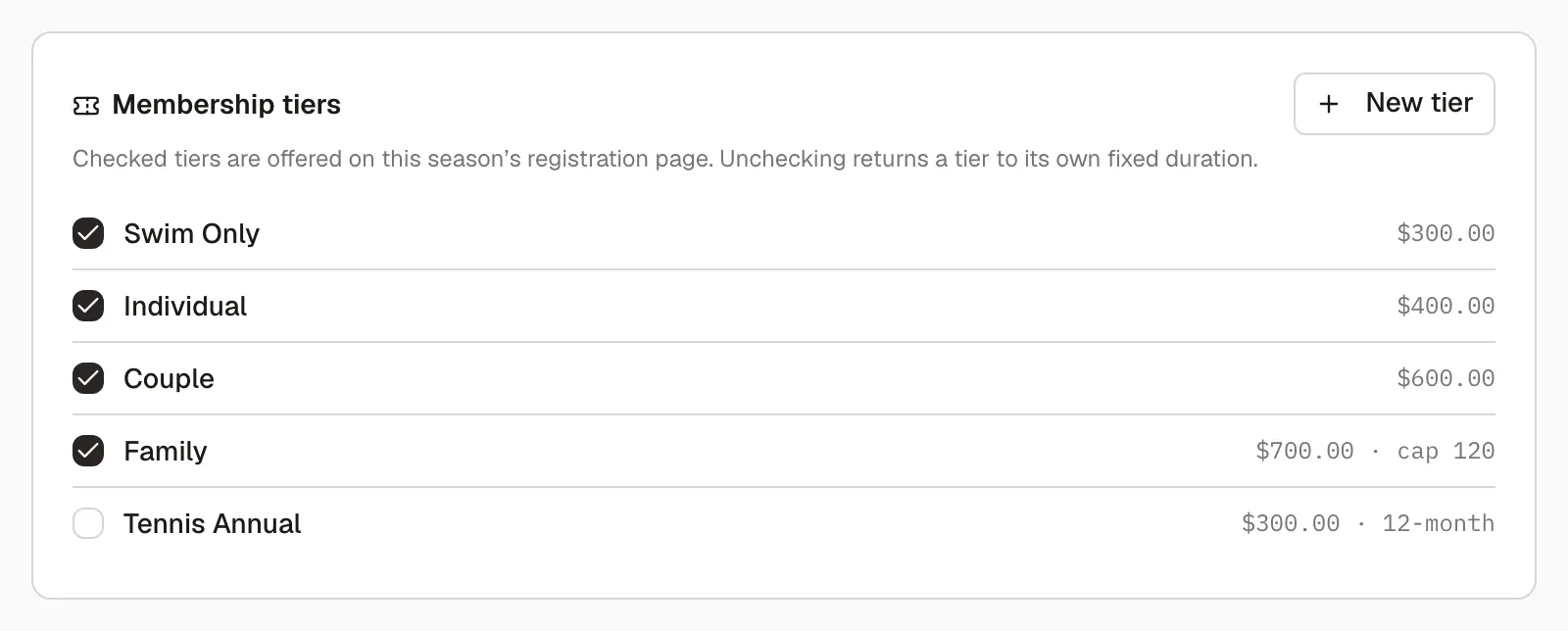
- Check a tier to offer it this season. A seasonal tier can still offer installment plans — members are only shown the plans whose last payment lands on or before the season’s end date.
- Uncheck a tier to withdraw it — the tier goes back to running on its own fixed duration from enrollment, and mid-season proration switches off with the season. A tier with no duration of its own can’t be unchecked here; give it a term (or make it lifetime) on the tier form first, so it doesn’t silently become open-ended.
A tier belongs to at most one season — to move one between seasons, uncheck it on its current season first.
Clone last season
Section titled “Clone last season”- Open last season’s page and click the Season actions menu (the ⋯ button), then Clone.
- In the Clone season dialog, choose what carries forward:
- Build a held renewal batch for current members — queues last season’s active and inactive members as a draft invitation batch. Nothing sends or charges until you review and release it. Set Invites expire after to how many days each member has to pay before their seat frees up; it starts from your organization’s awaiting-payment timeout.
- Carry the waitlist forward — recreates waitlisted members in the new season with their position preserved.
- Click Clone season.
The clone is dated one year later and named by moving every year in the name forward one — “Summer 2026” becomes “Summer 2027”, “2025-26” becomes “2026-27”. A name with no year in it gets “(Copy)” appended instead, and it’s worth renaming: the season name is the subject line of the renewal email members receive.
Every tier is copied — prices, application fees, capacity, family pricing, guest passes, autopay, installment options, and facility restrictions. A tier that was retired only because its season ended comes across active, so a clone made in the off-season isn’t born empty; a tier you retired on purpose can be unchecked again on the new season. Custom registration questions and assessments scoped to specific tiers follow those tiers into the new season.
The clone starts in the Setting up phase, so nothing is public until you advance it, and its page shows the kickoff checklist to walk you through renewals and opening up.
Members are not carried over as active — they rejoin by accepting their renewal invite and paying.
Archive a season
Section titled “Archive a season”A season that has ended archives itself within the hour, so most clubs never do this by hand. To file one away early — the season is finished before its end date, or it was created by mistake:
- On the season page, open the Season actions menu (⋯) and click Archive.
Archived seasons move to the Archived tab on the seasons list. Their registration link shows a “closed” notice, phase controls disappear, and late fees are no longer assessed. Any scheduled opening time is cleared, and any invitation batch that was scheduled to send goes back to draft rather than going out into a season you’ve taken out of service. Nothing about the season’s members or history changes.
Click Unarchive in the same menu to bring a season back. A season whose end date has already passed can’t be unarchived — the hourly sweep would only archive it again — so the menu item is disabled and says so. Extend the end date in the Edit drawer first (editing stays available on archived seasons), then unarchive.
Delete a season
Section titled “Delete a season”You can only delete a season with no tiers and no memberships attached — for anything with history, archive instead.
- On the season page, scroll to Delete season. The button is disabled if tiers or memberships are attached, with a message saying which.
- Click Delete season, then confirm with Delete.