
Viewing the app as a member
When a member says “I don’t see the booking button”, View as member lets you answer “what are they actually seeing?” without asking for their password. You browse the app exactly as that member does — read-only by default — and the member never knows: they aren’t signed in, signed out, or notified.
Start a preview
Section titled “Start a preview”- Click Members in the sidebar, open the member’s row ⋯ menu, and click View as member.
- Confirm in the View as … ? dialog by clicking View as member.
The same action lives in the ⋯ menu on the member’s profile — from there it starts immediately, no confirmation. Either way, you land on the member’s dashboard with a banner pinned to the top of every page: Viewing as with the member’s name and email.
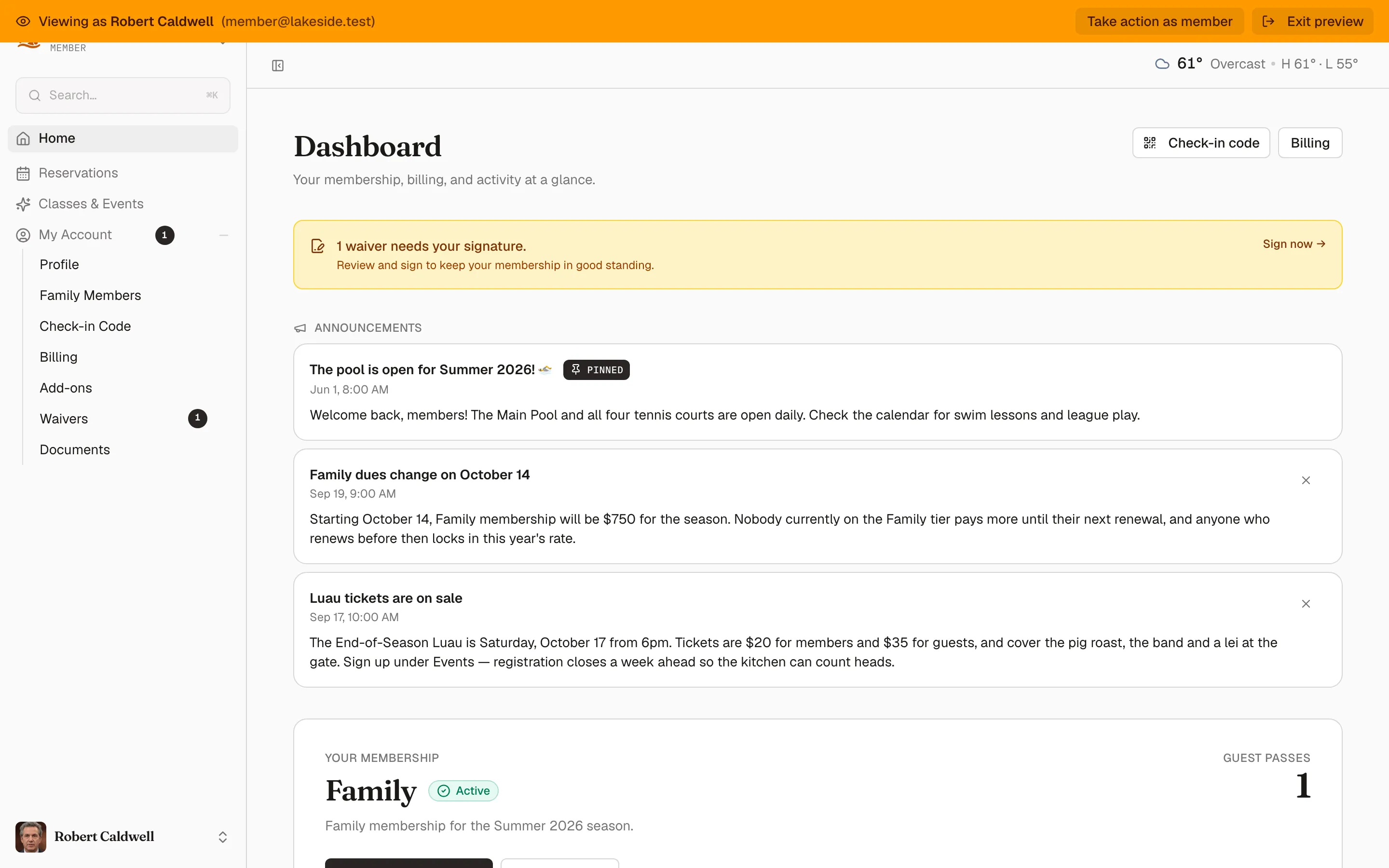
While previewing, everything is read-only — you can look anywhere the member can, but any attempt to change something is blocked. Starting a preview while another is running closes the first one cleanly.
Who can preview whom
Section titled “Who can preview whom”- Owners and managers can preview any regular member in the organization.
- You can’t preview yourself — your own account already has a member view.
- You can’t preview another owner or manager, only member accounts.
Take action as the member
Section titled “Take action as the member”If looking isn’t enough — say you’re walking a member through a booking over the phone — you can escalate:
- In the banner, click Take action as member.
- Read the Enable actions as … ? dialog carefully, then click Enable actions.
The banner turns red — Acting as, with a Writes enabled tag — and you can now make changes as if you were the member: book reservations, update their profile, and so on.
Exit the preview
Section titled “Exit the preview”Click Exit preview in the banner at any time. You return to your own view, landing on the member’s profile page.
Every preview is written to the activity log: when it started, whether it was escalated to writes, and when it ended — including how long it lasted. The entries share a correlation id, so one preview session reads as a single sequence in the audit trail.