
Joint access
Joint access lets one adult family member use their own login to help manage an existing membership. Owners, managers, and the primary member can send invitations; the joint holder can manage the shared family, reservations, registrations, waivers, and payments.
Invite a family member
Section titled “Invite a family member”- Click Members in the sidebar, open the primary member’s profile, and choose Family & Guests.
- Find the adult under Family members. Use Add Family Member if they are not listed, or their pencil icon (Edit family member) to check their Email and Birthday. They need their own email address, different from the primary member’s, and must be 18 or older.
- Click the green person-plus icon beside Edit. Its tooltip reads Promote to joint account holder.
- In Give sign-in access, check the recipient’s email. If their birthday is missing, confirm they are 18 or older, then click Give sign-in access.
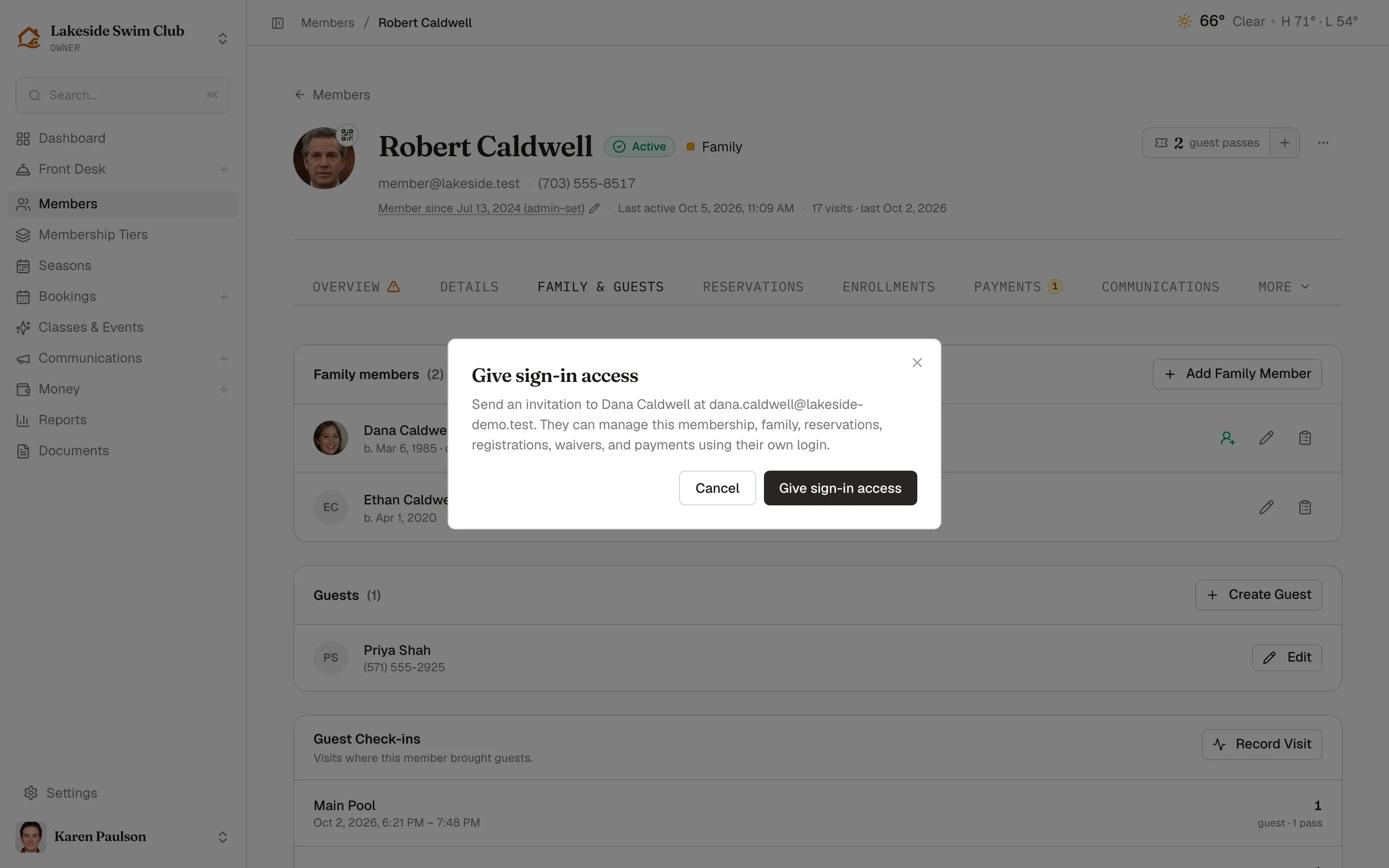
Memberley emails the adult a link valid for seven days. A staff-issued invitation also notifies the primary member. The primary must have accepted a membership before sharing access, and only one pending invitation or joint holder is allowed at a time. An eligible adult’s row shows a hint when their email is missing, the membership needs acceptance, or someone else already holds the slot. Minors have no invite icon.
This shares the existing membership; it does not create a second membership or another roster entry. Joint access grants no staff permissions. Joint holders cannot invite a replacement holder or change the primary member’s personal login. They can manage the club’s saved card, but not the primary member’s bank account; see Billing & add-ons.
Resend or cancel an invitation
Section titled “Resend or cancel an invitation”- Click the green Invited button beside the family member’s edit icon. After seven days it reads Expired.
- Choose Resend invitation or Cancel invitation, then confirm in the dialog.
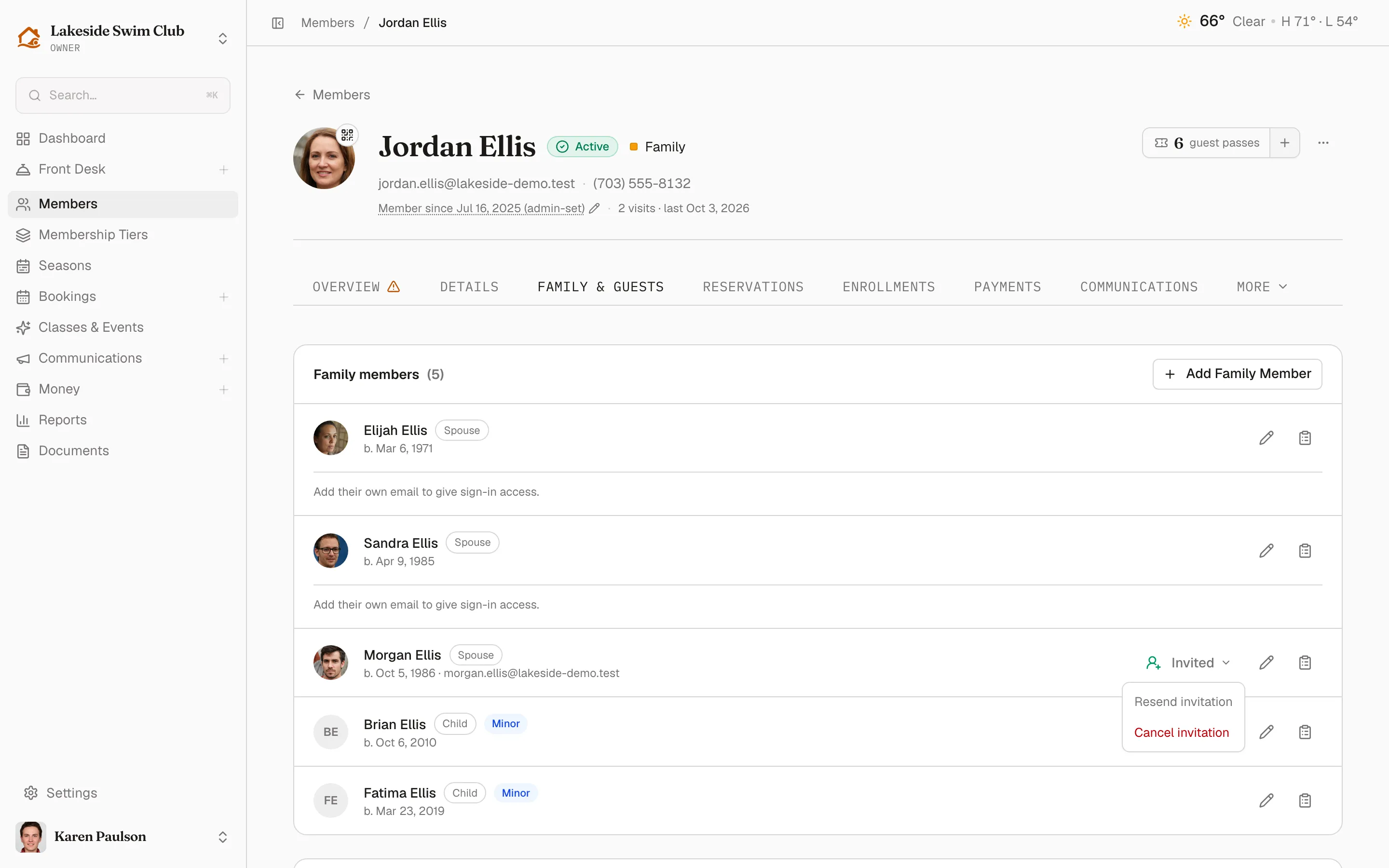
Resending replaces the old link. Cancelling stops it working and frees the slot to invite someone else. Changing the family email while an invitation is pending warns you before saving and sends a replacement invitation to a usable new address.
Help the invitee accept
Section titled “Help the invitee accept”The invitation opens a page naming the club and primary member. A person without a login creates one and accepts access with Create login and accept. Someone with a login signs in using the invited email, completes any verification, and clicks Accept invitation.
Continue with Google also uses the invited email. After Google sign-in and any required two-factor check, they still click Accept invitation. If they are signed in as someone else, Switch account lets them use the correct login.
A person who already has their own membership at this club must contact staff before accepting. Someone who already shares another membership here must leave that shared account first. See the member invitation steps for instructions you can share.
After acceptance, Invited becomes Can sign in, and the primary member receives a confirmation email. The joint holder’s portal identifies whose account they are managing. Existing membership rules still apply, including payment, eligibility, and booking limits.
Remove access
Section titled “Remove access”- Click Can sign in beside the family member’s edit icon.
- Click Remove access in the popover.
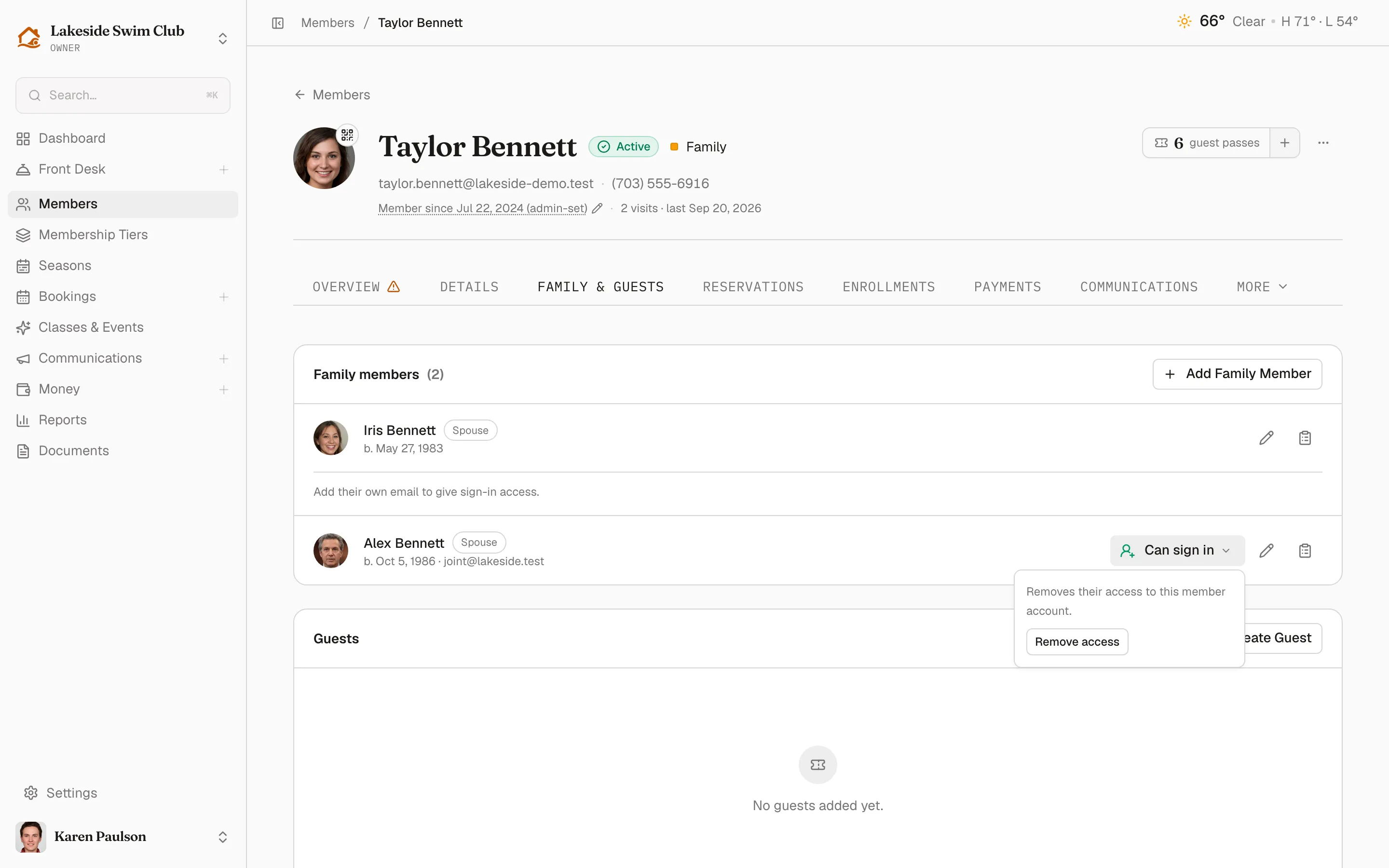
- Review the confirmation and click Remove sign-in access.
The primary member can follow the same flow from Family Members. The joint holder can end their own access with Leave shared account.
If the primary membership is removed from the roster, shared access becomes unavailable. Restoring the membership restores access unless the joint holder left or someone removed the link.
Keep personal details and notices separate
Section titled “Keep personal details and notices separate”A joint holder’s login name, email, and photo belong to their own profile. Their family entry is separate: editing either profile does not update the other. Once accepted, changing either email does not transfer joint access to someone else.
Shared membership confirmations and reminders continue to go to the primary member, including when the joint holder takes the action. Personal notification preferences remain separate; signing a waiver or managing an earlier personal class registration keeps its existing recipient. See Notifications & calendar sync.