
Recurring blocks
Requires the Facilities & Reservations module
A block series reserves the same weekly time across one or more facilities — Tuesday night league, Saturday morning lessons, a standing maintenance window. Blocks belong to the organization rather than a member: the time shows as taken on the booking grid so members can’t book over it, and blocks never count against a member’s open-bookings cap.
Create a block series
Section titled “Create a block series”-
Click Bookings in the sidebar, then Reservations, then the Blocks tab.
-
In the Recurring blocks card, click New.
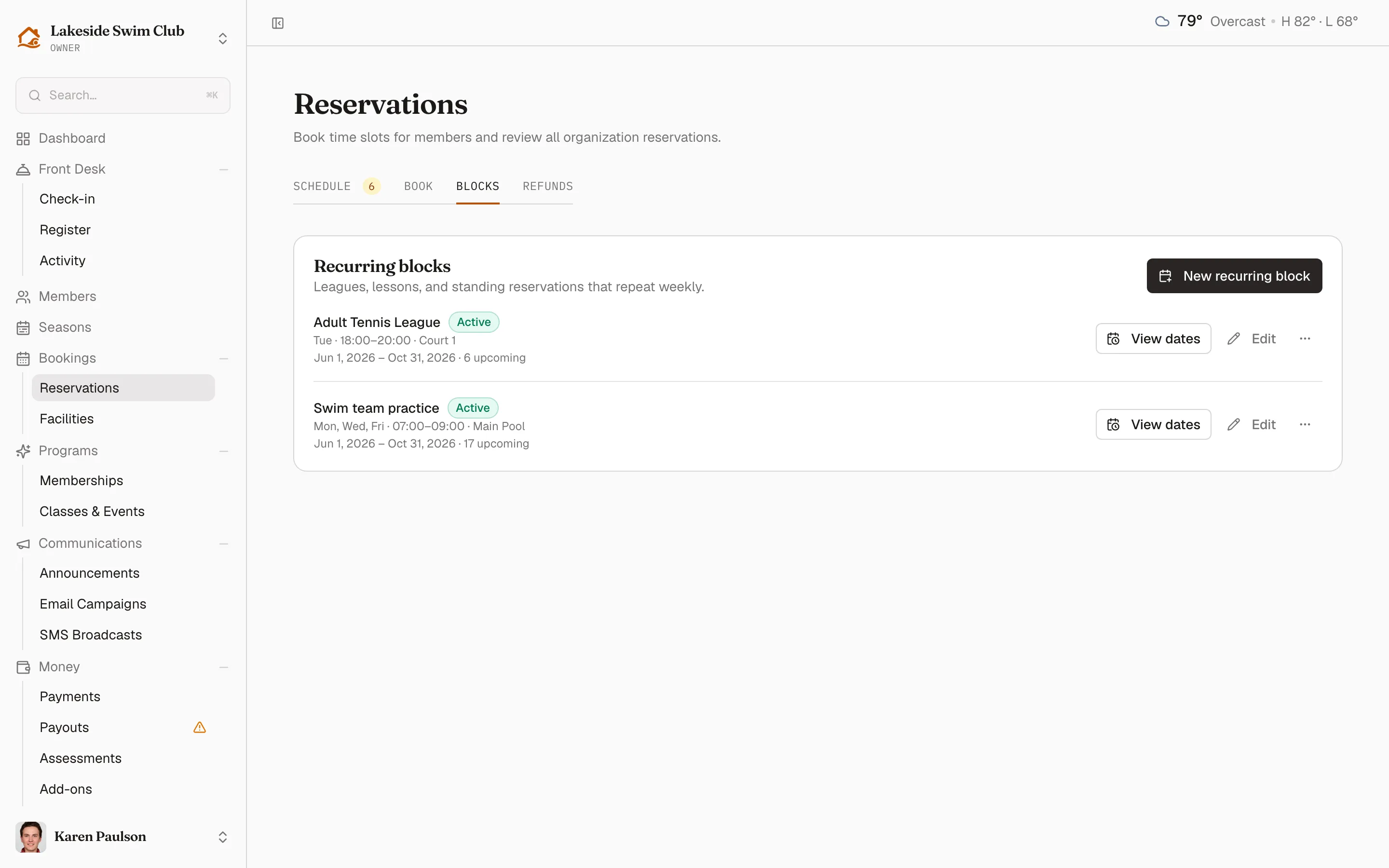
-
Give the series a Title (for example “Tuesday Night League”) and tap each of the Facilities it should reserve.
-
Tap the Days of week it repeats on.
-
Pick the date range with Starts on and Ends on, and the daily window with Start time and End time.
-
Optionally add Notes (optional) — they’re kept on the series and shown in its list row.
-
Review the preview (below), then click Create blocks.
Preview conflicts before you commit
Section titled “Preview conflicts before you commit”As soon as facilities, days, dates, and times are all filled in, the drawer previews the result: how many blocks will be created, with the first few dates listed. A Heads up panel warns when some dates won’t be created:
- Dates that overlap an existing booking are skipped — the existing reservation keeps its time.
- Dates that fall on a closure are skipped (see Closures & holidays).
The Create blocks button stays disabled until the preview shows at least one block to create, so a fully-conflicting series can’t be saved by accident.
Edit the whole series
Section titled “Edit the whole series”- On the Blocks tab, click Edit on the series.
- Change any of the fields — title, facilities, days, dates, or times — and review the refreshed preview.
- Click Save changes.
Saving regenerates the series’ upcoming occurrences to match the new schedule. Past dates are left exactly as they happened, and dates you cancelled individually stay skipped — editing the series never resurrects them.
Edit or cancel a single occurrence
Section titled “Edit or cancel a single occurrence”- On the Blocks tab, click Occurrences on the series.
- Every date in the series is listed, past and cancelled ones included (cancelled dates are dimmed, with no controls). To move a date to a different facility (say, a rained-out court), pick the new facility from its dropdown — Memberley refuses the move if that facility is busy at the time.
- To call off just one date, click Cancel date. The rest of the series is untouched, and the cancelled date is remembered as an exception when the series is later edited.
Cancel a series
Section titled “Cancel a series”Click Cancel on the series row. The series is marked Cancelled and every upcoming occurrence is cancelled with it; past occurrences stay on the record.
Where blocks appear
Section titled “Where blocks appear”Blocked times show as unavailable on the member booking grid and in the Week at a glance overview, and they occupy the slot in any published facility calendar feed (as “Reserved”, like every other booking). Blocks don’t appear in the All reservations list, which shows member bookings only — manage them from the Blocks tab.