
Waivers & documents
Two nearby pages that often get confused. Waivers is what a member has to sign. Documents is what you’ve published for them to read.
Waivers
Section titled “Waivers”My Account → Waivers is both the queue and the history — which is why it stays in the sidebar even for a member with nothing outstanding.
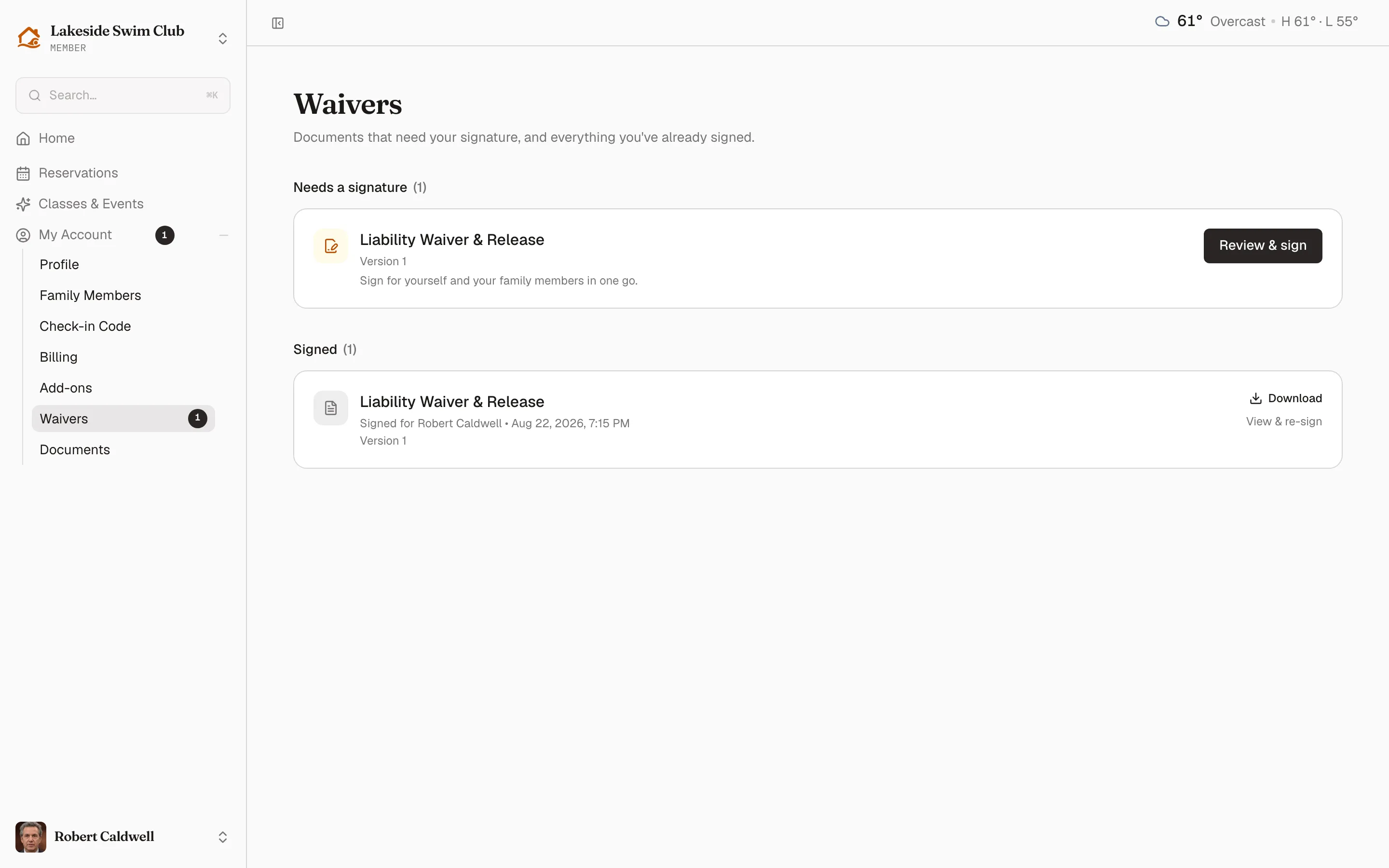
Needs a signature lists what is still owed, with the version and whether it renews annually. Signed lists what is done, with who it covers, when it was signed, and the version — plus Download for a PDF copy and View & re-sign.
The number beside Waivers in the sidebar is the outstanding count. It is mirrored on My Account so it shows even when that group is collapsed, and on a member’s home page as a banner.
Signing
Section titled “Signing”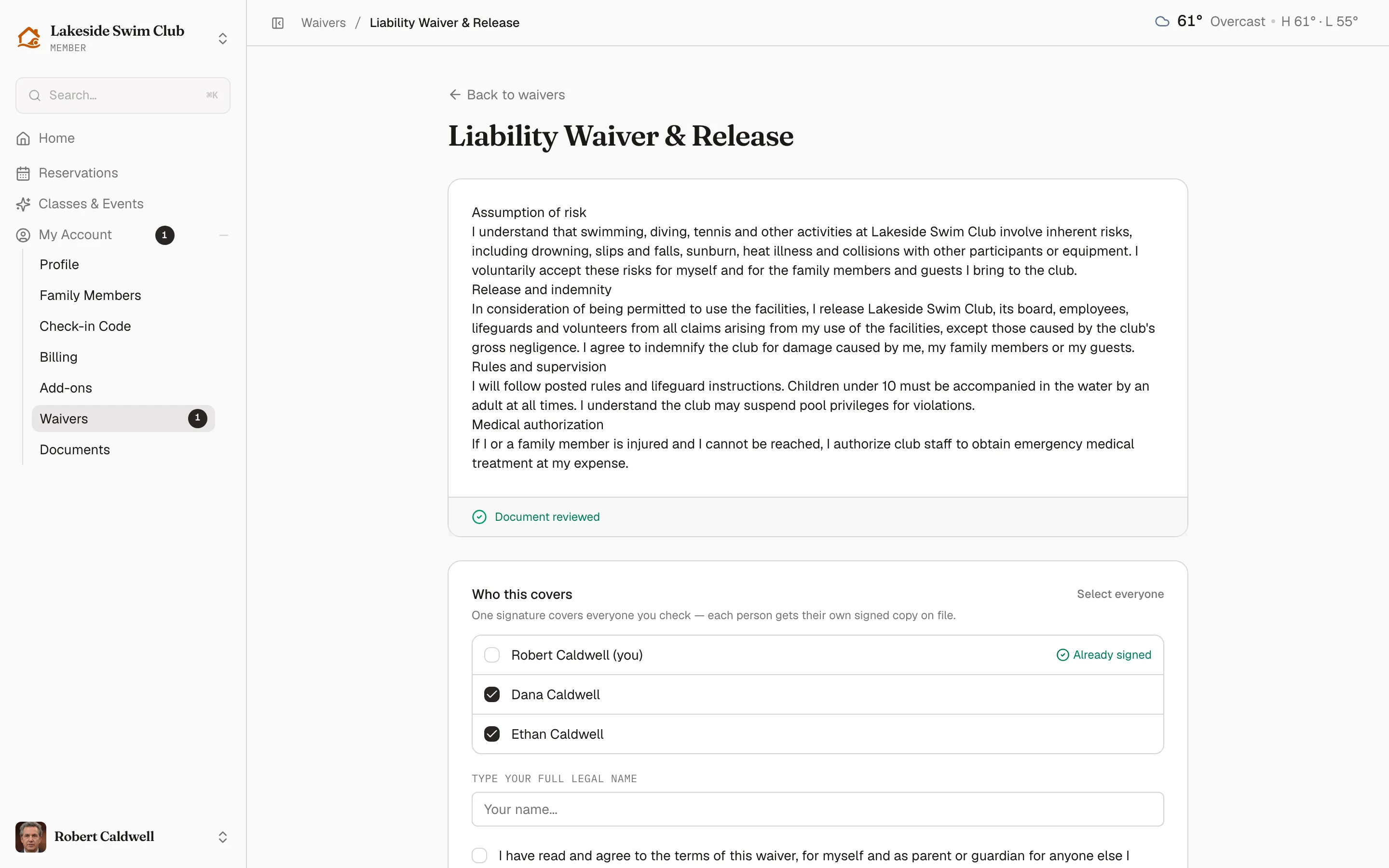
Review & sign opens the waiver itself. Three things have to happen before it can be submitted:
- The document gets scrolled to the bottom. Until then the signature fields stay locked, and the bar under the text says so. Once it’s read, that bar turns to Document reviewed.
- Who this covers — tick everyone the signature is for. People who already have a current signature show Already signed and can’t be ticked. Select everyone ticks the rest in one go.
- The typed legal name and the agreement checkbox, which is worded to cover signing as parent or guardian.
One signature covers everyone ticked, and each person gets their own signed copy on file.
Versions and renewals
Section titled “Versions and renewals”Editing a published waiver creates a new version. Signatures against the old one stay on file as history, but they no longer count — everyone it applies to lands back in Needs a signature with the new version number.
A waiver set to renew annually expires on its own schedule and comes back the same way.
Waivers only apply to the tiers you’ve assigned them to. A waiver assigned to no tier is dormant and nobody is asked for it. See Waivers for the staff side.
When a waiver blocks something
Section titled “When a waiver blocks something”Depending on how you’ve set it up, an unsigned waiver can stop a member registering, or stop staff checking a household in at the gate. The member-facing banner and the front-desk warning both point at this page.
Documents
Section titled “Documents”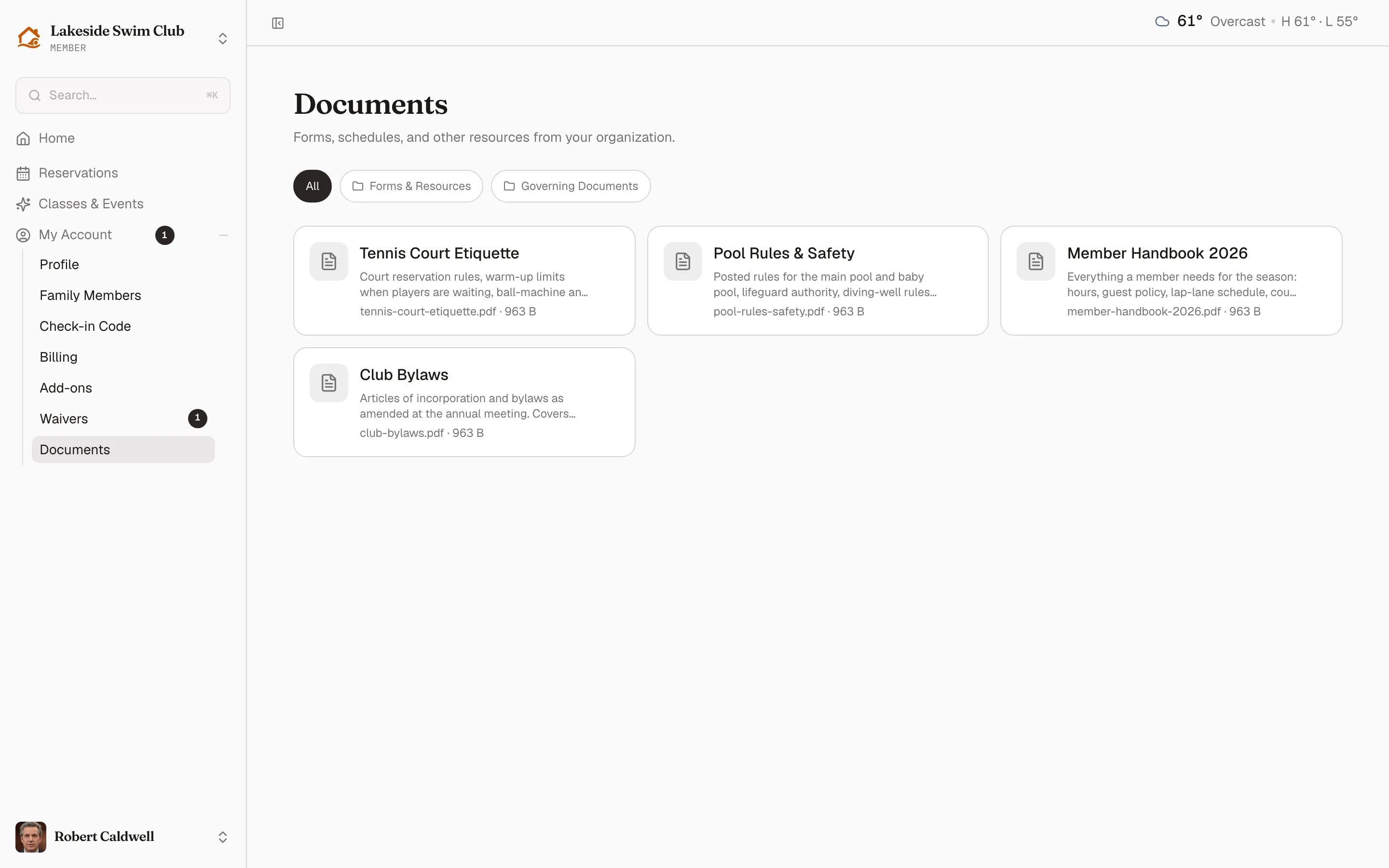
My Account → Documents is read-only: the files you’ve published to members. Handbooks, pool rules, bylaws, schedules.
Folders appear as filter chips above the grid, with All first. Each card shows the title, your description, the filename, and the size. Clicking one downloads it.
Members only see documents whose visibility includes them. Anything marked admin-only never appears here, and public documents are reachable without signing in at all. Documents covers publishing and visibility.