Email campaigns
Requires the Communications module
Email campaigns are designed, one-off emails sent to a segment of your members, with per-recipient tracking of delivery, opens, and clicks. Campaigns start as drafts, pass through an approval step, and then send immediately or on a schedule.
Before your first campaign
Section titled “Before your first campaign”Campaigns can’t be sent until your sender identity is complete — the from name, reply-to email, and physical mailing address that appear on every campaign. The Sender tab shows a “Ready to send” banner once it is.
Create a campaign
Section titled “Create a campaign”- Click Communications in the sidebar, then Email Campaigns, then New campaign.
- Enter the Subject and an optional Preheader — the short preview text inboxes show after the subject.
- Choose a Segment as the audience. Each option shows its last-counted member total. New segment quick-creates one targeting all members or a single tier without leaving the page; for anything more specific, build it on the Segments tab first.
- Compose the Body. The toolbar covers text formatting (bold, italic, underline, two heading levels, bulleted and numbered lists, links) and email blocks — buttons, uploaded images, dividers, and spacers. The Merge tag menu personalizes the email with the recipient’s First name, Last name, Full name, Email, Tier name, or Organization.
- Optionally set Schedule for — leave it blank to send as soon as the campaign is approved.
- Click Save draft. Drafts can be edited freely until they’re submitted for approval.
Preview and test it
Section titled “Preview and test it”From the campaign’s page, open the ⋯ menu:
- Preview email renders the campaign as it will appear in an inbox, with a mock subject/preheader header. Merge tags are shown unresolved.
- Send test sends a real email to your own verified account address, with the subject prefixed
[TEST]— for security, tests can’t go to any other address.
Submit, approve, and send
Section titled “Submit, approve, and send”Whether sending takes one step or two depends on Require campaign approval in Features (the Require approval before sending checkbox on the Sender tab turns on the same gate).
When approval is required:
- The campaign’s creator clicks Submit for approval. The audience is frozen at this moment, so later segment edits can’t retarget the campaign.
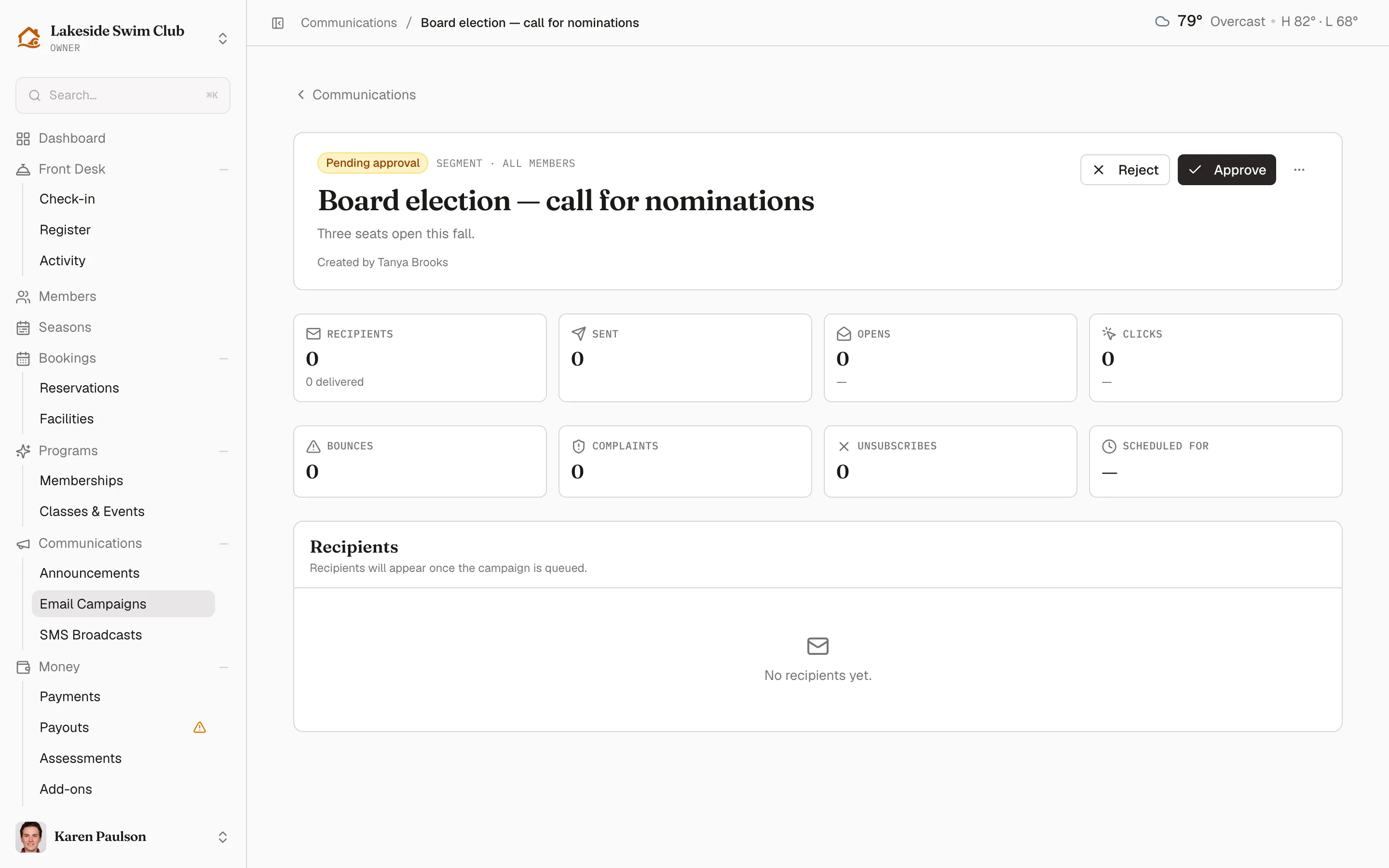
- An owner opens the campaign and clicks Approve — or Reject, with a reason that’s shown to the creator when the campaign returns to draft.
- You can never approve a campaign you created yourself — a second admin has to sign off.
Editing a campaign while it’s pending approval returns it to draft to be re-submitted. Approval is also bound to the exact version the reviewer had on screen: if the campaign changed after their page loaded, the approve is refused and they’re asked to review again.
When approval is not required, submitting is sending: a manager’s Submit for approval goes straight through as submitted and approved, and owners see a one-click Submit & approve button on their drafts.
Once approved, the campaign queues immediately — or, with a future Schedule for time, shows as Scheduled and sends automatically at that time. Recipients on the suppression list are skipped.
Cancel or resend
Section titled “Cancel or resend”- Cancel send appears while a campaign is approved, scheduled, or sending. Cancelling an approved or scheduled campaign stops it before anything goes out. Cancelling mid-send stops batches at the next recipient, but emails already out can’t be recalled.
- Resend appears on a Failed campaign and requeues it for sending.
- Drafts can be deleted from the ⋯ menu; deleting can’t be undone.
Read the campaign report
Section titled “Read the campaign report”The campaign page updates itself while a send is in progress and shows:
- Headline stats — recipients, sent, opens, and clicks, each with its rate.
- Health stats — bounces, complaints, and unsubscribes.
- Recipients table — the latest 200 recipients with per-person status (Pending, Sent, Delivered, Opened, Bounced, Complained, Skipped suppressed, Failed), timestamps, and click counts, searchable by name or email and filterable by status.
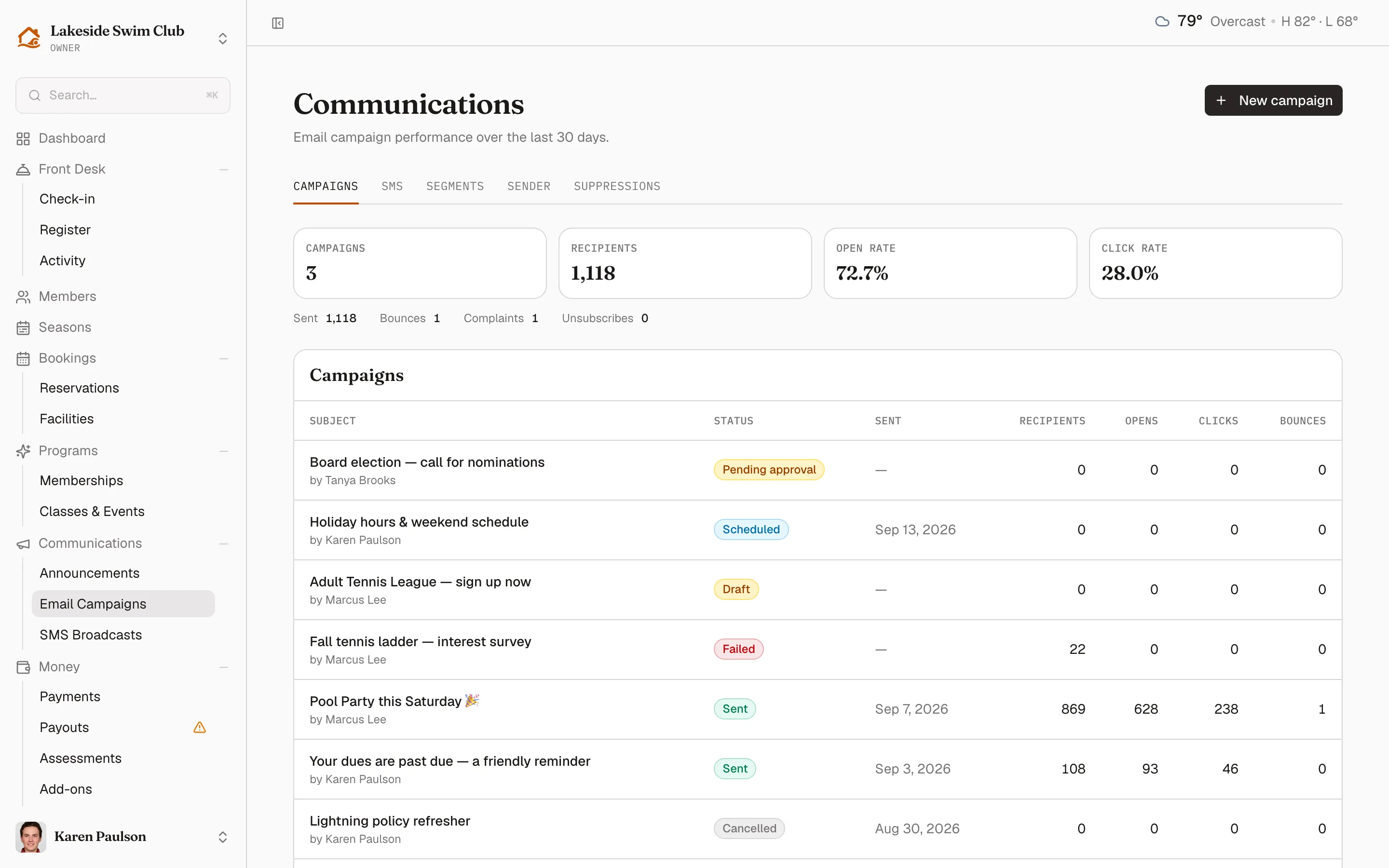
The Email Campaigns list rolls the last 30 days of sent campaigns into summary cards — campaigns, recipients, open rate, click rate, sends, bounces, complaints, and unsubscribes.