
What is Memberley?
Memberley is membership management for pools, swim and tennis clubs, and HOAs — one place to enroll members, collect dues, take reservations, run programs, and staff the front desk. This page orients you: what you see when you sign in, who can do what, and why some navigation items appear only for some organizations.
Start at the dashboard
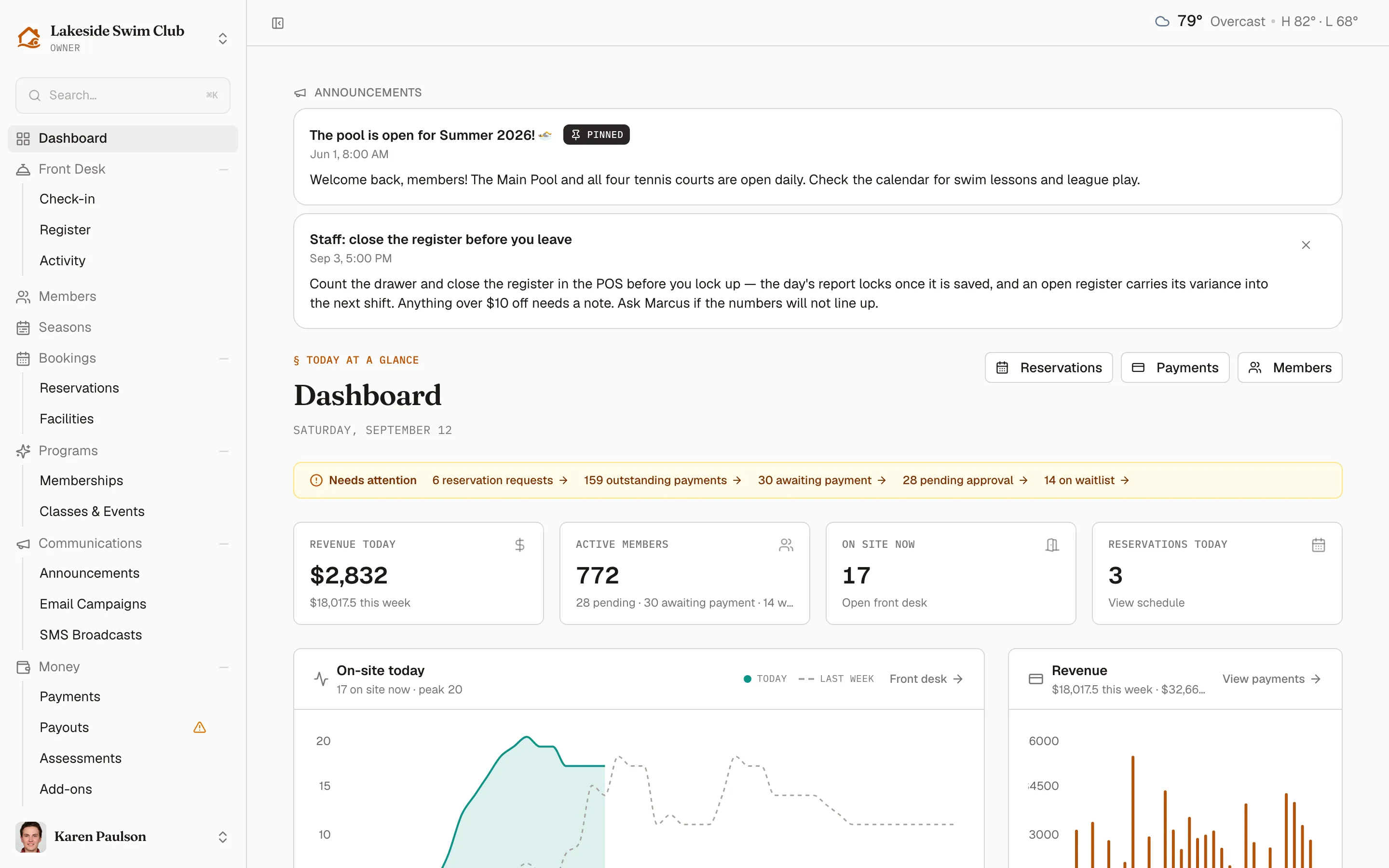
Section titled “Start at the dashboard”Signing in as an admin lands you on the Dashboard, your daily snapshot. When you first arrive, a welcome dialog offers a two-minute tour that points out each area of the app. From top to bottom you’ll find:
- Announcements — the latest posts, the same feed members see when they sign in.
- Needs attention — reservation requests, outstanding payments, memberships awaiting payment, registrations pending approval, and the waitlist, each one click away.
- Today at a glance — four tiles: revenue today, active members, who is on site right now, and today’s reservations.
- Setup checklist — while you’re getting started, a Finish setting up your organization card tracks your remaining steps. The rest of this guide walks the same steps.
- Action queue — one card with Payments, Reservations, and Approvals tabs, each carrying its own count, so the day’s decisions sit in one place.
- Panels — On-site today against last week, Revenue over recent weeks, Upcoming offerings, Scheduled sends, and Recent activity.
The three roles
Section titled “The three roles”Everyone in your organization holds one of three roles:
- Owner — full access, including billing, payouts, integrations, and organization settings.
- Manager — day-to-day staff. Managers can manage members, reservations and facilities, and check-ins, but never see Settings, payouts, or integrations.
- Member — your customers. Members get their own portal: reservations and class sign-ups, plus a My Account area with their profile, check-in code, billing, and documents.
Owners and managers can preview the member experience at any time with member view. The full permission matrix is in Roles & permissions.
How the sidebar maps to your work
Section titled “How the sidebar maps to your work”The sidebar is organized by job, top to bottom:
- Front Desk — gate check-in, the point-of-sale register, and the activity feed.
- Members — the roster, approvals, and the waitlist.
- Seasons — staged registration windows for seasonal clubs. See How seasons work.
- Bookings — reservations and facility setup.
- Membership Tiers — create and price memberships.
- Classes & Events — create programs and manage sign-ups.
- Communications — announcements, and with the Communications module, email campaigns and SMS broadcasts.
- Money — payments, payouts, add-ons, and discount codes, plus assessments with the Assessments module.
- Reports, Documents, Integrations — reporting, shared files and waivers, and third-party connections.
- Settings — owner-only: organization details, feature toggles, your team, plan, modules & billing, and your custom fields.
Modules shape what you see
Section titled “Modules shape what you see”Every organization gets the base features: the member roster, membership dues and billing, public registration, the waitlist, reports, integrations, and the activity log. Everything else comes from seven modules you can add to your plan:
- Facilities & Reservations — bookable courts, lanes, and rooms (the Bookings area).
- Front Desk & Check-in — gate and front-desk check-in with QR scanning.
- Point of Sale — snack bar and pro shop sales at the register.
- Communications — email campaigns and SMS broadcasts.
- Branded Site & Embed — the member portal under your own branding, embeddable on your website.
- Classes & Events — lessons, camps, leagues, and events with online registration.
- Assessments & Capital Fees — capital contributions, initiation fees, and special assessments charged on top of dues (Money → Assessments).
When your organization doesn’t hold a module, its navigation items don’t appear at all — so your sidebar may show fewer areas than the lists above. Owners add or remove modules under Settings → Plan. Pricing and full capability lists are in Modules & pricing.
How to read these docs
Section titled “How to read these docs”The sidebar here mirrors the app’s own sidebar, so a page is usually where you’d expect the feature to be. Two chips at the top of a page tell you whether you can reach it at all:
- Requires the … module — the page covers a feature that comes from an add-on module. No module, no navigation item.
- Owner only — managers don’t see this area. The full breakdown is in Roles & permissions.
Module-gated pages also carry a Module badge in the sidebar, so you can tell at a glance which areas depend on your plan. Every page ends with a short Related list pointing at the pages you’ll most likely need next.
Where to go next
Section titled “Where to go next”Work through the rest of this group in order — it mirrors the in-app setup checklist:
- Set up your organization — contact details, Stripe, your season, and membership tiers.
- Build your offerings — facilities, classes and events, and documents.
- Bring members in — join links, public registration, and imports.
- Build your team — invite owners and managers.