
Facilities
Requires the Facilities & Reservations module
Facilities are the bookable (and non-bookable) spaces your club runs — pools, courts, party rooms. Each one carries its own slot length, pricing, and booking rules, and facilities of the same type pool together on the booking screen so members can grab “any available court”. Click Bookings in the sidebar, then Facilities.
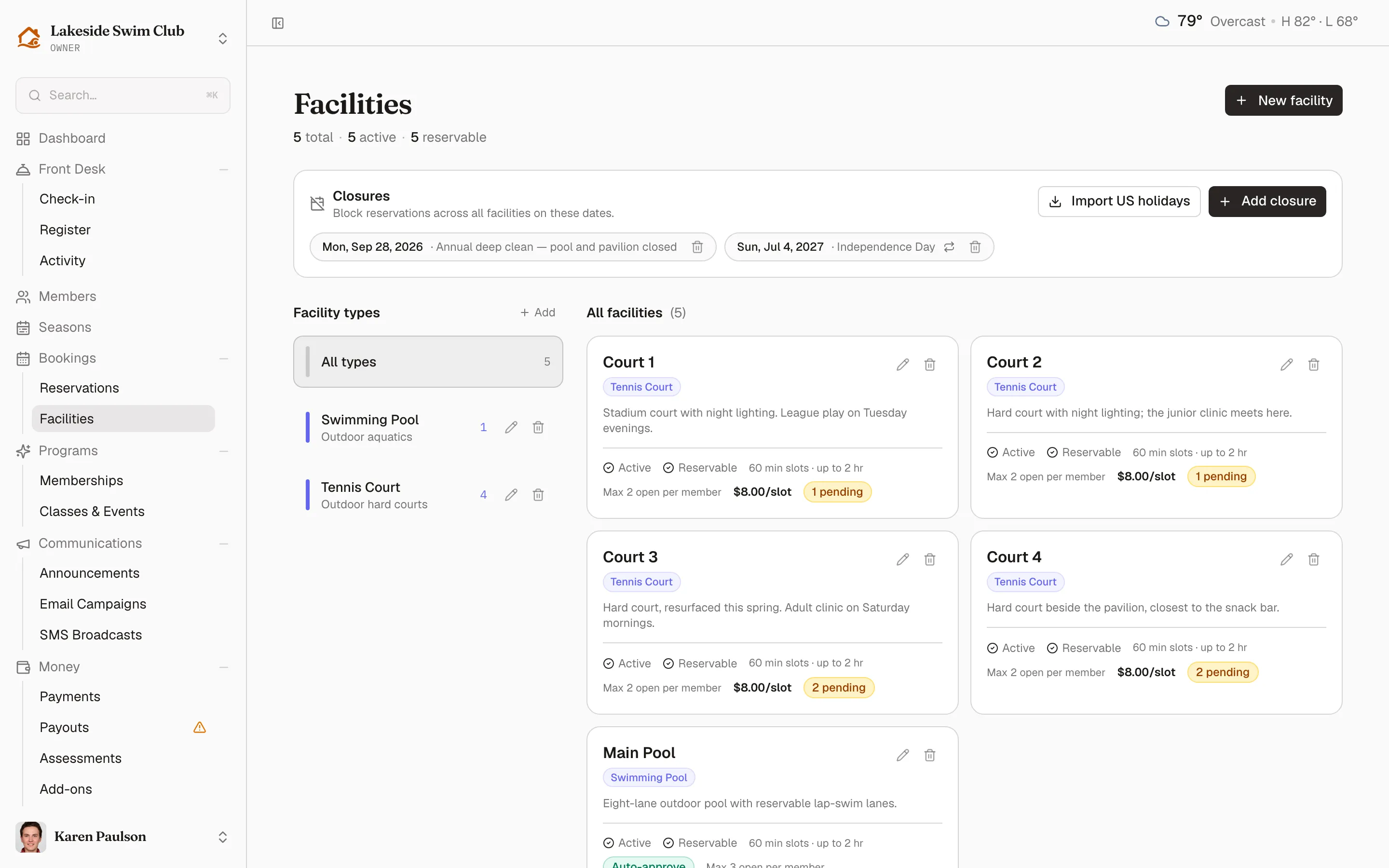
The header counts your facilities — total, active, and reservable — and each card shows the facility’s type badge, its status chips, slot length and maximum booking length, fee, an Auto-approve pill when auto-approval is on, any per-member booking cap, and how many requests are pending on it. The Closures bar at the top is covered in Closures & holidays.
Review a facility’s pending requests
Section titled “Review a facility’s pending requests”A card’s … pending count is a button: click it to open the Pending requests drawer and review that facility’s queue without leaving the page. Each request shows the member, the requested time, when it was requested, and — when the facility charges a fee — a Fee paid / Fee unpaid pill. Approve confirms the booking and bills the fee (with the same no-way-to-charge choices as the main queue); Reject expands a required Reason (sent to the member) field before you confirm.
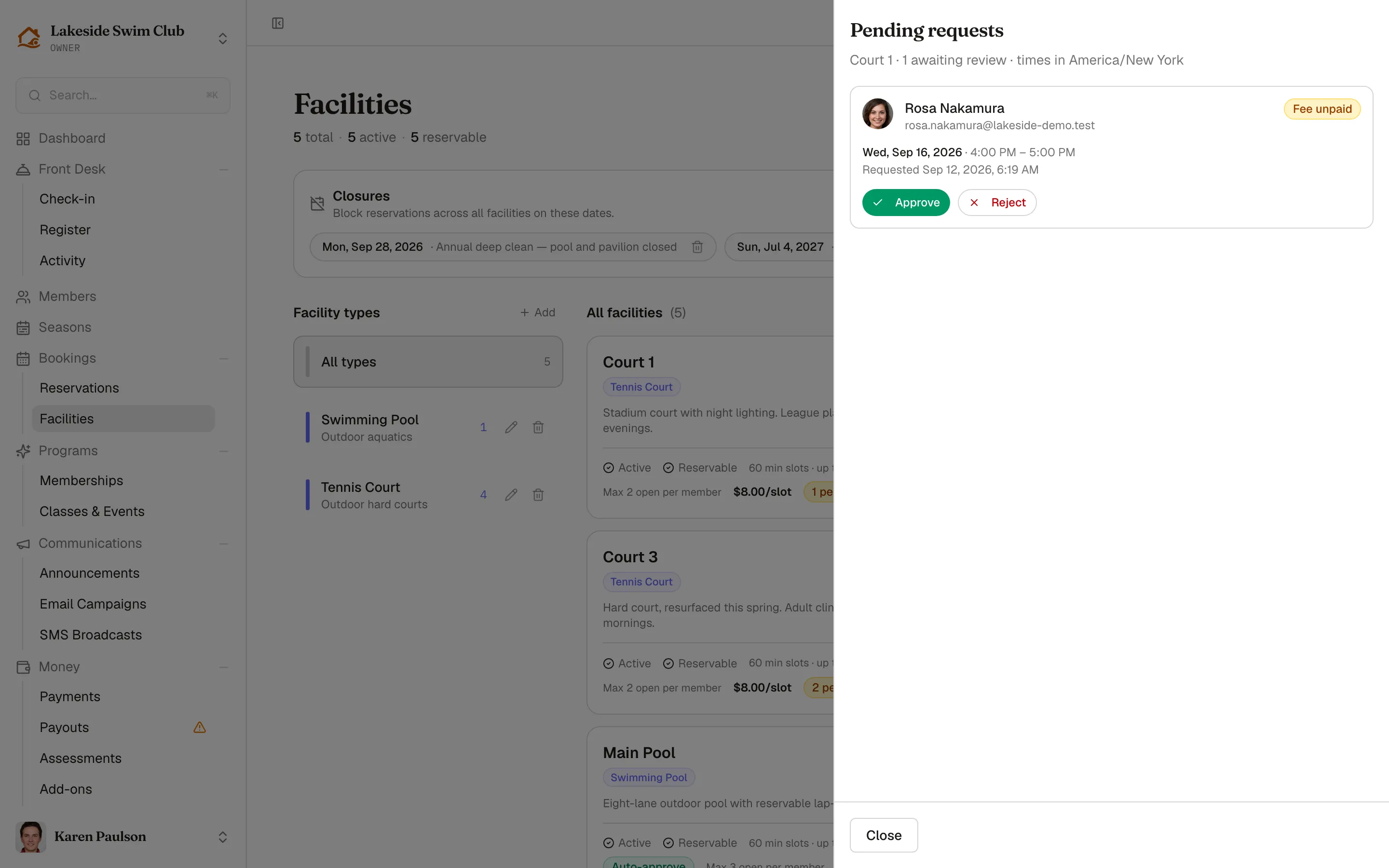
The org-wide queue on Managing reservations shows the same requests across every facility.
Create a facility
Section titled “Create a facility”- Click New facility. (Create at least one facility type first — the type is what groups facilities together for “any available” booking. With no types yet, the header button reads New facility type instead.)
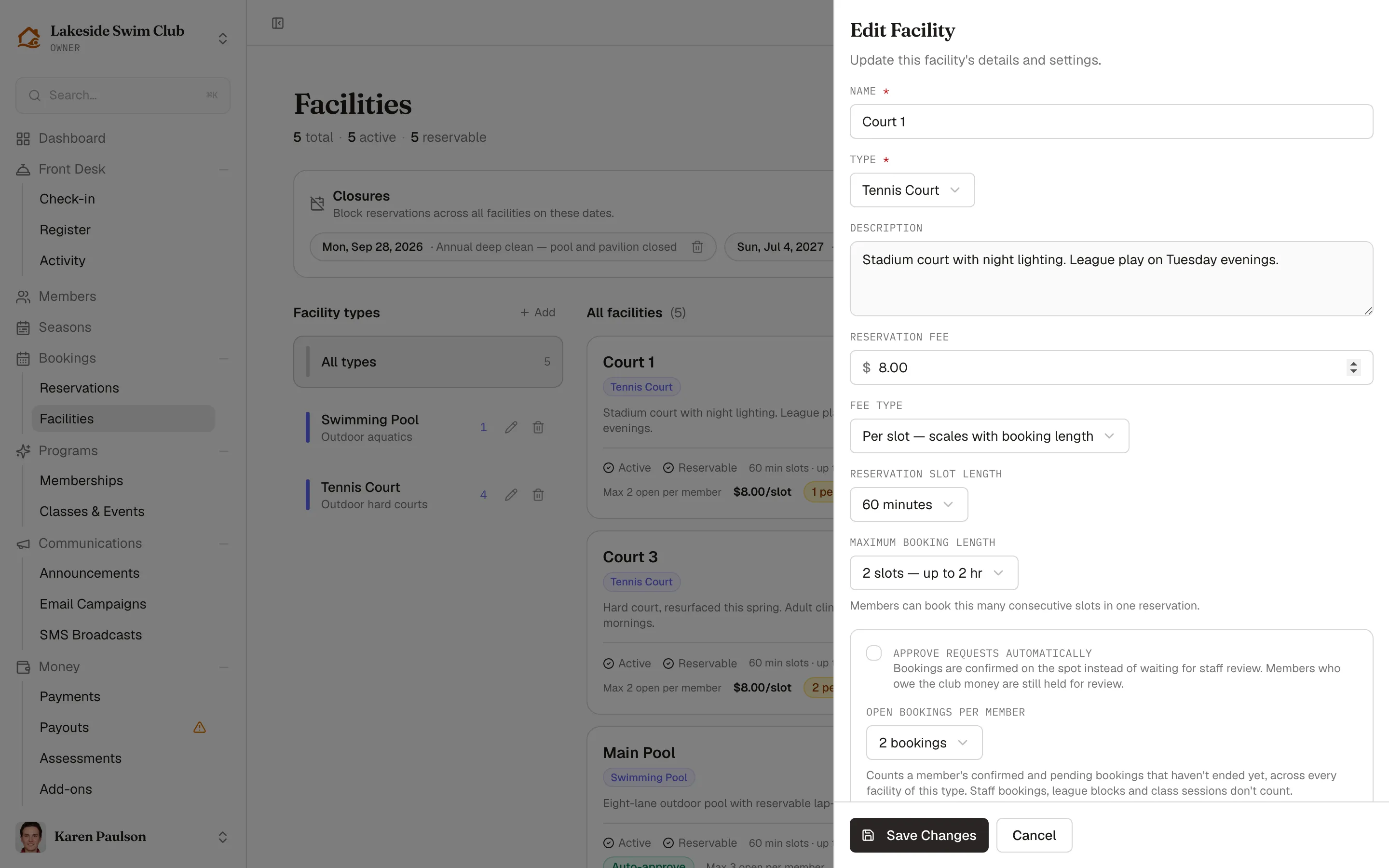
- Give it a Name and pick its Type (see below), and optionally a Description.
- Set the Reservation Fee (leave 0.00 for free).
- Leave Active (visible and accessible to members) and Reservable (members can book it in advance) checked as appropriate — a lounge you only want listed can be active but not reservable. The remaining booking controls only appear while Reservable is checked.
- Set the Fee type — Flat charges once per reservation, Per slot scales with booking length.
- Pick the Reservation slot length (15 to 120 minutes) — the grid members book against — and the Maximum booking length, how many consecutive slots one reservation can span (the options show the resulting duration, like “2 slots — up to 2 hr”).
- Set the approval and cap rules (next section).
- Click Create Facility.
Set the booking rules
Section titled “Set the booking rules”Two rules in the facility drawer govern self-service booking:
- Approve requests automatically — member bookings are confirmed on the spot instead of waiting for staff review, and the reservation fee is billed immediately. Members who owe the club money are still held for review. See how auto-approval changes the flow.
- Open bookings per member — Unlimited, or a cap between 1 and 10. The cap counts a member’s confirmed and pending bookings that haven’t ended yet, across every facility of the same type — so a two-booking cap on courts means two courts total, not two per court. Staff bookings, league blocks, and class sessions don’t count, and a booking frees its slot back up as soon as it ends or is cancelled.
Neither rule applies to staff: bookings you make on behalf of members skip the cap, and you choose approval yourself.
Organize with facility types
Section titled “Organize with facility types”Facility types (Swimming Pool, Tennis Court, …) group facilities everywhere: they filter this page, they become the type picker on the booking screen, they group the facility picker on a membership tier, and they define the pool of facilities behind Any available and behind the open-bookings cap.
- In the Facility types column, click Add.
- Give the type a Name, optionally a Description, and a Badge Color used on cards and calendars.
- Click Create type.
Hover a type to reveal its edit and delete buttons, and click one to filter the facility grid to that type — All types at the top of the column clears the filter.
Edit or delete a facility
Section titled “Edit or delete a facility”Hover a facility card to reveal its pencil (edit) and trash (delete) buttons. Editing opens the same drawer as creating; changes to slot length or fees apply to new bookings, not existing ones. To retire a facility without deleting its history, uncheck Active instead — inactive facilities disappear from the member booking screen.
The facility detail page
Section titled “The facility detail page”Click a facility’s name to open its detail page. Operating hours live here rather than in the create drawer, so setting them is a second step after the facility exists:
- Operating hours — the weekly schedule, day by day, edited on this page. Reservations must fall inside these hours, and days marked Closed can’t be booked at all. A new facility with no hours set has nothing for members to book, so this is the step to do before announcing it.
- Activity timeline — reservations, check-ins, and admin actions scoped to this facility, filterable by Event, From, and To. The same events appear in the org-wide Activity log.