
Classes & events
Requires the Classes & Events module
Classes & Events in the member sidebar is one section with two tabs: Browse, the catalog of what is open, and My Sign-Ups, what the household has already joined.
Only offerings you’ve published with registration open appear here. Everything about creating them is on Classes & events — this page is the other side of it.
Browse
Section titled “Browse”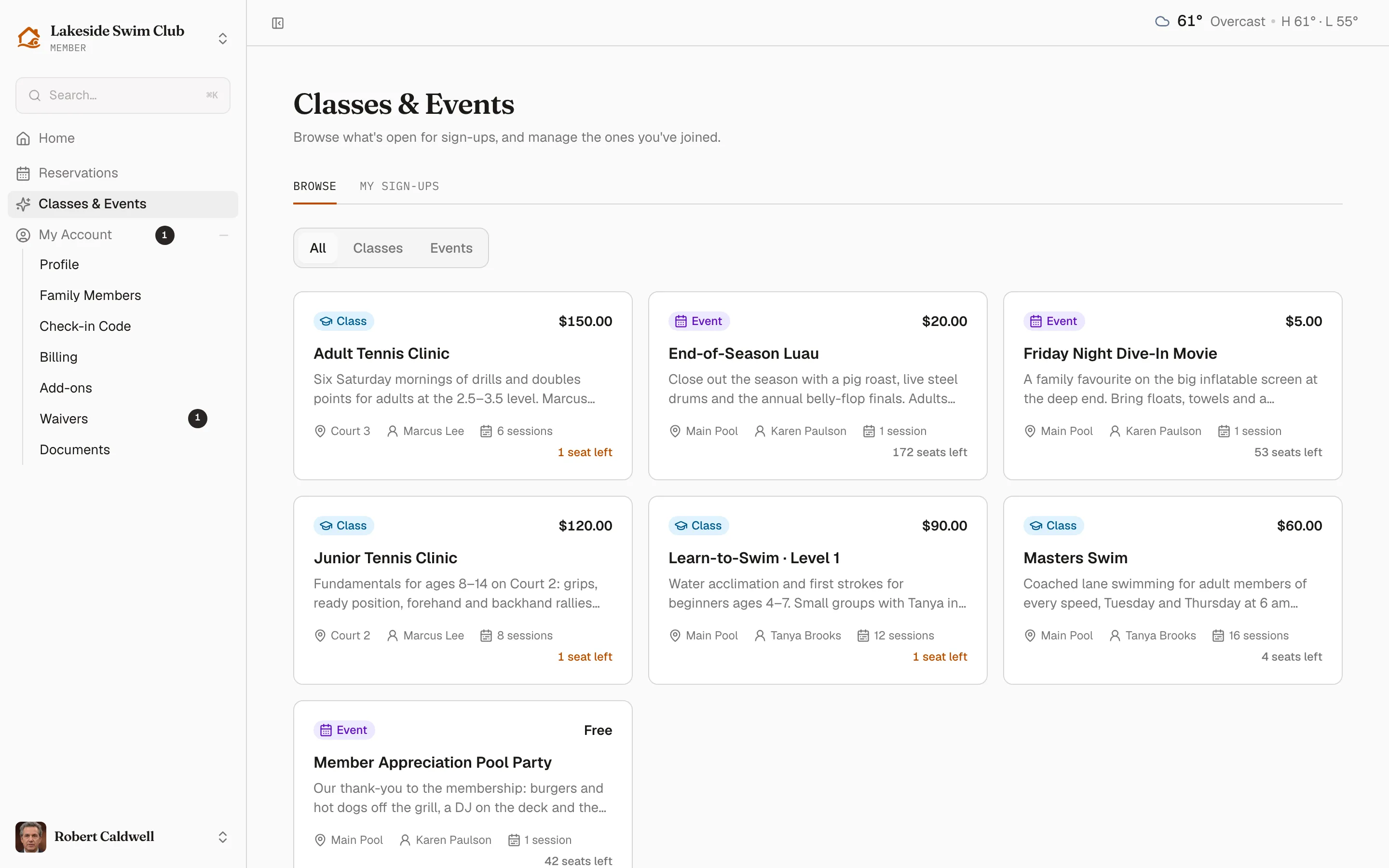
Each card carries the type badge, the price a member pays, the facility, the instructor, how many sessions it runs, and how many seats are left. Seats run amber at three or fewer, and a full offering reads Waitlist only instead.
The All / Classes / Events filter above the grid narrows by type.
When an offering has a member price set, the card shows that price rather than the public one.
One offering
Section titled “One offering”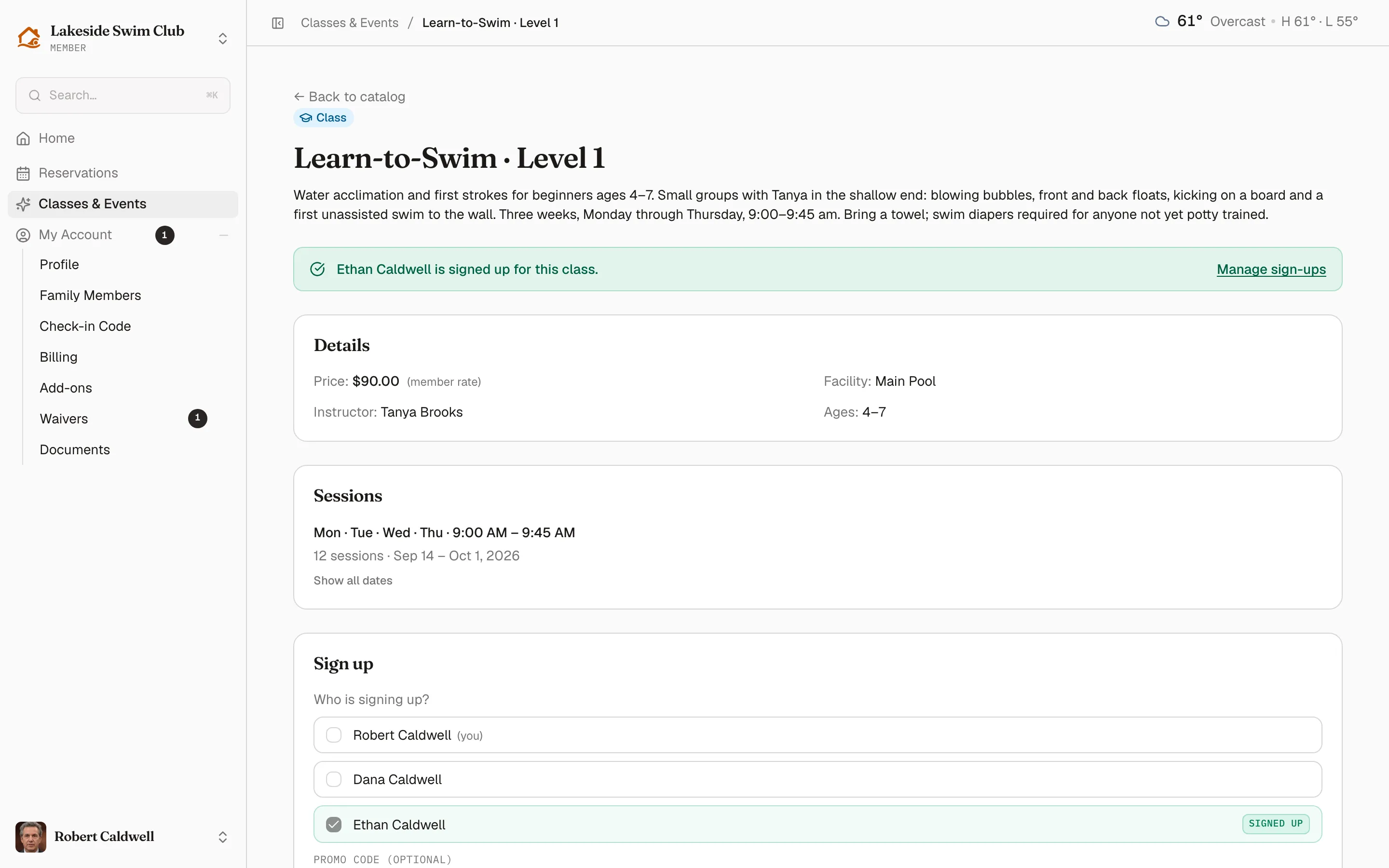
The detail page is three cards:
Details — price, facility, instructor, and the age range if there is one. A (member rate) note appears when the member is paying less than the public price.
Sessions — when it meets. A class that runs to a pattern is summarized to that pattern (Mon · Tue · Wed · Thu · 9:00 AM – 9:45 AM, then the count and date range) with Show all dates for the full list. Mixed times get the plain list instead, because a summary would be wrong for some of them.
Sign up — who is going.
Signing up
Section titled “Signing up”The Who is signing up? list is the account holder plus every family member. Tick anyone who is joining; one submission covers the whole group.
A green banner at the top names anyone already signed up, and their row shows a Signed up or Waitlisted #n badge and can’t be unticked — cancelling is done from My Sign-Ups.
Below the list:
- Extra questions, if you’ve placed custom fields on class sign-ups, asked once per person rather than once per booking. A shirt size is a question for each child, not for the family.
- Promo code, when the offering costs something and you’ve issued codes that apply to it.
The button says what will happen — Sign up, Sign up 3 people, or Join waitlist when the offering is full. If it’s disabled, the line underneath says why: nobody is ticked yet, or the only people left need a birthday first.
Age-gated offerings
Section titled “Age-gated offerings”On an offering with an age range, a family member with no birthday on file can’t be ticked. Their row offers Add Ethan’s date of birth to sign up, which collects it inline and unlocks the checkbox — without dropping anything already selected.
Age checks apply to family members only. Account holders are assumed to be adults.
Waitlists
Section titled “Waitlists”Signing up for a full offering joins the waitlist with a position number. If a seat opens, Memberley promotes the next person automatically and emails them — see What runs automatically.
My Sign-Ups
Section titled “My Sign-Ups”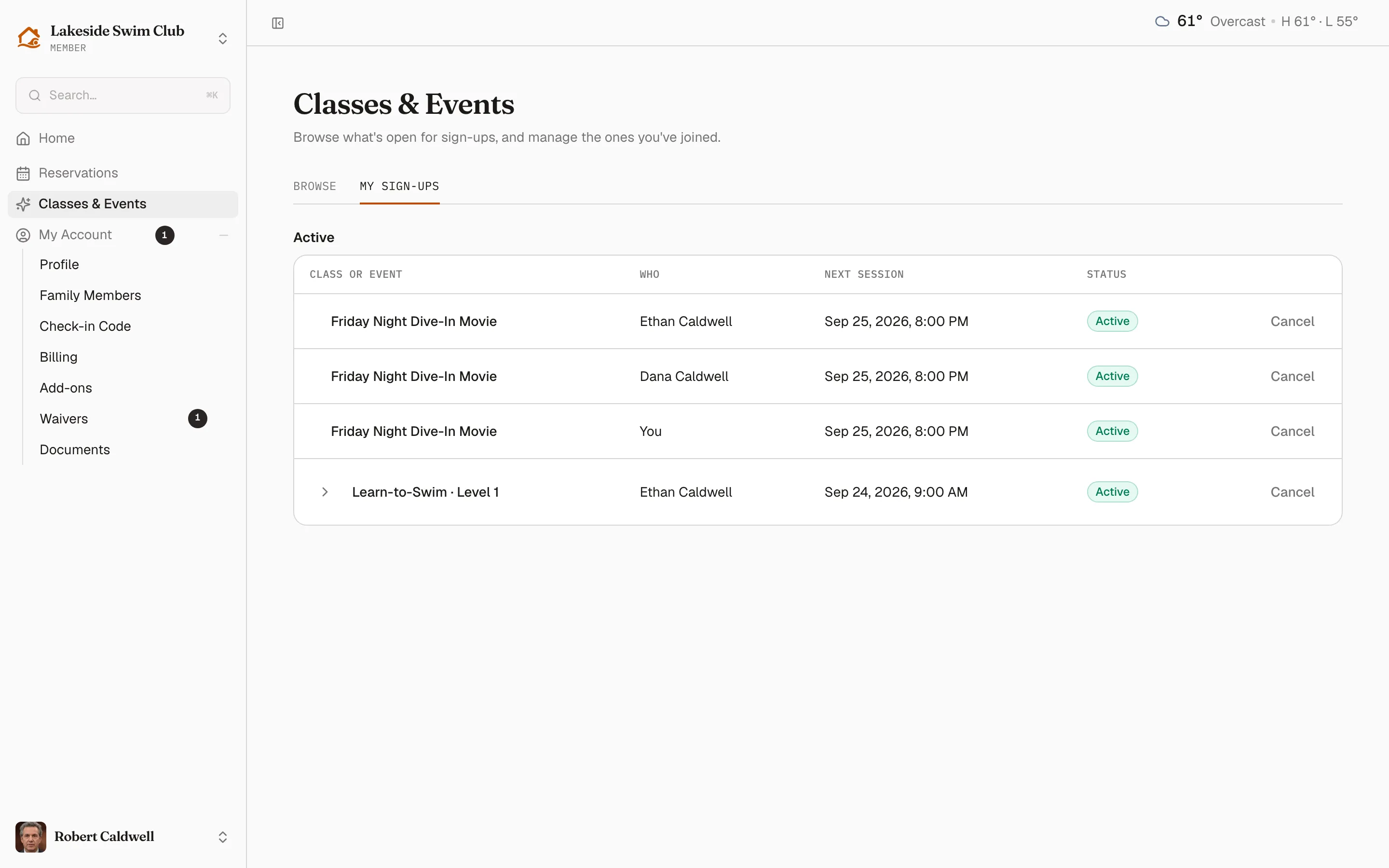
Everything the household holds, grouped Active, On the waitlist, and Past, with who it’s for, the next session, and the status. A row with answers to extra questions expands to show them.
Cancelling
Section titled “Cancelling”Cancel on a row asks to confirm, then frees the spot for the next person on the waitlist.
Manage earlier personal sign-ups
Section titled “Manage earlier personal sign-ups”If you signed up for classes or events before accepting shared access, those registrations and payments stay with your own login. New registrations made through shared access belong to the shared member account.
- Open Classes & Events in the sidebar, then My Sign-Ups.
- Click My personal sign-ups when the link is shown. The same link appears in payment history when you have personal records at this club.
- Use Cancel sign-up, Pay, or Receipt on an eligible record. Use the original waitlist email to claim a place when offered.
Personal payment method saves a card for your personal registrations. Payments here use your personal saved card or verified bank account. The shared member account is not charged.
If shared access is unavailable, My personal sign-ups on that explanation page still opens your personal records.
Related
Section titled “Related”- Classes & events — creating and running them
- Discount codes
- Refunds & adjustments