
The member home page
Members sign in at the same address you do and land somewhere different. There is no roster, no settings, no money you didn’t charge them — just their own household, and the handful of things a club asks people to keep current.
This section documents that side of the app. Read it to answer “what is she actually looking at?” on the phone, or hand it to members directly — nothing here assumes staff access.
What’s on the page
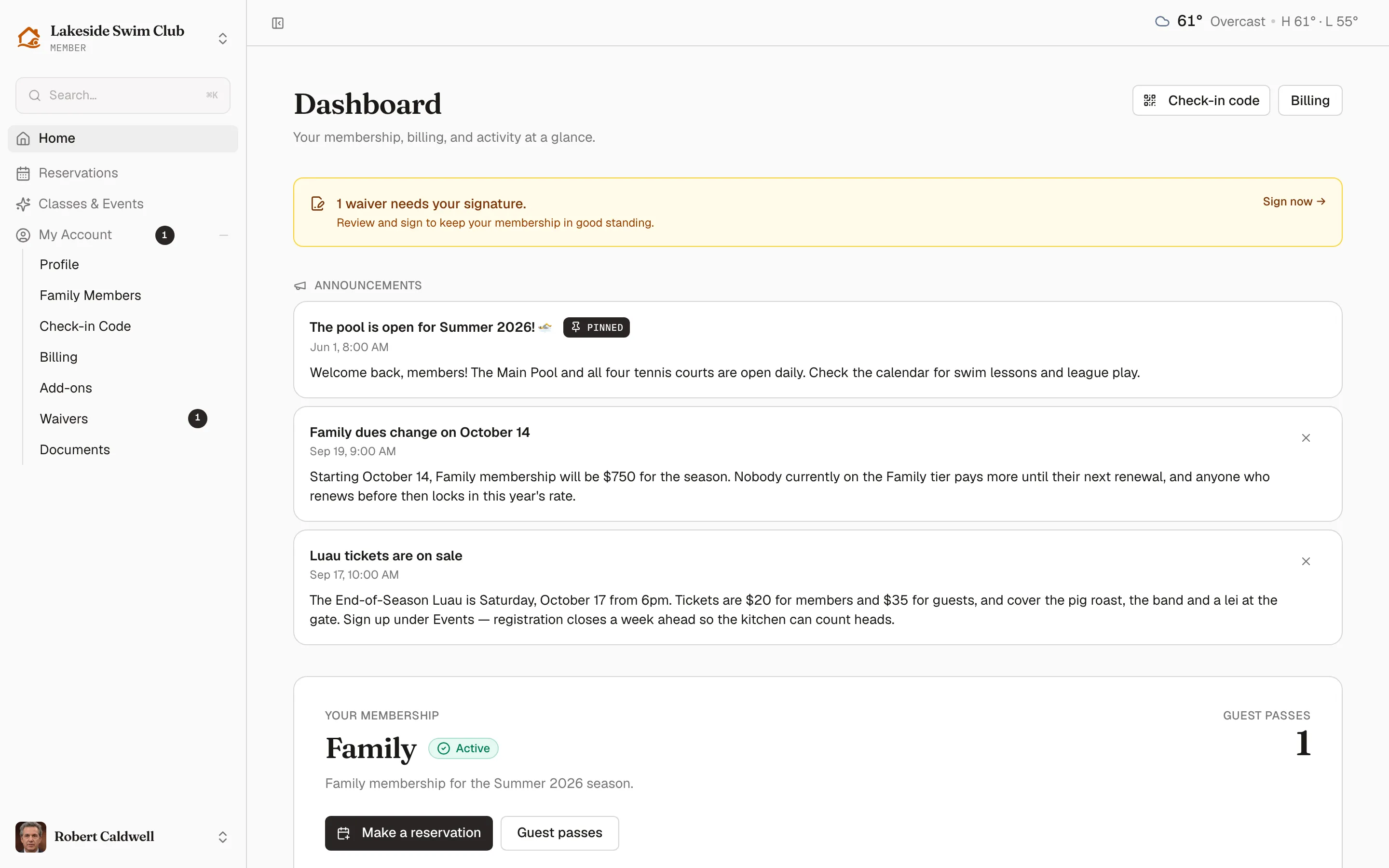
Section titled “What’s on the page”Top to bottom, a member sees:
- Anything that needs attention, as a banner: an unsigned waiver, a required profile question left blank, a card that has expired or is about to. Each one links straight to the fix.
- Announcements you’ve published, newest first. Members can dismiss the ones that aren’t pinned.
- Your membership — their tier, its status, and their remaining guest passes, with buttons to make a reservation or buy more passes.
- Recent reservations and recent payments, eight of each, with a View all link.
- Recent activity — a plain log of what has happened on their account.
If a member has been invited but hasn’t paid yet, the membership card is replaced by the accept-and-pay form, including any installment plan the tier offers.
When you share a membership
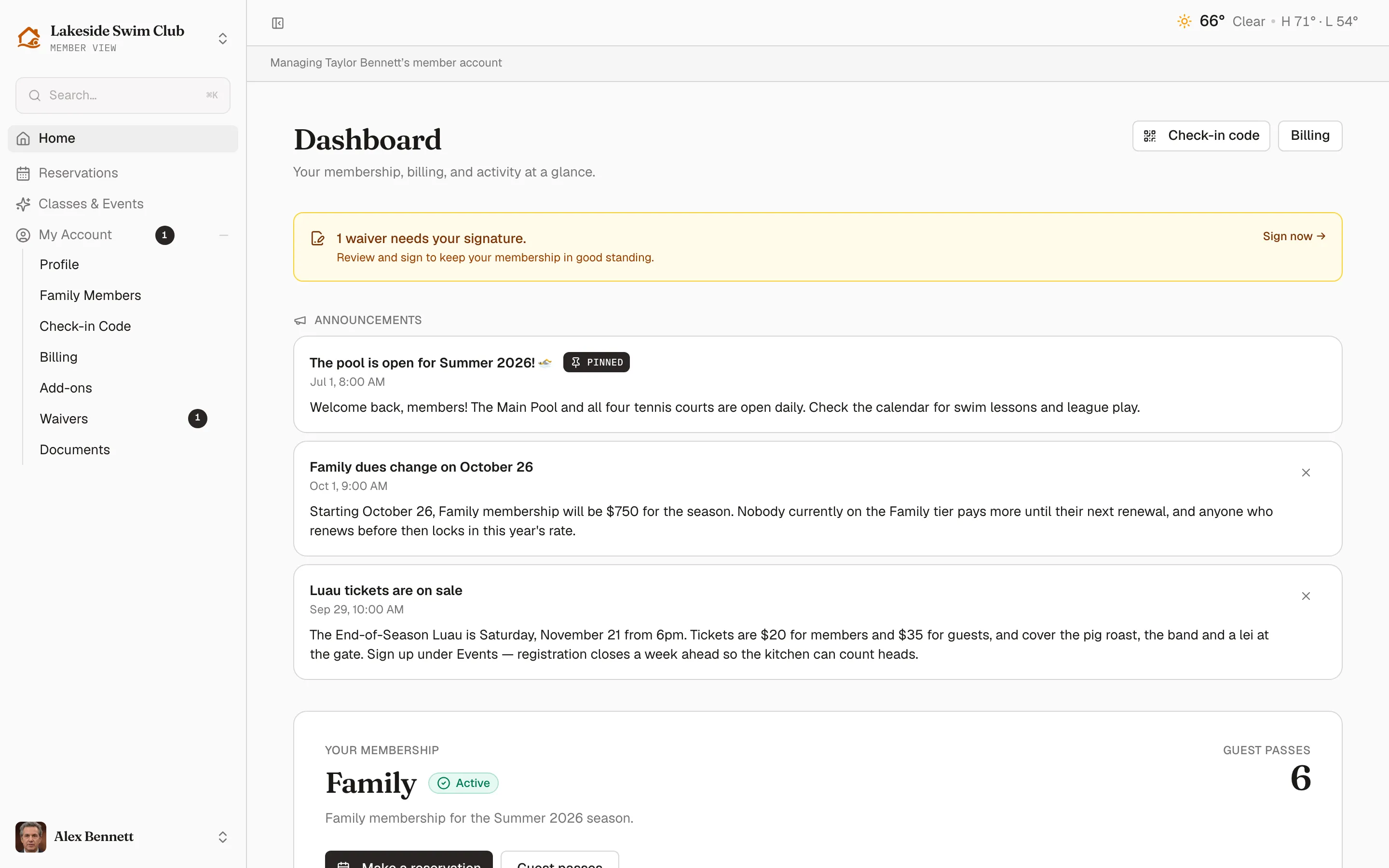
Section titled “When you share a membership”After you accept joint access, the home page shows the shared membership. A Managing [name]’s member account label identifies it. Your name in the account menu still identifies your own login, and personal settings remain yours.
The sidebar
Section titled “The sidebar”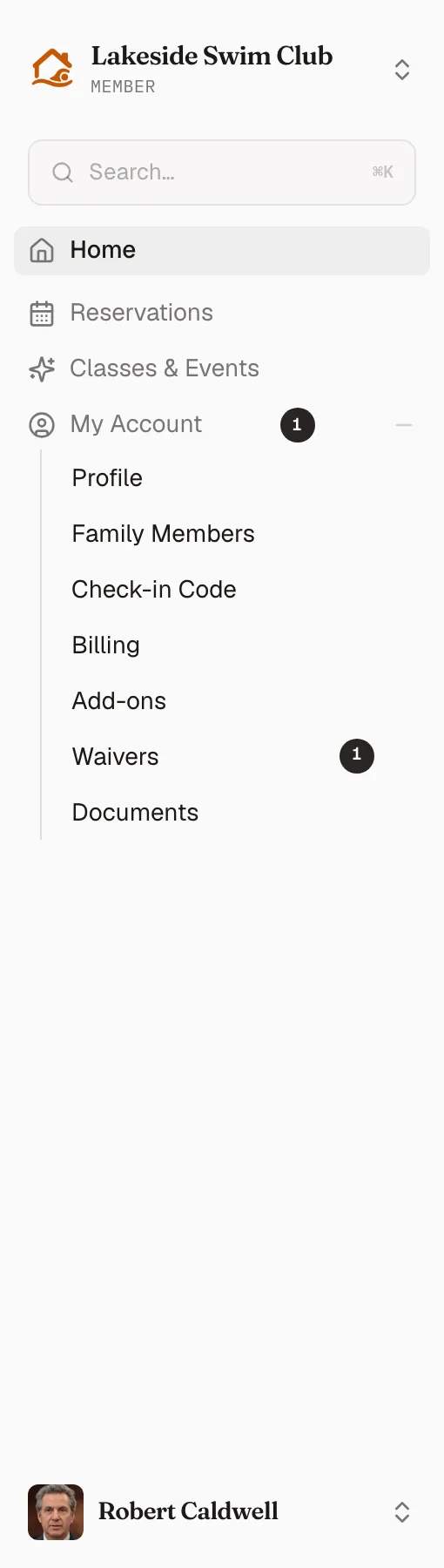
The member sidebar is short by design, and every group is expanded — nothing a member needs is hidden one click behind a closed section.
| Entry | What it is |
|---|---|
| Home | This page. |
| Reservations | Booking courts, lanes, and rooms. Needs the Facilities & Reservations module. |
| Classes & Events | The catalog, with a My Sign-Ups tab. Needs the Classes & Events module. |
| My Account | Profile, Family Members, Check-in Code, Billing, Add-ons, Waivers, Documents. |
Entries only appear when there is something behind them: Check-in Code needs the Front Desk module, and Add-ons shows only when you sell one to members or that member already holds one.
A number next to Waivers is the count still needing a signature. My Account mirrors it, so the count is visible even when the group is collapsed.
Check-in code, one click away
Section titled “Check-in code, one click away”The Check-in code button at the top right opens the member’s QR code in a dialog, without leaving the page — the fastest path to it when someone is already at the gate. It appears only with the Front Desk & Check-in module.
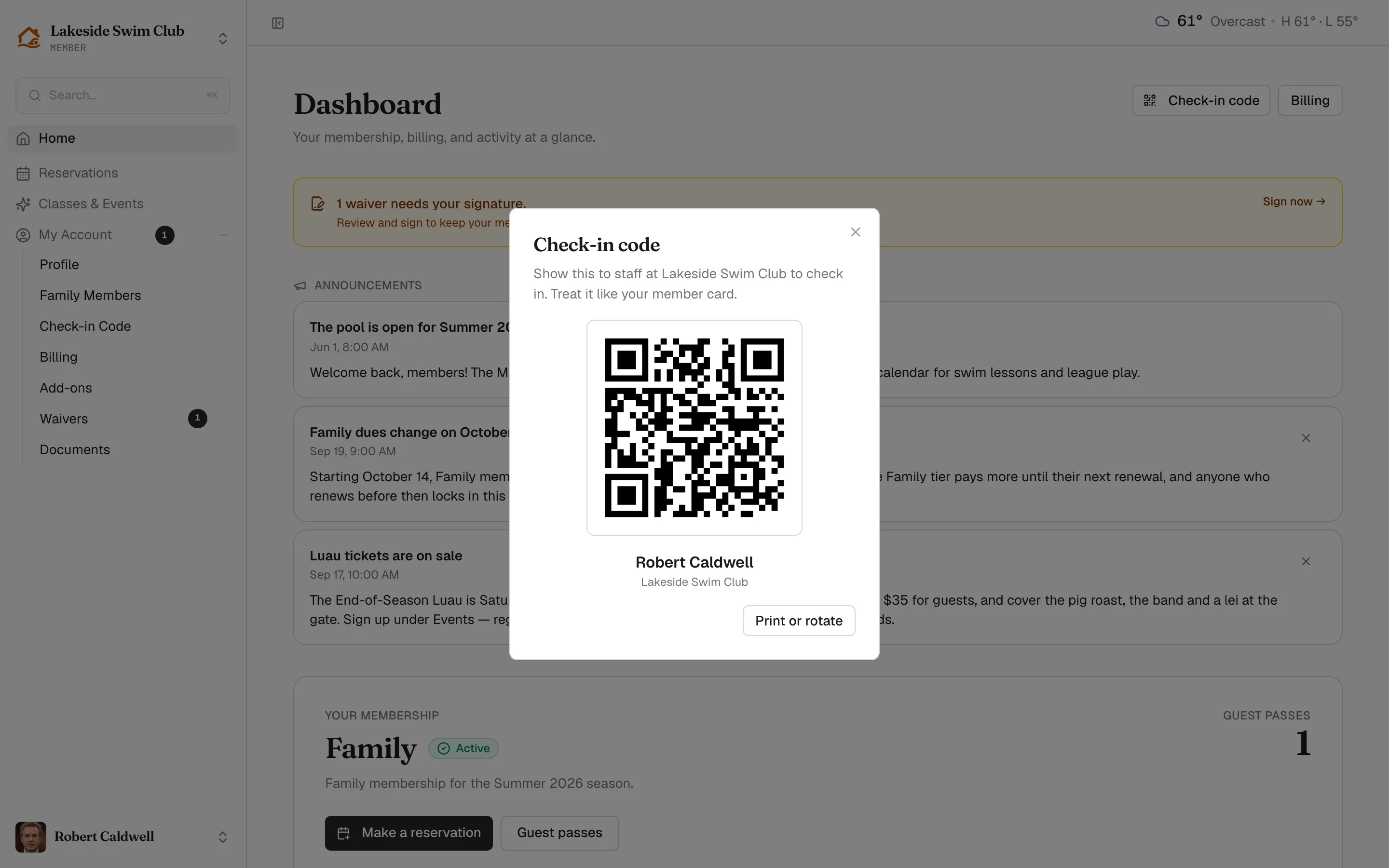
The full Check-in code page behind Print or rotate is where printing and rotation live.
What members can’t do
Section titled “What members can’t do”Members never see other members, your roster, your payouts, or anything under Settings. They can only reach their own household’s records. If someone reports seeing something they shouldn’t, check whether they hold a manager role on the organization — Roles & permissions has the full matrix.
To see the portal exactly as one member does, without their password, use View as member.