
Closures & holidays
Requires the Facilities & Reservations module
Closures block reservations across all facilities on a date — the Fourth of July, a swim meet, a resurfacing day. They live in the Closures bar at the top of the Facilities page: click Bookings in the sidebar, then Facilities. Each closure shows as a chip with its date and name; annual ones carry a repeat icon.
Add a closure
Section titled “Add a closure”- Click Add closure.
- Pick the Date and give the closure a Name (for example “Independence Day”) — members see the name when they try to book that day.
- Check Repeats every year for fixed-date holidays like July 4 or Christmas. Leave it unchecked for one-offs like a private event.
- Click Add closure.
The new closure joins the chip list, which shows upcoming closures only; annual ones carry a repeat icon and come back every year.
Import US holidays in bulk
Section titled “Import US holidays in bulk”-
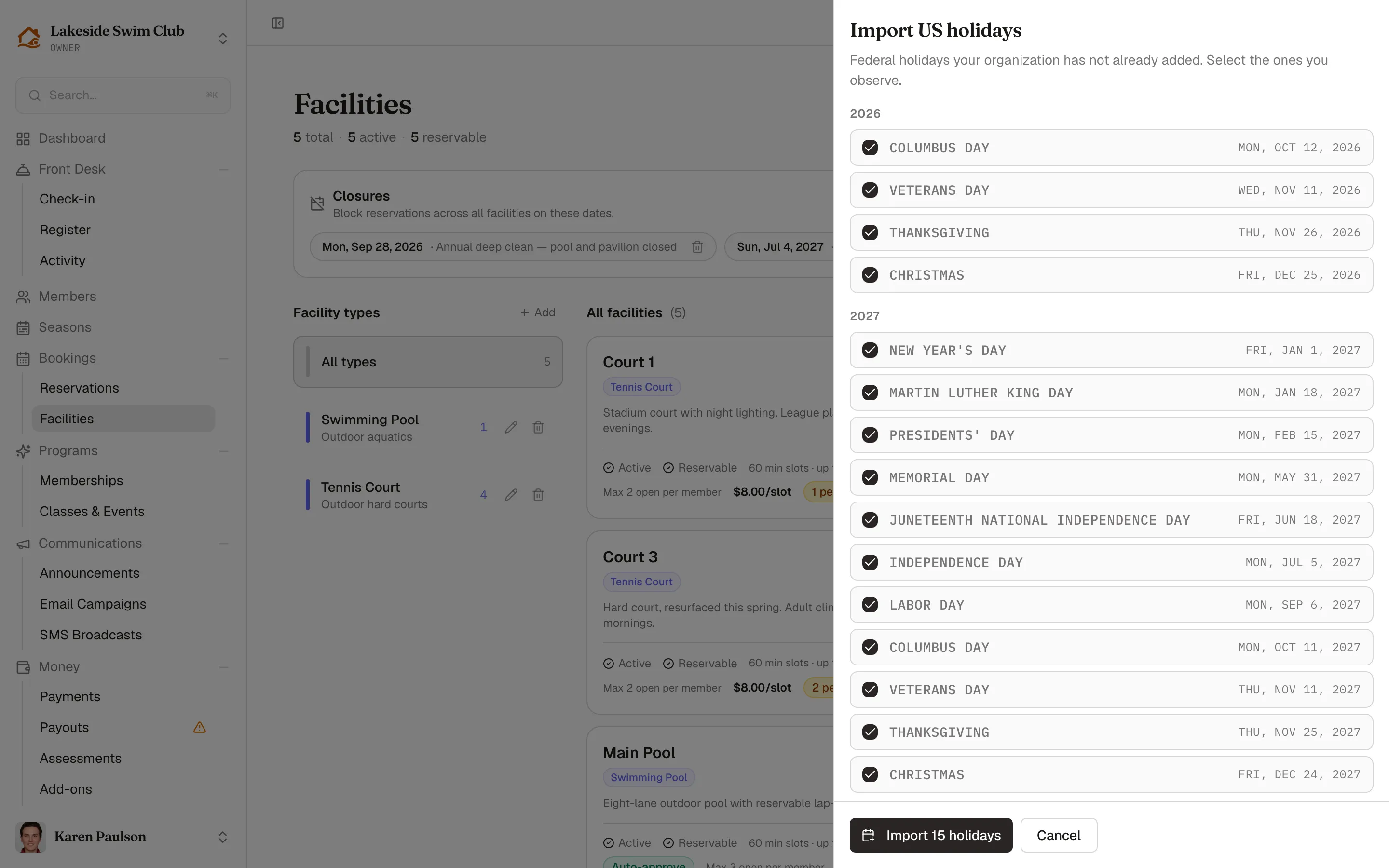
Click Import US holidays. The drawer lists US federal holidays for roughly the next 14 months that you haven’t already added, grouped by year, all pre-selected.
-
Uncheck any holidays your organization stays open for.
-
Choose whether to Mark as recurring annually. Fixed-date holidays repeat cleanly, but floating holidays like Memorial Day shift dates each year — uncheck this if you’d rather import each year’s dates separately.
-
Click the Import button — it counts your selection, like Import 8 holidays.
Dates already covered by an existing closure (including a matching annual one) are skipped, so re-importing never creates duplicates. Once every suggested holiday is covered, the import button disappears.
Remove a closure
Section titled “Remove a closure”Hover the closure’s chip and click the trash icon. Removing an annual closure removes it for every year.
Chips can’t be edited in place — to rename a closure or move its date, remove it and add a new one.
What members see
Section titled “What members see”On a closed date, the booking screen replaces the slot grid with a Closed on notice for that day, with a shortcut to jump to the next open day. The Week at a glance overview on the Reservations page marks every facility as closed on that date too.
Any attempt to book the date is refused with the closure’s name (for example “Closed on this date (Independence Day)”) — whether the member books themselves or staff book on their behalf. Generating a recurring block series also skips closure dates, and the scheduler’s preview warns you how many it skipped.
What closures don’t do
Section titled “What closures don’t do”- A closure is a single calendar date. For a multi-day shutdown — resurfacing week, off-season — add one closure per day, or mark the facility not Reservable for the duration instead (see Facilities).
- Closures apply organization-wide. To close just one facility on a day when the rest stay open, book a recurring block (or a one-day series) on that facility instead.
- Closures don’t touch bookings that already exist.