
Family members
A family member is someone covered by the primary member’s membership: a spouse, partner, child, or another person on the family list. The primary member can invite one adult family member to help manage the membership using their own login.
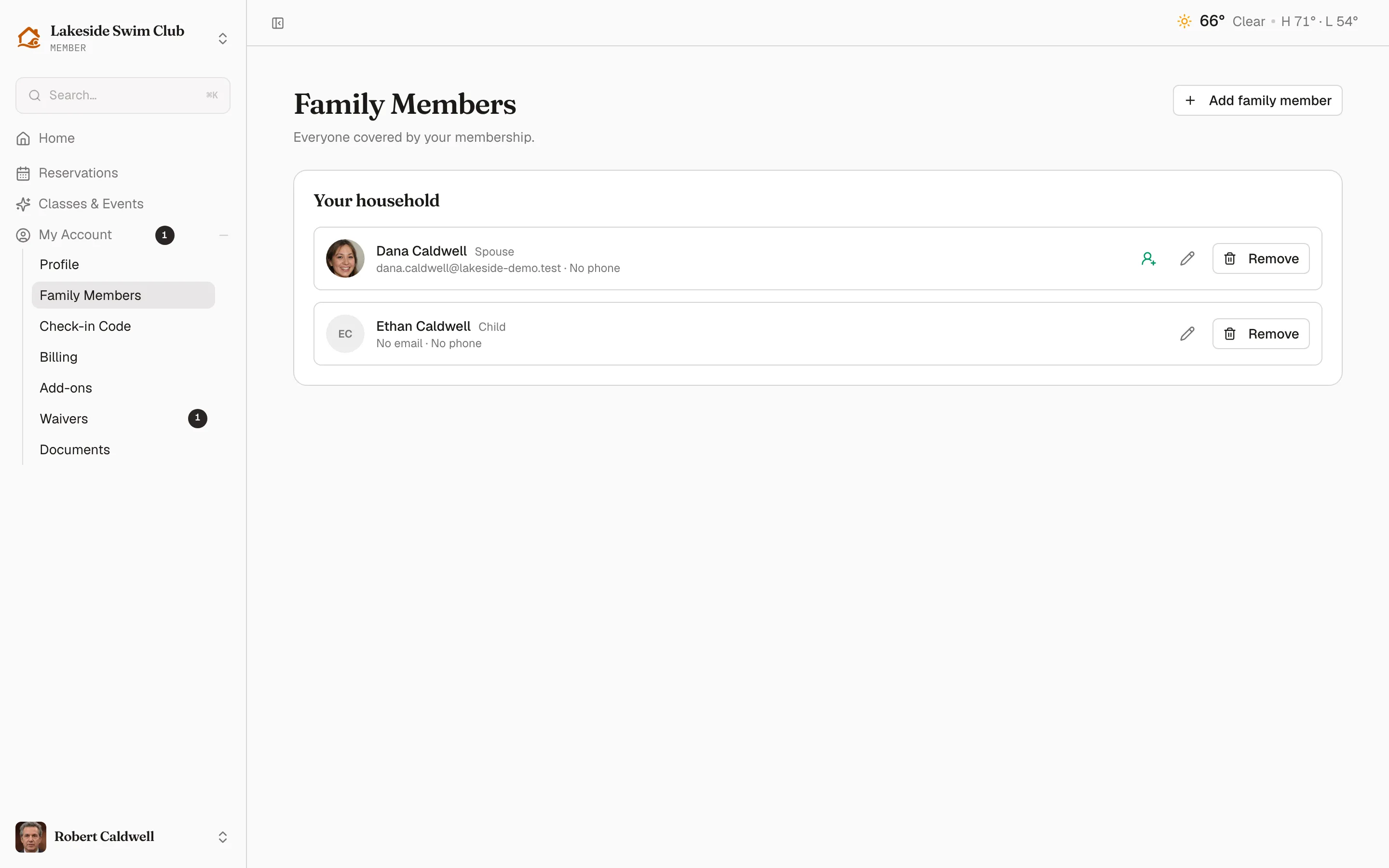
Open My Account in the sidebar, then Family Members, to manage the list and sign-in access.
Why this matters to you
Section titled “Why this matters to you”Family members are not decoration. They are what your club actually charges for and lets in:
- Dues. On a tier with family pricing, each person over the age cutoff adds to the bill. See Membership tiers.
- Check-in. Staff check a household in together, picking which people are present.
- Sign-ups. A parent enrolls a child in a class by name, not as “one spot”.
- Waivers. A household waiver is signed once for everyone who needs it.
Which is why it is worth telling members, at renewal, to make sure the list is right.
Adding someone
Section titled “Adding someone”Add family member opens a drawer.
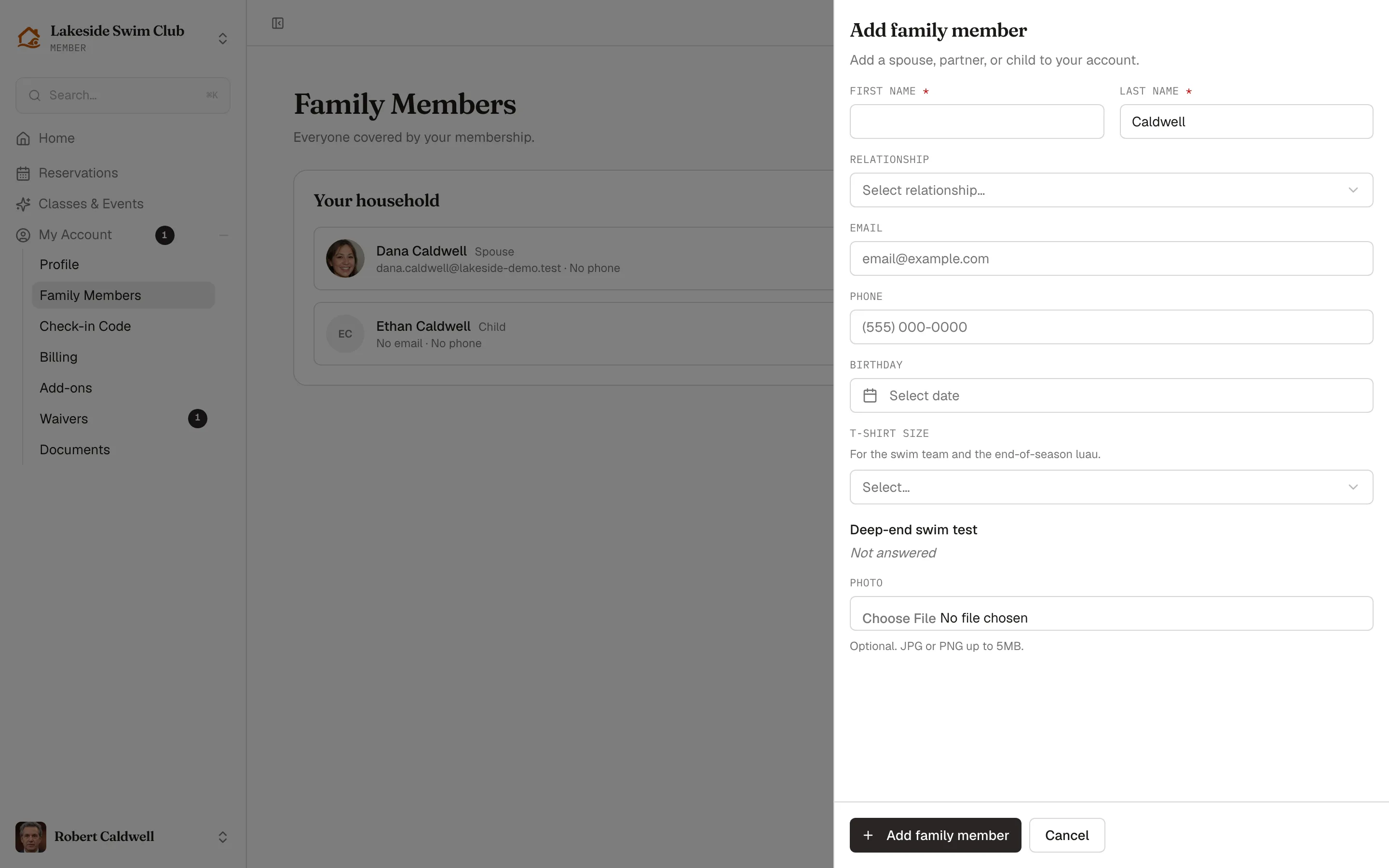
- First name and Last name are the only required fields. The surname is prefilled from the account holder, since a household usually shares one, and can be overwritten.
- Relationship — spouse, partner, child, parent, sibling, or other. Optional, and only a label.
- Email, Phone, Birthday, and a Photo are all optional.
- Any custom fields you’ve placed on family profiles appear at the bottom. Read-only ones show their stored value; staff-only ones never appear.
The pencil icon (Edit family member) reopens the same form. See Remove a family member before using Remove.
Birthdays
Section titled “Birthdays”A birthday is optional until it isn’t. The moment a member tries to sign that person up for a class with an age range, Memberley asks for it — right there on the sign-up row, so nothing already filled in is lost. See Classes & events.
Age also decides who counts toward family dues on tiers with an age cutoff, so a missing birthday on a child can quietly make a household look more expensive than it is.
Give an adult sign-in access
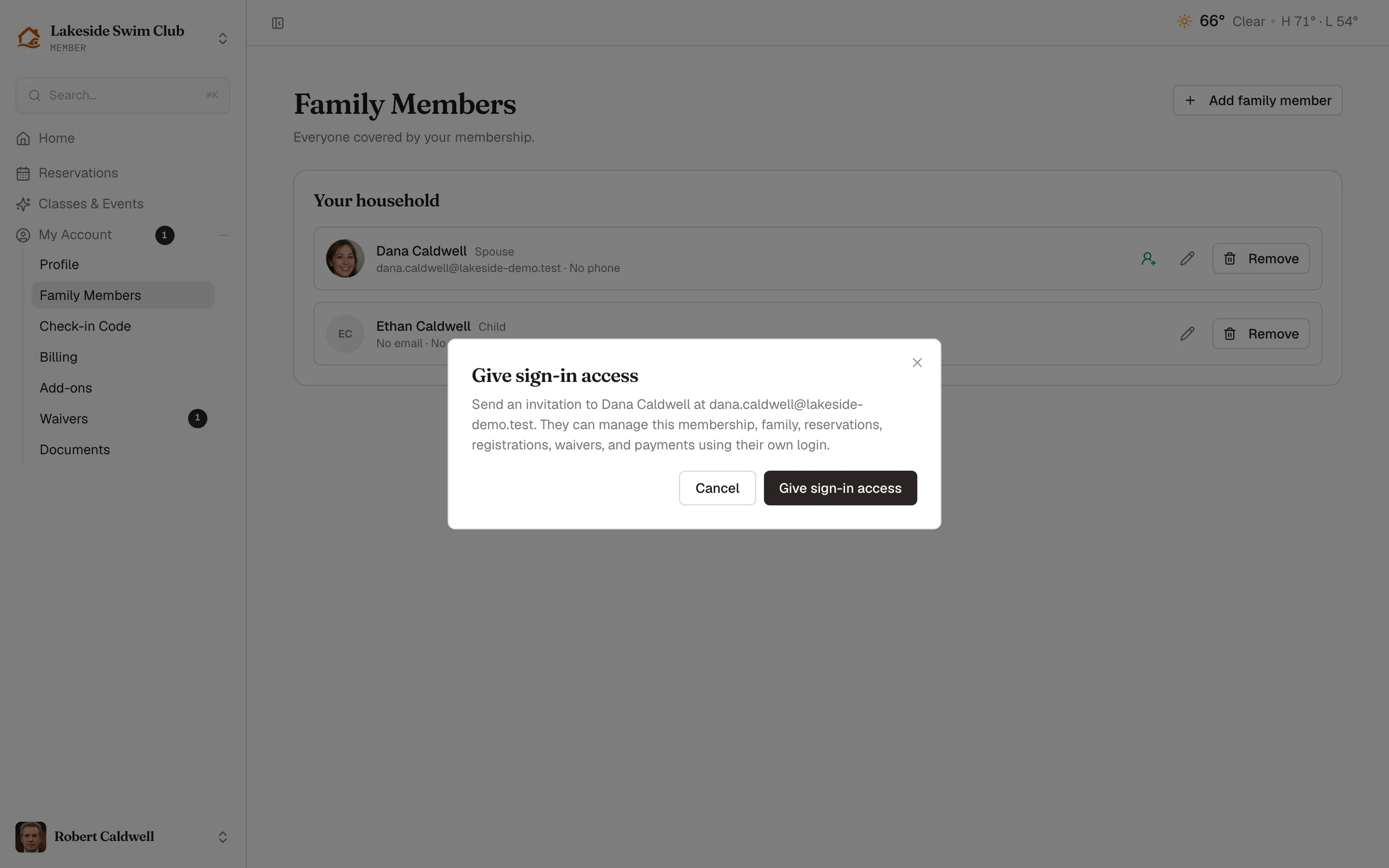
Section titled “Give an adult sign-in access”Once you have accepted your membership, you can invite one adult on your family list. They need their own email address and must be 18 or older.
- Click the pencil icon (Edit family member) to check their Email and Birthday.
- Click the green person-plus icon beside it, labeled Promote to joint account holder. If their birthday is missing, confirm that they are 18 or older.
- Click Give sign-in access in the dialog to send the invitation.
The green icon now reads Invited, or Expired after seven days. Click it to open the menu: Resend invitation sends a new link and invalidates the previous one; Cancel invitation ends a pending invitation. Both ask you to confirm. The edit form warns before changing an email with a pending invitation. Saving a usable new address sends a replacement invitation; editing through the embedded portal invalidates the old link, and you can resend from the main member portal.
The primary member and club staff can manage invitations. If you already have your own membership at this club, contact the club before accepting another member’s invitation. If you already share another member’s access here, leave that shared account first.
Accept an invitation
Section titled “Accept an invitation”- Open the link in your invitation email.
- If you need a login, enter your details, check I accept access to [primary member]’s member account, then click Create login and accept. You go straight to the shared account.
- If you already have a login, use Sign in to continue with the invited email, complete verification when prompted, then click Accept invitation. If another login is open, use Switch account or return to your current account.
If you choose Continue with Google, use the invited Google account, complete any required two-factor check, then click Accept invitation. Google sign-in alone does not accept shared access.
You can now manage the membership, family, reservations, registrations, waivers, and payments together. Joint access does not grant staff permissions or let you invite another joint holder. A label above the page identifies whose member account you are managing. Personal settings and sign-ups identify your own account. Your personal profile and earlier personal sign-ups stay yours.
End sign-in access
Section titled “End sign-in access”The primary member clicks Can sign in beside the family member’s edit icon, then Remove access in the small popover, and confirms with Remove sign-in access. The joint holder can use Leave shared account. Their own family row does not offer Remove, so leaving keeps their family profile and records. Club staff can also remove access.
Ending access keeps the family profile, both logins, saved cards, and previously authorized payments. It refreshes the primary member’s check-in codes at every club where they are used, so old printed or saved copies stop working.
If the club removes the primary membership from its roster, shared access becomes unavailable. It resumes if the club restores that membership, unless the joint holder has left or their access was removed.
Remove a family member
Section titled “Remove a family member”Click Remove on the family profile, then confirm in the dialog.
When the tier has a limit
Section titled “When the tier has a limit”If the member’s tier caps how many family members it covers, that cap is enforced here. At the limit the Add family member button disappears — rather than offering a form that cannot save — and the page says what the membership covers and to contact the front desk.
“Needs info”
Section titled ““Needs info””When a family member is missing an answer you’ve marked required, an amber Needs info chip appears next to their name. Clicking it opens their edit drawer at the fields in question. The same shortfall is counted in the banner on the member’s home page.
Related
Section titled “Related”- Profile
- Joint access — staff help with invitations and access
- Custom fields — placing questions on family profiles
- Check-in — checking a household in