
Assessments & capital fees
Requires the Assessments & Capital Fees module
An assessment is money a member owes beyond their regular dues — a capital contribution collected over their first few years, an initiation fee for new joiners, or a one-time special assessment for a new roof. You describe the rule once; Memberley works out who owes what from each member’s tenure, issues the charges, and tracks them alongside every other payment. Click Money in the sidebar, then Assessments.
Assessments are always assessed, never auto-charged: each one becomes a pending charge the member pays like any other balance. Nothing is drawn from a card on file without the member acting. Owners and managers can both manage assessments.
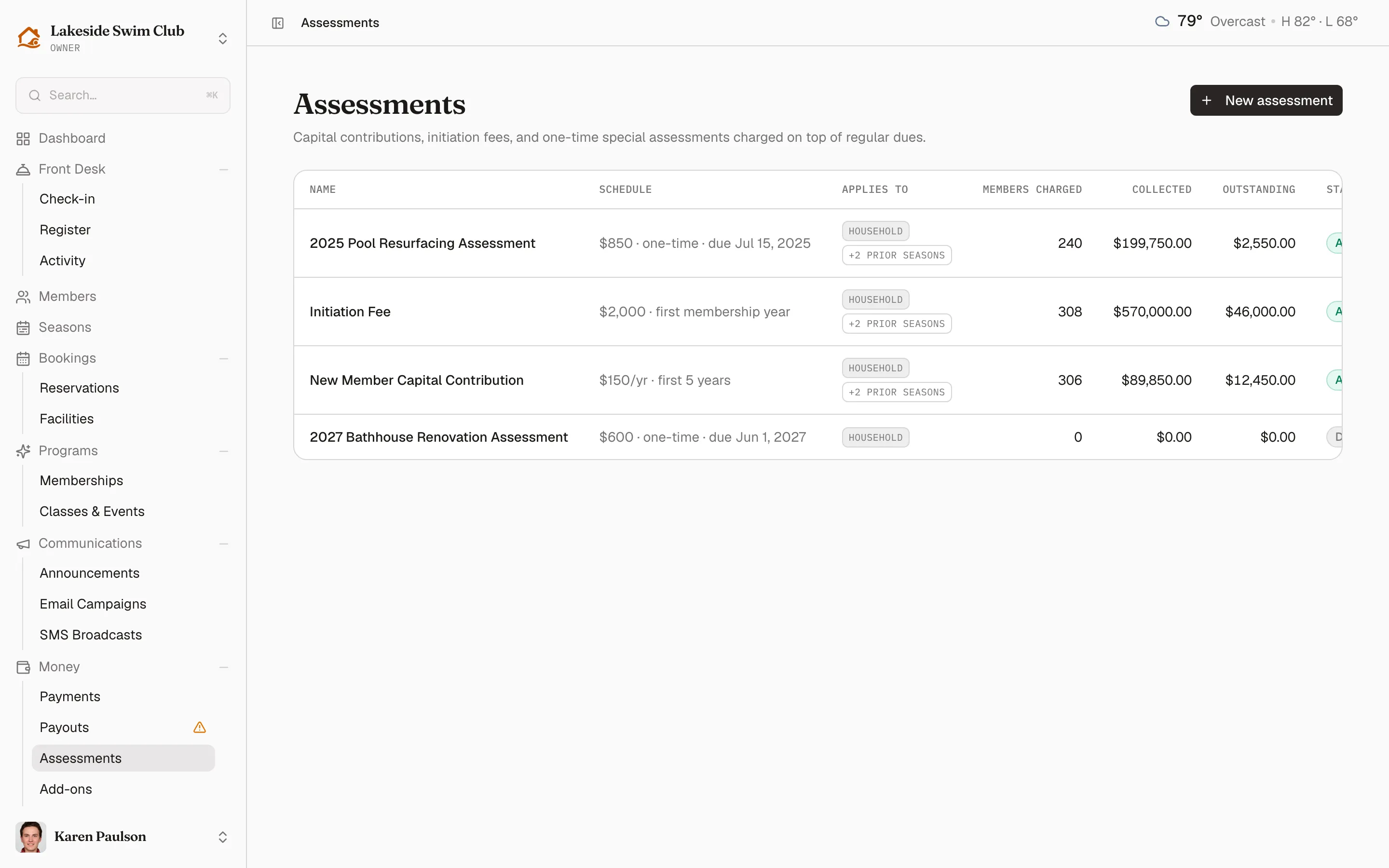
The three shapes an assessment takes
Section titled “The three shapes an assessment takes”Almost every fee a club charges on top of dues is one of these. The rest of this page is the mechanics behind them.
| You want to charge | Schedule | Example |
|---|---|---|
| A capital contribution for a member’s first few years | Annually → First 5 membership years | $150/yr for the first 5 years |
| An initiation fee, once, as each new member joins | Once → In their first membership year | $2,000 when a new household comes in |
| A special assessment on today’s roster | Once → On a specific date | $850 for pool resurfacing, due Jul 15 |
Membership years, and where they come from
Section titled “Membership years, and where they come from”Every tenure rule on this page counts in membership years, not calendar years. Year 1 is a member’s first year, year 2 their second, and so on.
The count starts from the member’s Member since date, which Memberley resolves in this order:
- An admin-set date — typed into the Member since dialog on their profile, or brought in by the
member_sincecolumn of a CSV import. - Otherwise, the date their membership was first activated in Memberley.
Waitlist time never counts. Someone who applied in 2026, waited two years, and was activated in 2028 is in membership year 1 in 2028 — not year 3.
Where a year boundary falls depends on the tier:
- Seasonal tiers count per season. Year N is the Nth season since the member-since date, so a tenure window never splits a season in half.
- Fixed-term tiers count from the anniversary. The member is in year 1 until the day before their first anniversary, year 2 from the anniversary onward.
A lapsed year is a skipped year, not a deferred one — a member who sits out a year comes back into whichever year the calendar says, and the year they missed is never billed later.
Correct a member’s Member since date
Section titled “Correct a member’s Member since date”- Open the member’s profile from the roster.
- Click the dotted Member since date under their name in the header.
- Pick the correct date and click Save, or click Clear override to fall back to their first activation.
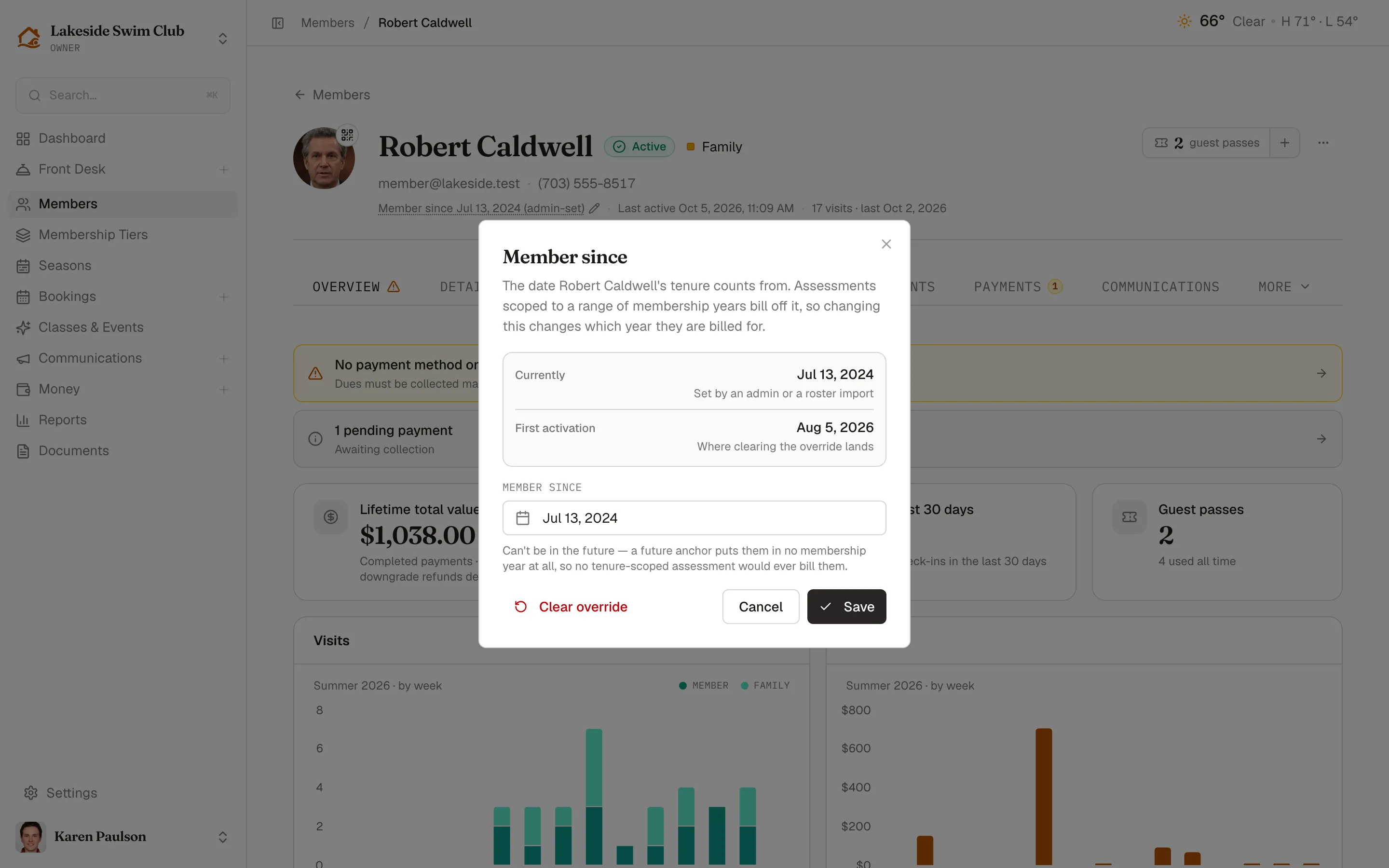
The dialog shows both dates side by side — what’s in effect now, whether it was admin-set or derived, and where Clear override would land — because only the admin-set kind is yours to correct. The date can’t be in the future: a future anchor puts the member in no membership year at all, so no tenure-scoped assessment would ever bill them.
Draft an assessment
Section titled “Draft an assessment”- Click New assessment.
- Fill in the three sections below.
- Watch the Who will be charged panel beside the form as you work: it counts the members who would owe this using the same tenure math that issues the real charges, and tells you why anyone else was excluded.
- Click Save draft.
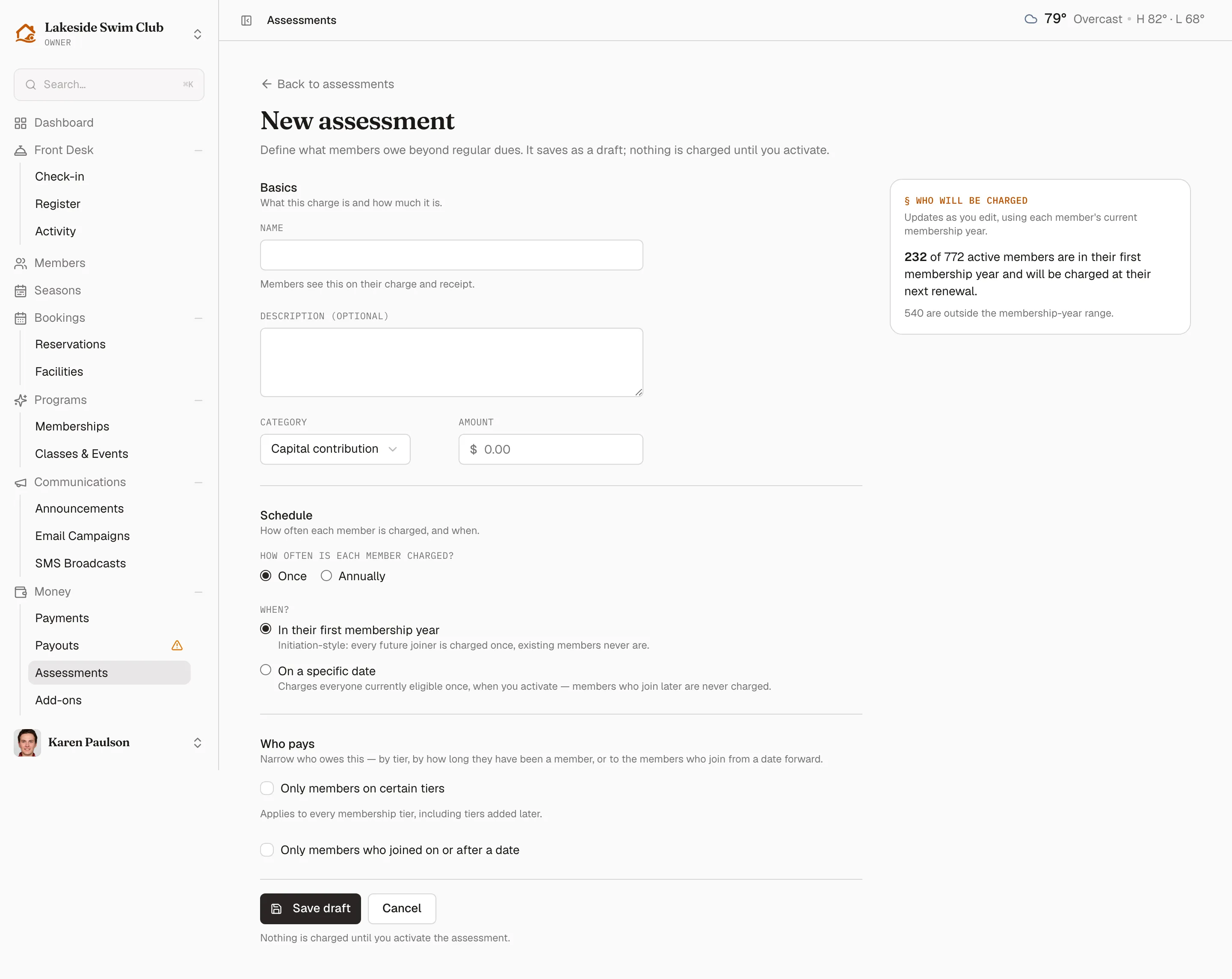
Drafts charge nobody. Edit or delete one freely until you activate it.
Basics
Section titled “Basics”- Name — members see this on their charge and their receipt, so write it the way you’d want it read at a board meeting: “New Member Capital Contribution”, not “cap contrib yr1-5”. Up to 120 characters.
- Description (optional) — an internal note. Members don’t see it.
- Category — Capital contribution, Special assessment, Initiation fee, or Other. This is reporting metadata only; all four behave identically. Pick the one that reads best on your books.
- Amount — what one charge is worth, in dollars. For an annual assessment this is the amount per year, not the total: $150/yr for 5 years is entered as
150.00.
Schedule
Section titled “Schedule”The Schedule section asks how often each member is charged, and that answer drives everything else.
Once charges a member a single time. Two very different timings sit under it:
- In their first membership year — initiation-style. Every future joiner is charged once as they come in. Members already on your roster are never charged, so activating this on an established club is safe.
- On a specific date — charges everyone eligible at the moment you activate, and asks for a Due date that rides along on the charge description (“2025 Pool Resurfacing Assessment — due Jul 15, 2025”). The population is a snapshot: members who join afterwards are never charged.
Annually charges once per membership year, for the years you choose:
- Every year — for as long as they remain a member.
- First N membership years — the classic capital contribution: “$150/yr for their first 5 years.”
- Years X through Y — an arbitrary window, for staged buy-ins. Leave the last year blank for “year X onward”.
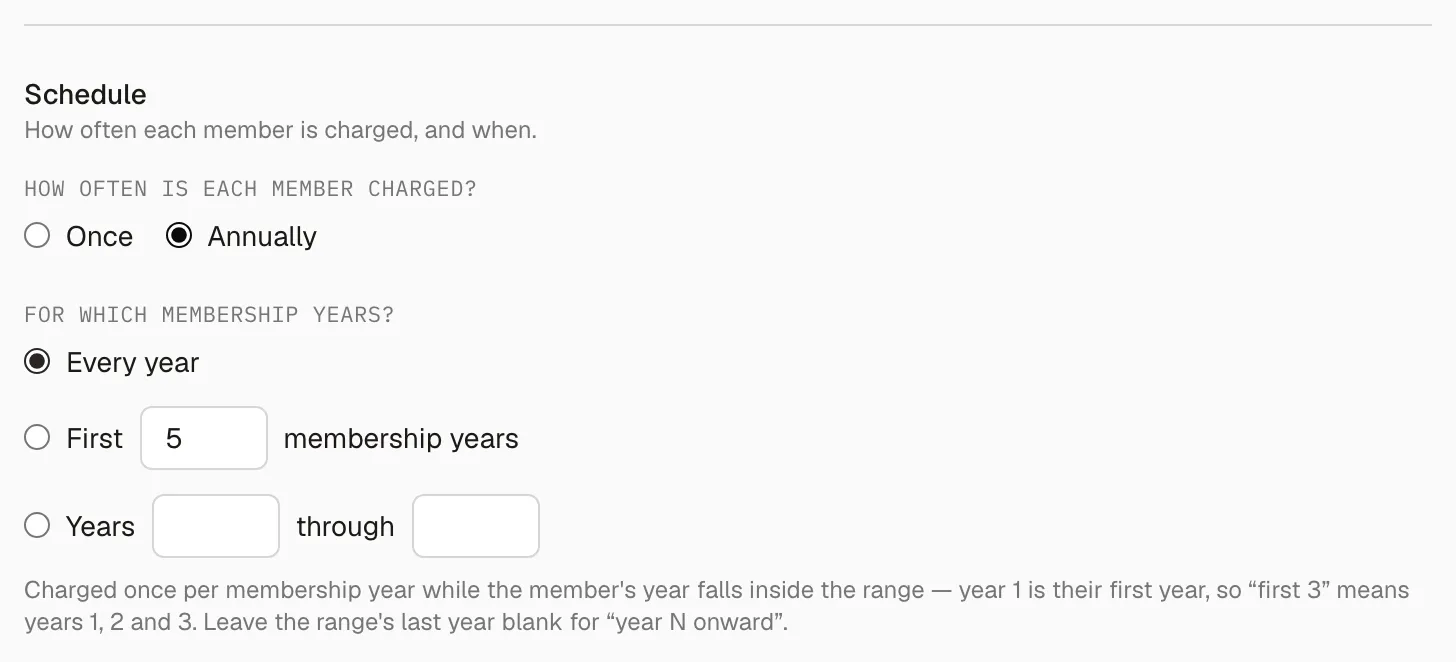
Annual assessments only ever bill the current membership year forward. Activating one never backfills years a member has already completed — a member already in year 3 of a “first 5 years” contribution is charged for years 3, 4, and 5, not for 1 and 2.
Who pays
Section titled “Who pays”Three independent filters narrow the audience, and a member has to clear all three.
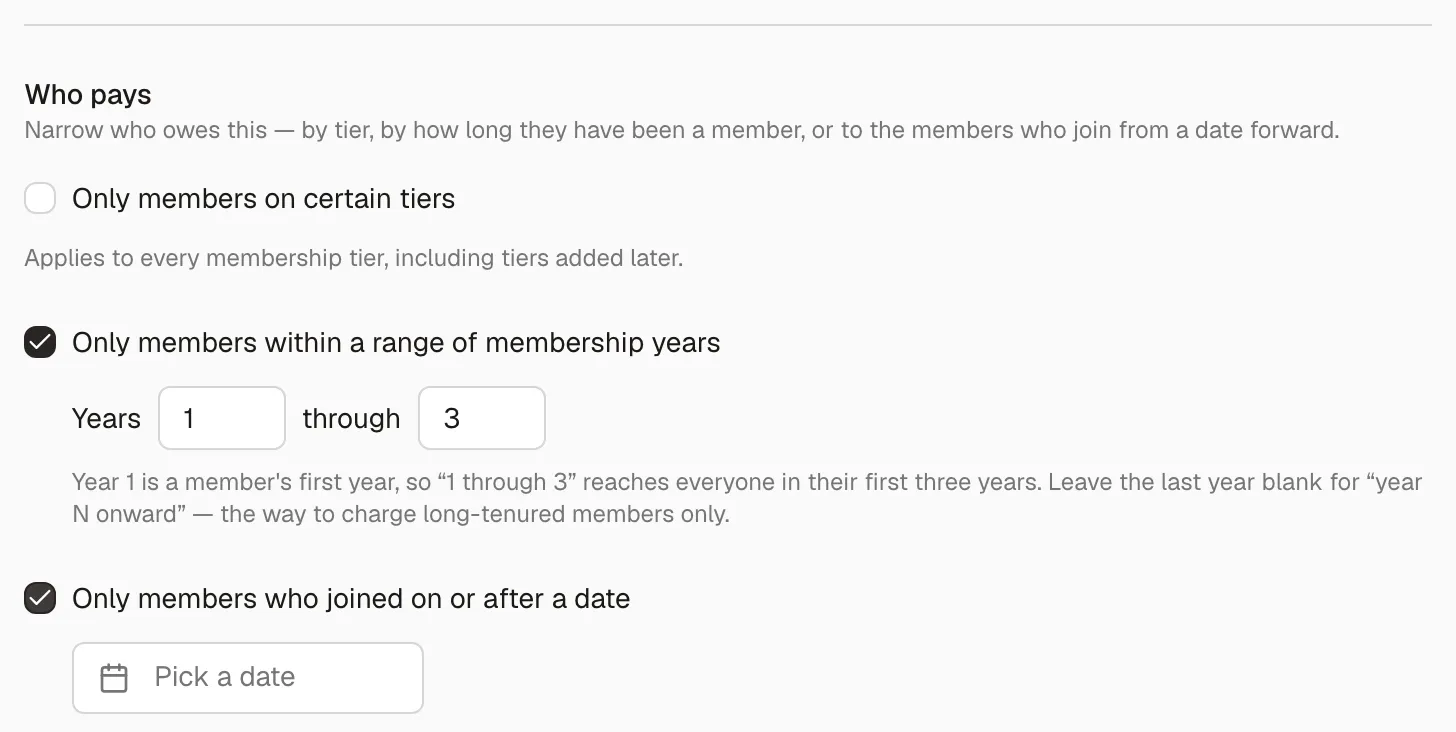
- Membership tiers — check the tiers this applies to, grouped by season so seasonal duplicates of the same tier name stay tellable apart. Leave every box unchecked to cover all tiers, which is what most clubs want; the line under the list confirms which way you’ve left it. Tier scoping survives a season clone, so a tier you check today is still covered when next season’s tiers are minted.
- Only members within a range of membership years — a tenure filter on the audience. “Years 1 through 3” reaches everyone in their first three years; leaving the last year blank gives “year N onward”, the way to charge long-tenured members only. This option appears only on Once → On a specific date, because the other schedules already express tenure through the schedule itself.
- Only members who joined on or after a date — the cohort cutoff. Anyone whose Member since date is earlier is never charged. This is how you grandfather the roster you already have: adopt a new capital contribution for members joining from 2027 onward without back-charging the families who joined in 1998.
Read the live preview
Section titled “Read the live preview”The panel beside the form re-counts as you type. It reads as one sentence — “154 of 432 active members are in their first membership year and will be charged at their next renewal” — and lists the exclusions separately underneath, because they have different fixes:
- “N are outside the membership-year range” — widen the year window, or accept it.
- “N joined before the cutoff date” — move the joined-on-or-after date, or accept it.
For a one-time assessment on a date the sentence changes to “will owe this amount when you activate”: those are the members who will be charged the instant you confirm.
Activate it
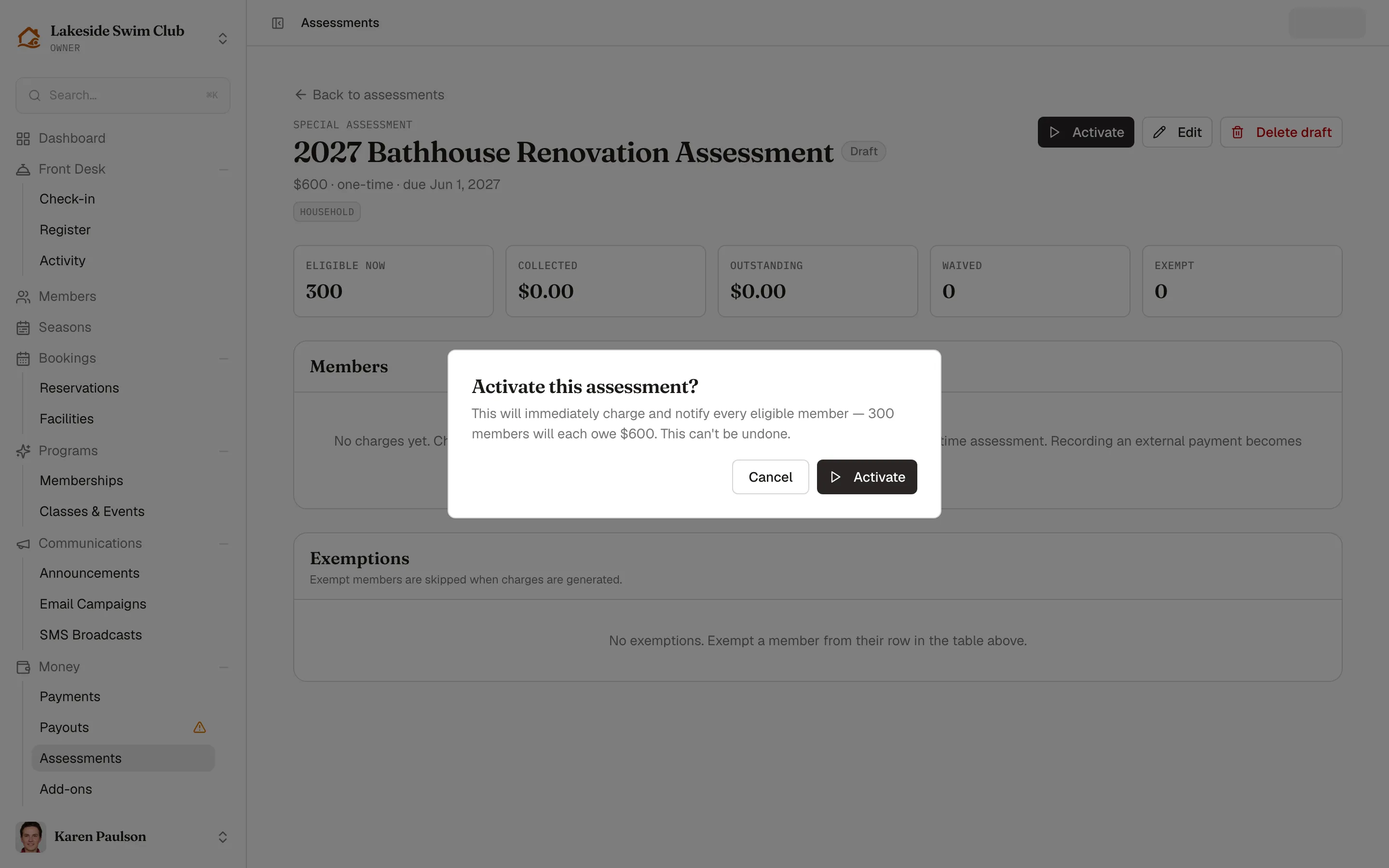
Section titled “Activate it”- Open the assessment and click Activate.
- Read the confirmation — it names the number of members affected — and click Activate again.
What happens next depends on the schedule:
- Once → On a specific date charges and notifies every eligible member immediately. The dialog tells you exactly how many and how much each will owe.
- Once → In their first membership year and Annually issue nothing right away. Charges appear as each member is approved, invited, or renews, and a daily run picks up anyone whose membership year has moved into the window.
Every member who gets charged is emailed “A new charge was added to your account” with the amount, the assessment name, and a link to their balance.
Track who owes and who has paid
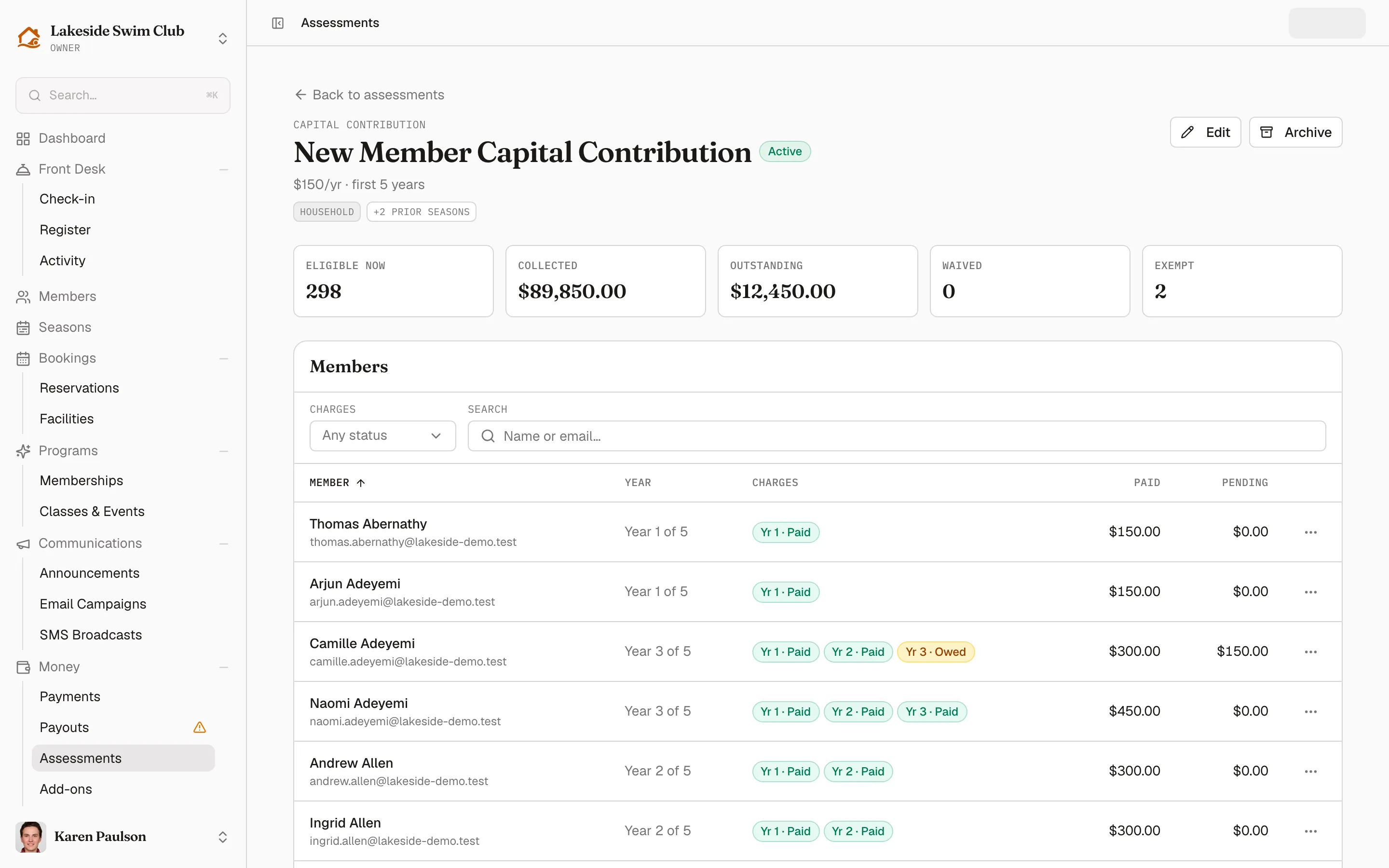
Section titled “Track who owes and who has paid”The assessment’s detail page opens with its totals and then lists every member it has charged. Under the title, chips name the audience: the tiers it covers (or All membership tiers), how many earlier seasons’ versions of those tiers ride along, and any membership-year or cohort narrowing.
The summary cards
- Eligible now — how many active members match the rule today. On an annual assessment this is a forward-looking number, not a count of charges already issued.
- Collected — the sum of completed charges.
- Outstanding — the sum of pending charges.
- Refunded — appears only once something has been refunded.
- Waived — how many charges have been forgiven.
- Exempt — how many members are excluded from future generation.
The members table
- Search by name or email, and filter Charges by Owed, Paid, Failed, Refunded, or Waived — pick several to widen the net. A member matches if any one of their charges does. Reset clears both, and the count under the table reads “Showing 1–25 of 92 (filtered from 308)” so you always know what you’re looking at.
- Click the Member heading to flip the sort between A–Z and Z–A. Rows page 25 at a time.
- Year — the member’s current membership year, shown as “Year 3 of 5” when the assessment has a last year, so you can see how much is still to come. One-time assessments charge everyone once whatever year they’re in, so they have no Year column.
- Charges — one chip per charge ever issued, reading year · status:
Yr 3 · Paid,Yr 2 · Owed. A charge for an unusual amount appends it (Yr 1 · Paid · $75), and one recorded outside the platform carries a banknote glyph. Forgiven charges stay visible asWaived, because the table explains history, not just live balances. Click any chip to open that charge on the member’s Payments tab. - Paid / Pending — that member’s totals for this assessment.
The index gives you the same story per assessment — Members charged, Collected, and Outstanding — so you can see a capital campaign’s progress at a glance.
Assessment charges are ordinary charges everywhere else in Memberley: they appear in Payments under the Assessment type, on the member’s profile and statement, and they count toward the outstanding balance that gates check-in. Members see them itemized on their dashboard, on their billing page, and on any pay-by-link page, so a renewal never arrives as a surprise.
Record a payment collected outside Memberley
Section titled “Record a payment collected outside Memberley”Capital contributions often arrive as a check at a board meeting — and clubs moving to Memberley usually have years of contributions already collected.
-
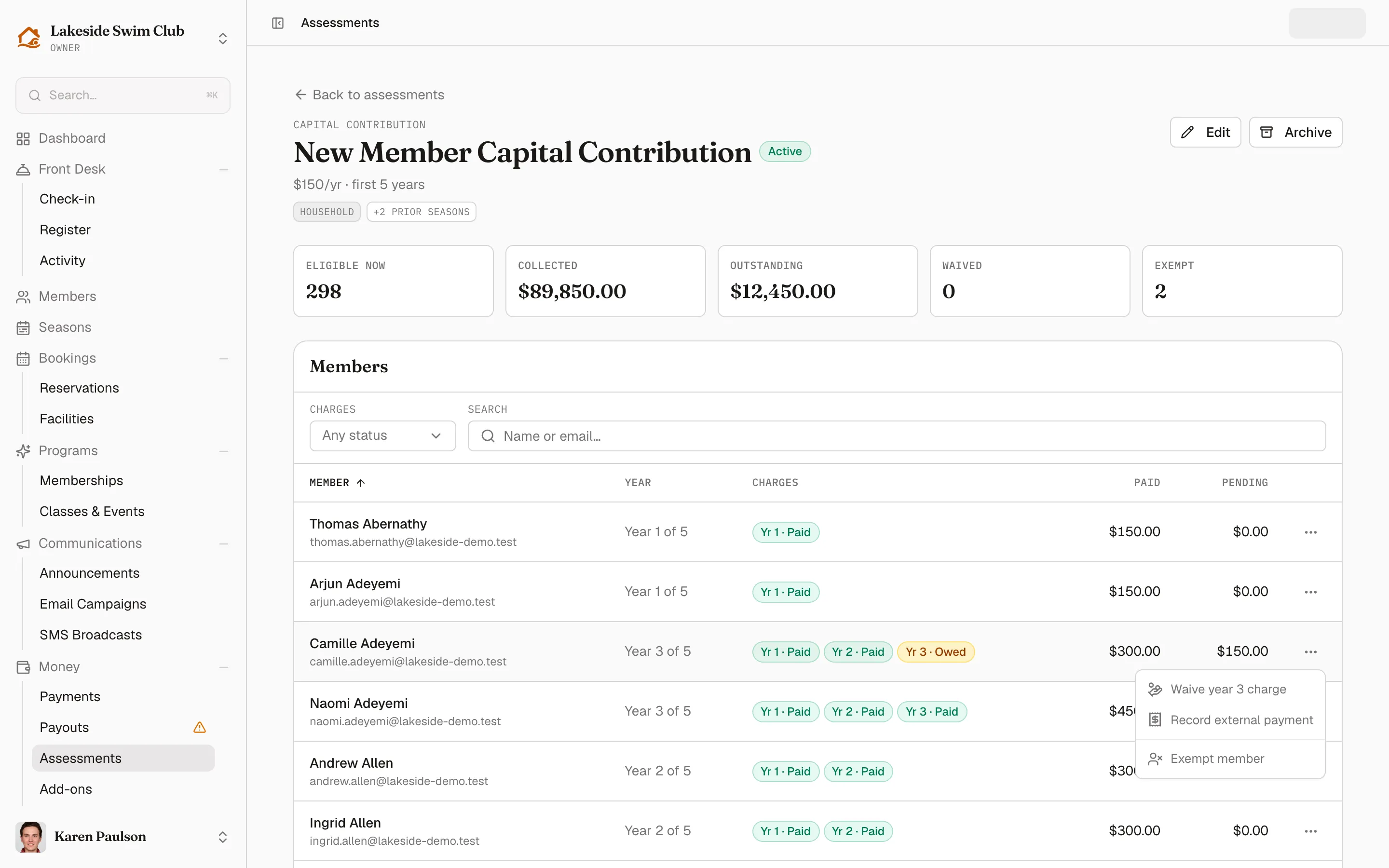
In the Members table, open the row’s ⋯ menu and choose Record external payment.
-
Fill in the dialog and click Record payment.
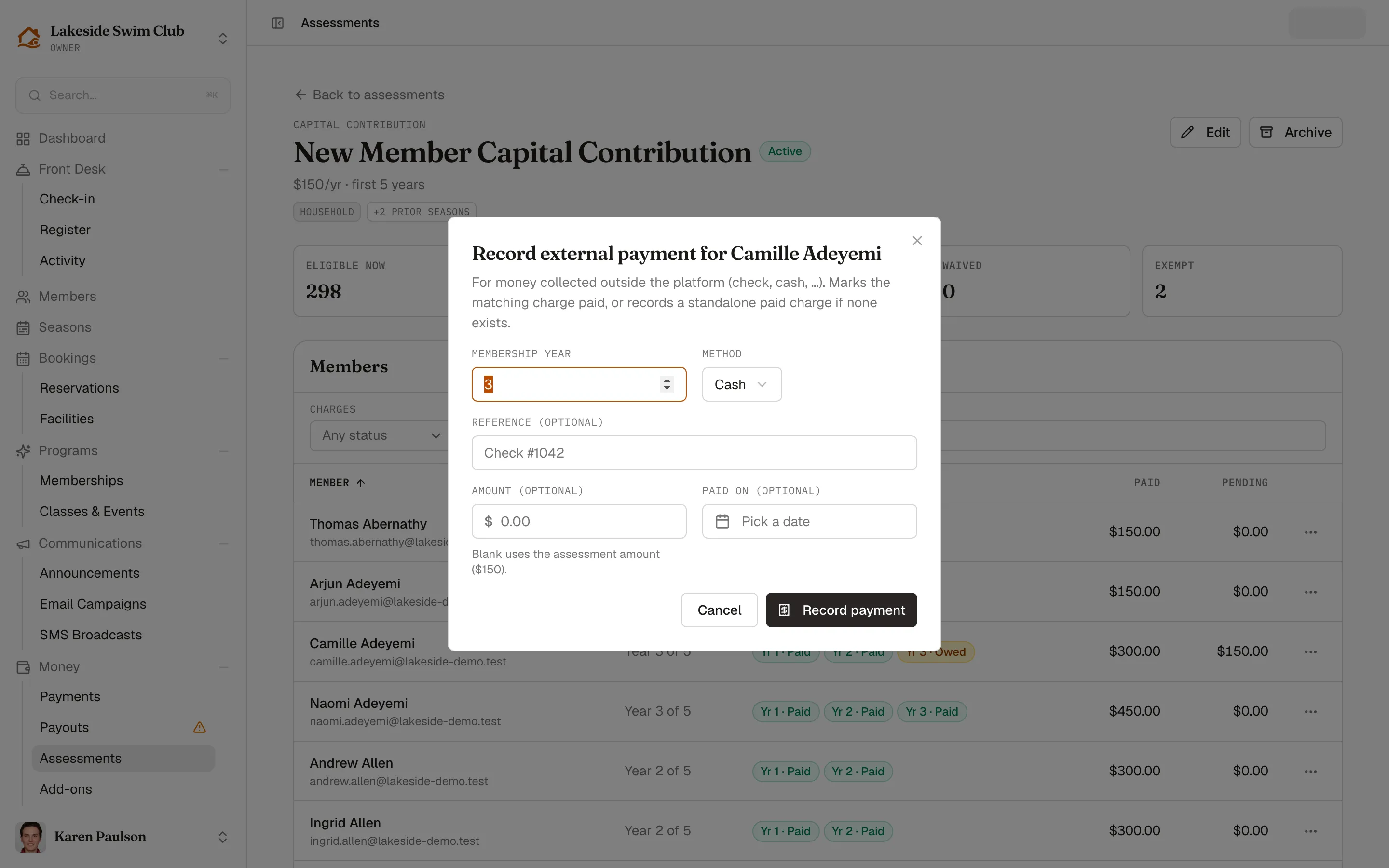
- Membership year — which year this money covers. This is the field that matters: it marks that year as settled so Memberley never generates it again. (On a one-time assessment the field is labeled Occurrence and is always 1.)
- Method — Cash, Check, Zelle, PayPal, Venmo, or Other.
- Reference (optional) — a check number or memo, kept on the payment record.
- Amount (optional) — leave blank to use the assessment’s amount. Fill it in when someone paid a different figure.
- Paid on (optional) — backdate the record to when the money actually arrived, so revenue reporting lands in the right period. Backdated records skip the receipt email, since the member paid long ago; a record left at today’s date sends one as usual.
If the member already had a pending charge for that year, this marks it paid. If they didn’t, it records a standalone paid charge — which is how you bring historical contributions in without inventing pending balances first.
Exempt a member
Section titled “Exempt a member”Exempt a founding family, a lifetime member, or anyone the board has excused.
- Find them in the Members table and choose Exempt member from the row’s ⋯ menu.
- Add a Reason (optional) — worth doing; it’s the only record of why — and click Exempt member.
Exempt members are skipped whenever future charges are generated, and they’re listed in the Exemptions panel at the bottom of the page.

Charges they already hold are unchanged — waive those separately. Remove puts a member back in line from the current membership year forward; the years they were exempt for are never billed retroactively.
Waive a charge
Section titled “Waive a charge”To forgive a charge a member already holds, open their row’s ⋯ menu and choose Waive year N charge — the menu lists one item per charge still owed — then confirm in the dialog. You can also waive it from the member’s Payments tab or from Payments; it’s the same charge either way.
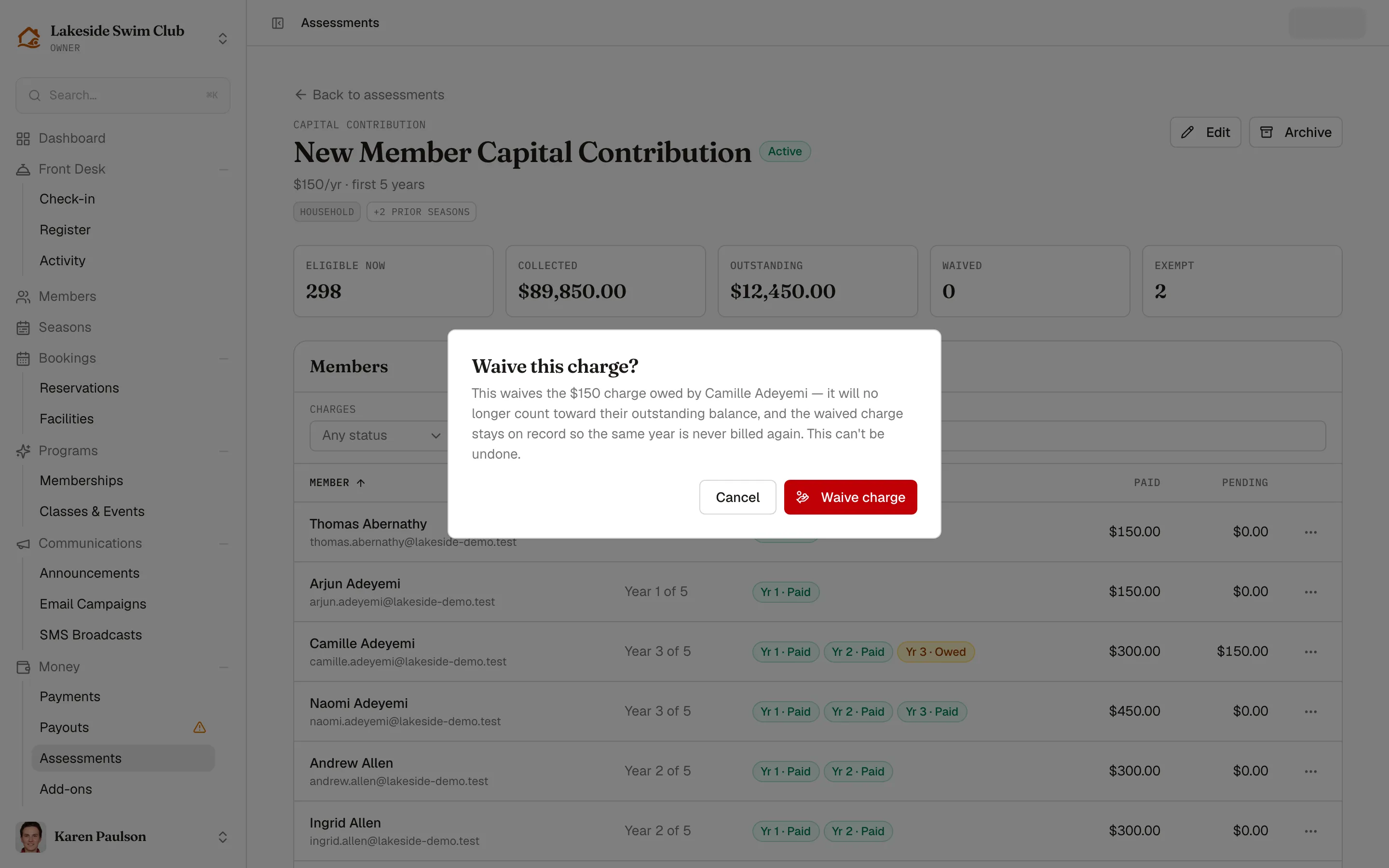
The charge stops being owed and drops out of their outstanding balance, while staying visible on the record as Waived. A waived year stays waived — the daily run never re-issues it. Charges that are owed or failed can be waived; to reverse one that’s already been paid, refund it instead.
Edit an active assessment
Section titled “Edit an active assessment”Click Edit on the detail page. Edits apply forward only — issued charges are immutable, so changing the amount or the year window affects future generation and never rewrites history. Raise a contribution from $150 to $175 and next year’s charges are $175; the years already billed stay at $150.
Two things lock once an assessment goes live:
- The Once / Annually choice, on any active assessment.
- The whole Who pays section, on an activated Once → On a specific date assessment. Its population was settled at activation — the charges it issued are the answer to “who pays” — so waive a charge or exempt a member instead.
Delete or archive
Section titled “Delete or archive”- Delete draft permanently removes an assessment that has never charged anyone. Only drafts can be deleted.
- Archive stops an active assessment from generating anything further. Use it when a capital campaign is finished or a fee is retired.
Archiving does not cancel money already owed: charges already issued remain owed and payable. Waive them individually if you meant to cancel the whole thing. The same applies if you drop the Assessments module from your plan — generation stops, but charges already issued stay on members’ accounts.
Worked examples
Section titled “Worked examples”“$150 a year for a new member’s first five years.”
Amount 150.00, category Capital contribution, schedule Annually → First 5 membership years, no tier or cohort filters. Members in years 1–5 are charged at their next renewal; members in year 6 or later never are. A member who joins in 2028 is charged in 2028, 2029, 2030, 2031, and 2032.
“$2,000 initiation fee for everyone who joins from now on.”
Amount 2000.00, category Initiation fee, schedule Once → In their first membership year. Your existing roster is untouched — the preview says “No current members will be charged” — and every household approved from here forward is charged once as they’re activated.
“$850 special assessment on today’s members to resurface the pool, due July 15.”
Amount 850.00, category Special assessment, schedule Once → On a specific date with a Due date of July 15. Activating charges and emails every active member at once. Anyone who joins in August is not charged — which is usually what you want, and if it isn’t, a second dated assessment for the new cohort is the fix.
“The same capital contribution, but grandfather everyone who joined before 2027.” The “first 5 years” setup above, plus Only members who joined on or after a date set to Jan 1, 2027. The preview shows your long-tenured families counted under “joined before the cutoff date”.
“Charge only Family tier members in their first three years.” Check Family under Membership tiers, then either use Annually → First 3 membership years, or — for a single charge — Once → On a specific date with Only members within a range of membership years set to years 1 through 3.
Where assessments show up elsewhere
Section titled “Where assessments show up elsewhere”- Membership tiers — editing a tier shows a read-only Additional assessments panel listing every assessment that rides on top of that tier’s dues, so nobody prices a tier without seeing the full picture.
- Payments — assessment charges carry the Assessment type and behave like any other charge for reminders, receipts, and export.
- Member profiles — the Payments tab lists them with the rest of the member’s history, and the header shows the Member since date they’re billed from.
- Renewals — renewal and invitation emails itemize any assessment the member will owe, so the amount in the email matches the amount at checkout.
- What runs automatically — the daily job that catches members whose membership year has advanced.