Member profiles
Click Members in the sidebar, then a name on the roster to open their profile — the one place that gathers a member’s household, guests, bookings, money, messages, and history. The header handles the membership itself; the tabs below open on an at-a-glance Overview and hold everything that’s happened on it.
The header
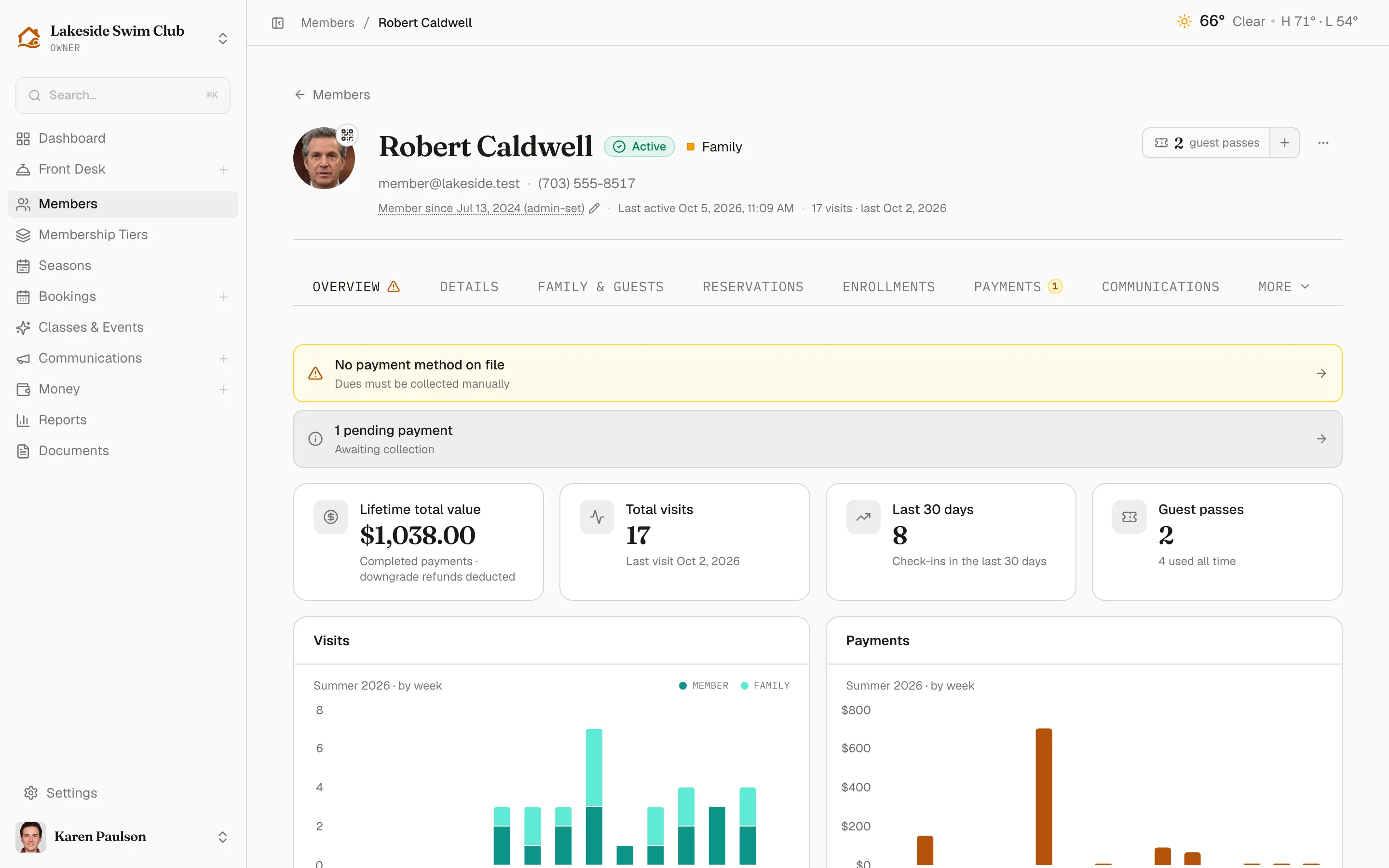
Section titled “The header”- Photo — click it to upload and crop a profile photo. The small QR badge on the photo opens the Check-In QR code dialog, with a Print button for a physical member card.
- Status pill — the membership status, each with its own icon so you can read it at a glance. To change it, use Edit status in the ⋯ menu (see below). A member you opened from the Expired tab because their season ended reads Inactive here — only that tab re-labels the state Season ended.
- Tier — a color swatch and the tier’s name. Then the contact line (an amber triangle marks an unverified email) and a facts strip: member since, expiry, last active, visits, and any installment-plan progress.
- Member since — the date in the facts strip is the member’s tenure anchor, labeled admin-set or first activation so you can tell which. Click it to correct it; it decides which membership year tenure-scoped assessments bill them for.
- Autopay — shown when the tier allows it; the checkbox needs a saved card to turn on.
- Guest passes — the counter shows the balance; + opens Add Guest Passes, where you set a Quantity and choose Charge card on file? (the dialog totals the tier’s per-pass price, or notes the passes are free).
- Send SMS — shown when your organization has SMS and the member’s phone is verified.
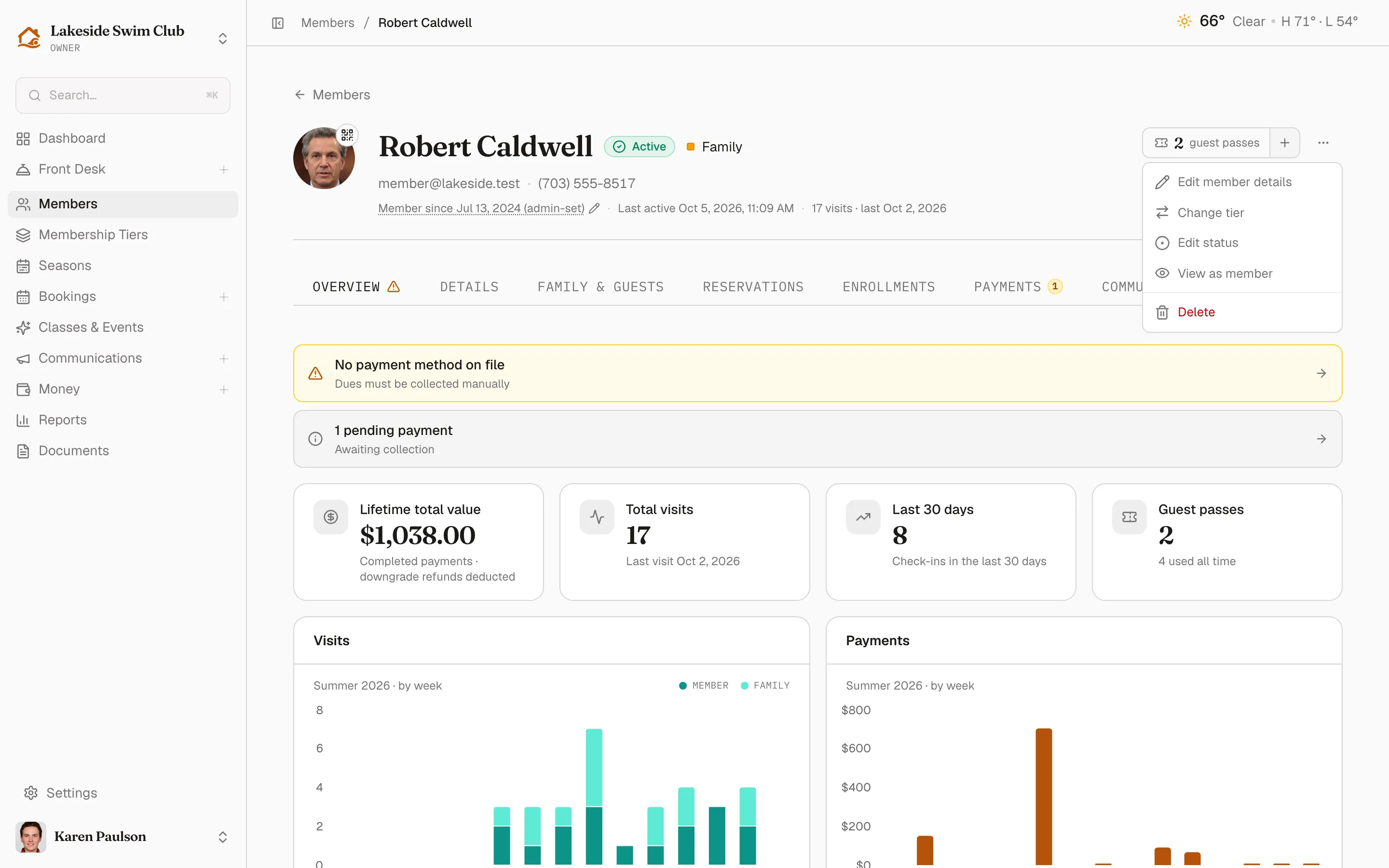
The ⋯ menu holds Edit member details (name, email, phone, plus any custom fields on the staff record — changing email clears verification until they confirm the new address), Change tier (shown when there’s another tier to move to), Edit status (hidden for waitlisted memberships — manage those from the Waitlist), View as member, and Delete (moves the member to the Trash with a 30-day restore window).
Awaiting-payment members get Send payment request and Send reminder buttons in the header; expired members get Re-approve.
The Overview tab
Section titled “The Overview tab”The profile opens on Overview, a summary of everything the other tabs hold:
- Needs-attention alerts — rows at the top for anything unresolved: an outstanding balance, missing required signatures, no payment method on file, a household over the tier’s limit, pending payments, or an unverified email. Each row jumps to the tab where you fix it, and a warning icon on the tab label shows whenever any are present.
- Stats — Lifetime total value (completed payments, with downgrade refunds deducted), Total visits, Last 30 days check-ins, and Guest passes used.
- Visits and Payments — trend charts; the range follows the membership’s season when it has one.
- Recent activity — the latest audit entries, with a View all link to the Activity tab.
- Upcoming — the member’s next reservations and class sessions.
- Household — the family at a glance, with a Manage link and a note when the household sits at the tier’s limit.
Change a member’s tier
Section titled “Change a member’s tier”-
Open the ⋯ menu and click Change tier.
-
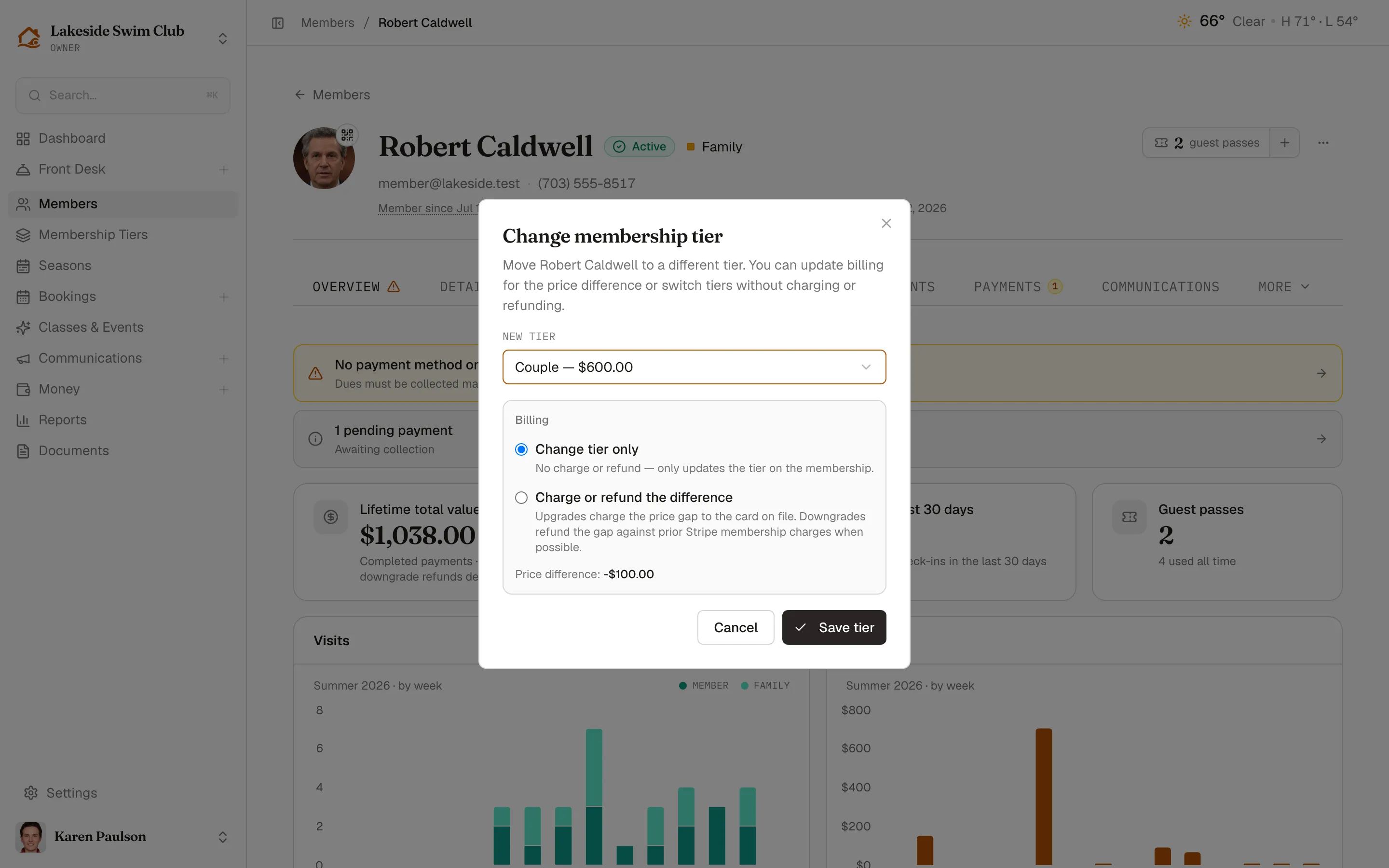
Pick the New tier and a Billing option: Change tier only (no charge or refund) or Charge or refund the difference (upgrades charge the price gap to the card on file; downgrades refund the gap against prior Stripe membership charges when possible). The dialog shows the exact price difference.
-
If the new tier includes fewer family members than the household holds, the dialog warns and offers Change anyway — they keep everyone so nobody is removed.
-
Click Save tier.
Edit a member’s status
Section titled “Edit a member’s status”-
Open the ⋯ menu and click Edit status.
-
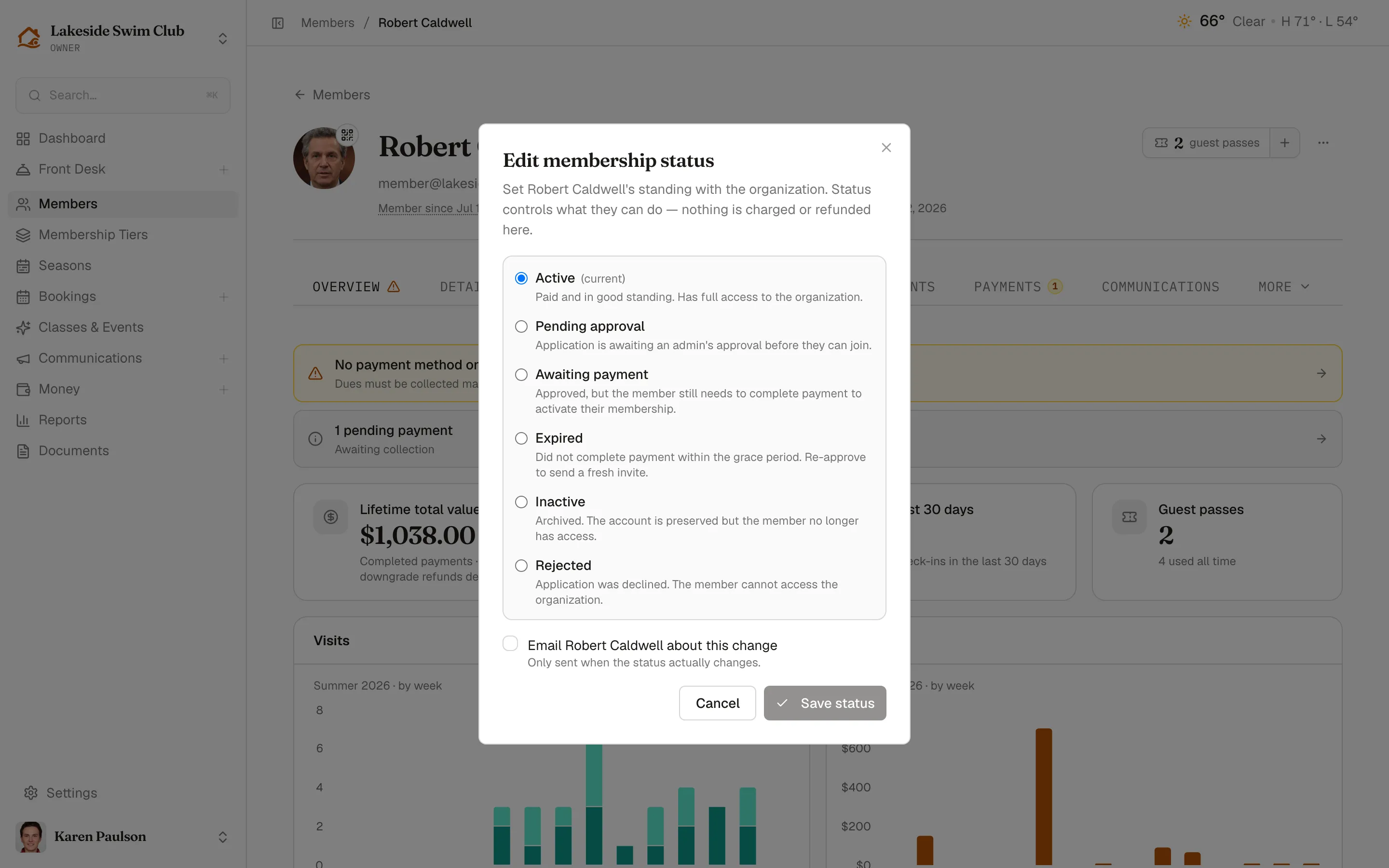
Pick a status — each option explains what it means, and the current one is marked (current): Active, Pending approval, Awaiting payment, Expired, Inactive, or Rejected.
-
Check Email … about this change to tell the member — the email only goes out when the status actually changes.
-
Click Save status (enabled once you’ve picked a different status). Status controls what the member can do — nothing is charged or refunded here.
The other tabs
Section titled “The other tabs”When the tab row runs out of room, tabs that don’t fit collapse into a trailing More menu.
Details
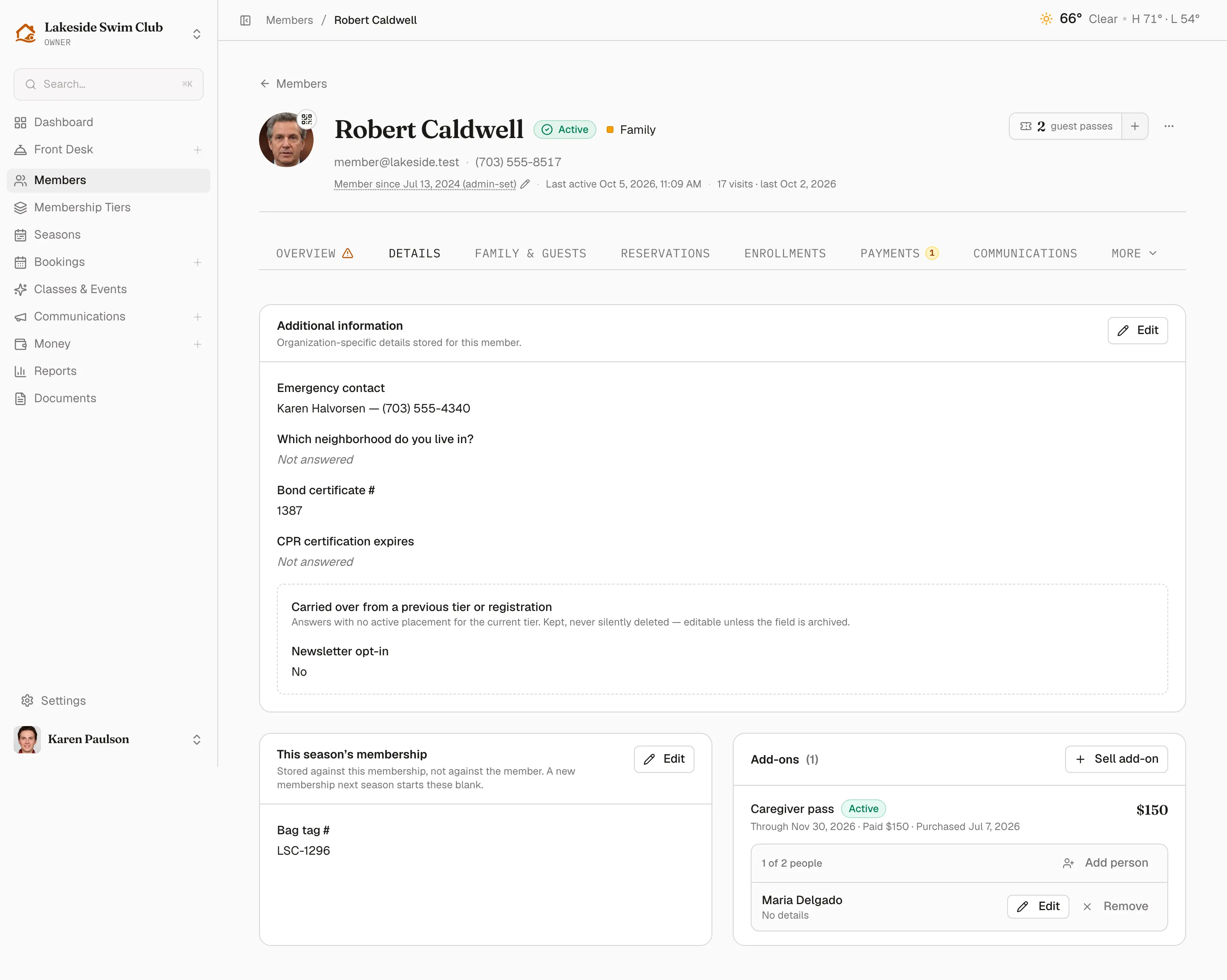
Section titled “Details”The Details tab always includes Add-ons. When you collect custom fields, it also shows Additional information for member-level answers and This season’s membership for membership-level answers. Membership answers start blank on next season’s membership. Carried-over answers sit in a separate panel, with archived fields marked. Each answers card’s Edit button opens Edit member details, where Save changes saves your changes.
Add-ons sits beside This season’s membership on a wide screen; the cards stack on phones. It lists purchases newest first, with the people each covers. Sell add-on opens the sale drawer; when nothing is sellable today, its tooltip points to Money → Add-ons. On a pass with named people, use Add person, Edit, or Remove. An unpaid purchase also offers Cancel, which removes the purchase, its pending payment, and its listed people after confirmation. See Add-ons.
Family & Guests
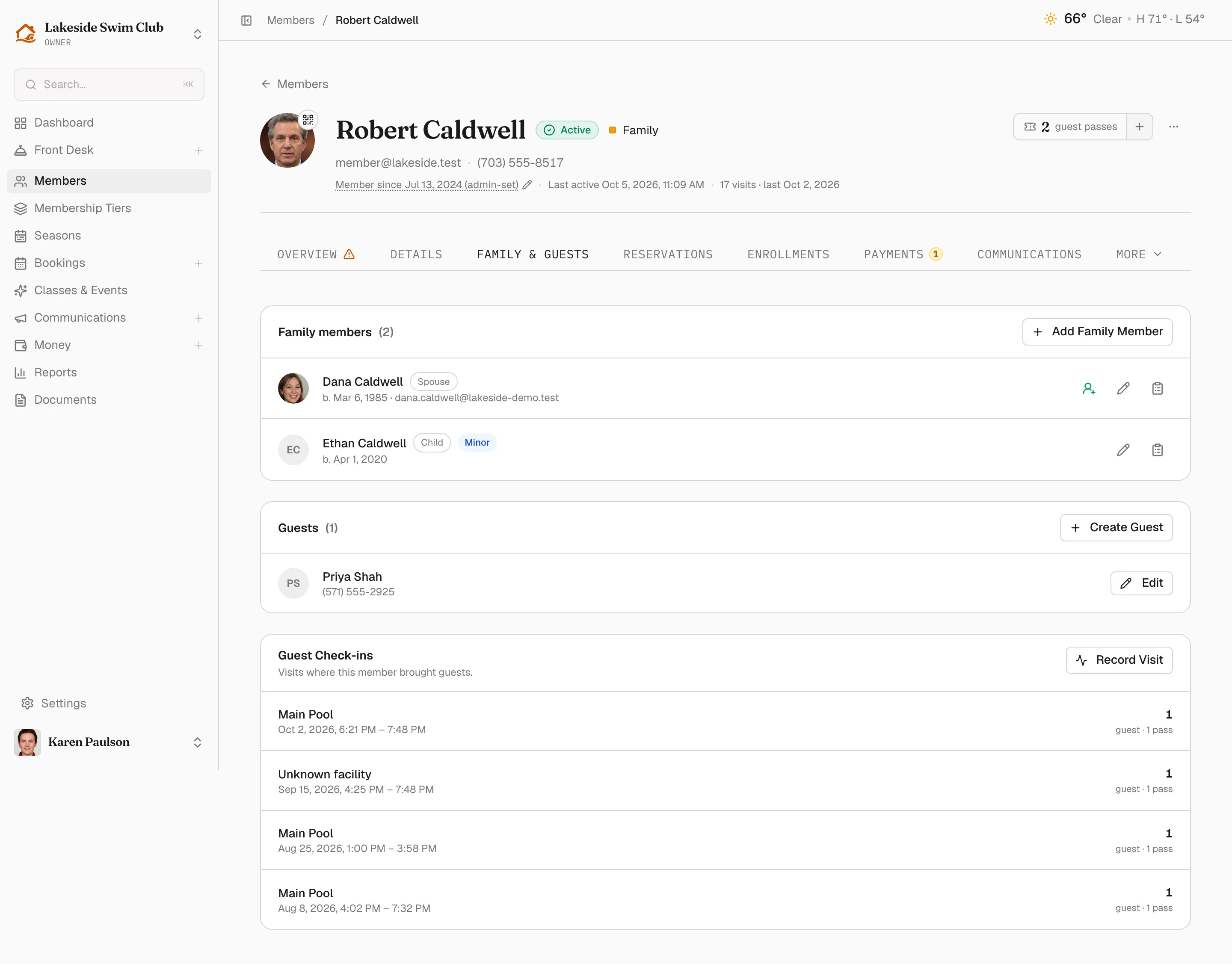
Section titled “Family & Guests”Three cards cover the household and its visitors:
- Family members — Add Family Member captures name, relationship, birthday, email, phone, and any family custom fields. Minors are badged automatically. The tier sets how many family members are included; going past it warns and offers Add anyway. You can also import whole households. A green person-plus icon lets you invite one adult to joint access.
- Guests — saved guest profiles; Create Guest adds a reusable one.
- Guest Check-ins — visits where the member brought guests; Record Visit logs one.
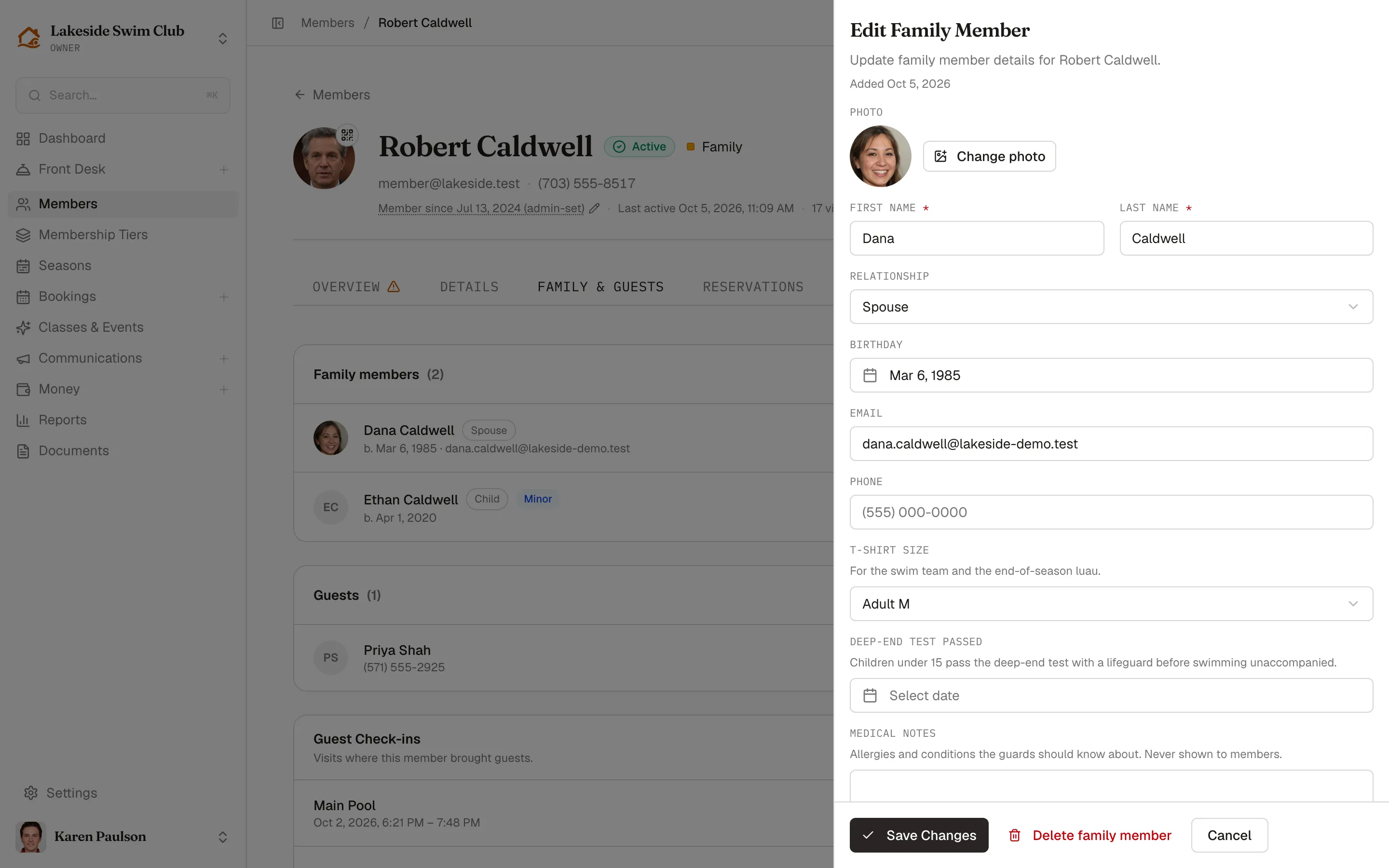
To edit a family member, click their pencil icon (Edit family member). The Edit Family Member drawer also shows the Added date beneath its introduction and lets you manage their photo. Delete family member at the bottom permanently removes their family profile, check-ins, waivers, enrollments, and form answers after you type confirm. Any joint invitation or access ends; the paying member’s financial records remain.
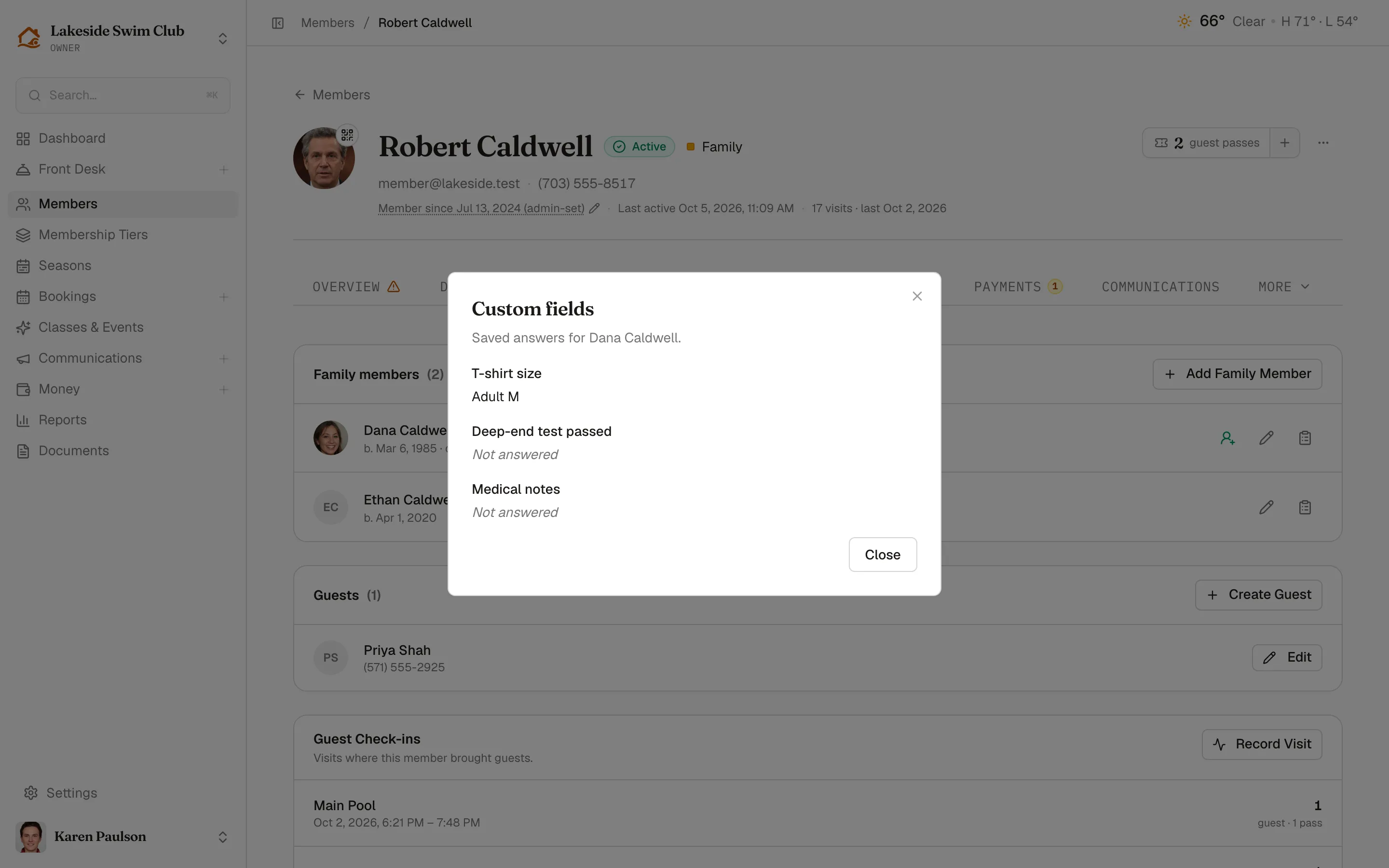
To read their saved custom answers without opening the form, click the clipboard icon beside Edit (View custom fields). The Custom fields dialog names the selected person and shows their answers; a missing value reads Not answered. Use the edit drawer to change an answer.
Reservations
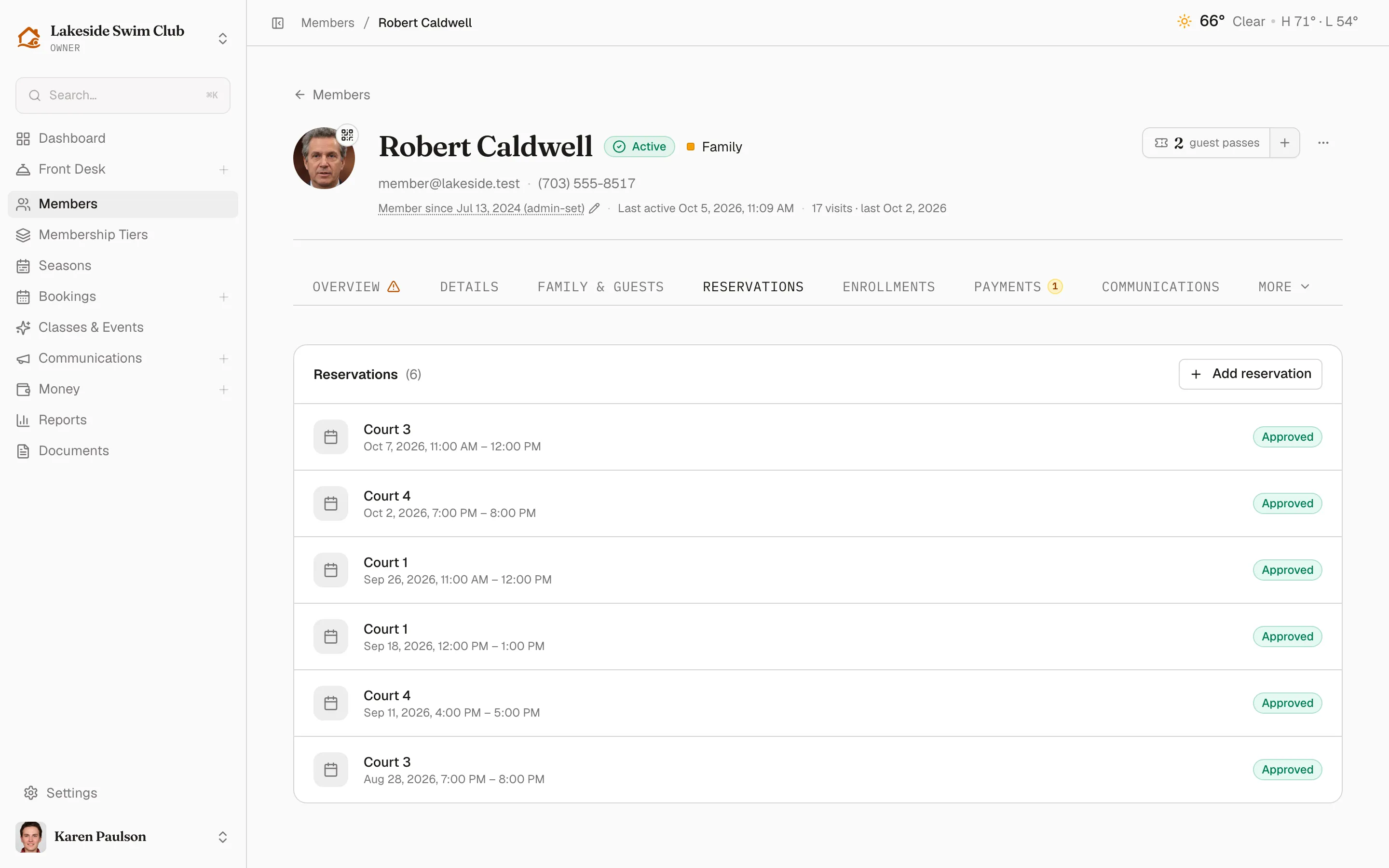
Section titled “Reservations”Facility bookings with status pills; Add reservation books on the member’s behalf (disabled until a reservable facility exists). See Managing reservations.
Enrollments
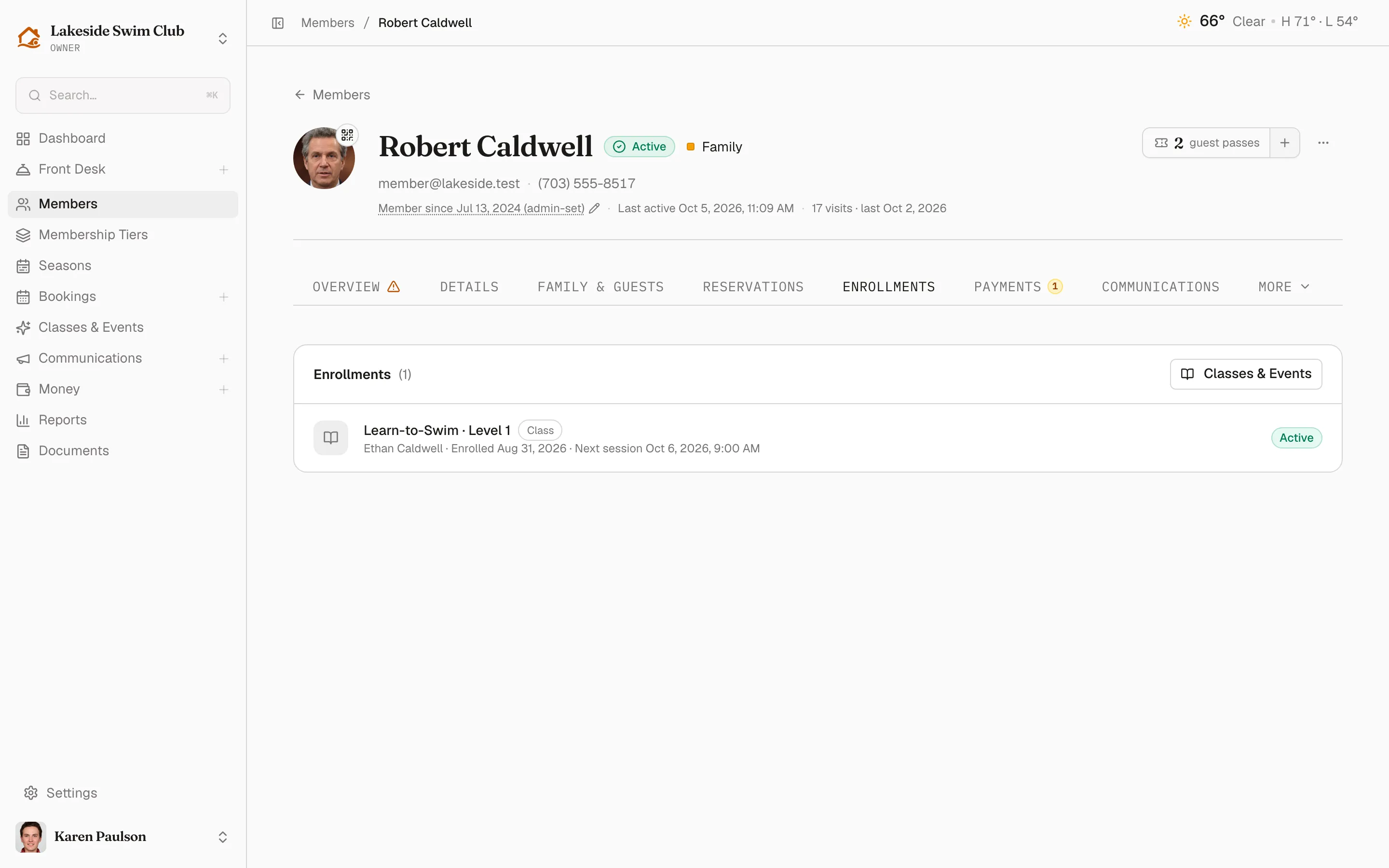
Section titled “Enrollments”Class and event sign-ups (shown when you run Classes & events), each with its offering, schedule detail, and status — waitlisted enrollments show their queue position.
Payments
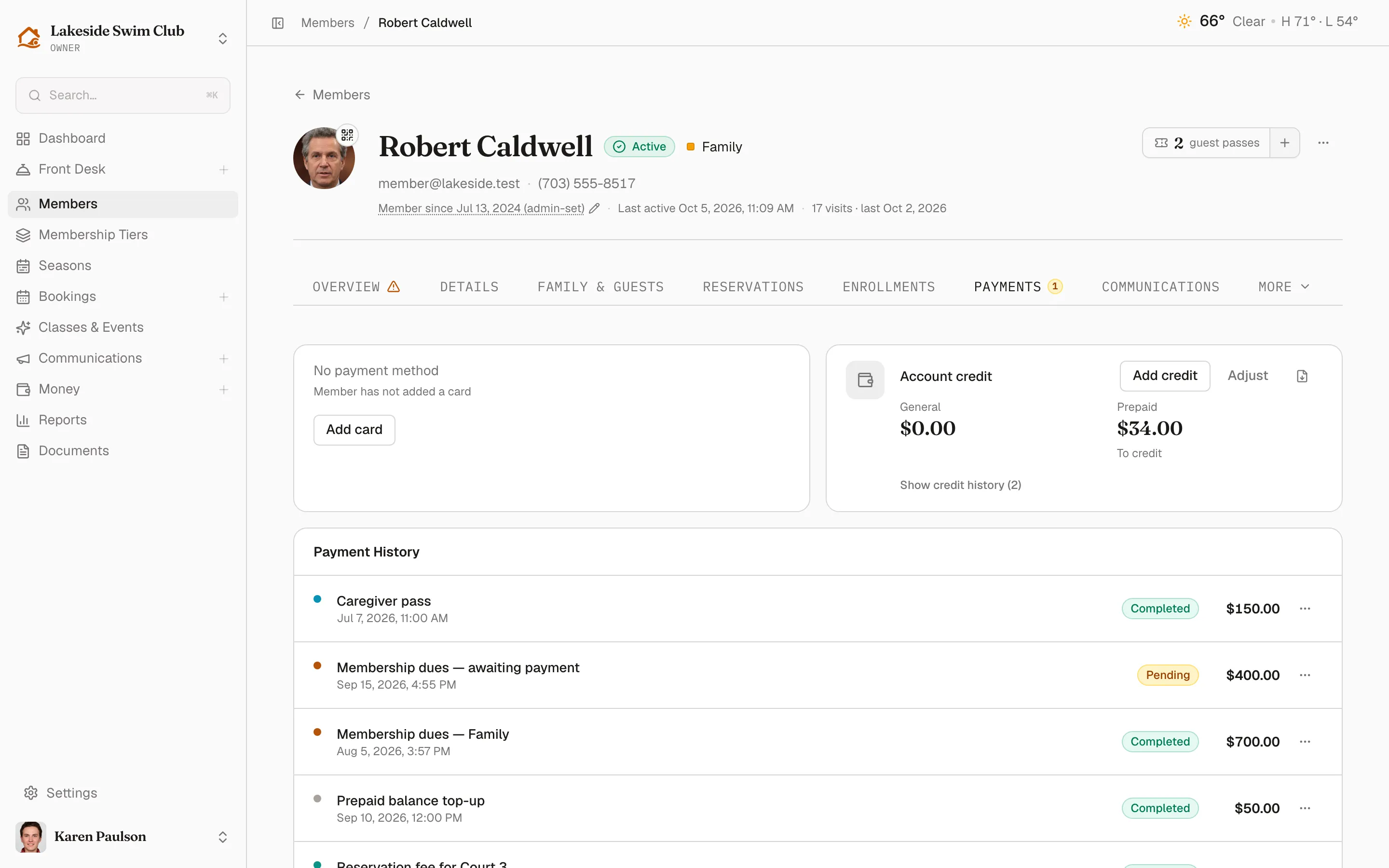
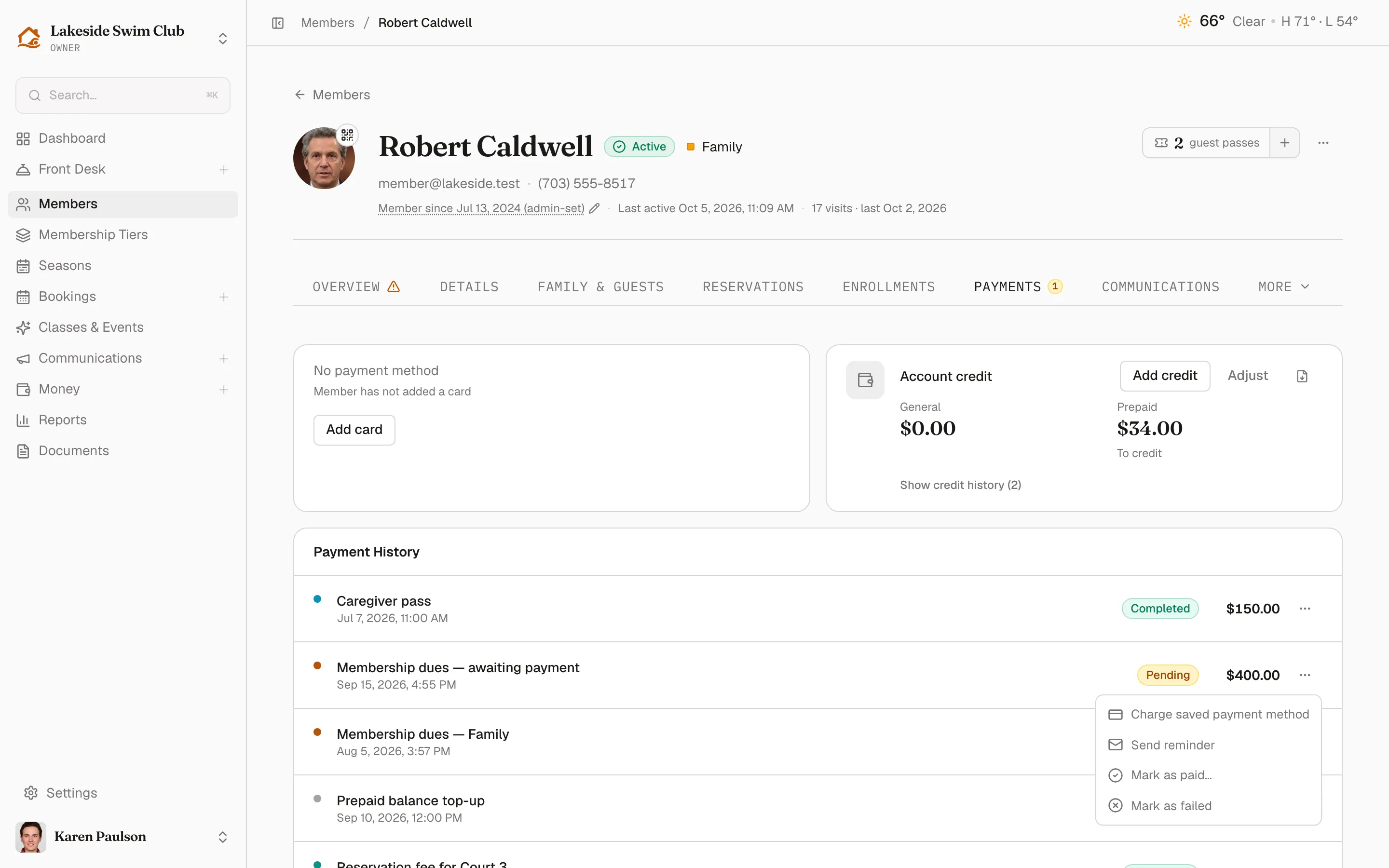
Section titled “Payments”Two cards summarize money at a glance: the saved payment method (staff with permission can add or replace the card inline) and Account credit. Lifetime total value lives on the Overview tab.
The Account credit card shows General and Prepaid balances with Add credit and Adjust actions (both audited, with a note field), a credit history list, and a download button for the member’s current-month account statement PDF. A prepaid balance also offers Refund to card / To credit for departing members.
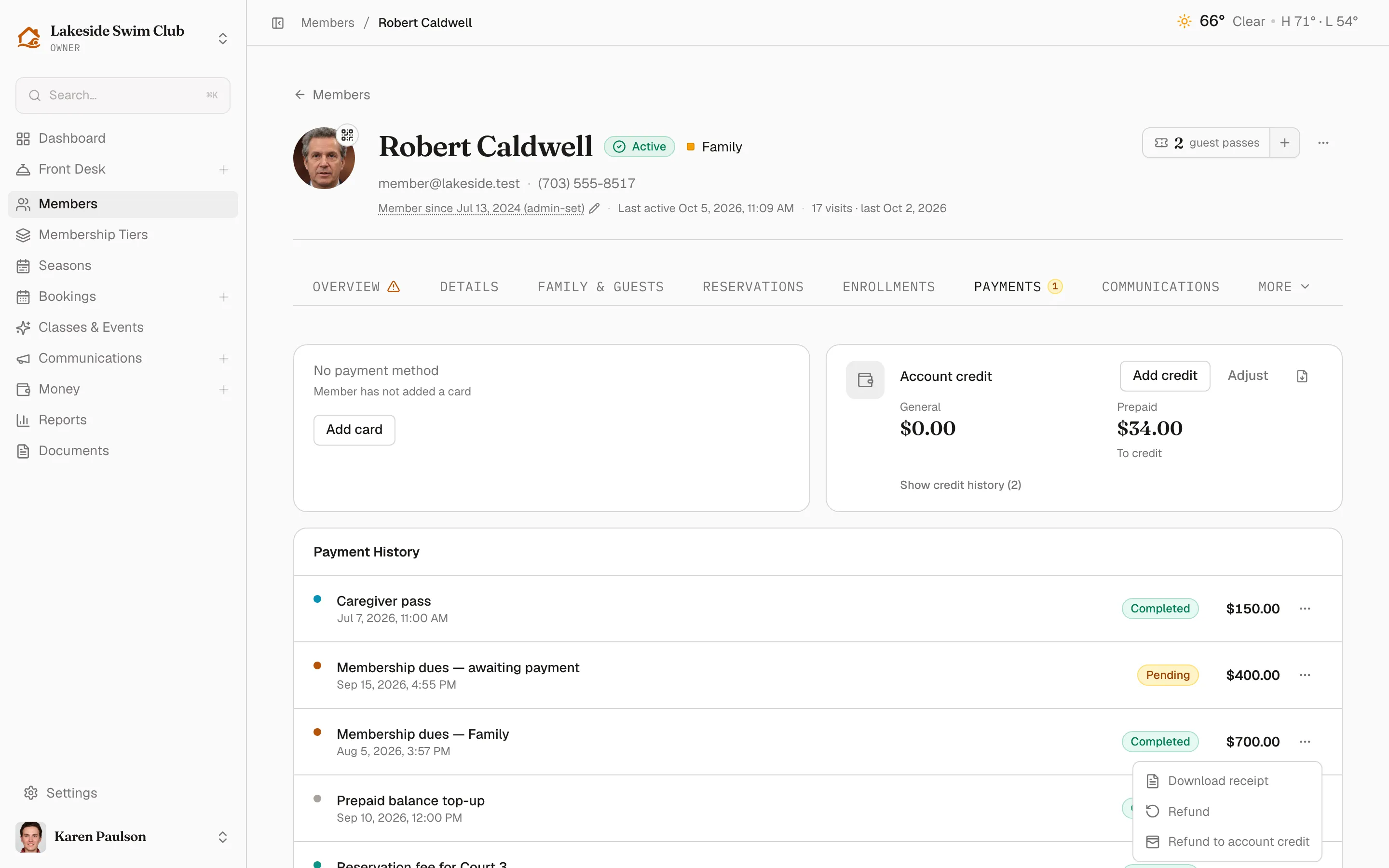
Payment History lists every charge on the membership, and a pending-payment count badges the tab. Each row’s ⋯ menu holds the actions that fit that payment’s status and your role — the same menu the Payments page shows, already scoped to this member.
On a pending or failed payment, the menu collects the money: Charge saved payment method (it reads Retry charge once the payment has failed), Send reminder, Mark as paid…, and — while it’s still pending — Mark as failed. Pending payment-plan installments skip the charge action; the plan’s schedule charges those. See Recording & collecting payments.
On a completed payment, the menu offers Download receipt plus the owner-only Refund and Refund to account credit — see Refunds, waivers & reminders. Refunded payments keep Download receipt, and manual records add Delete until they’re refunded.
Communications
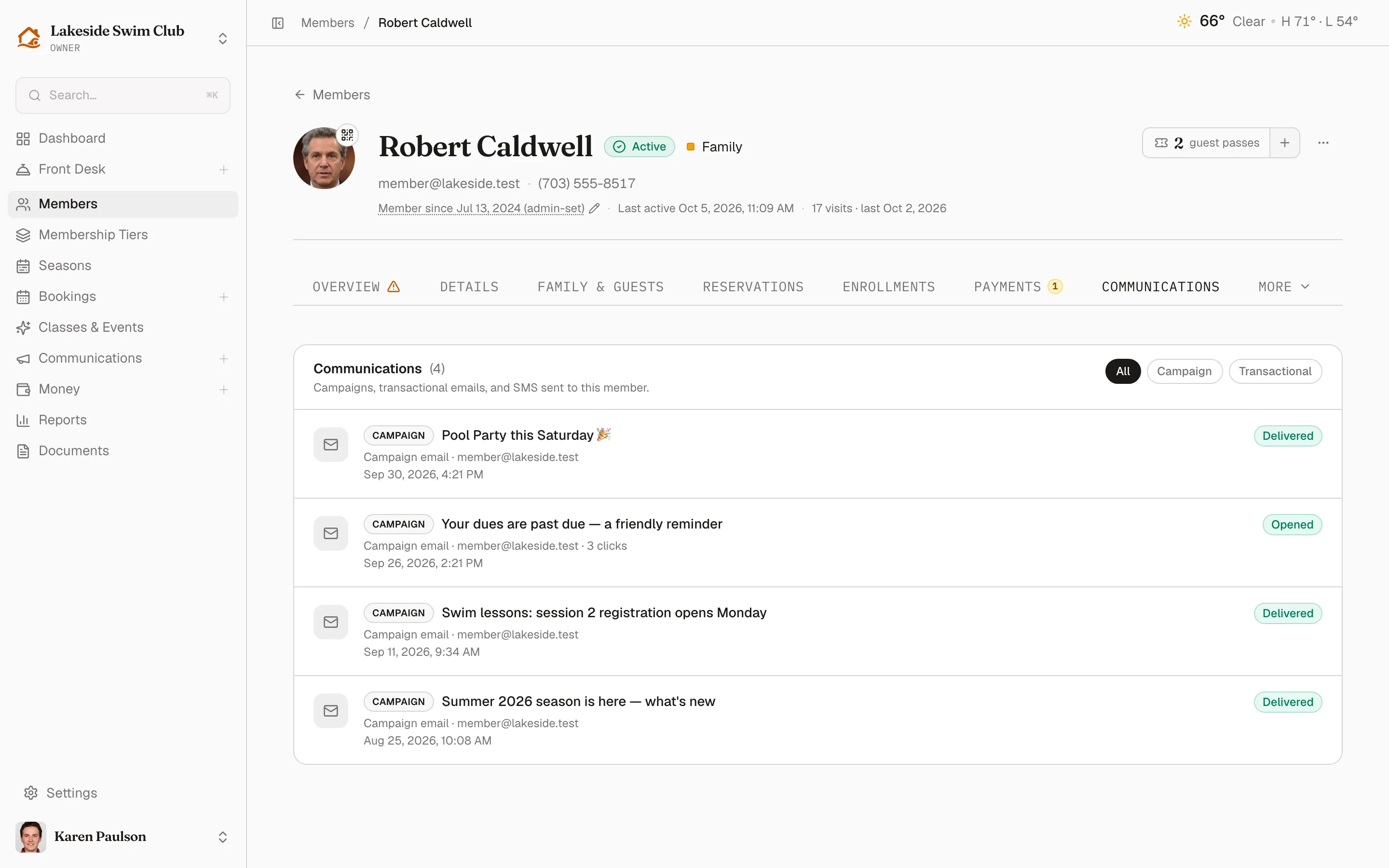
Section titled “Communications”Every campaign email, transactional email, and SMS sent to this member, filterable by All / Campaign / Transactional. Transactional emails have a Resend button (email only — SMS messages can’t be resent from here).
Documents
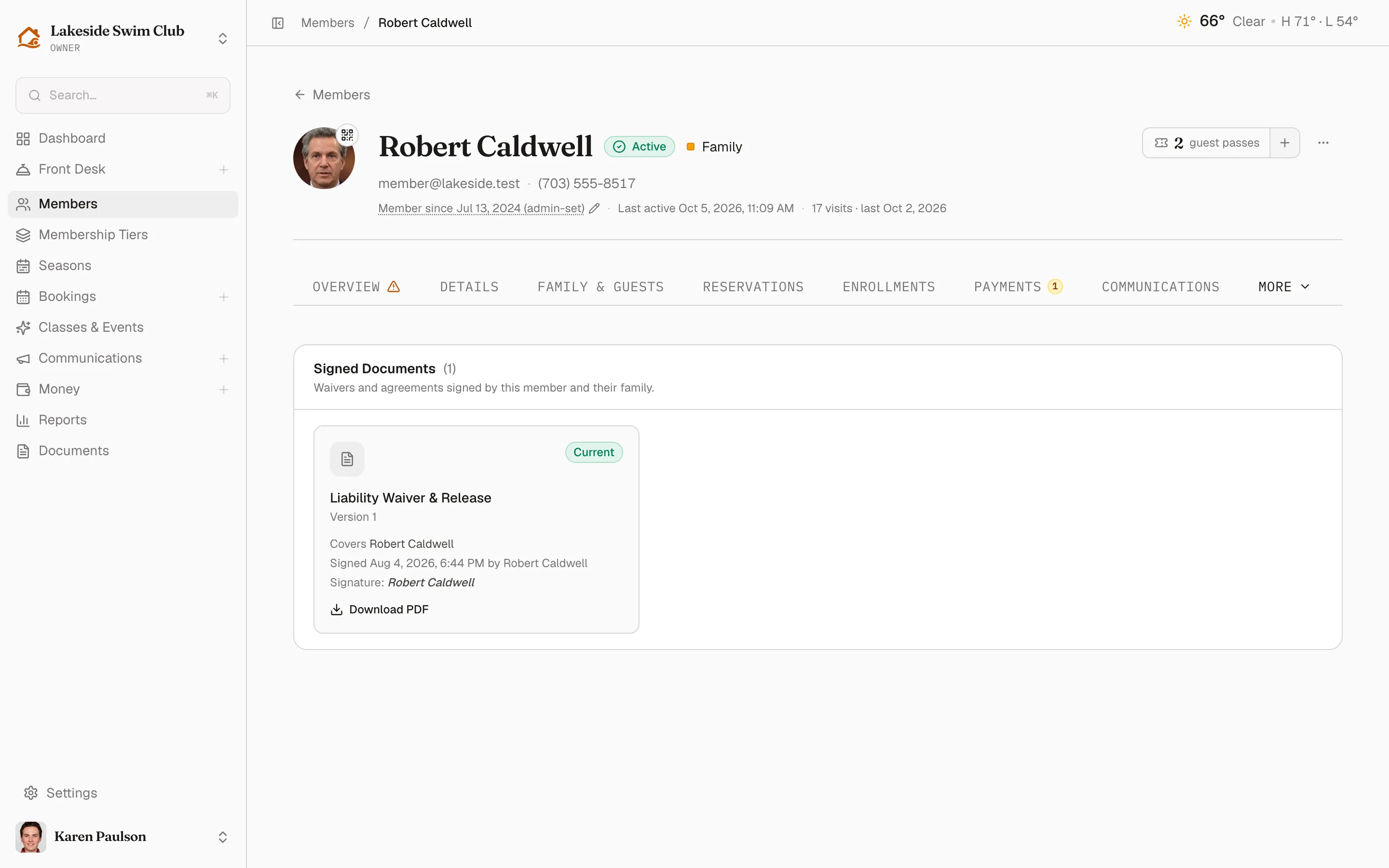
Section titled “Documents”Signed waivers with Download PDF links. Missing required signatures show a Signature required banner, flagging any that block check-in; a warning icon badges the tab.
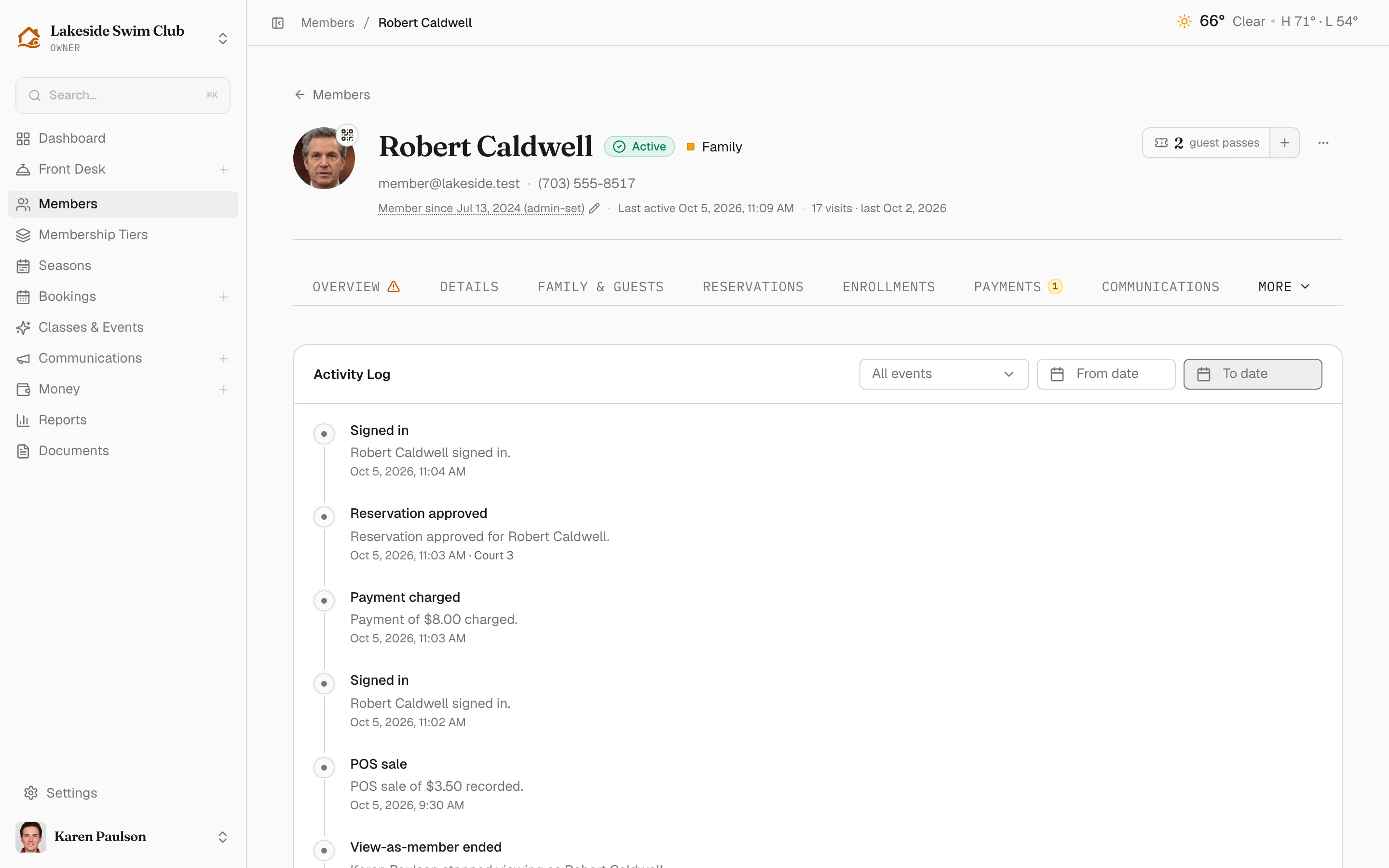
Activity
Section titled “Activity”The audit timeline for this member, filterable by event type and date range.