
Files & folders
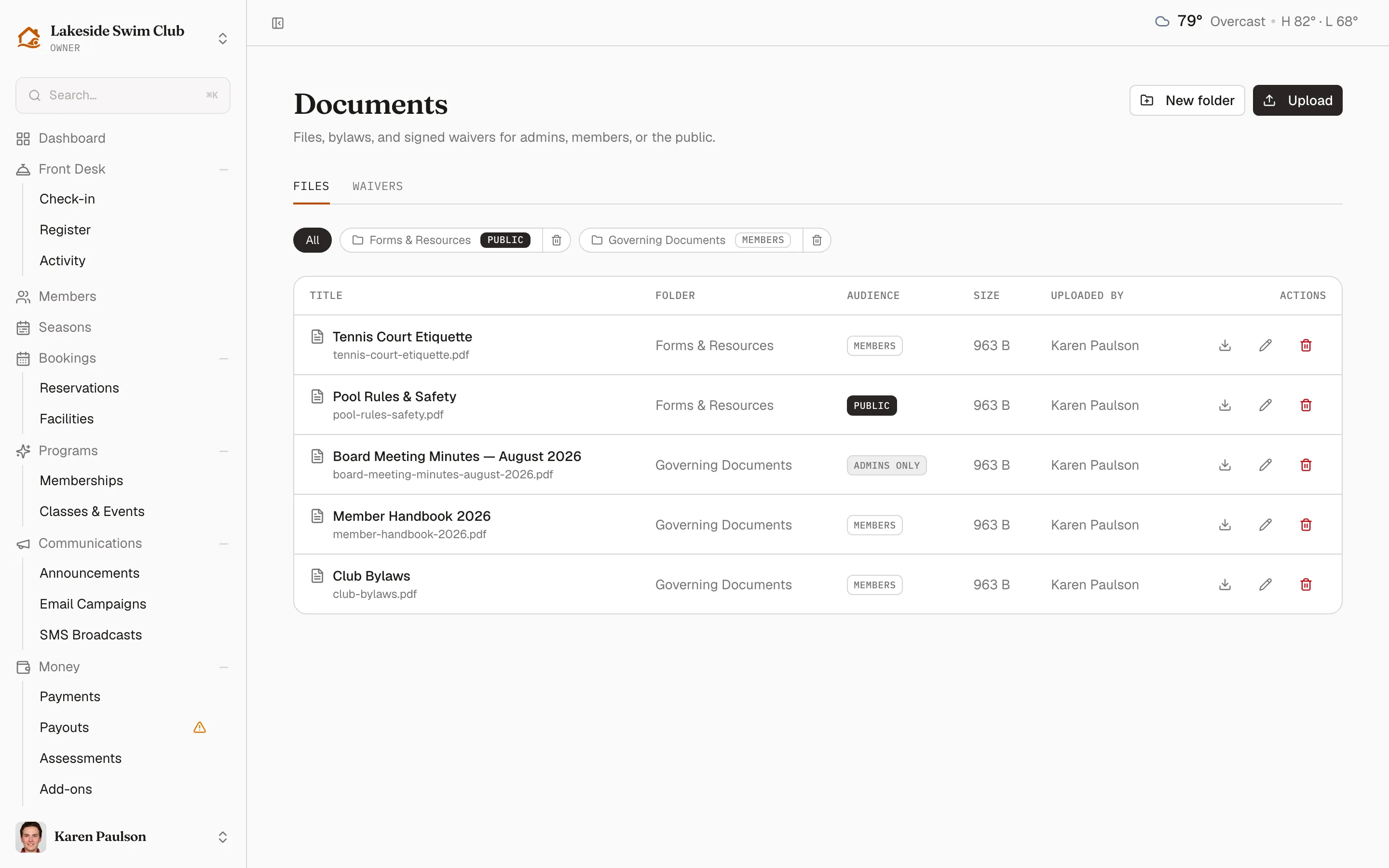
The Documents area is your club’s file cabinet — bylaws, handbooks, pool rules, meeting minutes, forms — organized into folders and shared with the audience you choose. Members see their documents in the member portal; admins-only files stay internal. Click Documents in the sidebar (the Files tab).
Upload a document
Section titled “Upload a document”- Click Upload document.
- Pick the file — PDF, Word, Excel, PowerPoint, plain text, and common formats up to 25 MB.
- Give it a Title and optionally a description.
- Pick a Folder (or No folder).
- Pick an Audience:
- Admins only — visible to owners and managers, never to members.
- Members — appears in every member’s portal under Documents.
- Public — downloadable by anyone with the link, sign-in not required — right for pool rules you want on your website.
- Save.
Each row lists the document with its folder, audience, and Uploaded by. Use the row actions to Edit document (title, folder, audience) or delete it.
Organize with folders
Section titled “Organize with folders”- Click New folder and name it — “Governing Documents”, “Forms & Resources”.
- Assign documents to folders when uploading or editing.
Folders group the list for you and for members; documents without a folder list on their own. Deleting a folder doesn’t delete its documents.
What members see
Section titled “What members see”Members get a read-only Documents page in their portal showing every members-audience and public document, grouped by folder, with download links. Admins-only files never appear there.