
Waitlist
The Waitlist tab of the Members area is the triage desk for full tiers: who’s queued, whose invite lapsed, and whose membership ran out with its season. Click Members in the sidebar, then the Waitlist tab. The page refreshes itself every few seconds, so new sign-ups and expirations appear without reloading.
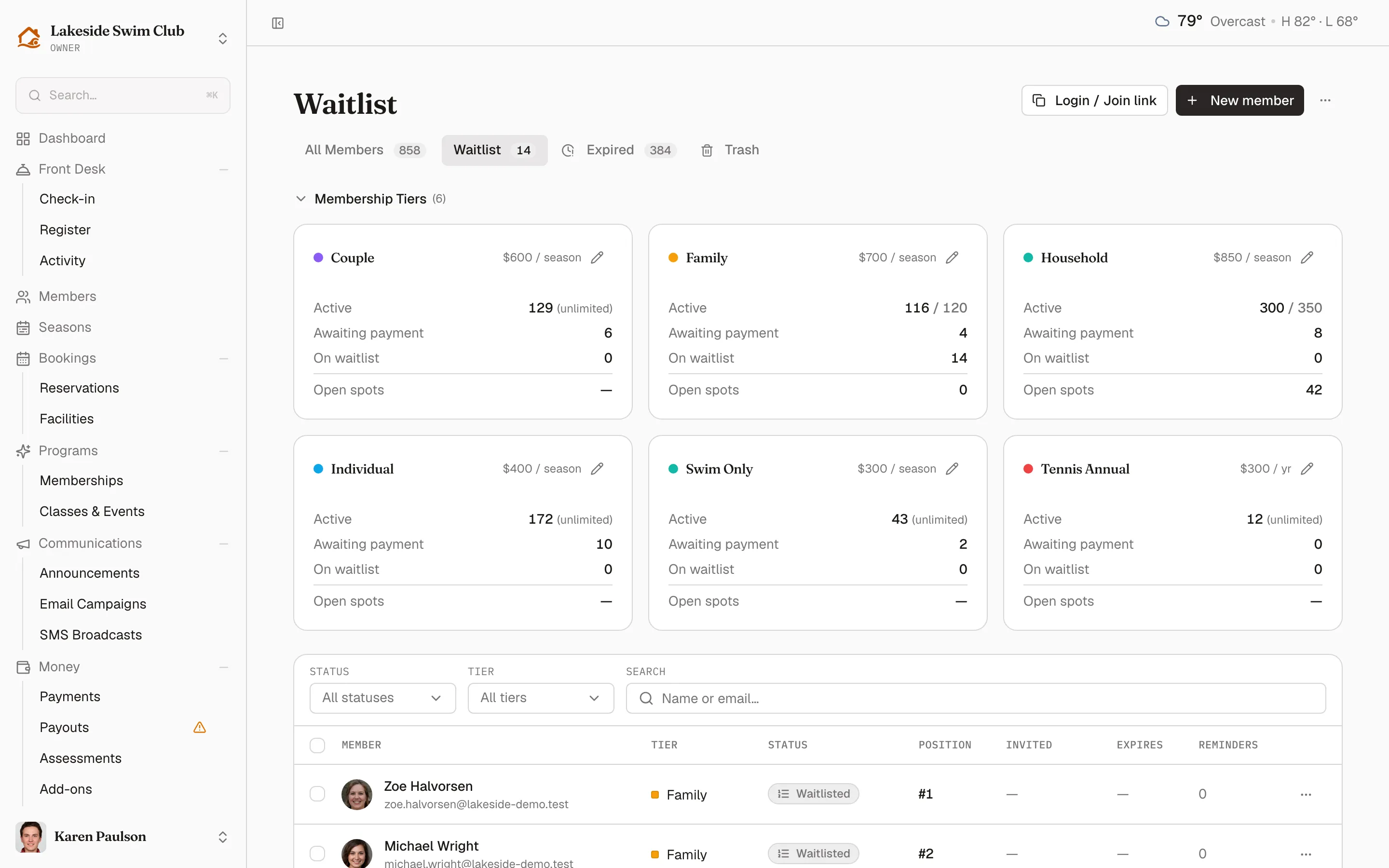
The header mirrors the roster’s: Login / Join link copies your portal link, New member opens the create drawer with its Initial status pre-set to Waitlisted — the quickest way to queue someone by hand — and the ⋯ menu holds Import and Export.
Read the page
Section titled “Read the page”The collapsible Membership Tiers cards at the top show each tier’s Active count against its capacity, Awaiting payment, On waitlist, and Open spots — the pencil on a card opens the tier’s edit page. Below, the table lists waitlisted members by Position within their tier, followed by the memberships that have already lapsed. Filter by Status — the menu offers Waitlisted and Rejected only, because once you invite someone their membership moves to the roster and off this page — or by Tier, or search by name or email; the search applies when you leave the field or press Enter.
Members land here when they register for a full tier (with your waitlist enabled), or when staff add them with a Waitlisted status. See How capacity interacts with the waitlist.
The Expired tab
Section titled “The Expired tab”The Expired tab shows this same page, titled Expired members, narrowed to the memberships that have run out. Two different things sit there, and the pill tells them apart:
- Expired — an invitation to pay that ran out. Invited, Expires, and Reminders show how the invite went before it lapsed.
- Season ended — a membership that reached the end of its season. Underneath it’s an Inactive membership, which is what the member’s profile shows; this tab is the only place the reason is named. Hover the pill for the season’s name, the date it ended, and the note that the member can re-register for a new season.
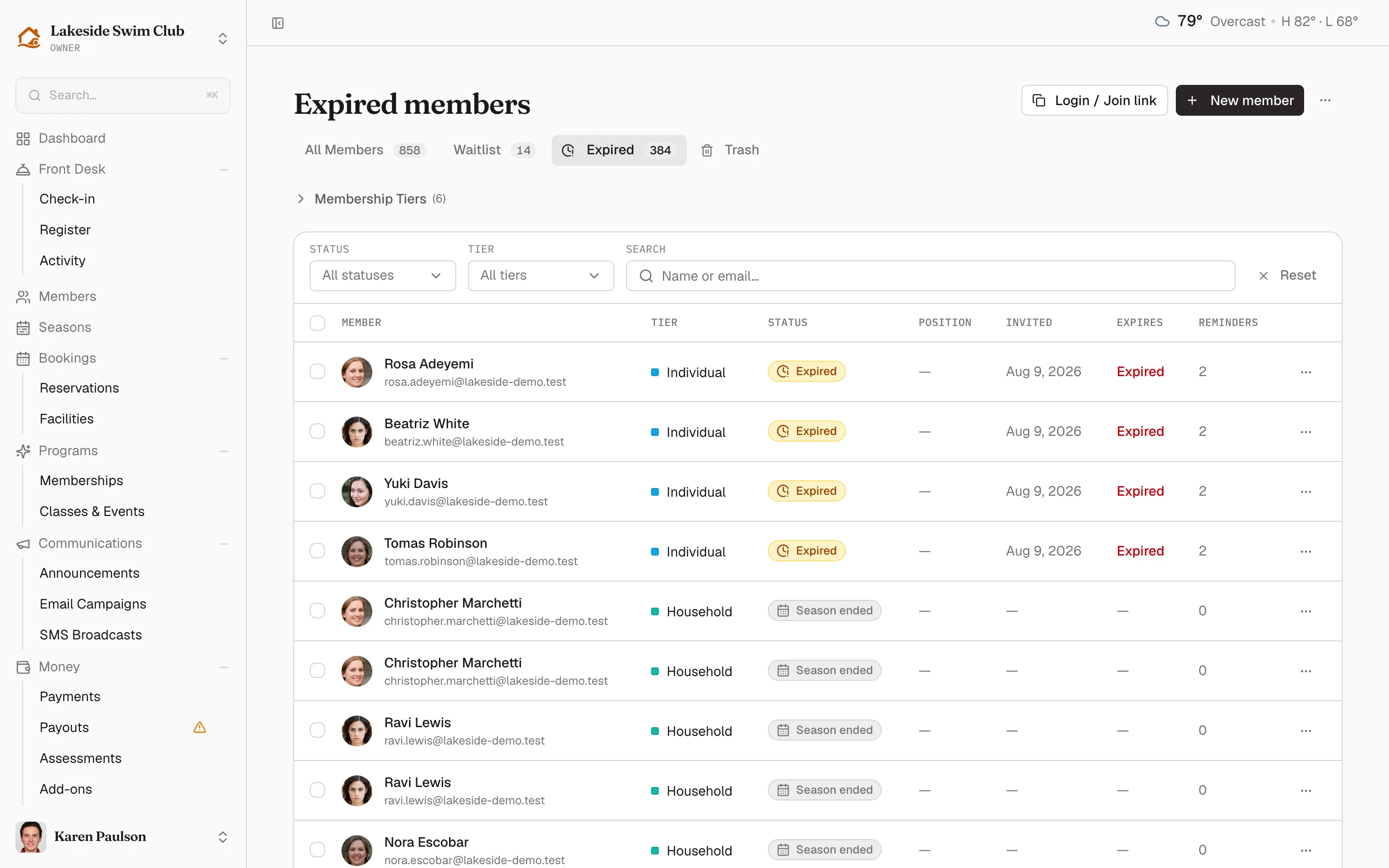
Both kinds count toward the Expired tab’s badge. The Status filter still reads All statuses here — it can’t narrow the tab any further — and Reset takes you back to the plain Waitlist view.
Invite someone off the waitlist
Section titled “Invite someone off the waitlist”- Open the waitlisted row’s ⋯ menu.
- Click Send invite.
The member moves to Awaiting payment, is emailed an invitation to complete payment, and leaves this page for the roster. If your organization sets an awaiting-payment timeout, the invite carries a deadline; once it passes the membership expires and the row returns here on the Expired tab, where the Invited, Expires, and Reminders columns record the invitation that lapsed. Free auto-activate tiers skip all of that: the member activates immediately.
The ⋯ menu adapts to each row’s status:
- Send reminder — awaiting payment with an open invite. Re-sends the invitation email; the Reminders column counts sends.
- Reject… — waitlisted or awaiting payment. Removes them from the waitlist (they keep their account), with a checkbox to refund a paid application fee.
- Move to waitlist… — rejected, awaiting payment, or expired. Re-queues them, optionally at a specific Position within their tier; entries at or after that position shift down. Leave it blank to append to the end.
- Re-approve — expired invites. If the tier has room, the member gets a fresh invite and moves back to awaiting payment; if it’s full, they go to the end of the waitlist.
- Mark active — activates the membership immediately, granting the tier’s default guest passes. Use it when payment was handled outside the invite flow. Season-ended rows offer this and nothing else: Move to waitlist… and Re-approve both key off a status they don’t carry.
Work in bulk
Section titled “Work in bulk”Select rows (or Select all … entries matching the current filters once a full page is selected), then open Actions:
- Send reminders — nudges every selected member with an open invite.
- Promote / send invite — invites every selected waitlisted member, auto-activating free auto-activate tiers.
- Move to waitlist… — re-queues the selection, from an optional starting position.
Export in the header’s ⋯ menu downloads the current view as a CSV with name, contact, tier, status, position, and invite history. Season-ended rows are written as season_ended in the Status column rather than the inactive they carry underneath, so the file reads the way the tab does.