
Add-ons
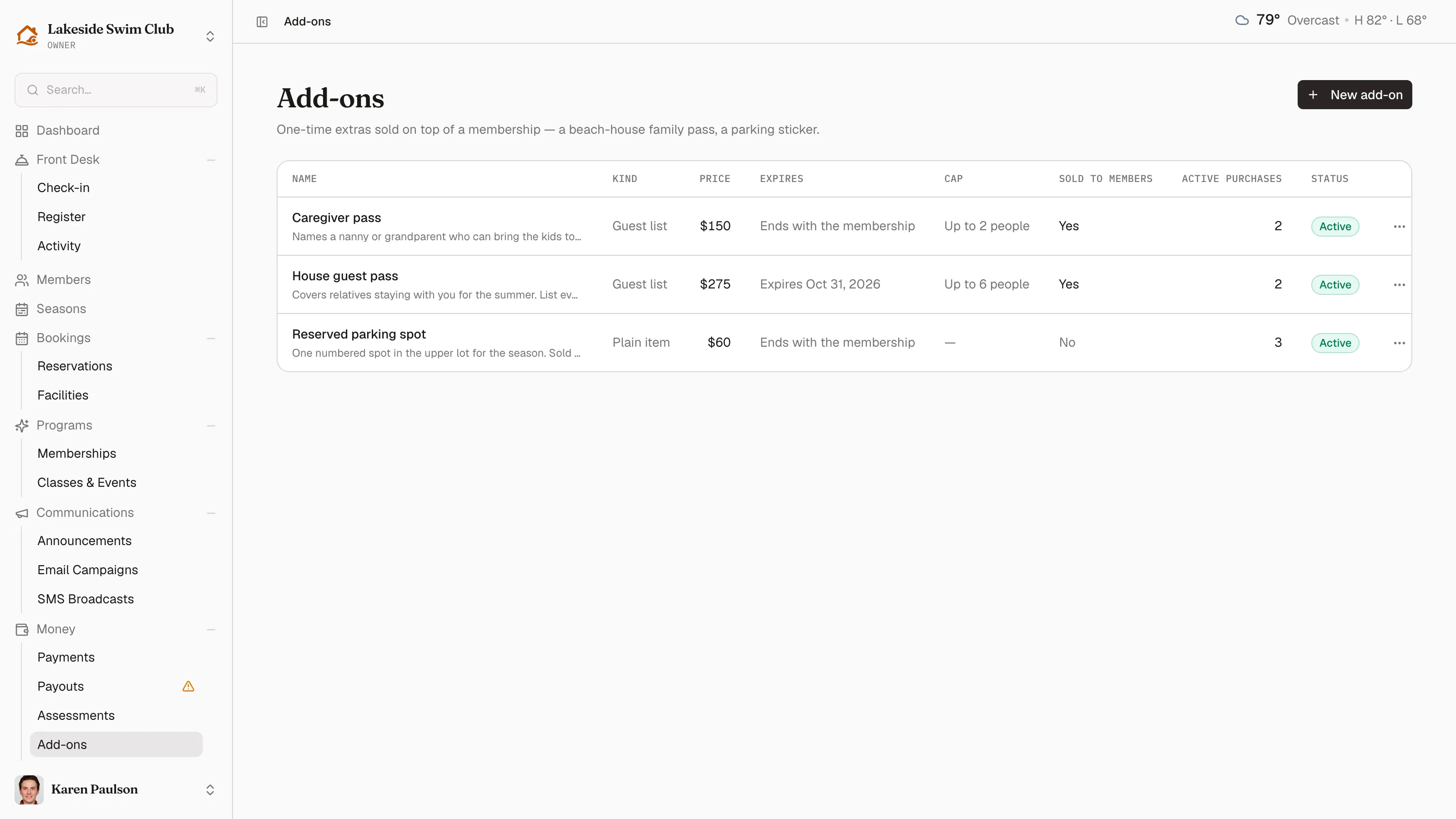
An add-on is a one-time extra your club sells on top of dues: a pass that lets a nanny bring the kids on her own, a spot in the upper lot, a locker for the season. You describe the item once in a catalog; members buy it from their portal, or staff sell it from the member’s profile.
Add-ons are bought once, not renewed. Each purchase carries its own price, its own expiry, and — for the kinds that cover people — its own list of names.
Click Money in the sidebar, then Add-ons. Owners and managers can both manage the catalog.
The two kinds
Section titled “The two kinds”| Kind | What the member gets |
|---|---|
| Guest list | A list of named people who check in on the member’s account without spending guest passes. |
| Plain item | Nothing attaches — the purchase is the receipt and the record. |
A guest list is the reason most clubs want add-ons: the beach-house family, the summer nanny, the grandparents visiting for a month. Everyone else on the list checks in as a guest for every rule that matters — they’re counted at the gate and covered by your unaccompanied-guest setting — but they’re already paid for, so no passes are drawn and nothing is charged.
Reach for a plain item when the money is the whole transaction: parking, a locker, a storage bin.
Create an add-on
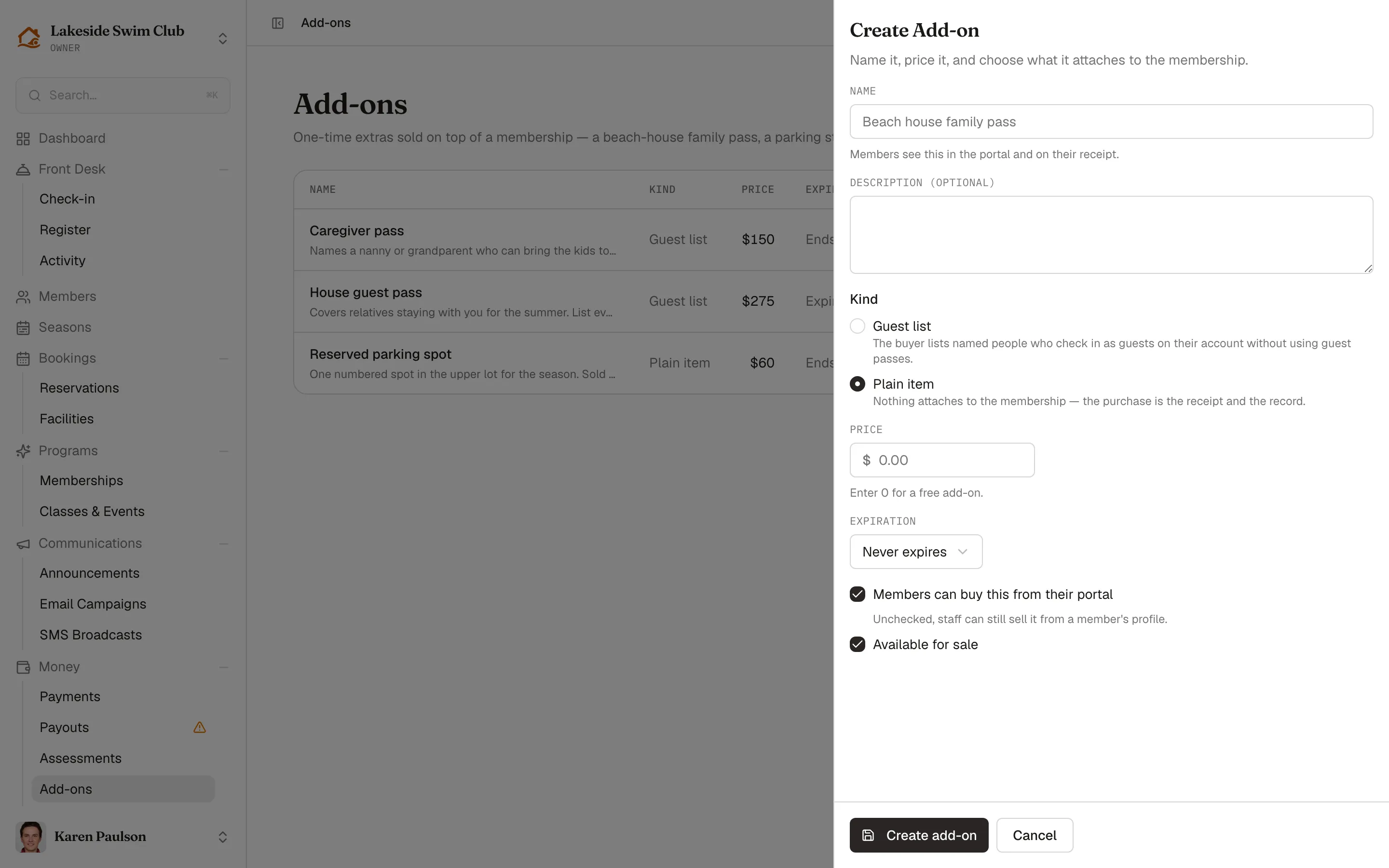
Section titled “Create an add-on”- Click New add-on.
- Give it a Name (members see this in the portal and on their receipt) and an optional Description.
- Pick the Kind — Guest list or Plain item.
- Set the Price. Enter 0 for a free add-on.
- Choose the Expiration:
- Never expires — for something with no season, like a bond number.
- Fixed date — the same day for everyone; you push the date forward each year.
- Ends with the membership — the purchase lapses when the buying membership does, so a seasonal club never has to think about it.
- On a guest list, set People per purchase — the most names one purchase may carry. Leave it blank for no cap.
- Leave Members can buy this from their portal checked to offer it in the member portal, or uncheck it for something only the office sells — staff can still sell it from a member’s profile either way.
- Leave Available for sale checked, and click Create add-on.
The catalog row then shows the kind, price, expiry, cap, whether members can buy it, how many purchases are currently active, and a Status chip: Active, Not for sale if you’ve unchecked Available for sale, or Date passed for a fixed-date item whose day has come and gone.
The ⋯ button at the end of a row opens Edit and Archive. Archiving asks you to confirm with Archive add-on, then takes the item out of the catalog so nobody can buy it again; purchases already active keep working until they lapse.
Sell one at the desk
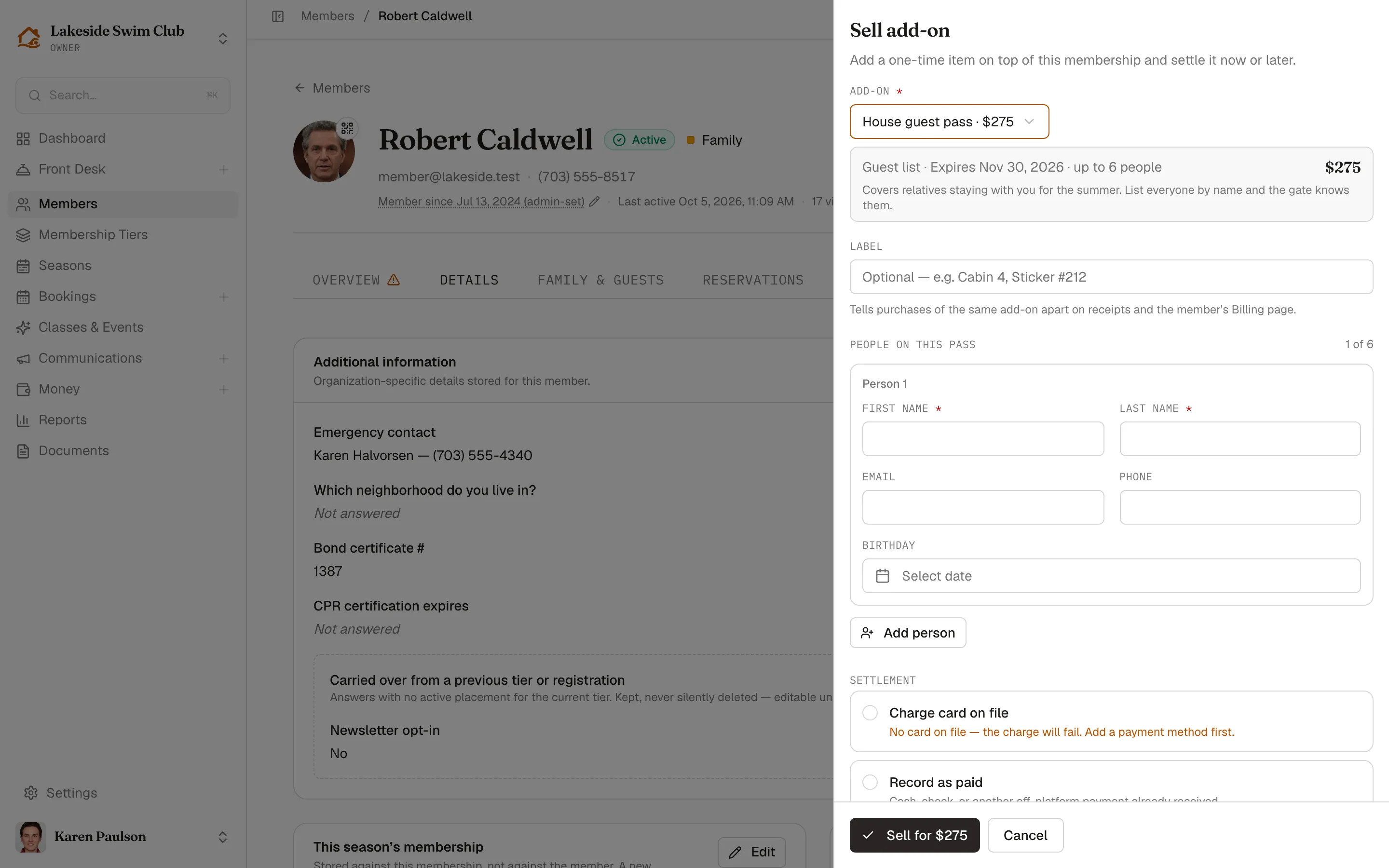
Section titled “Sell one at the desk”- Open the member’s profile and go to the Details tab, where the Add-ons card lives beside This season’s membership when that card is present.
- Click Sell add-on.
- Pick the add-on. Add an optional Label — free text that tells purchases of the same add-on apart on receipts and the member’s billing page, like “Sticker #212” or “Cabin 4”.
- On a guest list, add each person with Add person: first and last name, and optionally email, phone, and birthday.
- Choose the Settlement:
- Charge card on file — charged immediately. Without a card on file the charge fails, and the drawer says so before you try.
- Record as paid — cash, check, or another off-platform tender already in hand. Pick the Method and add a Reference.
- Leave unpaid — the charge sits on the member’s balance for them to pay from their billing page or a payment link.
- Click the footer button, which names the amount once you’ve picked an item — Sell for $275, say. It reads Sell add-on and stays disabled until then.
The purchase is created Unpaid and turns Active the moment its payment completes — whichever way it’s settled, now or next week. A declined card leaves it unpaid with a failed payment the member can retry.
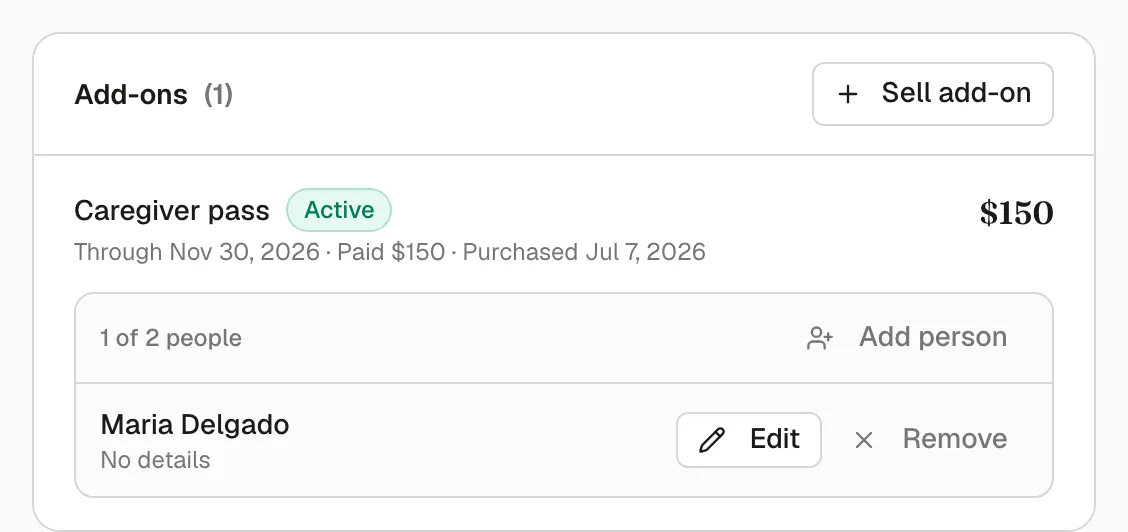
The card lists every purchase the member holds, newest first, whatever its state, with the people on each one. From here you can add, edit, or remove a name — handy when the nanny changes in July — and cancel a purchase that was never paid.
What members do themselves
Section titled “What members do themselves”Add-ons appears in a member’s own sidebar as soon as there’s something to see — your club sells one to members, or they already hold one. It lists the catalog of anything marked Sold to members, and the purchases they hold.
Each card’s button reads Buy, or Get when the price is 0. It’s disabled with the reason underneath when they can’t go ahead: a member needs an active membership to buy anything (You need an active membership to buy add-ons.), and a paid add-on also needs a saved card. A free add-on skips the card check entirely.
The drawer that opens is where the names go in — they add each person before submitting, not after. Afterwards they can still Add person and Edit anyone on the list, but they can’t take a name off: removing a person is staff-only, from the member’s profile. They can cancel a purchase that hasn’t been paid; once it’s paid, ending it is a refund — which you issue.
At the gate
Section titled “At the gate”When a member with a live guest-list purchase checks in, the people on it appear as part of their household at the front desk. Add them like any other guest:
- No guest pass is drawn and nothing is charged.
- They still count as guests everywhere else — in the visit’s guest count, and against your rule about guests arriving without a member.
- If the purchase has lapsed or was never paid, its people fall back to ordinary saved guests, drawing passes and fees like anyone else.
See Check-in.
Money and reporting
Section titled “Money and reporting”Add-on charges are ordinary payments: they appear in Payments under the Add-on type, on the member’s profile and statement, and they count toward the balance that gates check-in. Revenue reports give add-ons their own line, and the QuickBooks mapping gets its own category.
Refunding an add-on payment in full ends the purchase then and there — its people stop being covered the moment the money goes back. A partial refund leaves the purchase alone.
Expiry
Section titled “Expiry”Every purchase stores the date it lapses, worked out when it was sold. An hourly job marks lapsed purchases Expired on your organization’s own calendar day; the gate doesn’t wait for it, since a lapsed purchase stops covering anyone the moment its date passes.
Statuses you’ll see on a purchase: Unpaid, Active, Expired, Refunded.