
Payments overview
The Payments page is the ledger of every charge in your organization — membership dues, reservation fees, guest passes, class and event registrations, late fees, front-desk sales, and payments you record by hand. Use it to see what’s been collected, what’s still owed, and where a charge went wrong.
Read the list
Section titled “Read the list”Click Money in the sidebar, then Payments.
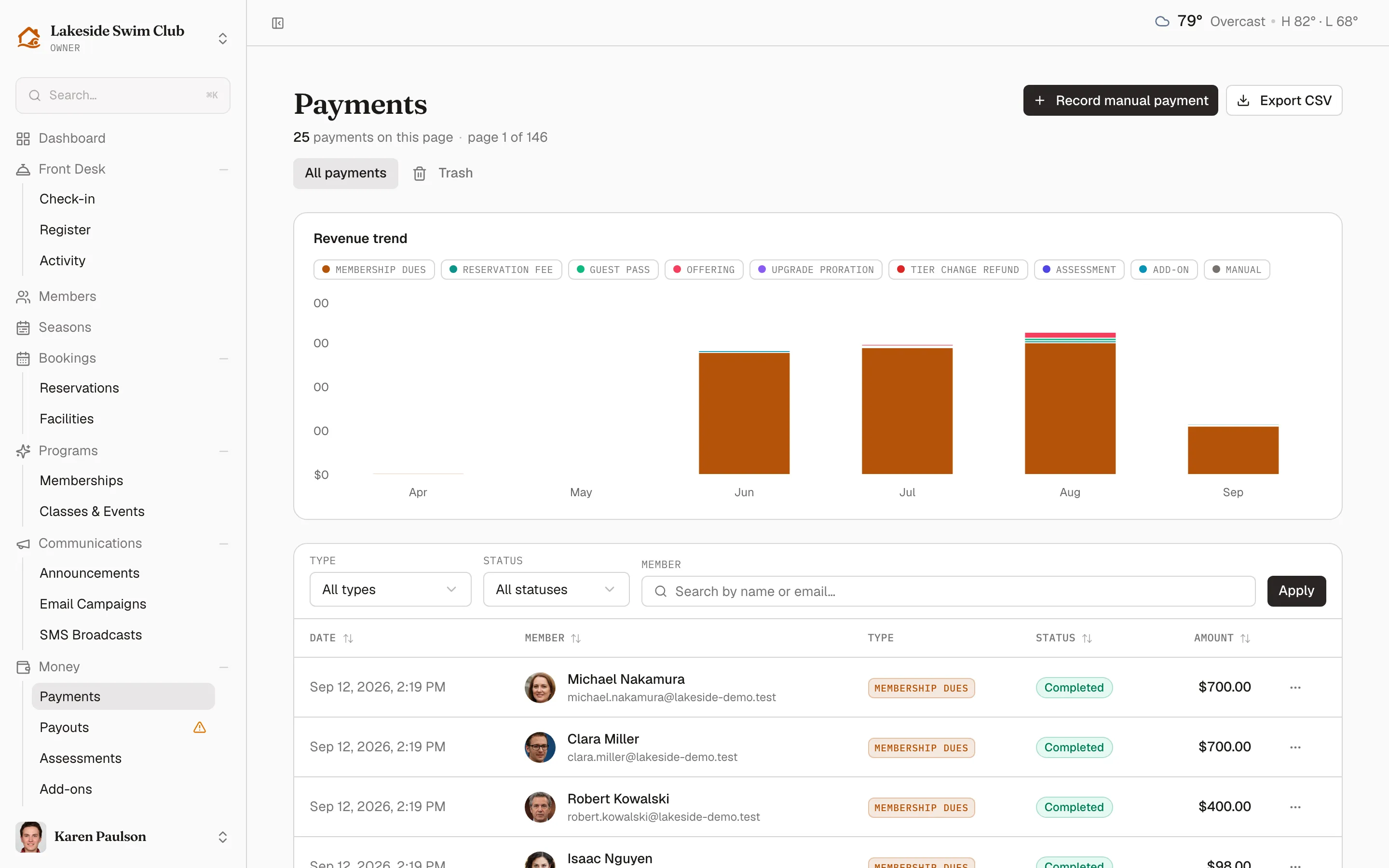
Each row shows:
- Date — when the payment was created.
- Member — linked to their profile. Front-desk sales with no member attached show Walk-up customer.
- Type — a colored tag such as Membership dues, Reservation fee, Guest pass, Add-on, Offering, Late fee, Assessment, POS sale, or Manual.
- Status — see below. A payment settled off-platform carries a small glyph inside its status pill for how the money came in — notes for cash, a bank for a check, a phone for Zelle, PayPal, or Venmo, a wallet for anything else. Hover it for the method and any reference, such as a check number.
- Amount and Platform fee — what the member paid and Memberley’s fee on that charge, deducted before the rest reaches your payout balance. The Platform fee column only appears on plans that charge one, so it’s absent on the fee-free Community plan.
Click a column header to sort. The Revenue trend chart above the table stacks the last six months of completed payments by type, and follows whatever filters you apply.
What each status means
Section titled “What each status means”- Pending — the charge exists but no money has moved yet: dues awaiting payment, an assessed late fee, an assessment, or an invoice you’re still collecting.
- Completed — the money was received, by card, bank, or off-platform tender.
- Failed — a charge was attempted and declined, or staff marked it failed.
- Refunded — the payment was fully refunded. See Refunds, waivers & reminders.
Filter the list
Section titled “Filter the list”- Pick a Type or Status in the toolbar, or start typing in Member and pick the person from the search results.
- Click Apply. Click Reset to clear everything.
The chosen member sits in the toolbar as a chip until you clear it with its ✕. The table paginates 25 rows at a time.
Download a receipt
Section titled “Download a receipt”- Open the ⋯ menu on any completed or refunded payment.
- Click Download receipt.
Memberley generates a PDF receipt for the charge. Members can download the same receipt from their own payment history.
Export to CSV
Section titled “Export to CSV”Click Export CSV in the page header to download every payment as a spreadsheet with ID, date, member, email, type, status, amount, description, and whether it was manual.
Delete a mistaken record
Section titled “Delete a mistaken record”Only manually recorded payments can be deleted — charges processed through Stripe stay on the books and are corrected with a refund instead.
- Open the ⋯ menu on the manual payment and click Delete.
- Confirm with Delete.
The row disappears from the list, and Memberley keeps the deleted record for 30 days before it’s permanently removed.