
Register (Point of Sale)
Requires the Point of Sale module
The Register tab on the Front Desk is a point of sale for your snack bar or pro shop: a tap-to-add product grid, a cart, split payments, and receipts. Sales run inside register sessions — you open the drawer with a cash count, sell, then close it against a Z-report. The register also needs its feature toggle, Enable front desk register, turned on in Features.
Open a register session
Section titled “Open a register session”- Click Front Desk in the sidebar, then the Register tab. While no session is open, the sell surface is replaced by an Open the register card, with a Catalog button above it — the way into the product catalog while the drawer is shut.
- In the Open the register card, enter the Starting cash in drawer.
- Click Open register.
The sell surface appears and a live dot lights the Register tab — visible from any Front Desk tab, so you can tell the drawer is open while you’re on Check-in. Only one session can be open at a time.
Ring up a sale
Section titled “Ring up a sale”-
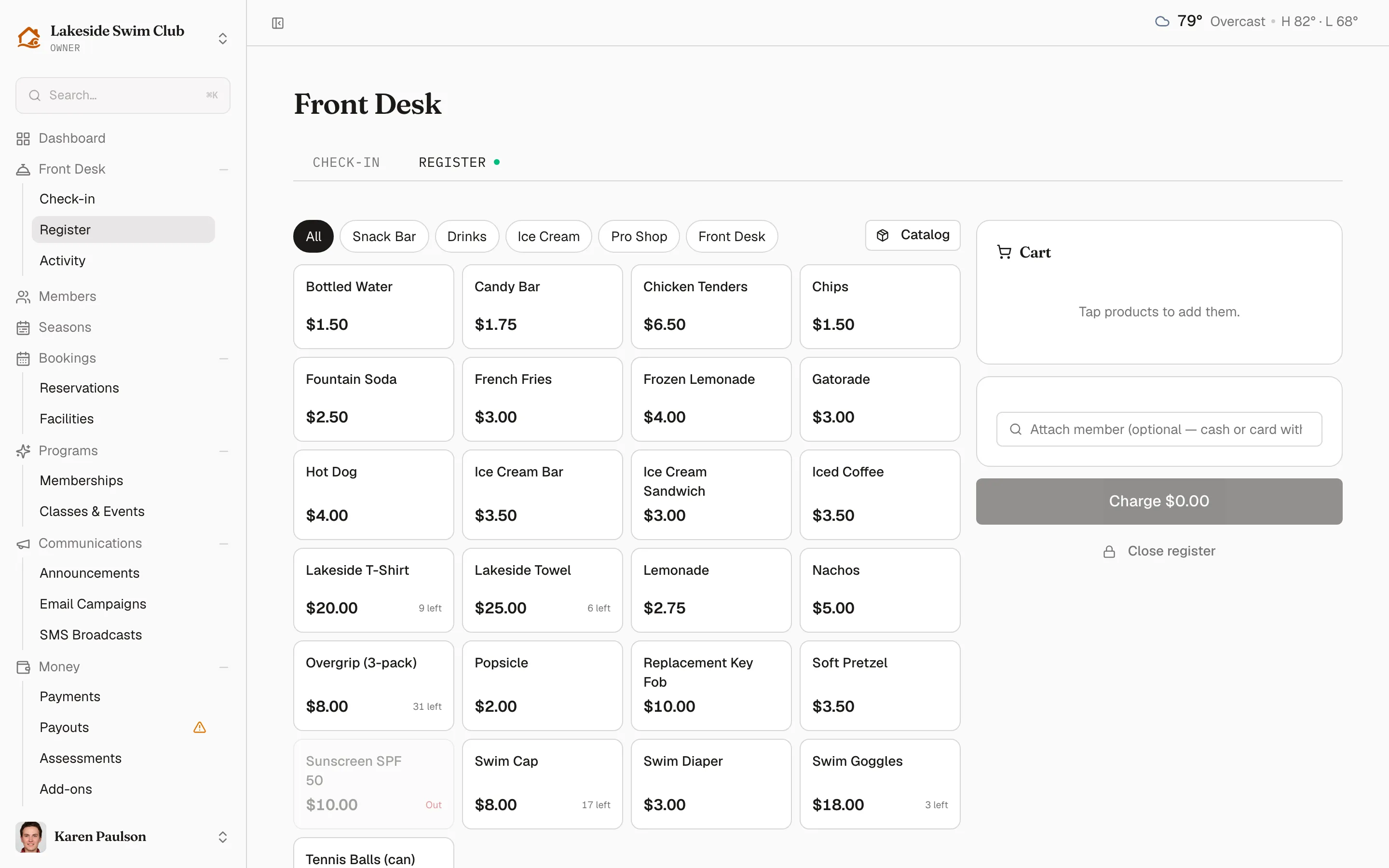
Tap product tiles to add them to the Cart — tap again for another one, or use the + / − buttons on a cart line. Filter the grid with the category chips (All, then your categories). Tracked products show how many are left and go gray when out of stock.
-
Optionally attach the buyer with Attach member (optional — cash or card without). Their card shows Prepaid and Credit balances, whether they have a Card on file, and an Outstanding balance badge if they’re behind on payments.
-
Click Charge $12.50 (the button shows the cart total).
-
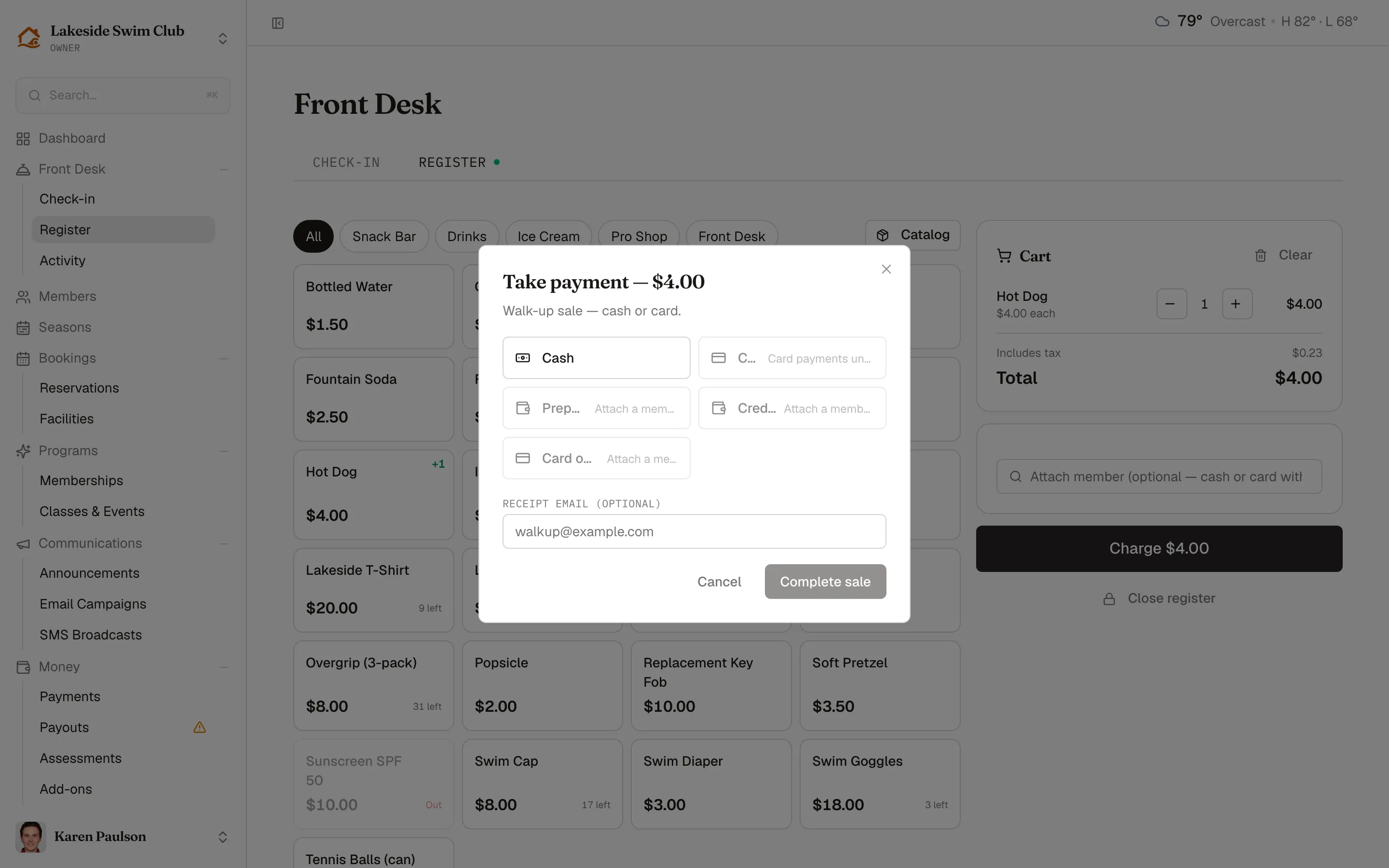
The Take payment — $12.50 dialog opens, its title carrying the same total. Tap one or more payment methods, then click Complete sale.
Prices are tax-inclusive — when a sales tax rate is set in Features, the cart shows the Includes tax portion for the taxable items, and the total never changes.
Payment methods
Section titled “Payment methods”- Cash — always available. Enter Cash received (optional) and the dialog shows Change due.
- Card — the customer’s physical card, typed into the card field. Available once your Stripe account can accept card charges; otherwise the button reads “Card payments unavailable”.
- Prepaid and Credit — spend the attached member’s prepaid or account-credit balance. These need a member attached, account credits enabled for your organization, and a balance to draw on.
- Card on file — charge the attached member’s saved card. Unavailable while the member has an outstanding balance.
Split a sale across methods by tapping more than one — each gets an editable amount, and Complete sale enables once the dialog reads Fully tendered. Walk-up sales (no member attached) can only pay cash or card, with an optional Receipt email.
Receipts
Section titled “Receipts”Completed sales are emailed automatically to the attached member — or to the walk-up Receipt email if you entered one. From Recent orders you can also click Download receipt for a PDF copy, or Email receipt to resend it.
Void or refund an order
Section titled “Void or refund an order”Recent orders heads the list with the session’s running total — “6 orders · $84.00 in sales”. Every order lists its items, time, buyer (or “walk-up”), and payment methods; a member buyer’s name links straight to their profile. For a completed order:
- Void sale — for mistakes caught while the same session is still open. The order is treated as if it never happened: it drops out of the session’s Z-report and sales reports, stock is restored, credit and prepaid draws are returned, and any card portion is refunded through Stripe. Once the session that took the sale has closed, voiding is refused — refund instead.
- Refund sale — the order stays on the books with a refunded badge. Card portions are refunded through Stripe, credit and prepaid draws are returned, stock is restored, and a cash refund reduces the open drawer’s expected cash. The member is emailed about the refund.
Close the register (Z-report)
Section titled “Close the register (Z-report)”- Click Close register, the quiet button under Charge.
- The Close register (Z-report) dialog totals the session by payment method and computes Expected cash — opening cash + cash sales − cash refunds.
- Count the drawer and enter Counted cash. The dialog shows Drawer balanced., Over by $2.00, or Short by $2.00 as you type.
- Click Close register.
The session ends and the count, expected cash, and variance are recorded in the activity feed under Register closed.