
Website calendar
Requires the Classes & Events module
The website calendar publishes your classes and events as a public calendar — one you can drop into your club’s own website, or that anyone can subscribe to in Google Calendar, Apple Calendar, or Outlook. It’s read-only and needs no sign-in, so prospective members can see the summer lesson schedule without an account. Click Integrations in the sidebar, then open Website calendar.
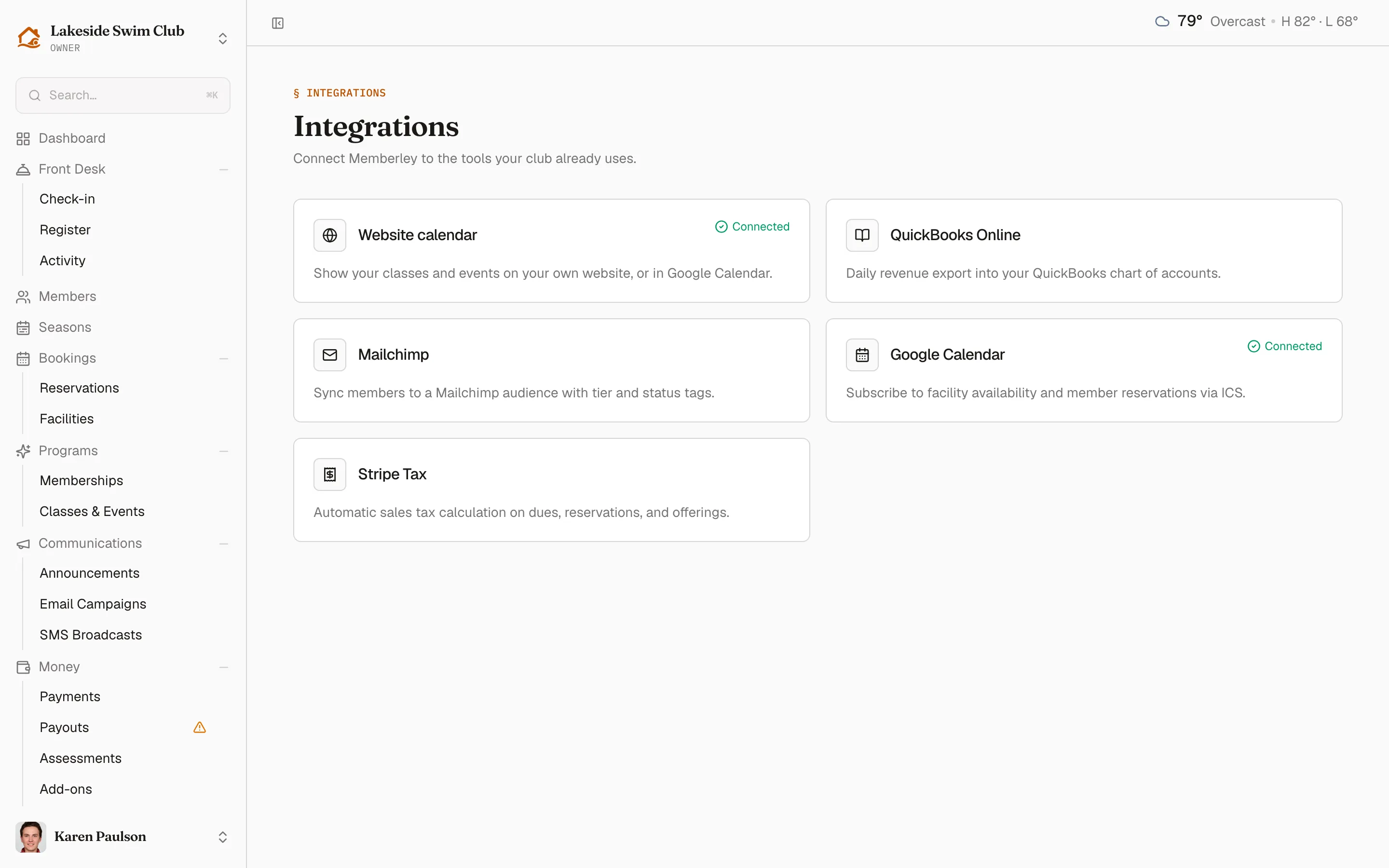
Turn the calendar on
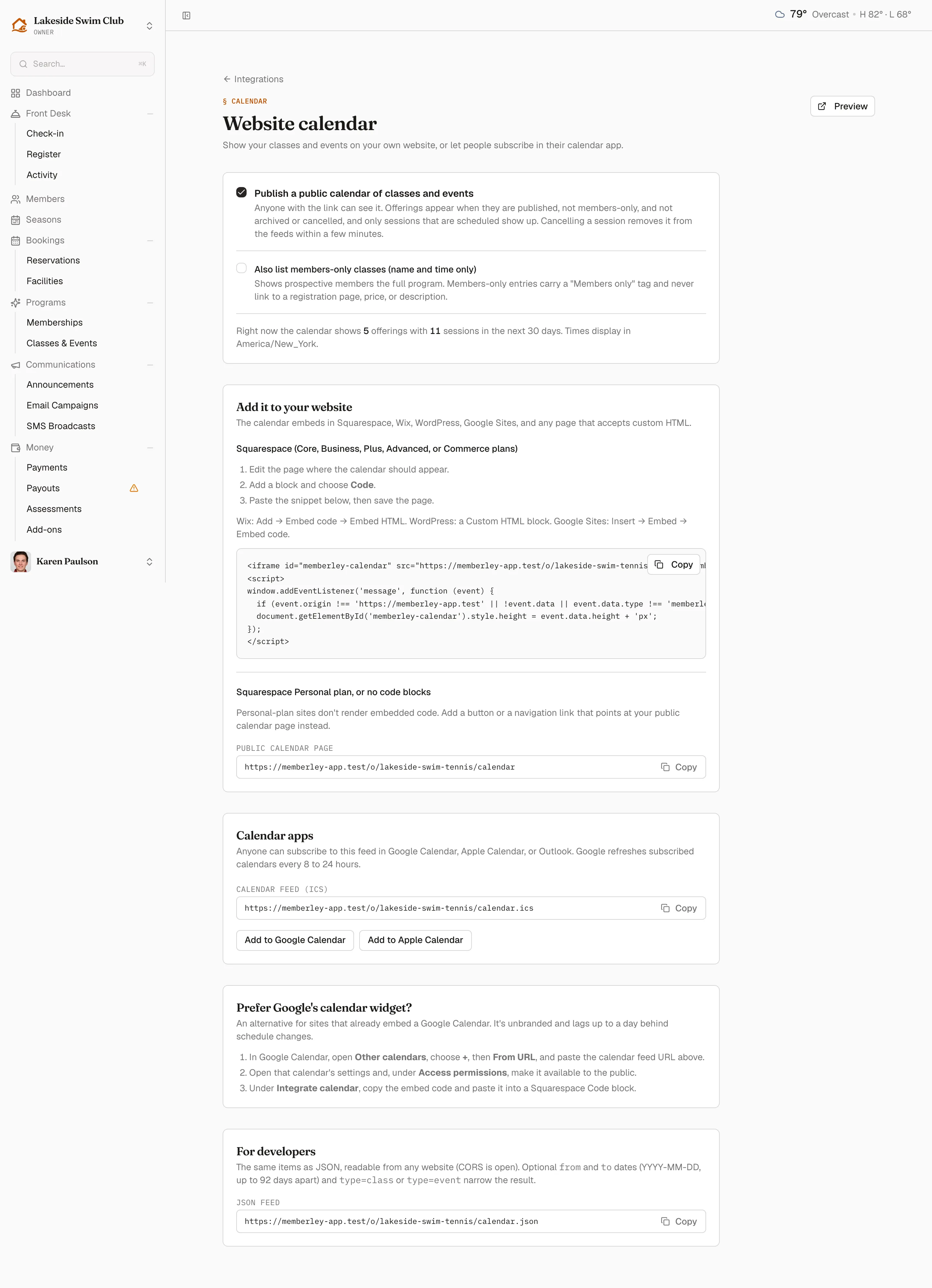
Section titled “Turn the calendar on”- Click Integrations in the sidebar, then Website calendar.
- Tick Publish a public calendar of classes and events.
The rest of the page appears once it’s on, and a Preview button in the header opens the public page exactly as a visitor sees it.
Only offerings that are published, not members-only, and not archived or cancelled appear, and only their scheduled sessions. Cancelling a session pulls it out of every feed within a few minutes. The page reports how many offerings and upcoming sessions are currently visible, which is the fastest way to explain a calendar that looks emptier than you expected.
Show members-only classes too
Section titled “Show members-only classes too”Tick Also list members-only classes (name and time only) to put your restricted programs on the public calendar as well. They appear with a Members only tag and nothing else — no price, no description, and no link to register. It’s a way to show prospects the full scope of your program without opening it up.
Put it on your website
Section titled “Put it on your website”The Add it to your website card holds a ready-made snippet — an iframe plus a few lines that resize it as the month changes, so the calendar grows with its content instead of scrolling inside a fixed box. Click Copy, then paste it wherever your site builder accepts custom HTML:
- Squarespace (Core, Business, Plus, Advanced, or Commerce) — edit the page, add a block, choose Code, paste, and save.
- Wix — Add → Embed code → Embed HTML.
- WordPress — a Custom HTML block.
- Google Sites — Insert → Embed → Embed code.
On a Squarespace Personal plan, or any site that won’t render embedded code, link out instead: copy the Public calendar page URL from the same card and point a button or a navigation link at it.
Let people subscribe
Section titled “Let people subscribe”The Calendar apps card carries the feed itself. Copy the Calendar feed (ICS) link for a newsletter or your website, or use Add to Google Calendar and Add to Apple Calendar to subscribe in one click.
Subscribers get schedule changes without doing anything — though on their own schedule: Google refreshes subscribed calendars every 8 to 24 hours, so the embedded calendar on your website is always the fresher of the two.
If your site already embeds a Google Calendar widget and you’d rather keep that look, Prefer Google’s calendar widget? walks through routing the feed through Google first. It’s unbranded and lags up to a day behind schedule changes.
The JSON feed
Section titled “The JSON feed”For developers exposes the same items as JSON, readable from any website. Narrow it with optional from and to dates (YYYY-MM-DD, at most 92 days apart) and type=class or type=event — enough for a developer to build a custom schedule block against your real data.