
Shift schedule
The shift schedule shows who works when, and where. You build shifts as drafts that only owners and managers can see. When you publish, each person gets one email with their shifts. Staff see a read-only copy of the published schedule (see For staff). To open it, click Staffing in the sidebar, then Shift schedule.
Find your way around
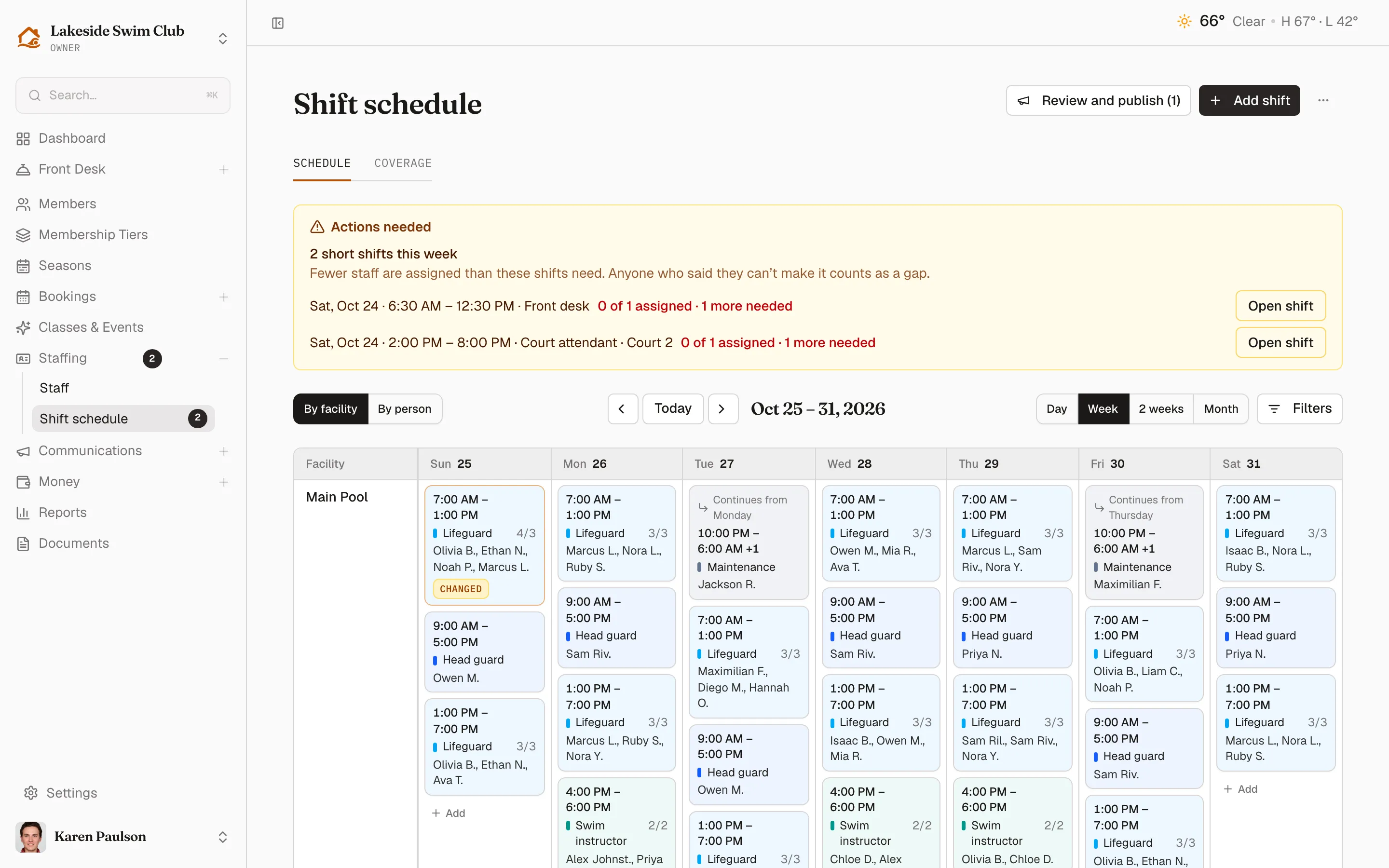
Section titled “Find your way around”- Previous, Today and Next move by the range shown. The heading names the range, such as “Oct 25 – 31, 2026”.
- Pick a range: Day, Week, 2 weeks or Month. Weeks start on the day your club set in Weeks start on in Organization settings. It’s Sunday unless an owner changes it.
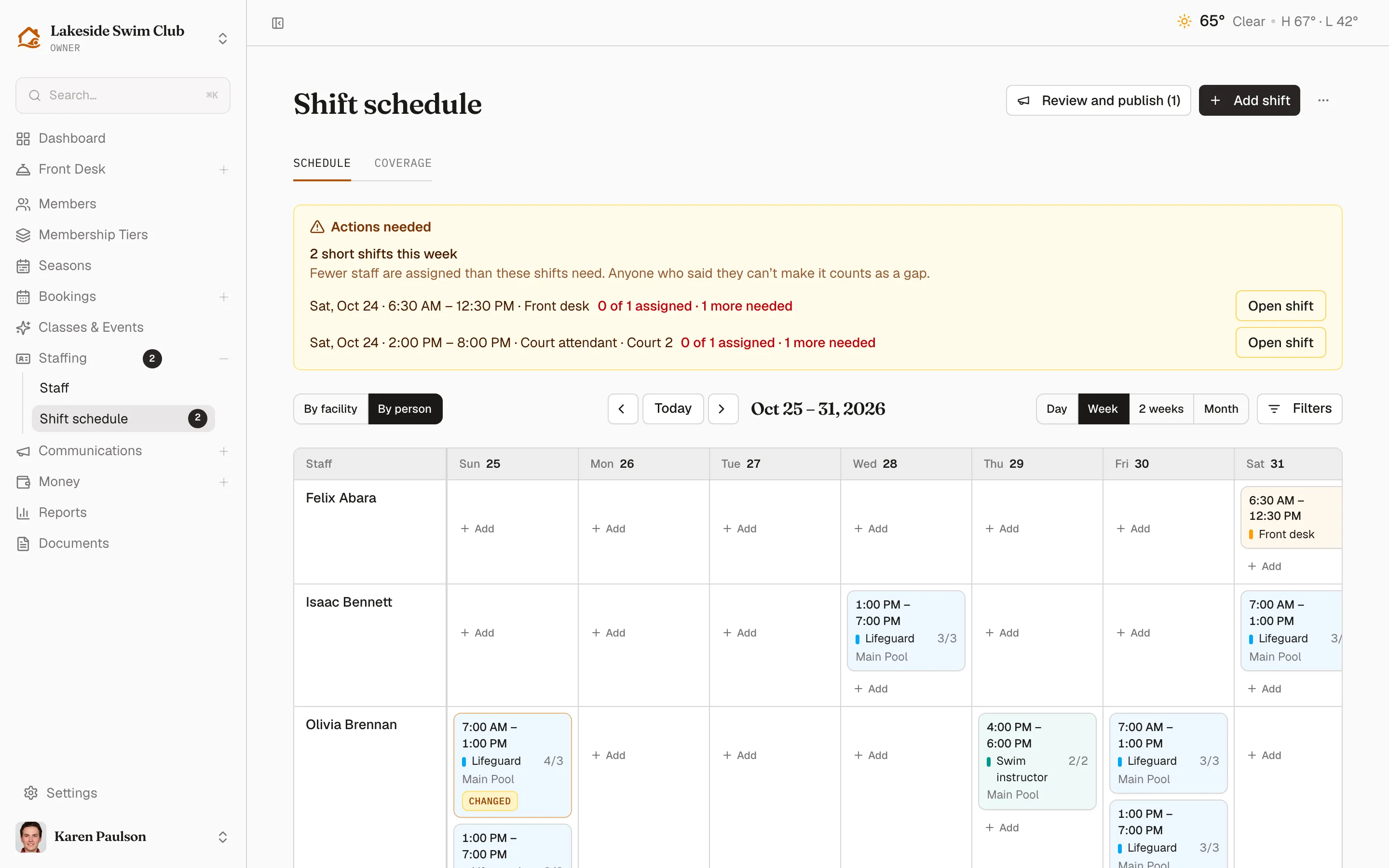
- In the day, week and two-week views, group the rows By facility or By person. Memberley remembers your choice in this browser.
- By facility gives each facility a row, plus No facility for shifts without one.
- By person gives each active staff member a row, plus an Unfilled row for shifts that need more people. Anyone who worked in the range also gets a row, so last month still shows people who’ve since left.
- Filters narrows the schedule to one Facility (or No facility), Position or Person. Active filters show as removable labels beside it, with Clear all.
- Show canceled appears, with a count, when the range has canceled shifts.
- In the week grid, click a day’s heading to open that day.
The page address keeps the range, date, grouping and filters. A copied link opens the same view, and the browser’s Back button steps back through the views you looked at.
Read a shift card
Section titled “Read a shift card”Each card is tinted with its position’s color. It shows the time, a colored bar with the position name, and the people on it. Names are short: first name and last initial, with more letters when two people would look alike (“Sam Riv.” and “Sam Ril.”). In By person rows, the card shows the facility instead of names.
- 2/3 in red means the shift is short: two of the three people it needs. Any shift that needs more than one person shows a headcount.
- Draft cards are dashed and hatched. Staff can’t see them.
- Changed marks a published shift with edits staff haven’t been told about yet.
- Canceled cards stay on the schedule, with the reason, behind Show canceled.
- An overnight shift belongs to the day it starts, and its end time shows +1. The next day has a linked card that reads “Continues from Monday”. Either card opens the same shift.
- A long list of names ends in +2 more, which expands in place.
Days closed by a closure are hatched. A whole-club closure shades every row and reads “Club closed: …”. A facility closure shades only that facility’s row.
Month view
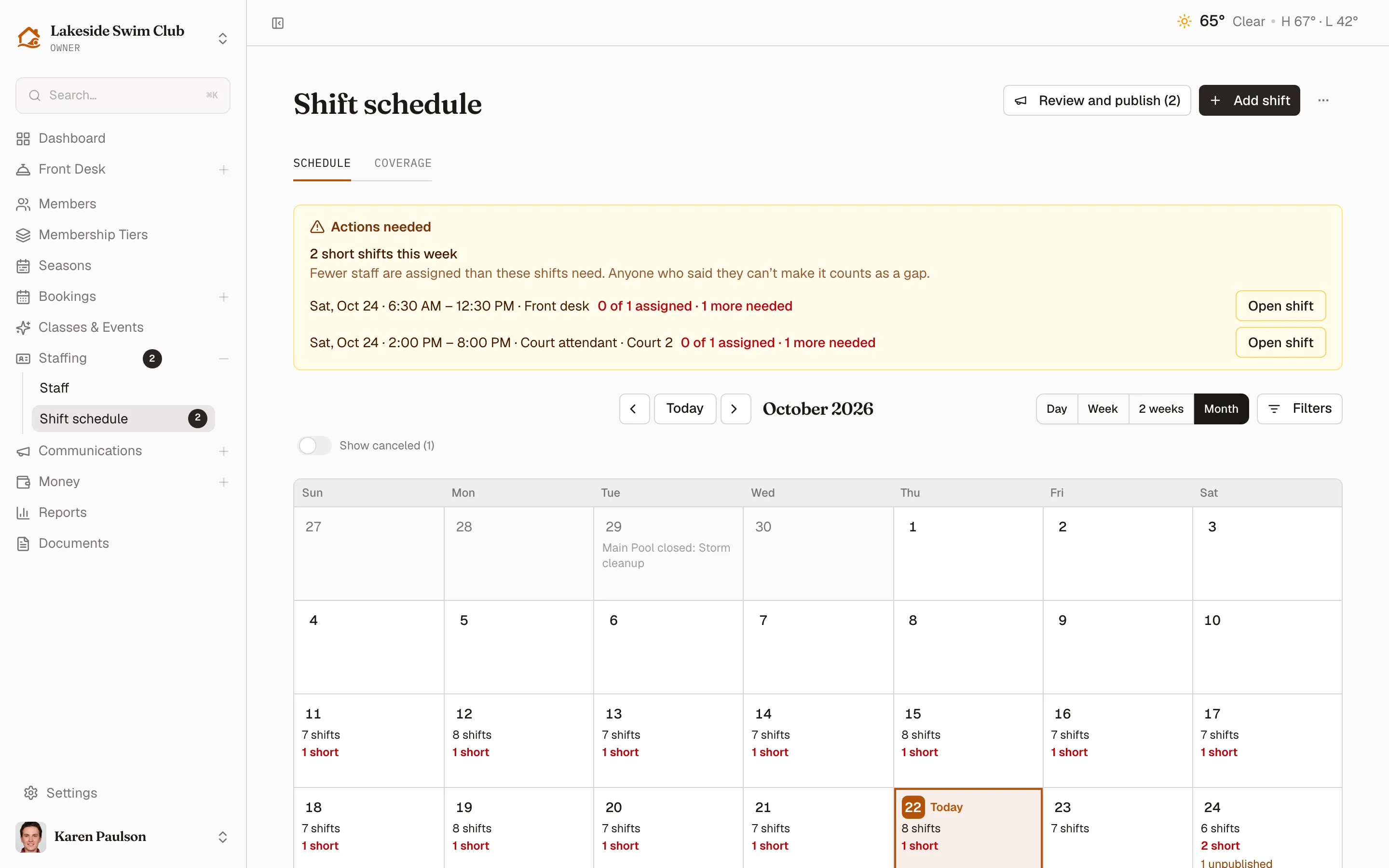
Section titled “Month view”Month is the overview for finding busy, short or closed days. Each day lists its number of shifts, how many are short, how many are unpublished, and any closure by name. Days from the neighboring months are dimmed. Click a day to open it in the day view with the same filters and grouping.
Day view
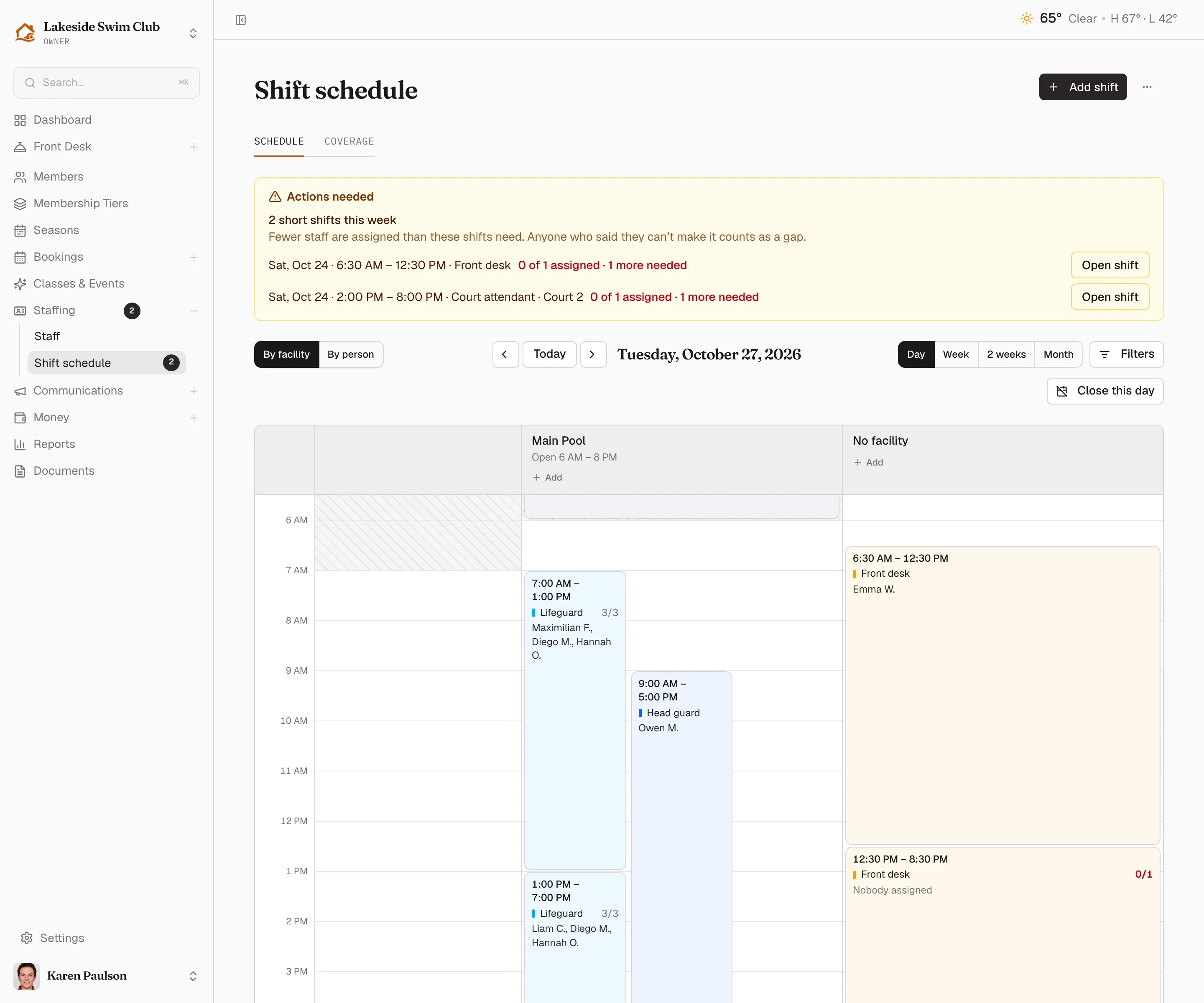
Section titled “Day view”Day runs time down the page, with a column for each facility or person. Overlapping shifts sit side by side, and each facility’s operating hours are shaded. Use it to answer “who’s on the pool at 2pm?” It also holds Close today, or Close this day for another date (see Close a day).
On a phone, the day, week and two-week views become a day-by-day list under the same grouping. The month view keeps a compact grid you tap to open a day.
Add a shift
Section titled “Add a shift”- Click Add shift. Or click Add in a day cell to start with that date, and that row’s facility or person, filled in.
- Set the Date, Start and End. A shift can be up to 24 hours long. An end at or before the start means the next day: the End label shows +1, and the hint reads, for example, “8 h · ends the next day, Tue, Oct 27”.
- Choose a Facility and Position if they apply. Both are optional, and a club with no facilities never sees the facility field.
- Set Staff needed.
- Under People, tick who works it. Find a person searches the list, and people who hold the shift’s position come first, under Hold this position.
- Anyone who would be double-booked is grayed out, with the reason and the other shift, such as “Conflicts with a published shift”.
- People who haven’t set up their login are marked Invite pending or Invited. You can still schedule them.
- Optionally, add notes. + Add notes for staff shows to the people on the shift and on the schedule staff see. + Add manager notes is for owners and managers only.
- Click Save draft.
You can save a shift short, or with nobody on it. If your club has no staff yet, the drawer offers to save it as an unfilled draft and links to adding staff.
The one rule Memberley enforces is that one person can’t work two overlapping shifts. Back-to-back shifts are fine.
Edit a shift
Section titled “Edit a shift”Click any card to open it. The heading names the position and date. The line below it says whether the shift is a draft, published, or published with changes staff haven’t seen.
On a published shift, changes to the people, time, facility, position, headcount or notes for staff wait until you publish them. Manager notes are the exception: they save straight away and never need publishing.
After you click Save, a Pending changes — not published yet box lists each change as old → new, who’s being added or removed, and What staff currently see.
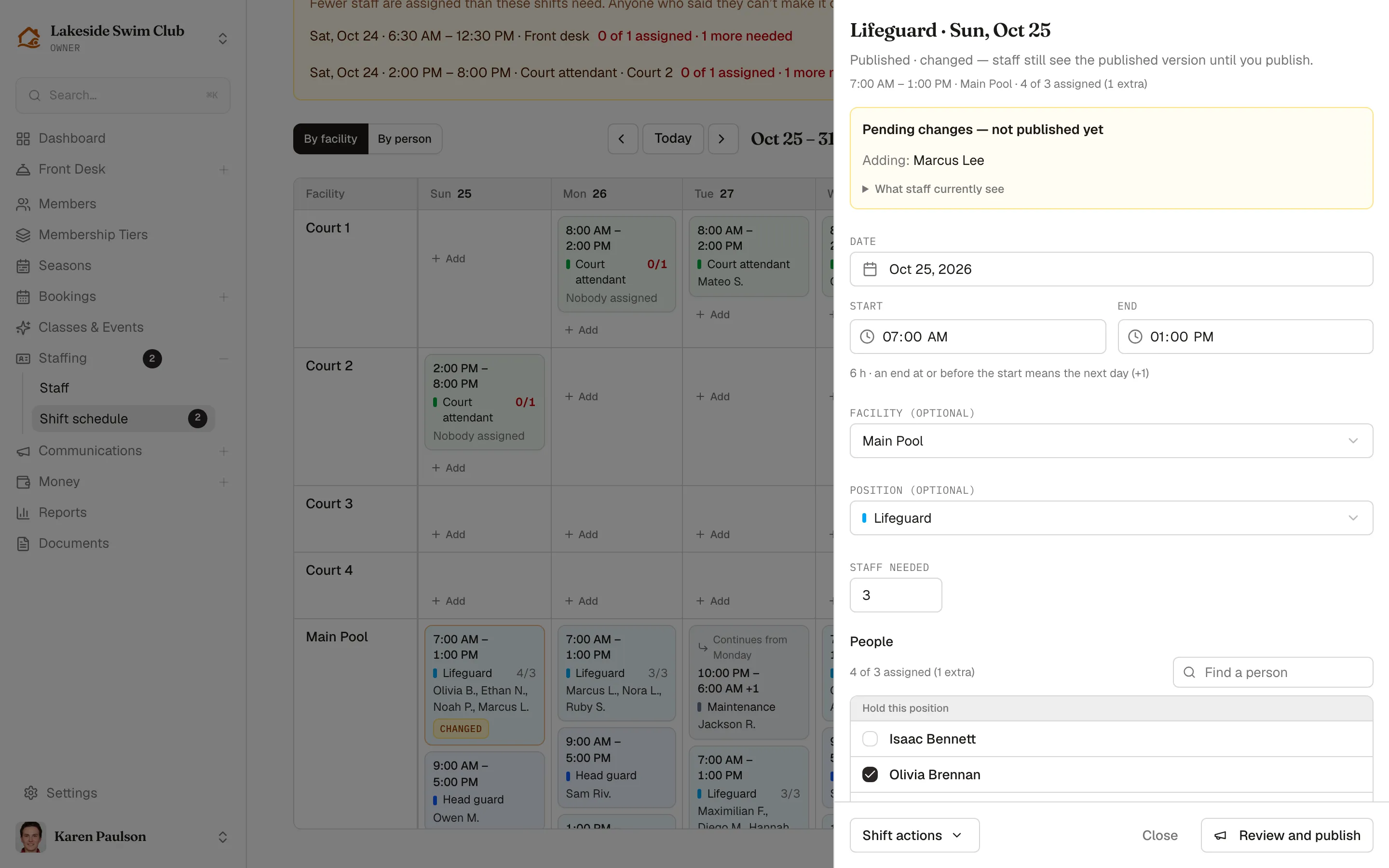
At the foot of the drawer:
- Shift actions holds Repeat…, Duplicate as a draft, Discard pending changes…, and Delete draft… or Cancel shift…. It’s unavailable while you have unsaved edits.
- Cancel (Close on a saved shift) shuts the drawer. With unsaved edits it becomes Discard unsaved edits, and closing any other way asks first.
- Review and publish opens the review for just this shift.
Not working this shift lists anyone you removed and anyone who said they can’t make it, with their reason. Only owners and managers see these reasons. Put back on shift reassigns someone, and they’re told once you publish.
Once a shift has ended, you can’t change its time or people. A canceled shift can’t be edited at all, but Duplicate as a draft makes a fresh copy to work from.
Review and publish
Section titled “Review and publish”Publishing is how staff find out. Review and publish (1) appears beside Add shift whenever the range shown has drafts or pending changes. The count is how many shifts are waiting, within your current filters.
- Click Review and publish. The drawer names its scope, such as “Scope: Oct 25 – 31, 2026”, plus any filters. It covers everything unpublished in that range and filter.
- Read the summary, such as “1 shift to publish (1 changed). 1 person will get one email each.” Below it, each shift is marked New or Changed, with its old → new values, who’s being added, removed or told, and its headcount.
- Fix anything listed under “Fix this shift before publishing”, such as a double-booking. Open shift or Open the other shift takes you there. Short shifts are only a warning: you can fill them later and publish again.
- Open Who gets an email to see everyone who’ll hear about it.
- Click Publish and notify.
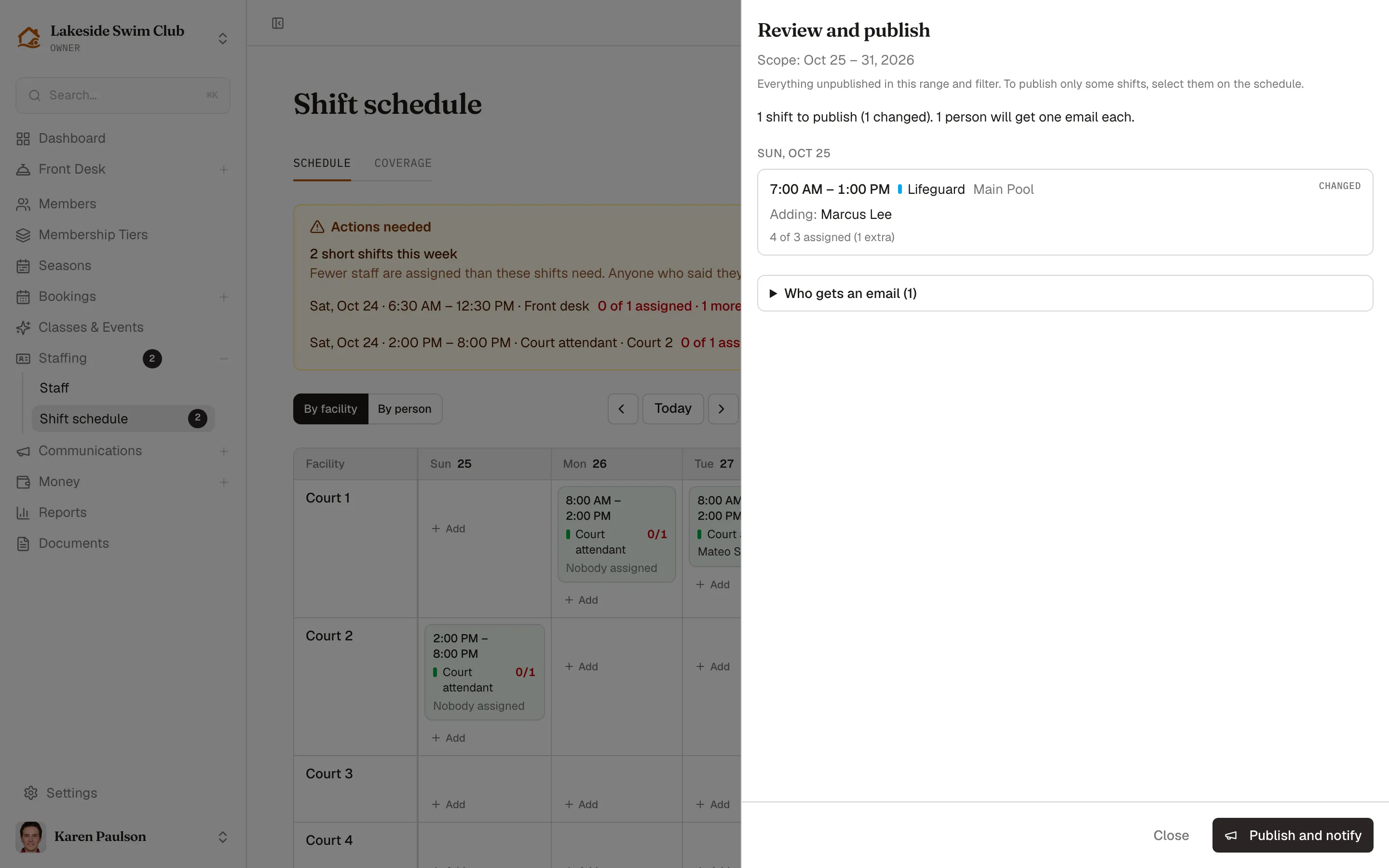
The drawer closes and a message confirms it, such as “Published 2 shifts and notified 2 people.” Each person gets one email listing what was added, changed or removed for them, not one email per shift. If someone edited a shift while you were reviewing, Memberley publishes nothing and shows the refreshed review to check again.
Publish only some shifts
Section titled “Publish only some shifts”Hover over a card and tick the box in its corner. On a touch screen, the boxes always show. A bar replaces the toolbar with “3 selected”, Review and publish (3), Cancel shifts (3) and Clear selection. The review then covers only the selected shifts instead of the whole range. Changing the range or filters clears the selection.
Save and notify now
Section titled “Save and notify now”For an urgent fix, Save and notify now in the shift drawer saves your change and goes straight to the review for that one shift. You still confirm with Publish and notify. It appears on a new shift, and on an existing one once you’ve changed anything staff would see.
Discard pending changes
Section titled “Discard pending changes”To back out of edits nobody has been told about, choose Shift actions → Discard pending changes…, then Discard pending changes. The shift goes back to what staff currently see, and nobody is notified. Anyone who said they can’t make it stays off the shift.
Cancel or delete a shift
Section titled “Cancel or delete a shift”- Delete draft… removes a draft without telling anyone, since staff never saw it. You can’t undo it.
- Cancel shift… cancels a published shift right away, with no review. Everyone scheduled on it gets an email, with your reason if you add one. Add an optional Reason, then click Cancel shift, or Keep shift to back out.
- To cancel several, select them and click Cancel shifts. Canceling drafts tells nobody.
Repeat a shift
Section titled “Repeat a shift”There’s no recurring series. Repeat makes independent draft copies that you edit and cancel one by one.
- Open the shift and choose Shift actions → Repeat….
- Under Repeat on, pick the weekdays. The shift’s own day starts selected.
- Set Until, up to 400 days after the shift. That day is included.
- Tick With the same people to copy the team. Anyone already working at that time is left off, and their spot stays open. Without it, every repeat starts unfilled.
- Click Preview to list every date Memberley would add. Closed dates are skipped and listed under Closed dates; tick Include anyway for setup work or a private event. A facility closure only skips shifts at that facility.
- Click Add 3 draft shifts (the button shows the count).
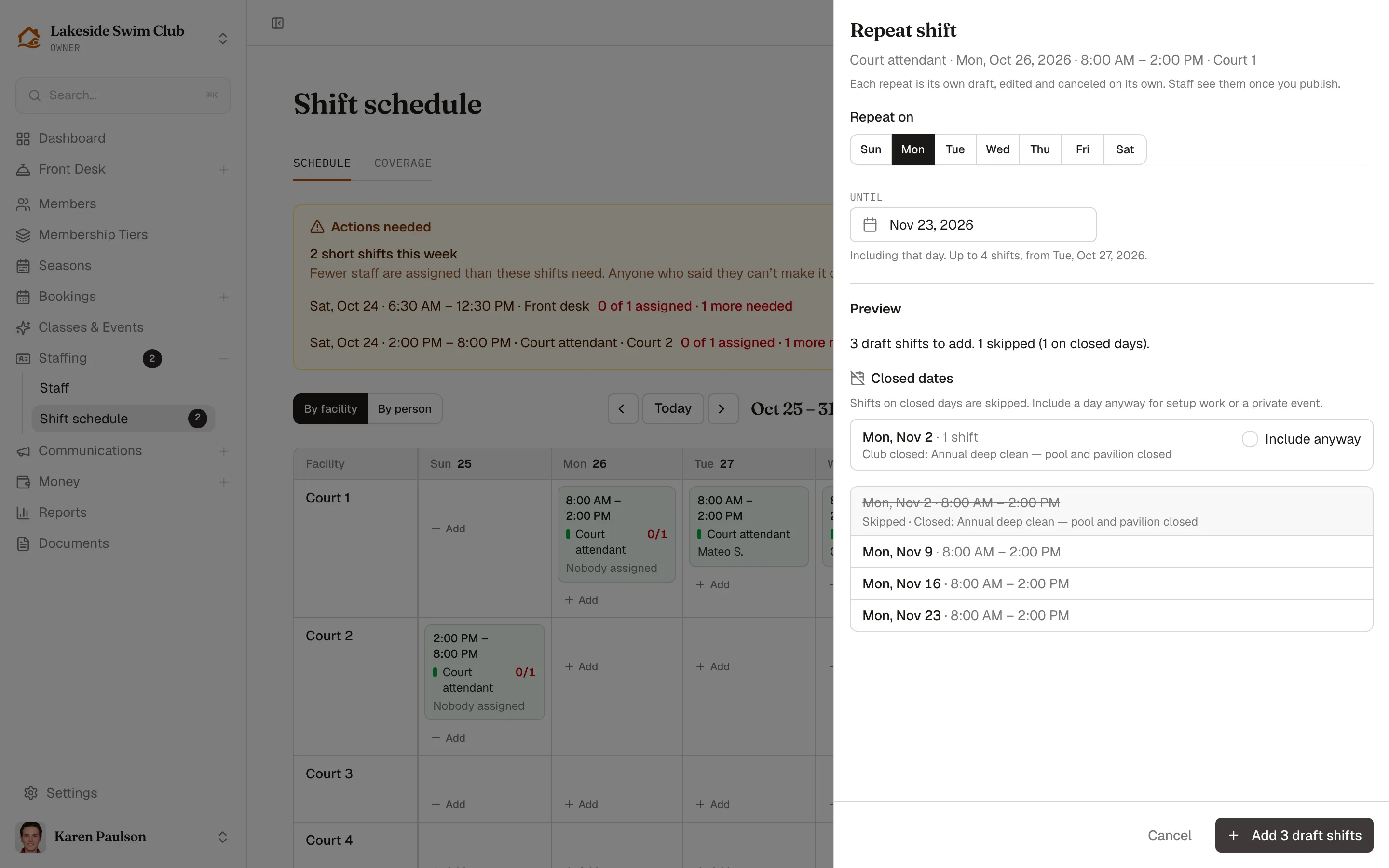
Then click Review and publish to review the new drafts, or Done to leave them as drafts.
Copy a week
Section titled “Copy a week”- Switch to Week or 2 weeks and set up the range and filters you want to copy.
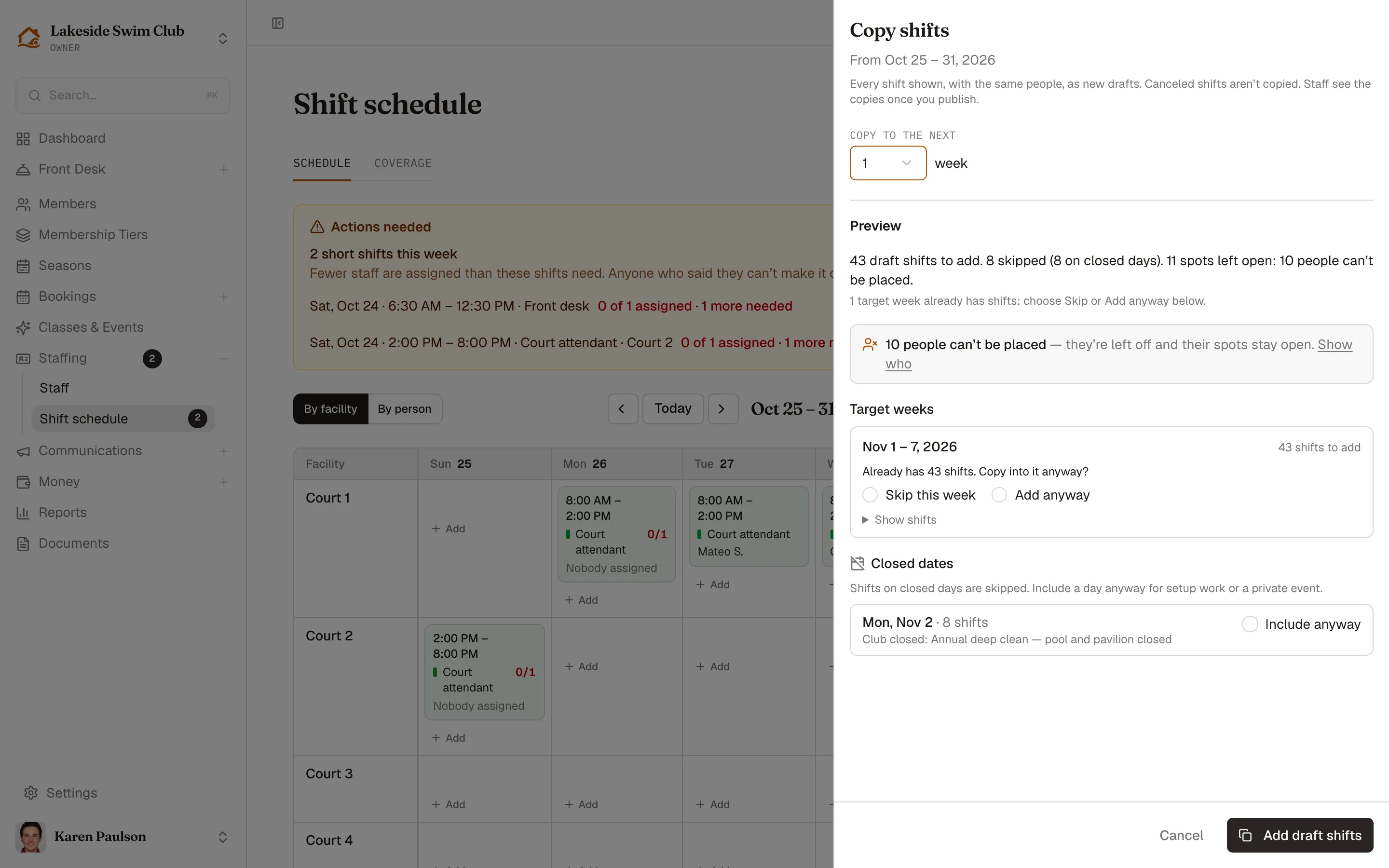
- Choose ⋯ → Copy…. Memberley copies every shift shown, with the same people, as new drafts. Canceled shifts aren’t copied.
- Set Copy to the next: 1 to 12 weeks, or two-week periods.
- Check the Preview:
- A target week that already has shifts needs a choice: Skip this week or Add anyway.
- Closed dates are skipped unless you tick Include anyway.
- People who would be double-booked are left off, and their spots stay open. Show who lists them.
- Click Add 43 draft shifts. The button reads Add draft shifts until every target week that needs a choice has one, then shows the count.
- Click Review and publish, or Done to leave the copies as drafts.
Check coverage
Section titled “Check coverage”The Coverage tab, beside Schedule, shows where a day or week needs more staff than it has. Only owners and managers see it. It has Day and Week views, with a row for each facility and position. Filters narrows it by Facility or Position; coverage ignores a person filter and always counts everyone.
Until you set coverage requirements, the tab reads “Checking existing shifts only.” A gap is then a shift with fewer people than its Staff needed. Requirements also catch hours nobody is scheduled for yet.
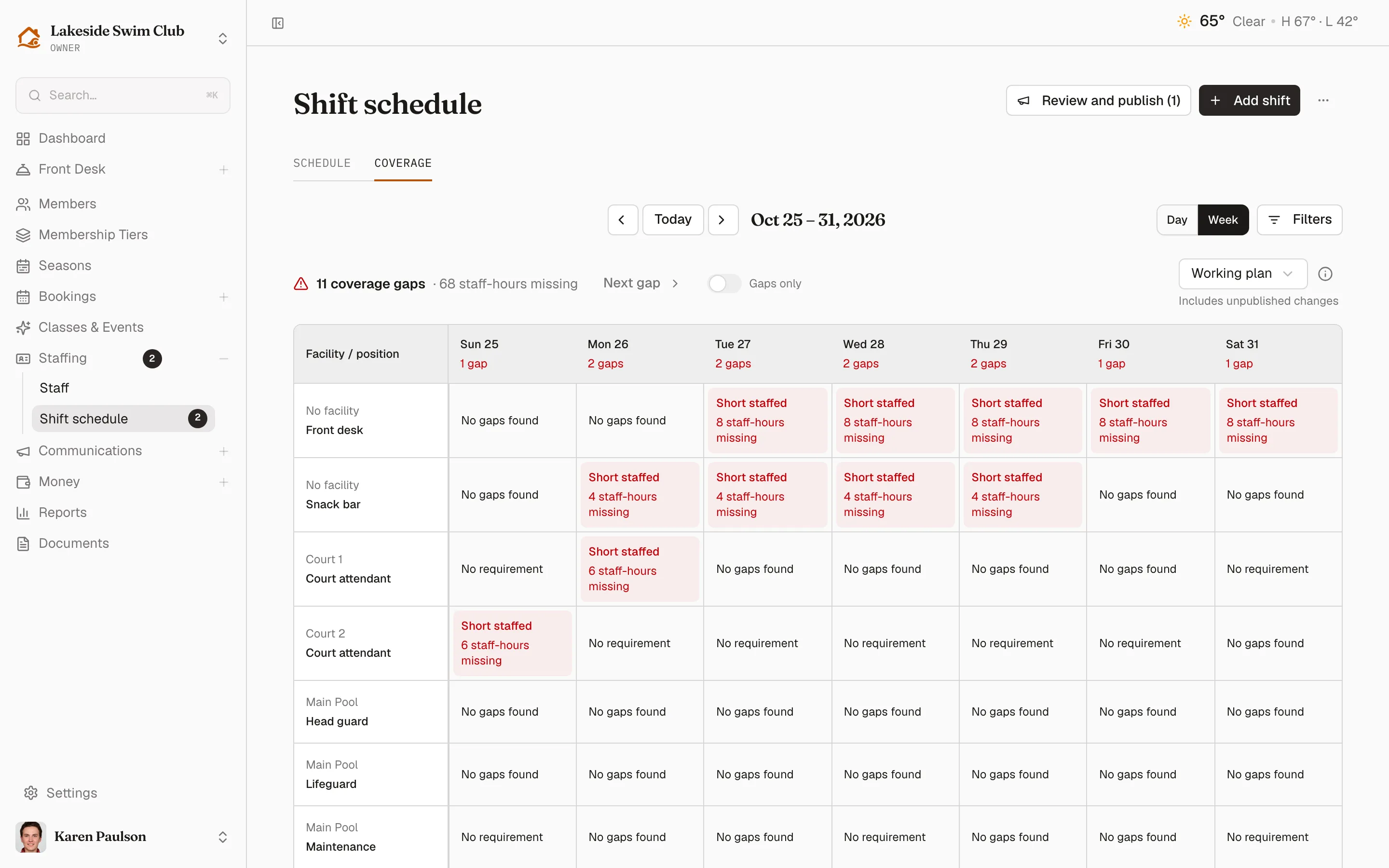
- The summary, such as “11 coverage gaps · 68 staff-hours missing”, counts only what’s still ahead. A staff-hour is one missing person for one hour. Past hours stay visible in gray for reference.
- Working plan includes drafts and pending edits. Published checks only what staff have been told. Declined assignments never count.
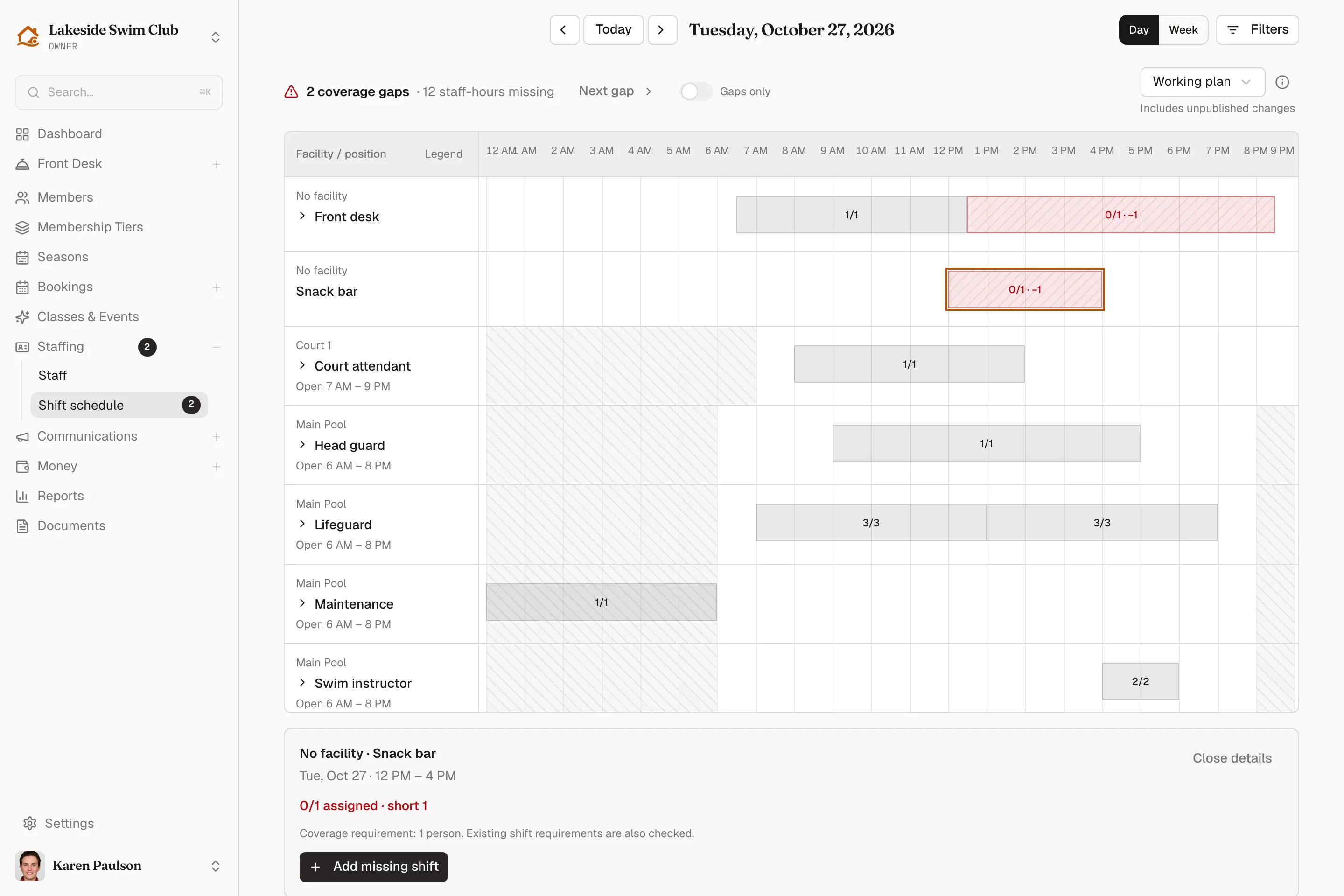
- Week cells read Short staffed (with the staff-hours missing), No gaps found, Closed or No requirement. Click a cell or a day’s heading to open that day, where time runs left to right. There, click a position’s name to see each person’s hours.
- Next gap steps through the gaps, and Gaps only hides rows without one. Periods needing staff, below the grid, lists every gap.
Click a stretch of time or a listed gap to see who’s assigned and how to fix it:
- Fill shift opens the short shift so you can assign someone.
- Add missing shift appears where a requirement asks for more people than the shifts at that time. It opens a new draft with the date, facility, position and times filled in, and Staff needed set to the number missing.
- On Published, Review working plan takes the place of Add missing shift, since a draft may already cover the gap.
Set coverage requirements
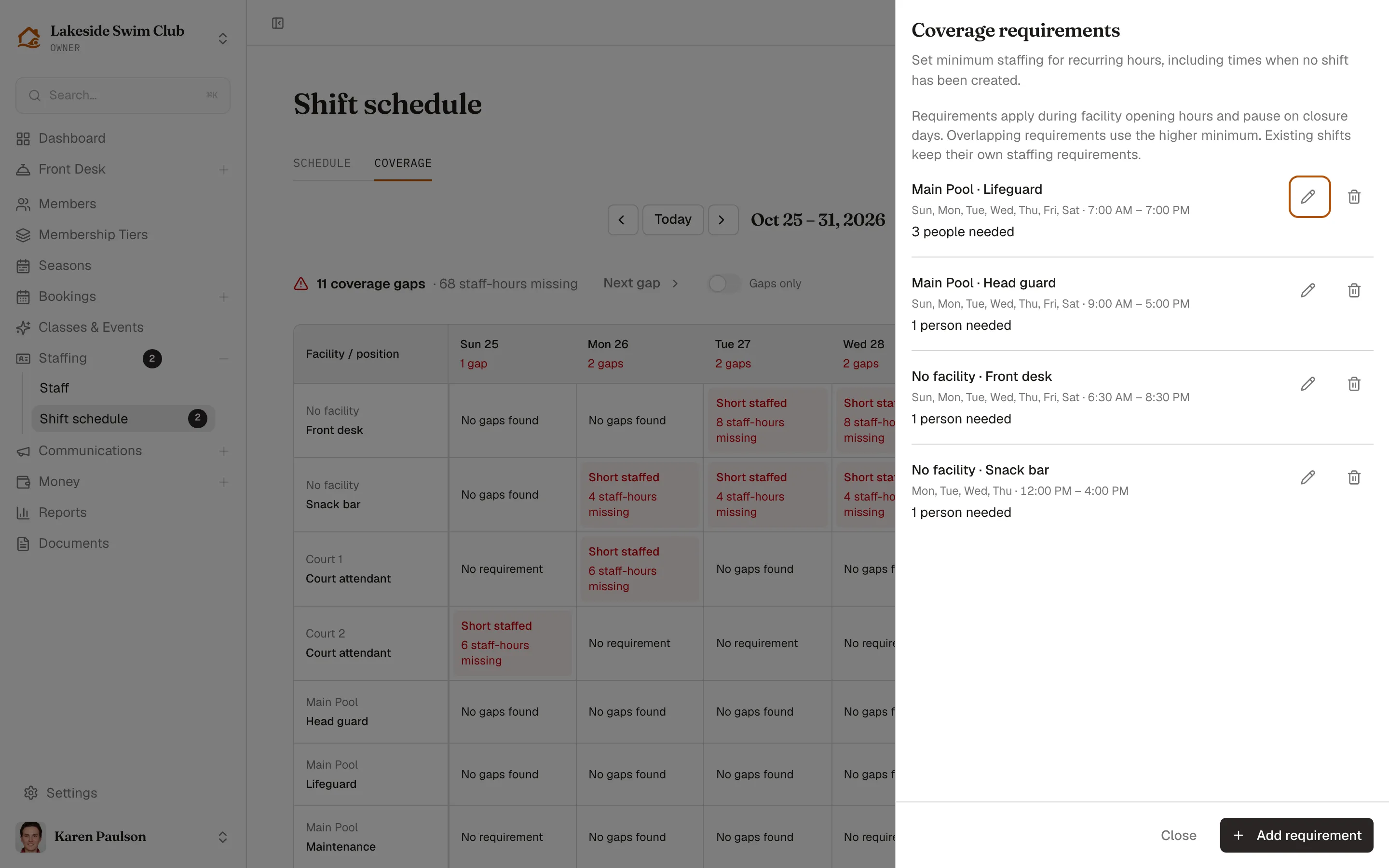
Section titled “Set coverage requirements”A coverage requirement is a recurring minimum, such as three lifeguards at the pool from 7am to 7pm every day.
- On the Coverage tab, choose ⋯ → Coverage requirements. If you have none yet, you can also click Set coverage requirements under the summary.
- Click Add requirement. You need a position first.
- Choose a Facility (optional) and Position, pick the Days, and set Start and End in your club’s timezone. An end at or before the start means the next day, and the days you pick are the days it starts.
- Set Minimum staff needed, from 1 to 50, and click Save requirement.
How Memberley counts requirements:
- Where requirements overlap, the higher minimum applies.
- Shifts still count in full. If the shifts at that time need more people than the requirement, that’s the number to meet, and a short shift is always a gap.
- A requirement at a facility doesn’t apply outside the facility’s operating hours or on days marked Closed.
- Requirements pause on closure days. A whole-club closure pauses them all; a facility closure pauses only that facility’s. Shifts on a closed day still need their staff.
Saving a requirement doesn’t create shifts or notify staff. Use a requirement’s pencil button to edit it or its trash button to delete it. Deleting asks first and keeps existing shifts.
Close a day
Section titled “Close a day”In the day view, click Close today, or Close this day for another date. Memberley opens Front Desk → Closures with Add closure set to that day, and its Review impact step counts shifts alongside reservations and class sessions.
When a closure cancels shifts, drafts are canceled without telling anyone. Staff on a published shift hear about it in the closure’s one email, with no separate text. See Closures & holidays.
Print the schedule
Section titled “Print the schedule”⋯ → Print prints the range, grouping and filters shown, with full names. Each week starts on a new page, and a busy week runs onto extra pages instead of shrinking. Notes for staff print; manager notes don’t. Your printout labels drafts and changed shifts, while staff can print only the published schedule.
Schedule settings
Section titled “Schedule settings”⋯ → Schedule settings… holds three settings that shape what staff get:
- Shift reminders — how many hours before a published shift staff are reminded, from 1 to 48. The default is 2.
- Can’t make it cutoff — how many hours before a shift staff can still drop it themselves, from 0 to 168. The default is 24, and 0 means right up to the start. After the cutoff, staff see the scheduling contact instead.
- Scheduling contact — the Name, Email and optional Phone staff see on My shifts for questions, or when it’s too late to drop a shift. Without a phone, staff see only an email button. The contact doesn’t change who’s alerted: managers still hear about every drop.
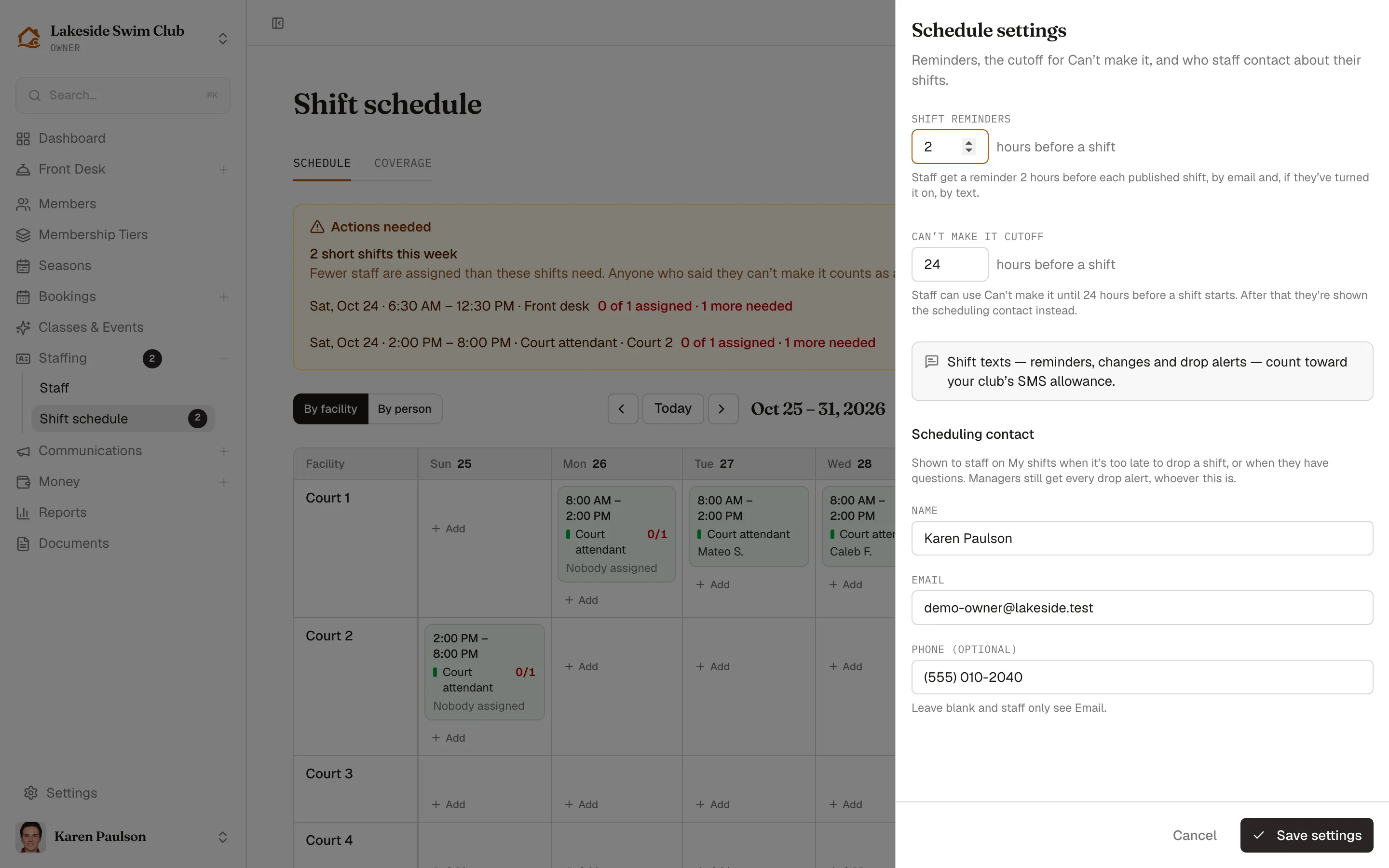
Until someone sets a contact, Memberley uses the owner who turned Staffing on, and the drawer says so. Staff see that owner’s name and email, so set a shared work address if you’d rather not share a personal one. When your club can text, the drawer also notes that shift texts count toward your club’s SMS allowance.
Short shifts and unpublished work
Section titled “Short shifts and unpublished work”- The Shift schedule link in the sidebar shows how many of this week’s published shifts are short and haven’t ended yet, counting declines, so you see it even from the Front Desk.
- The Actions needed card at the top of the Shift schedule lists those same shifts, whichever week you’re viewing. Each shows its day, time, position and facility, and how many more people it needs, such as “2 of 3 assigned · 1 more needed”. Open shift opens it so you can assign someone.
- The same card warns when shifts starting in the next 24 hours have unpublished work, which staff won’t see until you publish. Its Review and publish button reviews just those shifts.
- The dashboard’s Needs attention bar adds “3 short shifts this week” and “12 unpublished shifts” when there are any. Both open this week’s schedule.
What staff are told
Section titled “What staff are told”| When | Text | |
|---|---|---|
| You publish new or changed shifts | One summary per person | When a shift in the next 48 hours changes or is removed, if they’ve left Shift change texts on |
| You cancel a published shift | Right away, with your reason | When it’s in the next 48 hours, under the same setting |
| A closure cancels it | In the closure’s one email | — |
| Before each shift | A reminder, unless they turned Shift reminders off | Only if they turned reminder texts on |
| Staff say they can’t make it | Every owner and manager | Owners and managers, for shifts in the next 48 hours, unless they turned Shift drop texts off |
Emails about published, changed and canceled shifts always send, even to someone who unsubscribed from marketing. Texts need the Communications module with SMS turned on, and a verified phone. Each person sets their own choices on Notifications & calendar sync.