
Plan & billing
The Plan tab is everything about what your club pays Memberley: the plan you’re on, the modules attached to it, the card we bill, and the invoices that have come out of it. Open it with Settings → Plan. The old /organization/settings/billing address redirects here, so bookmarks and older emails still land in the right place.
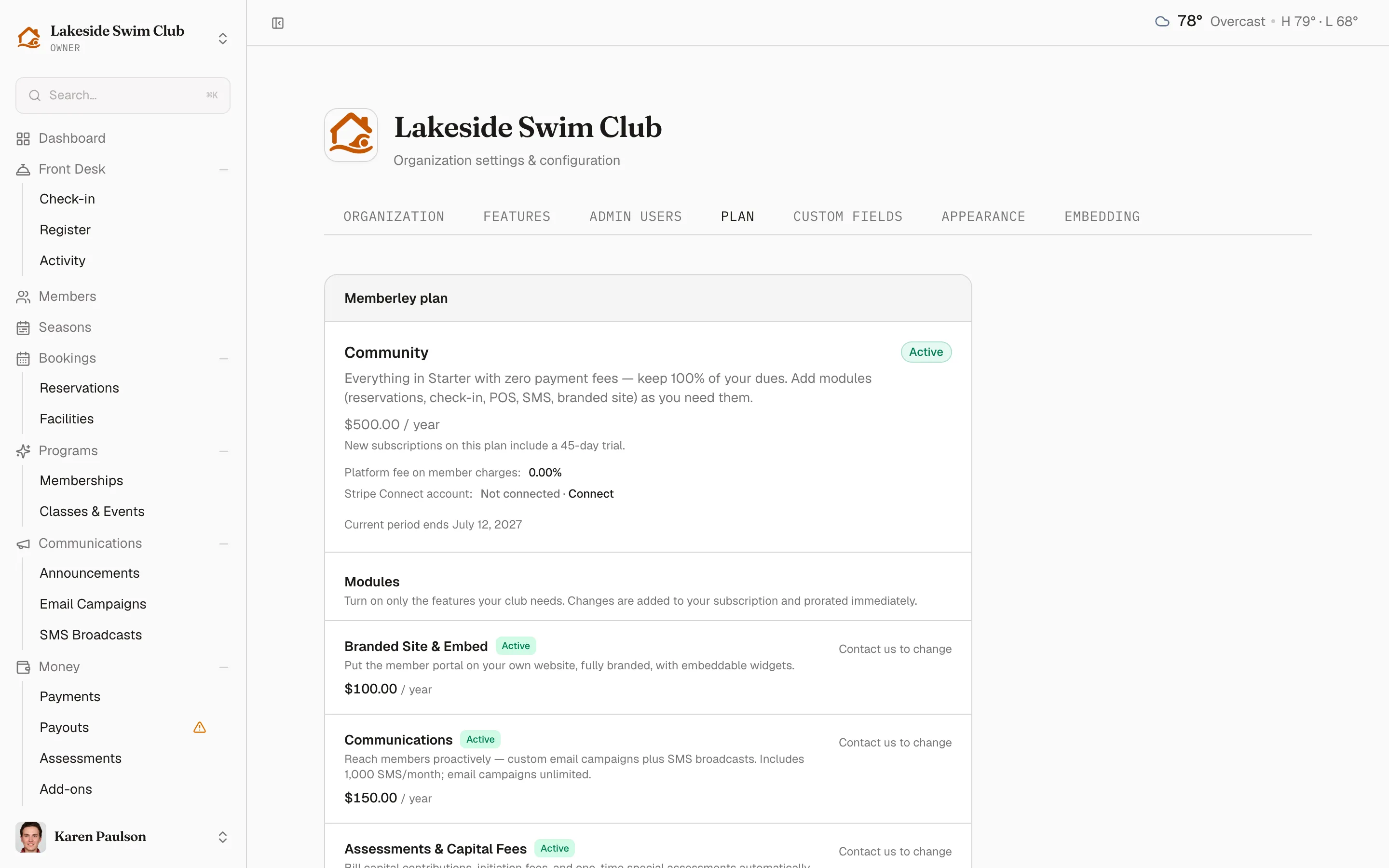
Memberley plan
Section titled “Memberley plan”The first card names your plan with its price and billing interval, and the facts that follow from it:
- Platform fee on member charges — the percentage Memberley takes on payments you collect (0% on the Community plan).
- Stripe Connect account — the connected account’s
acct_…id, or Not connected · Connect, which links to Payouts. - A date line whose prefix tells you what the date means: Current period ends normally, Trial ends while you’re in trial, and Access ends once a cancellation is scheduled.
Two buttons sit at the foot of the card. More plan details opens a details dialog named after your plan, with Features included and Plan limits — what your organization can do today. Switch plan lists every plan you can move to with a Switch button on each; picking one asks you to confirm the move, and you commit with Confirm switch. Stripe prorates the difference and invoices it immediately, and an active trial carries over.
Cancel subscription (or Cancel trial) ends the subscription at the end of the period you’ve paid for; while a cancellation is pending, Keep subscription calls it off.
Modules
Section titled “Modules”Modules is a section inside the same Memberley plan card, listing every Memberley module with its price — / year or / month, depending on the module — and an Active badge on the ones you hold. During your organization’s first year, every module is free: the section says so and names the date your free year ends, and adding or removing one just toggles it, with nothing billed. When the free year ends, the modules you’ve kept join your subscription and first appear on your next annual renewal invoice.
After the free year, the same buttons bill through your subscription:
- Click Add on a module to attach it — the charge is added to your subscription and prorated immediately, and the module’s navigation appears for your admins right away.
- Click Remove on an active module and confirm with Remove add-on — Stripe credits the unused portion of the current billing period, and the module’s navigation disappears.
A module reading Contact us to change instead of a button isn’t on self-serve billing — usually one granted to you outside the normal catalog. Email us and we’ll make the change.
What each module unlocks, with pricing, is cataloged in Modules & pricing.
Payment method
Section titled “Payment method”The Payment method card holds the card or bank account Memberley bills for your subscription. Add or replace it with the embedded Stripe form — nothing is stored by Memberley itself. Once you’ve canceled the subscription the card disappears from the page; there’s nothing left to bill.
Invoices
Section titled “Invoices”Under the payment method, Invoices lists the payments your organization has made to Memberley for its plan and modules, so your treasurer never has to ask. It appears once there’s an invoice to show.