
Billing & add-ons
Open My Account in the sidebar, then Billing, to see what you owe, your saved payment method, past payments, and account credit.
You can also use the Billing button at the top right of your home page.
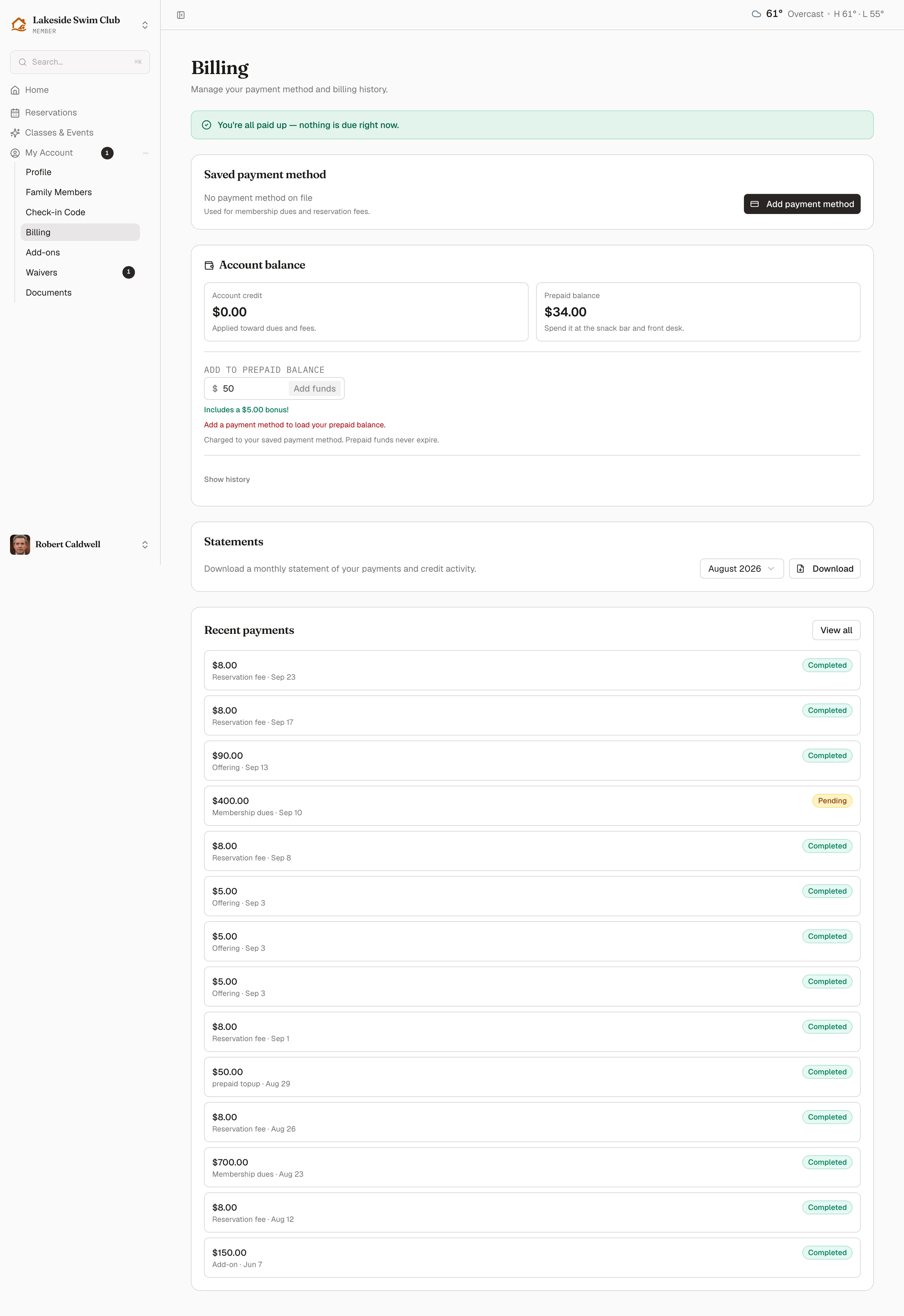
What’s on the page
Section titled “What’s on the page”A standing banner at the top says whether anything is due, with a pay button when it is.
Saved payment method — the card or bank account used for dues, reservation fees, and other eligible payments. Add payment method or Update opens Stripe’s secure form to save a card for this club. An expired or soon-to-expire card gets called out here and on the home page.
Account balance — two separate pots, which people do confuse:
| What it is | |
|---|---|
| Account credit | Money owed back to the member — from a refund you issued as credit, or an overpayment. Applied automatically toward dues and fees. |
| Prepaid balance | Money the member loaded on purpose, to spend at the snack bar and front desk. Add to prepaid balance tops it up from the saved payment method, and you can offer a bonus for loading more at once. Prepaid funds never expire. |
Show history under the balance opens the ledger behind both.
Statements — a month picker and a Download button for a PDF of that month’s payments and credit activity.
Recent payments — the latest charges with their amount, type, date, and status, and View all for the full history. A Pending row is one that has been raised but not yet collected.
Paying
Section titled “Paying”How a member pays depends on how you’ve set the club up:
- If you take payments online, a due charge shows a pay button and settles against the saved method.
- If you don’t, the page says so and the member settles with you directly — the record still lives here either way.
Payment plans and Autopay cards appear only when they apply: a plan when the tier offers installments and the member took one, autopay when the tier allows it. Autopay is the member’s own opt-in — you can offer it, but you can’t switch it on for them.
Manage payments with joint access
Section titled “Manage payments with joint access”The primary member and joint holder see the same membership balances, statements, and payment history. Either can pay charges and save or replace the card this club uses for the membership. Saving that card authorizes this club to charge it; it does not replace the primary member’s personal default card or another club’s saved card.
- Open My Account in the sidebar, then Billing.
- Under Saved payment method, click Add payment method or Update.
- Complete the payment details, then check the authorization naming this club and the account being charged. The box starts unchecked.
- Click Save payment method.
The primary member can choose Bank account in this same setup form to authorize club dues by bank. A verified bank is preferred for eligible payments, even when the club has a saved card; card-only purchases still use the card. The This club charges section shows the current method.
Joint holders can save a club card and use an already verified bank for eligible payments, but cannot add, replace, verify, or remove the primary member’s bank account. A separate personal-payment link appears only when shared access or different saved cards make it relevant; personal defaults can affect other clubs.
Removing sign-in access or leaving the shared account keeps saved cards and previously authorized payments in place. Earlier personal registrations and their payments remain under My personal sign-ups.
Add-ons
Section titled “Add-ons”My Account → Add-ons appears only when there is something to see — you sell an add-on to members, or that member already holds one.
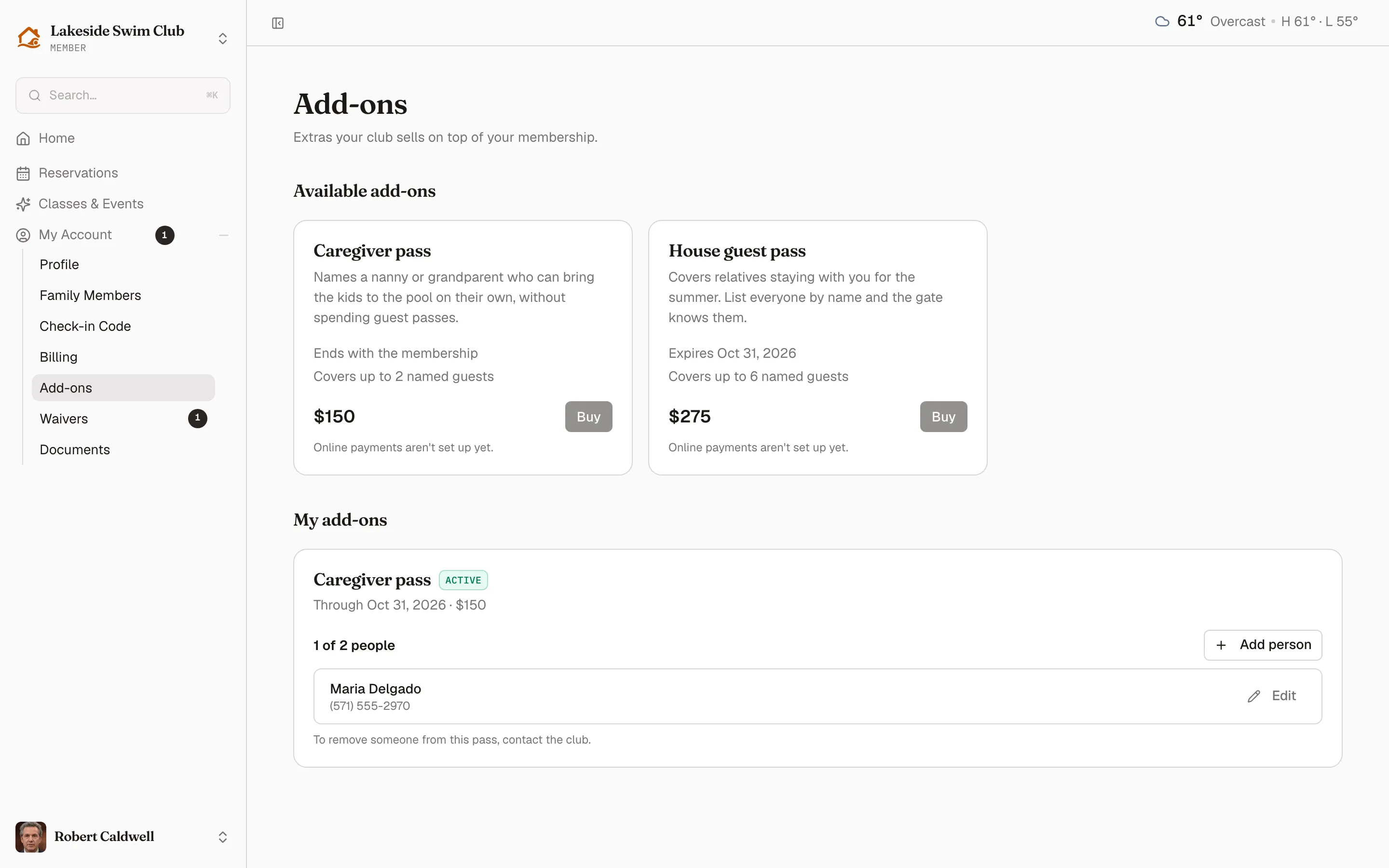
Available add-ons is your catalog: what each one covers, when it expires, how many people it names, and the price. Buy charges the saved payment method.
My add-ons is what they hold, with its status and expiry. On a guest-list add-on the member manages the named people themselves — Add person up to the limit, Edit to correct a name or number. Removing someone is staff-only, and the card says so.
Named people on an active pass are recognized at the gate without spending a guest pass.
Related
Section titled “Related”- Collecting payments
- Add-ons — building and selling them
- Refunds & adjustments — refunds, credit, and write-offs
- Membership tiers — installments and autopay