
POS catalog
Requires the Point of Sale module
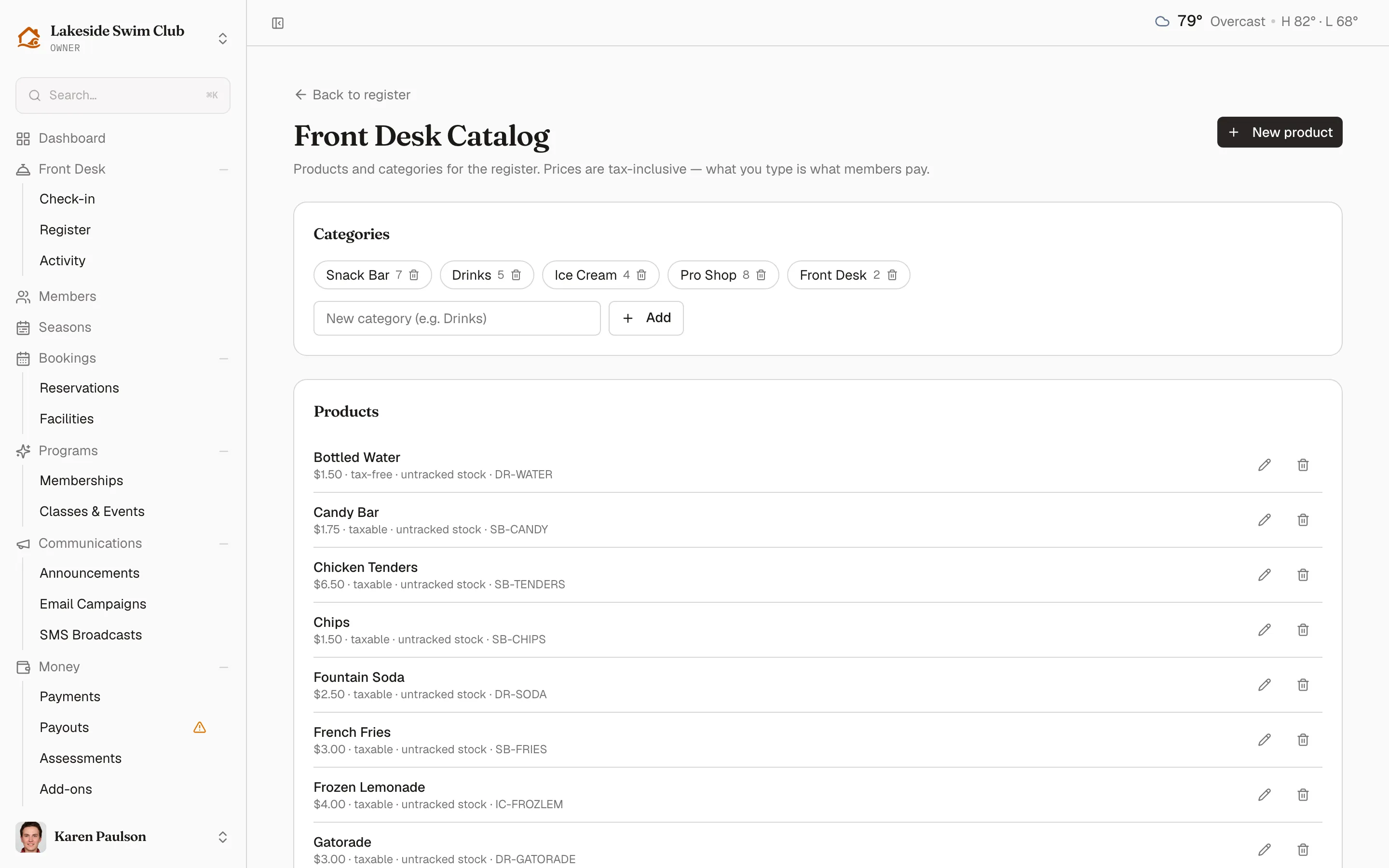
The Front Desk Catalog is where you set up what the register sells — products, their categories, tax treatment, and optional stock tracking. Prices here are tax-inclusive: what you type is exactly what members pay at the register.
The catalog has no sidebar entry of its own — the register it stocks is the way in. Click Front Desk in the sidebar, then the Register tab, and click Catalog at the top right of the product grid. The link is there whether or not a drawer is open, so you can build your product list before your first session.
Add a product
Section titled “Add a product”- Click New product.
- In the Add product drawer, enter a Name and the Price (tax-inclusive) — as the drawer puts it, “a $2.00 hot dog rings up as exactly $2.00.”
- Pick a Category (or leave it Uncategorized) and optionally a SKU.
- Leave Taxable checked unless the item is tax-exempt. Taxability only affects how much of the price is reported as tax — never the shelf price.
- To count stock, check Track inventory and enter the current In stock amount. Leave it unchecked for made-to-order items you don’t count.
- Click Add product.
The product appears on the register immediately.
Organize products into categories
Section titled “Organize products into categories”Categories become the filter chips on the register’s product grid — Snack Bar, Drinks, Pro Shop, and so on.
- In the Categories card, type a name into New category (e.g. Drinks) and click Add.
- Assign products to it from each product’s edit drawer.
Each category pill shows how many products it holds. Deleting a category never deletes its products — they keep selling as uncategorized.
Edit a product
Section titled “Edit a product”Click the pencil icon on a product row to reopen the drawer. Besides the fields above, editing adds an Active (visible at the register) checkbox — untick it to take a product off the register without deleting it. Inactive products show an Archived badge in the catalog list.
Each row summarizes the product at a glance: price, taxable or tax-free, the stock count (or untracked stock), and the SKU.
Track stock and low-stock alerts
Section titled “Track stock and low-stock alerts”For products with Track inventory on:
- Stock counts down automatically as register sales complete, and is restored when an order is voided or refunded.
- The register shows how many are left on the product tile and refuses to sell past zero.
- When stock drops to the Low-stock alert threshold — set next to the register toggle in Features — the count turns red in the catalog and a POS low stock event is logged to the activity feed.
To restock, edit the product and update In stock.
Delete a product
Section titled “Delete a product”- Click the trash icon on the product row.
- Confirm in the Delete dialog.
The product is no longer sellable at the register. If it has sales history, Memberley archives it instead of deleting it, so past orders keep their line items intact — only products that have never sold are removed outright.