
Front desk activity
Clicking Front Desk → Activity in the sidebar opens the organization-wide audit trail, with every check-in and register event alongside payments and membership changes. For front desk work, it’s the answer to “who was here?” and “what happened at the register?”.
This page is the front-desk lens on that feed: what check-in and register events look like, and how to filter down to them. The feed’s full filter set, its retention, and what members can see are on Activity log.
What the feed shows
Section titled “What the feed shows”Each event is a row with six sortable columns:
- Date — when it happened, in your organization’s timezone.
- Event — the event type, like Member checked in or POS sale.
- Description — a one-line summary, such as “Register opened with $100.00 starting cash.”
- Member — who the event is about, linked to their profile.
- Facility — where it happened, when a facility is involved.
- Performed by — the staff member (or System) who did it.
Owners and managers see the whole organization’s feed. Members see only their own timeline, with organization-internal events — register sessions, low-stock alerts, bulk admin actions — left out.
Review check-ins
Section titled “Review check-ins”Check-ins are logged as Member checked in events in the Access & facilities category. To see just those:
-
Set the Category filter to Access & facilities, or the Event type filter to Member checked in.
-
Narrow further with the Member search, the Facility filter, or a Date range.
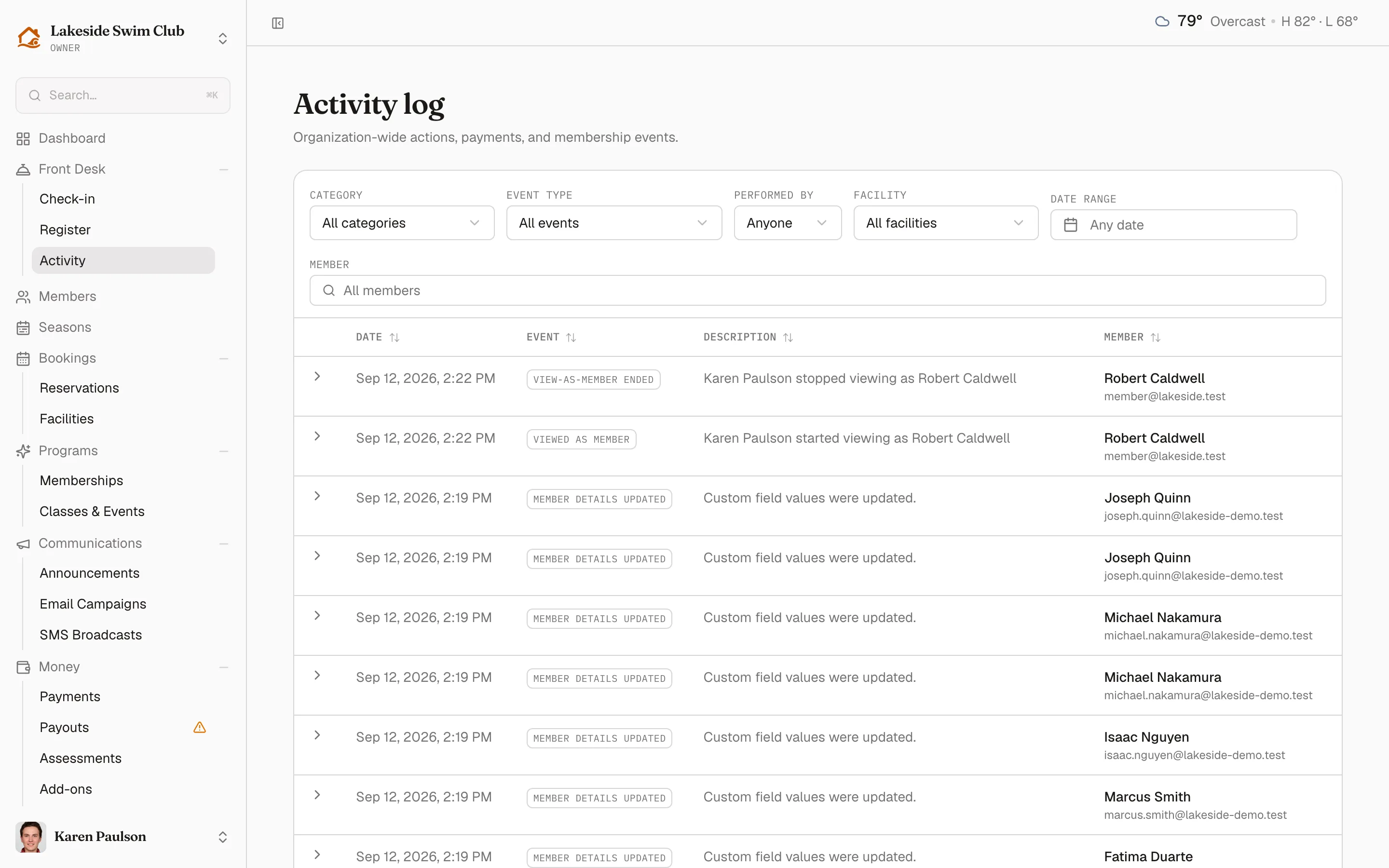
Each row shows when the check-in happened, who was checked in, at which facility, and which staff member processed it (Performed by). Click the row to expand its details — guest count, any guest-pass charge, and which family members came along.
For visits specifically — searching by a check-in field, filtering by date or facility, or printing a roster — the History button on the check-in desk opens the Check-ins page, which is built for exactly that.
Review register activity
Section titled “Review register activity”Register events land in the Point of sale category:
- POS sale — each completed sale, with the total and buyer.
- POS order voided and POS order refunded — reversals, with who performed them.
- Register opened and Register closed — session boundaries; the close event records counted vs. expected cash and any variance.
- POS low stock — a tracked product dropped to the low-stock threshold.
Set Category to Point of sale for an end-of-day sweep of everything the register did, or pick a single Event type — Register closed entries are a quick way to audit drawer variances across days.
Three filters worth saving as a habit
Section titled “Three filters worth saving as a habit”The filter bar combines freely. Member is the search slot and stays on screen at every width; Category, Event type, Performed by, Facility, Date range and Reset sit alongside it on a desktop and collapse behind a Filters button on a phone, badged with how many you’ve set. Changing a filter keeps your place on the page — it only closes a row you’d expanded. Full details are in Activity log.
Three combinations answer most front-desk questions:
- Who was here on Saturday? — event type Member checked in, plus a date range covering the day.
- What did the register do yesterday? — category Point of sale, plus yesterday’s date.
- Did this shift’s drawer balance? — event type Register closed, no other filter. Each row carries counted vs. expected cash.