
Audience segments
Requires the Communications module
Segments are saved audience definitions — rules like “on the Family tier” or “no check-in in 30 days” — that you reuse across email campaigns and SMS broadcasts. A segment stores the rules, not a fixed list: who matches is worked out fresh each time it’s used.
The built-in segments
Section titled “The built-in segments”Memberley maintains a set of read-only System segments for you: All members, plus one Tier: … segment per active membership tier. They appear automatically in the segment picker and follow tier renames, so every organization can send its first campaign without building anything.
Build a segment
Section titled “Build a segment”- Click Communications in the sidebar, then Email Campaigns, then the Segments tab.
- Click New segment.
- Give it a Name and an optional Description.
- Click Add rule and pick a rule type:
- Tier / Membership status — match any of the tiers or statuses you select.
- In season — held a membership in a given season.
- Joined after / Joined before — by join date.
- No check-in in N days — lapsed visitors.
- Has outstanding balance / Has signed a waiver — yes or no.
- Household size ≥ / Household size ≤ — by family size.
- Lifetime value ≥ ($) — total spend to date.
- Opened campaign / Did not open campaign — engagement with a previous campaign.
- Enrolled in class/event — enrollees of a specific offering.
- Any of your custom fields, with roster-style operators like is, contains, or between.
- With more than one rule, choose Match all (AND) or Match any (OR). A segment with no rules matches all members.
- Click Create segment.
Check the live preview
Section titled “Check the live preview”As you edit rules, the Live preview panel recounts how many members match right now. When editing an existing segment, a Matching members panel below it lists a sample of matching names and emails so you can sanity-check the rules before sending anything.
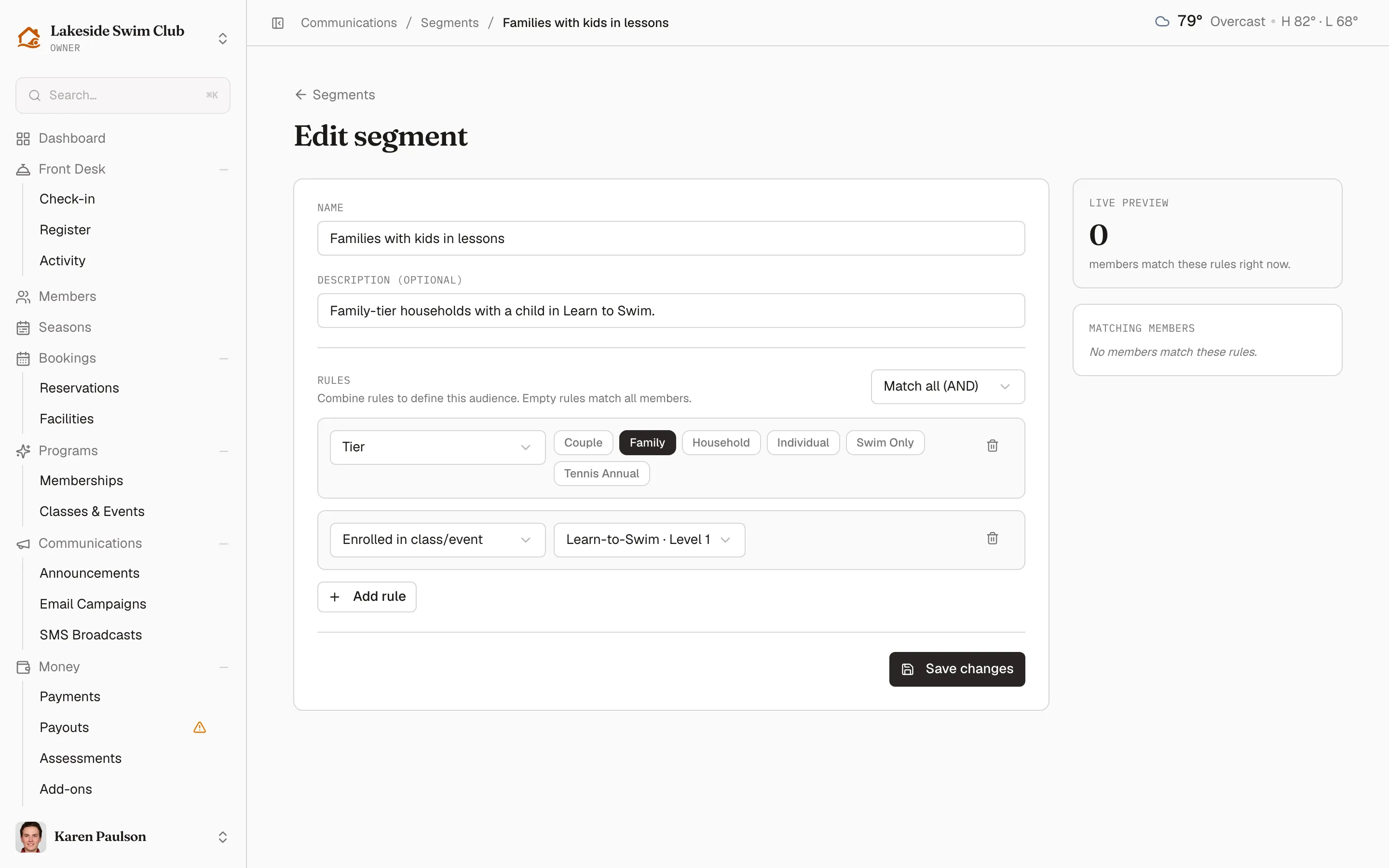
Back on the Segments tab, the list summarizes every segment: its name and description, a Definition column (“All members”, or the rule count and AND/OR combinator), and a Members column with the size from its last count.
Use a segment
Section titled “Use a segment”- Email campaigns — pick the segment in the composer’s Segment field; each option shows its last-counted size. For campaigns that go through approval, the audience rules are frozen at submission, so editing a segment afterwards can’t retarget an already-approved campaign.
- SMS broadcasts — pick the segment on the new-broadcast form; the eligible recipient count (members with a verified phone who opted in to texts) is shown before you send.
- The campaign composer’s New segment shortcut creates a simple all-members or single-tier segment in place — anything richer, build here.
Edit or delete a segment
Section titled “Edit or delete a segment”From the Segments tab, use Edit or Delete on the segment’s row. System segments are read-only. Deleting is permanent and is blocked while campaigns still reference the segment; past sends keep their historical recipient lists either way.