
Registration codes & invitations
There are two ways into a season: the shareable registration link anyone can use, and invitation batches you release to specific people. The link is broad — post it anywhere; batches are targeted — each recipient gets a personal invite on the tier you chose for them.
Share the registration link
Section titled “Share the registration link”Every season gets its own registration code (like 9G4B-PCZK) and a public link ending in /s/ plus the code. The code is generated once and never changes, so a link printed in a newsletter keeps working for the life of the season.
- Click Seasons in the sidebar.
- Click Copy link on the season’s row — or open the season and use the Copy and Open buttons in its Registration link section.
The link is always reachable; what visitors see depends on the season’s phase:
- Open — the registration form: visitors pick a tier, create an account (or sign in), add family members, sign any required waivers, and can enter a discount code. Mid-season sign-ups see prorated dues on tiers that prorate.
- Setting up, Renewals, or Waitlist — an “opens soon” notice, including the exact time if you’ve scheduled the open.
- Closed, ended, or archived — a “registration is closed” notice.
After registering, the member lands in your normal intake: approval review if the tier requires it, or the waitlist if the tier is full.
Where batches come from
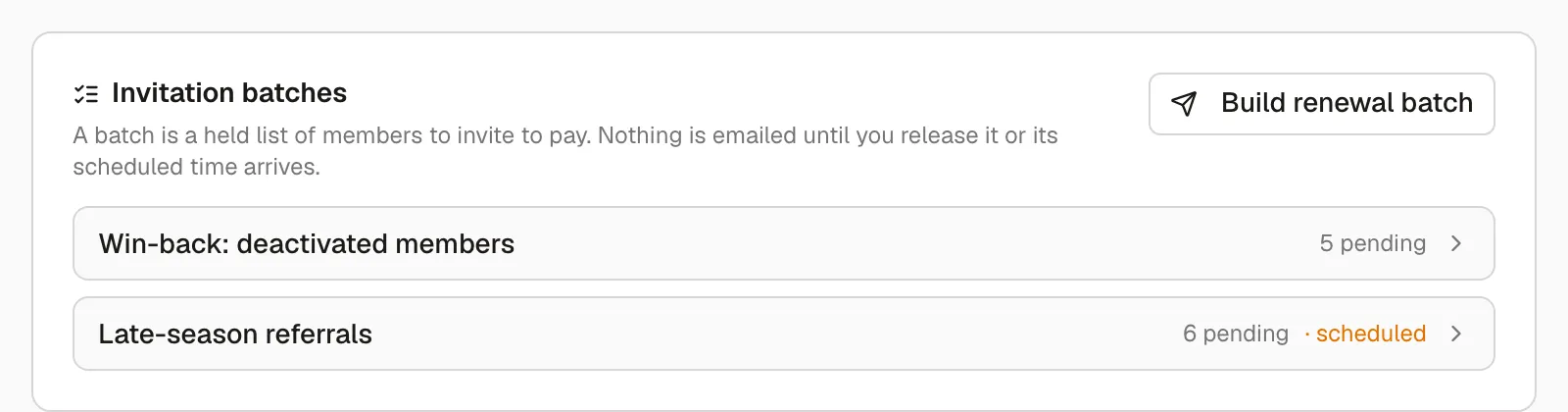
Section titled “Where batches come from”A batch is a held list of members to invite to pay. Nothing is emailed until you release it or its scheduled time arrives. Three kinds exist, and the pill beside the batch name says which:
- Renewals — built when you clone a season. Recipients get the “renew your membership” email.
- Roster — built from a season’s own Inactive members with Build renewal batch, the path a club’s first season takes. Recipients get the welcome email, with a link to claim their account and pay.
- Manual — a list you assembled yourself with Add recipient.
The season page’s Invitation batches card lists every batch still waiting, with its pending count and whether it’s scheduled.
Reviewing and releasing batches is owner-only.
Review a batch
Section titled “Review a batch”Open the batch from the season’s Invitation batches card. Everything on the page stays editable while the batch is a draft or scheduled; once released, it’s a record.
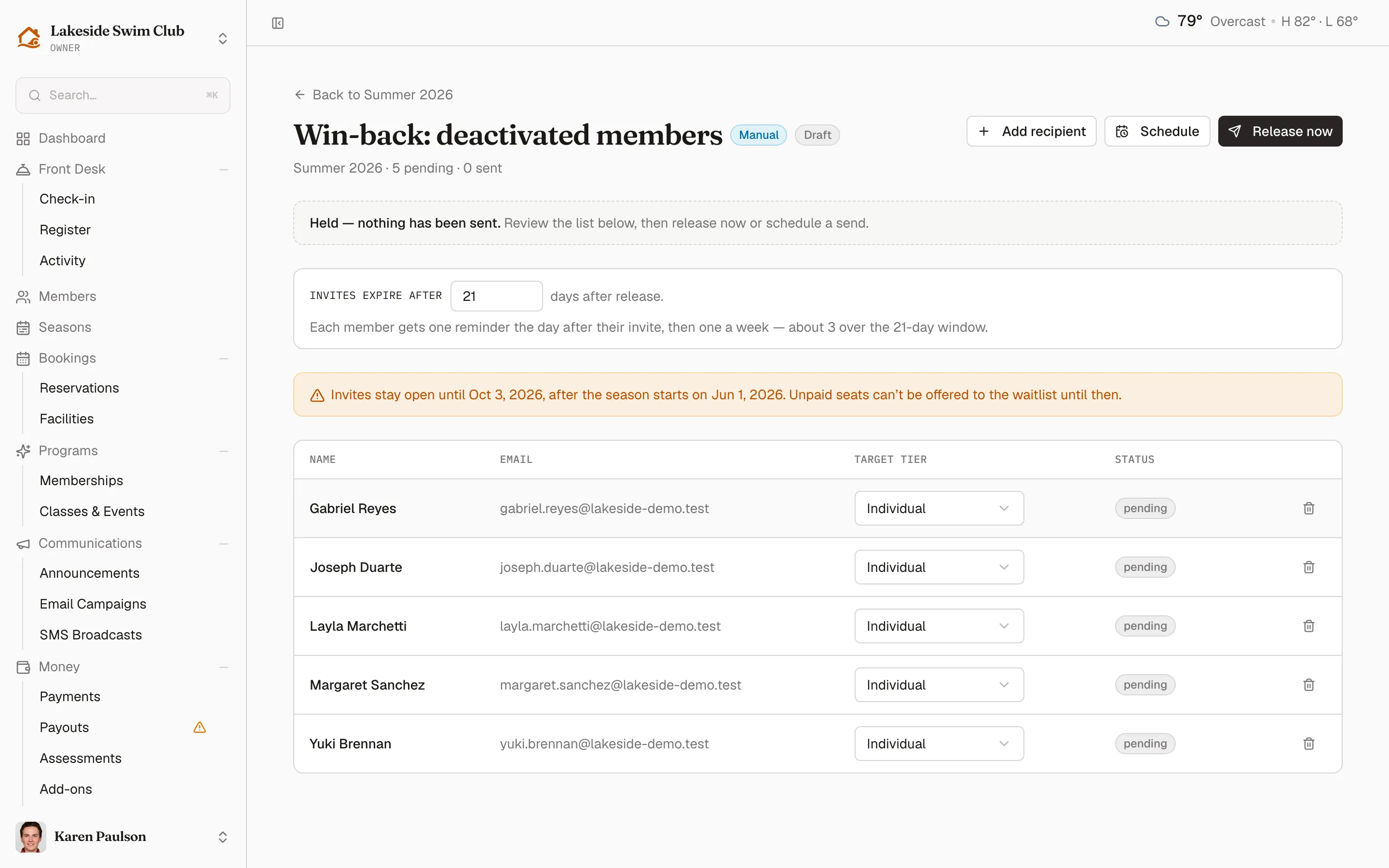
- The header carries the batch type, its status, and running counts of pending, sent, held, and skipped recipients.
- A draft says Held — nothing has been sent; a scheduled batch says when it will go out.
- Invites expire after sets how many days each recipient has to pay before their seat frees up for the waitlist or the public. The line beneath does the arithmetic on reminders — one the day after the invite, then one a week. Leave it blank and invites never expire; the field then points you at the organization-wide default in Settings.
- In the recipient table, change any pending recipient’s Target tier with its dropdown, or remove them with the trash button. Add recipient invites someone who isn’t listed — Name, Email, and Target tier.
Held recipients
Section titled “Held recipients”A renewal or roster batch lists members who were deactivated deliberately — by staff, or by a defaulted payment plan — as held rather than pending, with the reason beside the row. They aren’t invited at release unless you say so: click Invite on the row, or Invite all held in the banner above the table.
Members whose membership simply ended with the season are pending like everyone else. The hold is only for the ones somebody decided to remove.
Warnings before you release
Section titled “Warnings before you release”The batch page checks the send against the season’s calendar and flags anything that would misfire:
- Invites expire before the dues deadline — unpaid invites would already be expired when the late fee run comes around, so the fee would never apply. Lengthen the window or move the deadline.
- Invites stay open past the season start — unpaid seats can’t be offered to the waitlist until the window closes.
- The season is still called “… (Copy)” — that name is the invitation subject line. Rename the season first.
- A tier will overflow — the named tiers have fewer seats left than pending recipients, and the extras will be skipped at release rather than failing the batch.
Release now or schedule the send
Section titled “Release now or schedule the send”- Click Release now, and confirm in the Release … invites? dialog. Each recipient gets a membership awaiting payment and an invitation email with a link to join and pay. Releasing can’t be undone.
- Or click Schedule, pick the Release at time (interpreted in your organization’s timezone), and click Schedule. The batch shows as Scheduled and Memberley releases it automatically within a few minutes of that time. Clear schedule returns it to draft.
At release, recipients are skipped rather than invited if their tier is at capacity or they already hold a live membership in the season; the skip reason appears next to their status. A member who already sits Inactive in the season has that row flipped to awaiting payment rather than gaining a second one, so the roster keeps one line per member per season. Any assessment the member owes is issued alongside the dues, so the invitation email shows the full amount.
Releasing a renewal or roster batch also moves a season still in Setting up to the Renewals phase — sending the invites is that step. Once released, a batch can no longer be edited.