
Membership tiers
Membership tiers are the memberships you sell — Individual, Couple, Family, and so on. Each tier sets its own price, duration, capacity, guest passes, and renewal options, and every member joins on exactly one tier.
Create a tier
Section titled “Create a tier”-
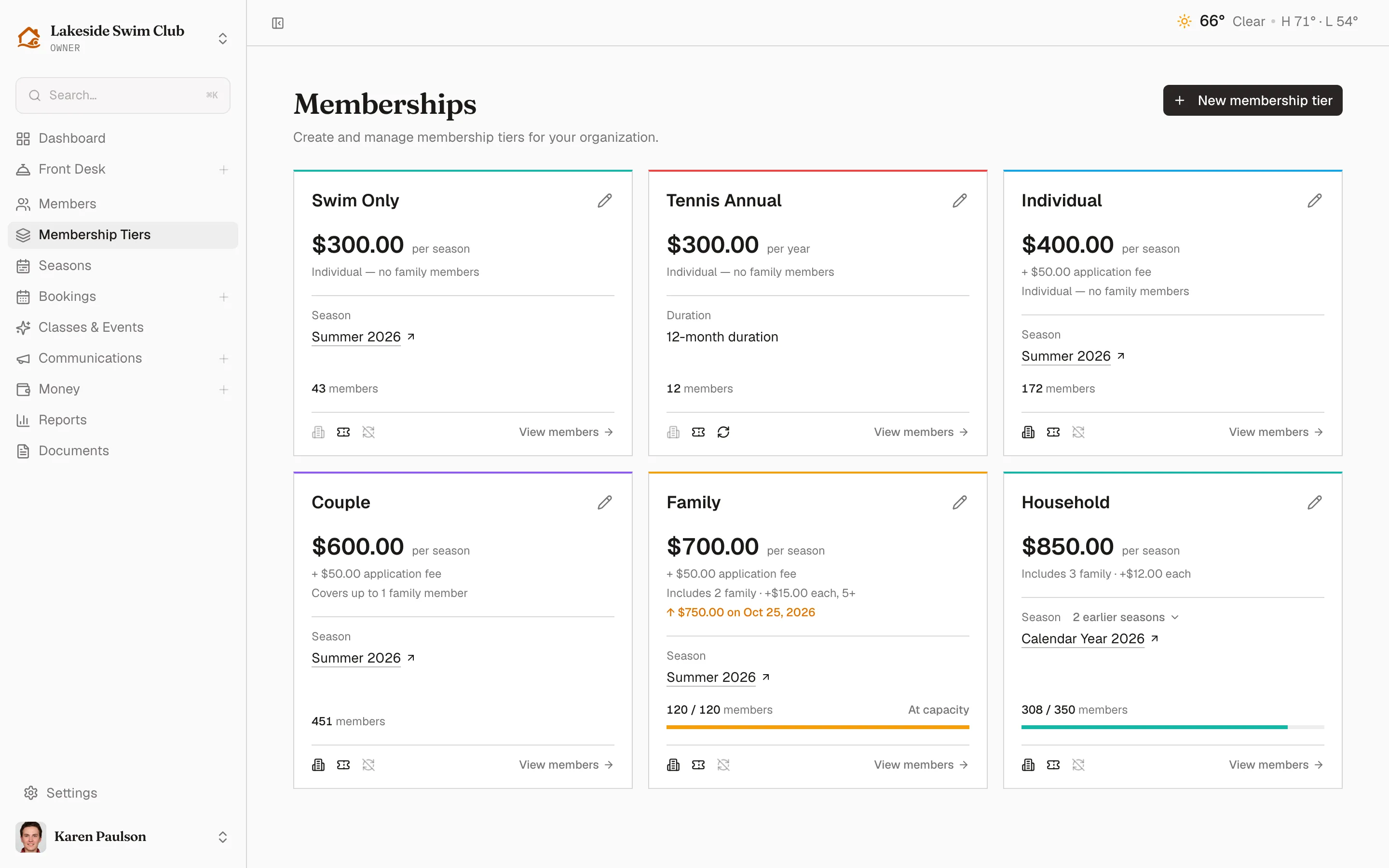
Click Membership Tiers in the sidebar.
-
Click New membership tier. The form opens as its own page.
-
Work through Membership, Payments, and Access & enrollment. Use the tabs or Next: Payments and Next: Access & enrollment to move between them; your entries stay in place.
-
Click Create tier. The button is available from every tab.
Each tier appears as a card in the color you gave it, showing:
- The price and what it buys — dues with their cadence (“per season”, “per year”), any application fee, and a one-line summary of who a membership covers: “Individual — no family members”, “Covers up to 1 family member”, “Includes 2 family · +$15.00 each, 5+”. A queued price change sits under it in amber.
- Season or duration — a link to the season the tier belongs to, or its fixed term for a tier that runs from enrollment.
- Members — how many the tier holds against its cap, with a capacity bar and an At capacity note when it’s full. The figure counts what the cap counts, so a tier that counts family members toward capacity reports people, not households.
- Capability icons — facility access, guest passes, and autopay, greyed out when off. Hover any of them for the specifics: which facilities are included, how many passes members get, whether autopay is available.
- View members, which opens the roster filtered to that tier.
A tier’s earlier seasons
Section titled “A tier’s earlier seasons”A tier you clone forward season after season — Household on 2024, then 2025, then 2026 — is one offering with a history, not three unrelated tiers. Only the current one gets a card; the rest fold up behind it.
Click N earlier seasons on the card to fan them out beneath the grid as an Earlier seasons list, one row per season with the season name, what it ended with, and a link to those members.
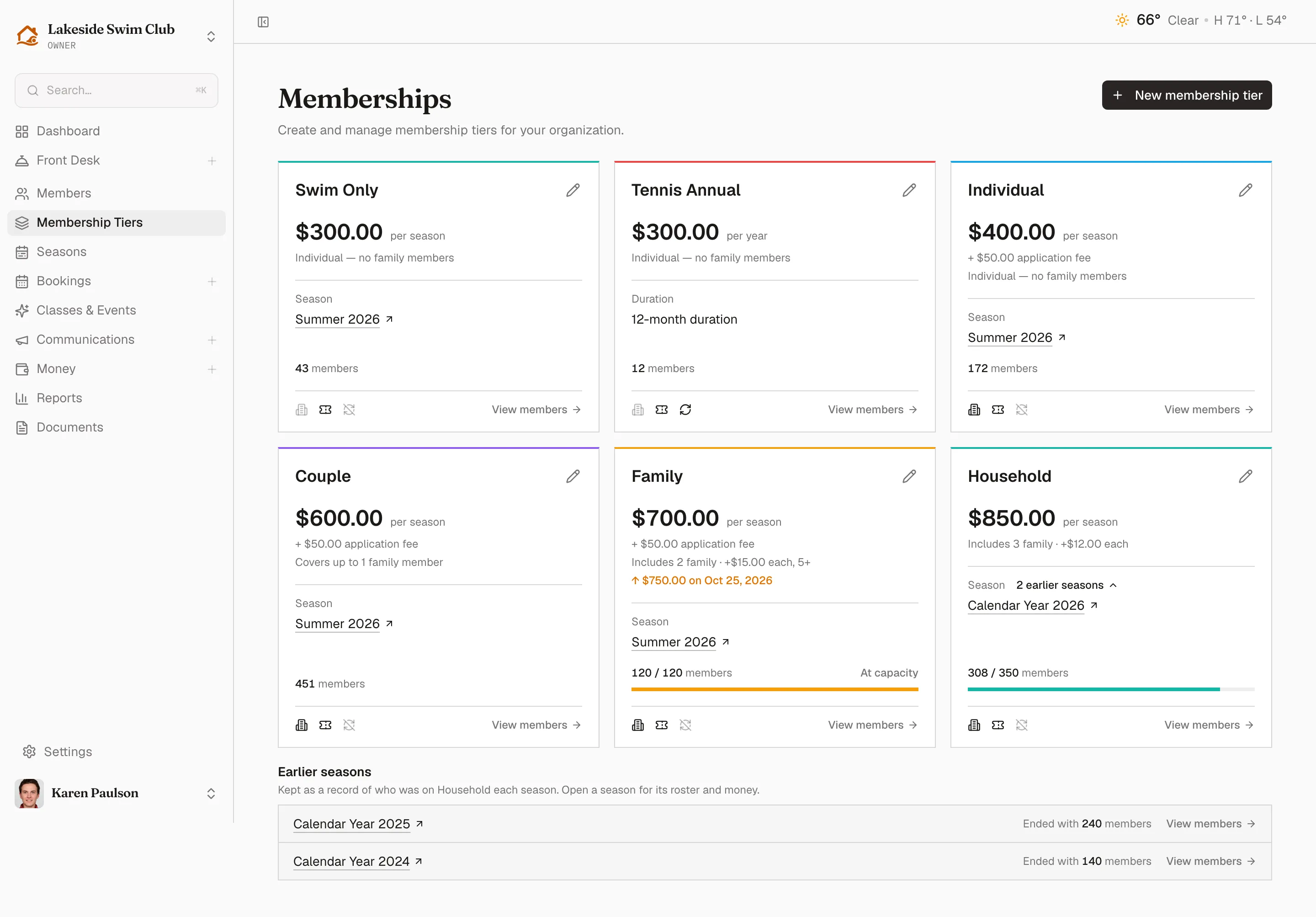
Those rows are records. A tier whose season has ended can’t be edited, reopened, or deleted through the tier list — the season is over, and its prices and capacity are the history of what people paid. To offer the same tier again, clone the season: the clone carries every tier forward, ready to price for the new year.
Tiers you retired for other reasons — a tier that never sold, one you pulled mid-season — keep their own Archived section instead. It appears behind the Show archived switch in the page header, which is only there when you have archived tiers. While their season is still running, click the tier name or pencil icon and re-check Tier is active under Access & enrollment to reopen them.
Every field on the tier form
Section titled “Every field on the tier form”The form groups its settings into three tabs. Switching tabs keeps your entries; Create tier or Save changes submits the whole form. If a field needs attention, its tab is marked and opens when you submit.
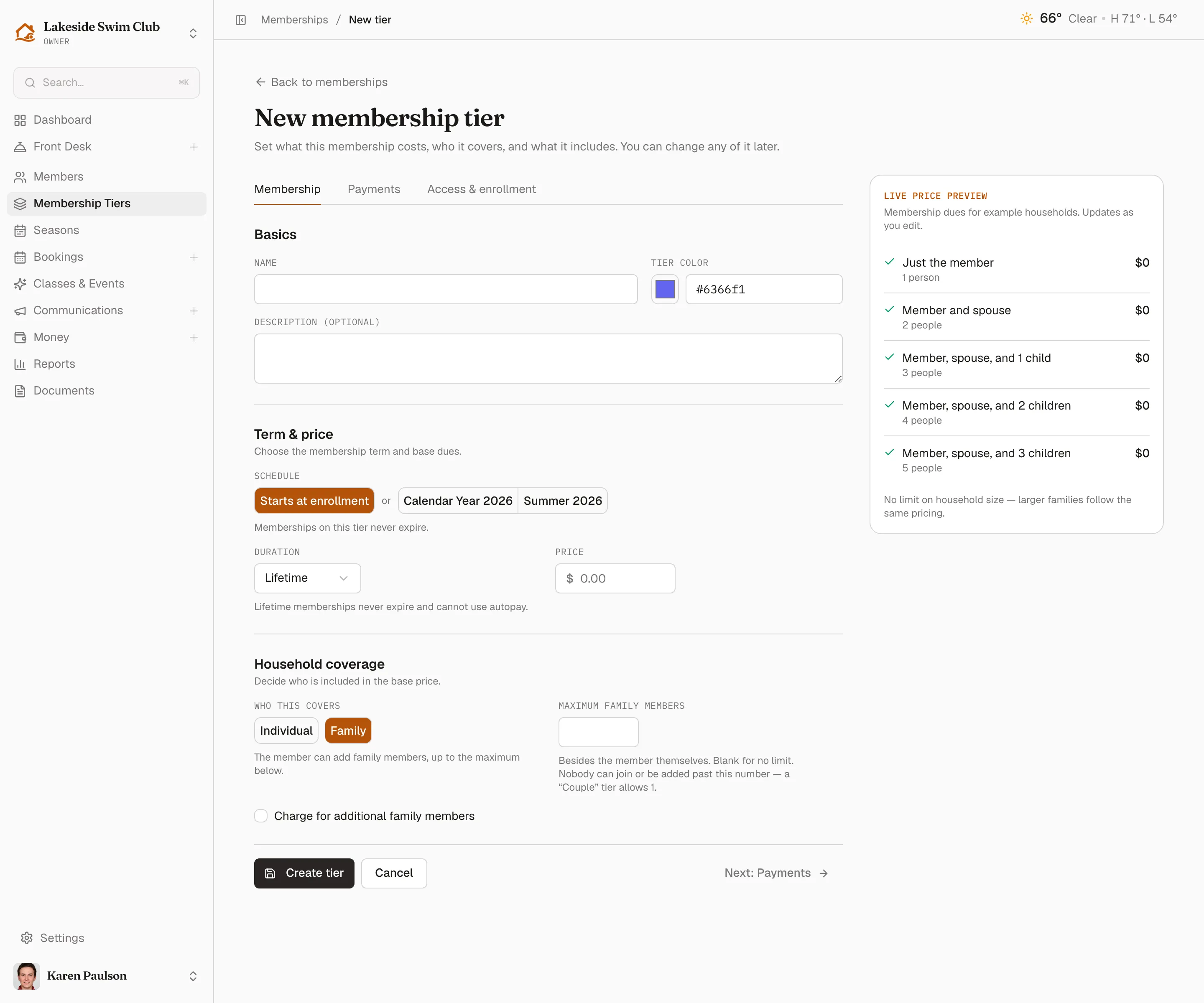
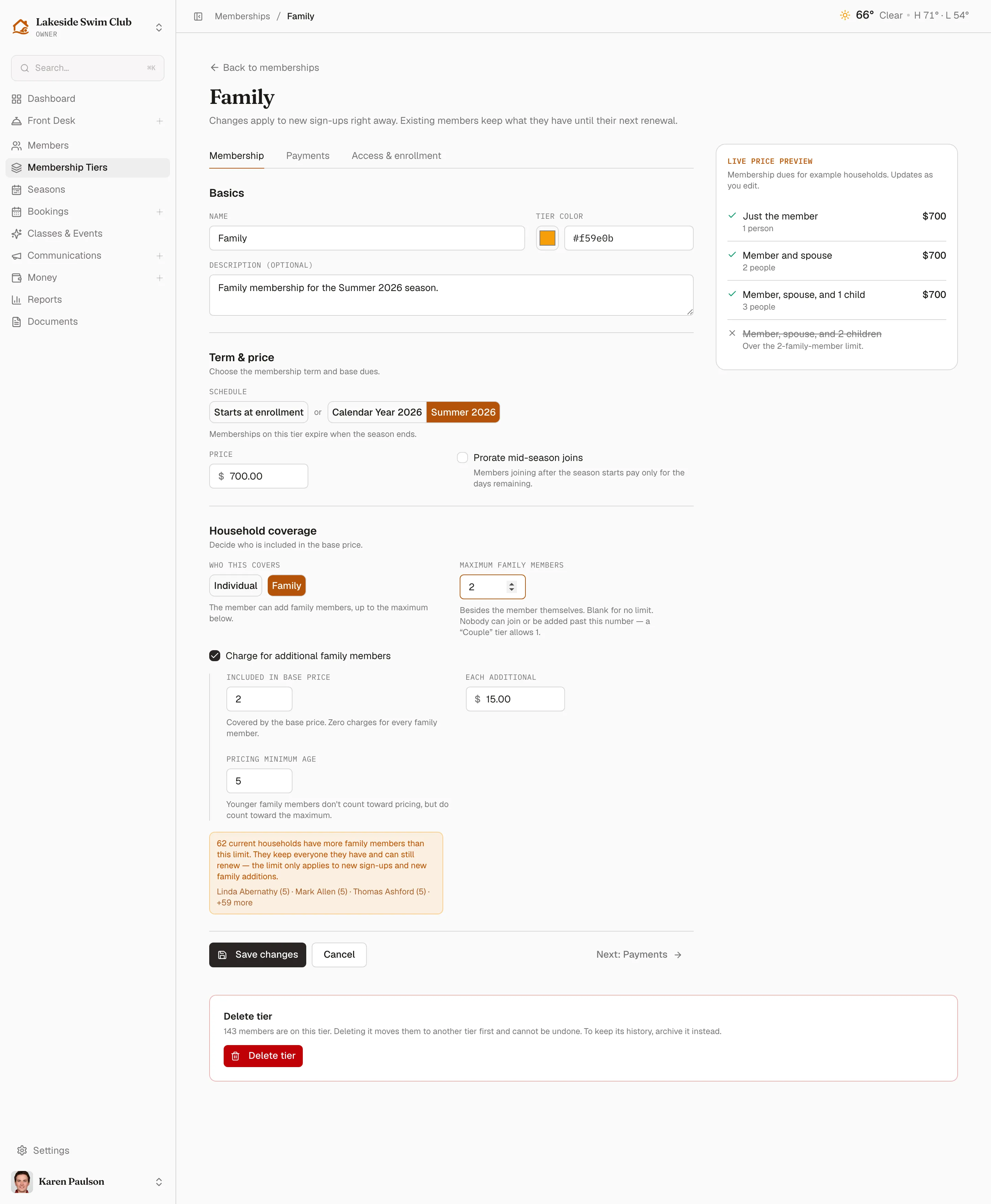
The Live price preview beside the form shows dues for example households and updates as you edit. Use it to check the total and which household sizes fit before saving.
Membership
Section titled “Membership”Basics contains Name, Tier color, and Description (optional). The color accents the tier’s card.
Under Term & price:
- Schedule — Starts at enrollment runs the membership from the day it starts. Picking a season makes the tier seasonal, with memberships expiring when the season ends. You can also offer or withdraw tiers from the season page; see Creating & cloning seasons.
- Duration — for enrollment-based tiers, choose Months, Years, or Lifetime. New tiers start on Lifetime; choose Months or Years for a fixed term. Lifetime tiers cannot use autopay or installments.
- Price — dues for one membership cycle. Enter $0 for a free tier.
- Prorate mid-season joins — paid seasonal tiers only. Members joining after the season starts pay only for the days remaining.
Under Household coverage, pick Who this covers:
- Individual — covers one person; no family members can be added.
- Family — allows family members up to Maximum family members, besides the primary member. Leave it blank for no limit; a Couple tier allows 1. Members cannot add beyond it, though staff can approve an exception on their profile.
On a Family tier, Charge for additional family members reveals:
- Included in base price — the number of family members covered before extras are charged. Zero charges for every family member.
- Each additional — the per-person charge above that count.
- Pricing minimum age — younger family members do not count toward pricing, but still count toward the maximum.
Payments
Section titled “Payments”Under Payment settings:
- Application fee — a one-time fee charged on application, refundable when you reject it. Set $0 or at least $0.50. A paid application requires connected Stripe payments; the form warns when setup is missing.
- Auto activate — free tiers only. Checked, approval activates the membership immediately. Unchecked, approved members must accept it themselves and can expire under your awaiting-payment timeout. A required member photo is still enforced.
- Allow autopay — paid tiers with a fixed term or season. Members can opt in to automatic renewal with a saved card.
- Installment plans — paid tiers with an end date. Offer 2, 3, 4, 6, or 12 payments: the first is charged on acceptance, with the rest monthly. Seasonal members only see plans that finish by the season’s end.
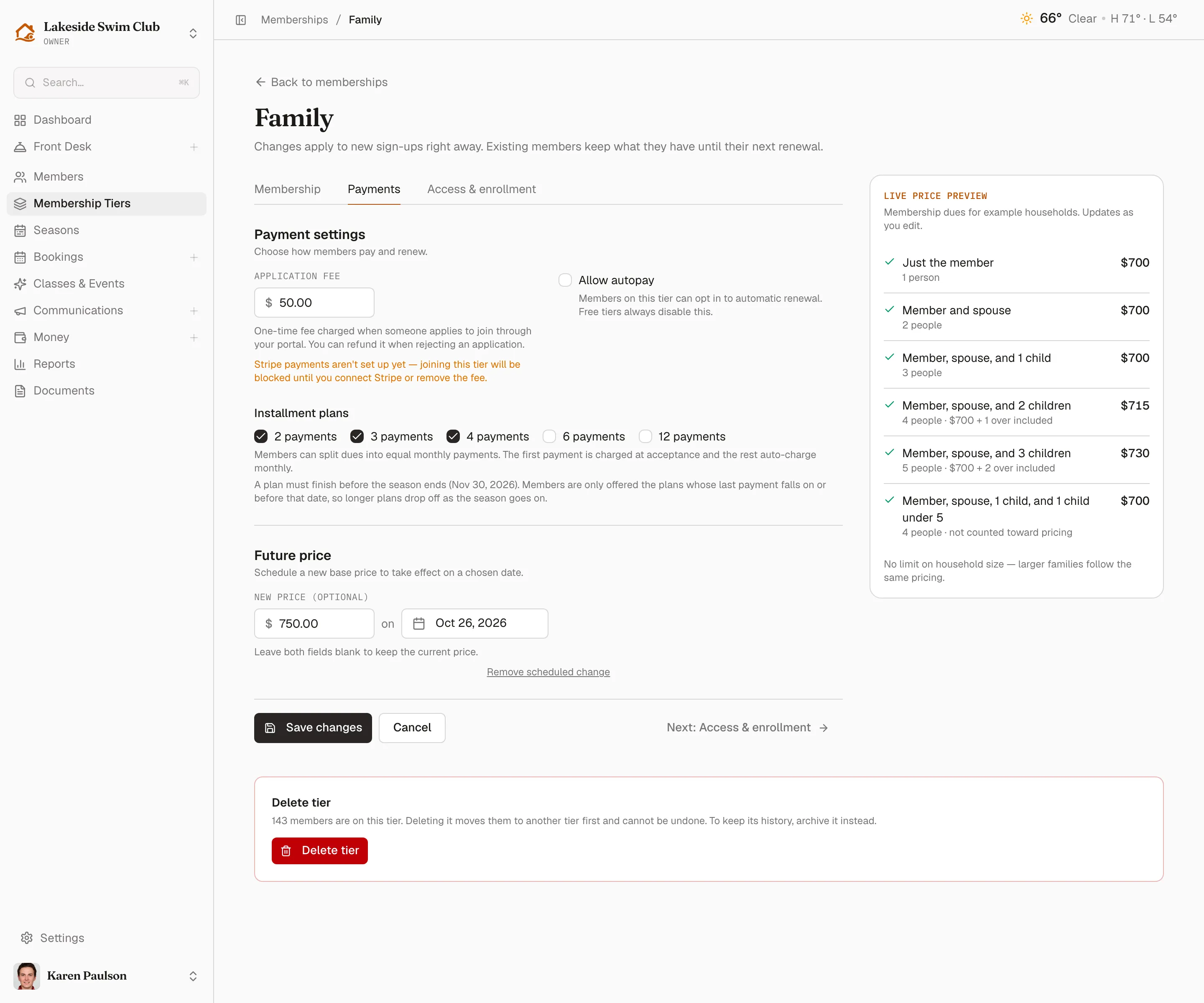
Future price schedules a new base price; see Schedule a price change. When assessments apply, Additional assessments lists them below.
Access & enrollment
Section titled “Access & enrollment”- Facility access — Access all facilities includes every facility, including ones added later. Uncheck it to pick a subset.
- Guest passes — Default guest passes are complimentary at membership start or renewal; Guest pass price prices extras.
- Capacity — Max total members caps the tier; blank means unlimited. On Family tiers, Count family members toward max members includes family members in the cap. See capacity and the waitlist.
- Waivers — check the waivers members on this tier must sign. When editing, Email members who need to sign emails members missing a newly required signature. A waiver left unassigned is not required anywhere.
- Availability — editing only. Uncheck Tier is active to archive the tier.
Limit a tier to certain facilities
Section titled “Limit a tier to certain facilities”Use this for a tier that buys part of what you run — a Tennis membership with no pool access, a Social tier that only gets the clubhouse.
- Open Access & enrollment. Under Facility access, uncheck Access all facilities. An Included facilities picker appears.
- Check the facilities this tier covers. They’re grouped by facility type — check a type’s name to take all of it at once, and the type shows a dash when only some of its facilities are checked.
- Click Create tier or Save changes.
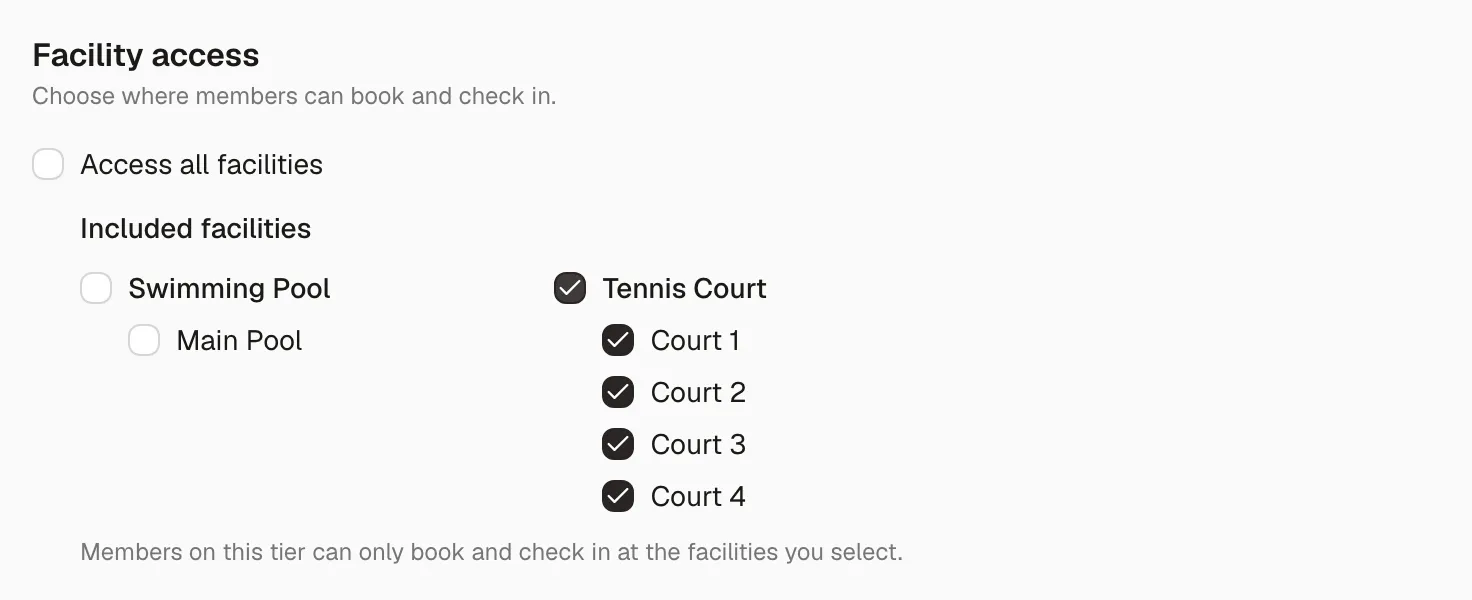
A restricted tier must include at least one facility — a tier that covers nothing isn’t a membership. Re-check Access all facilities and the list clears, so a stale selection can’t quietly come back if you un-check it again later.
Members on a restricted tier only see the facilities they’re covered for on the booking screen, and can’t book the others even by direct link. Staff booking on a member’s behalf aren’t restricted — you’re the review.
At the front desk, checking a member in at a facility their tier doesn’t cover still goes through, with a warning naming the facility. That’s deliberate: a tier misconfiguration shouldn’t strand someone at the gate. See Check-in.
The tier’s card on the Memberships page names what’s included, so you can see the restriction without opening the form.
Edit a tier
Section titled “Edit a tier”- Click the tier’s name or pencil icon on Memberships. Its edit page opens, titled with the tier’s name.
- Change what you need and click Save changes.
Editing adds Tier is active and Email members who need to sign under Access & enrollment, plus a Delete tier section below the form.
A tier on a season that has ended has no edit link: it’s a record now. See A tier’s earlier seasons.
Changes apply to new sign-ups right away. Existing members keep what they have until their next renewal, so tightening a limit never strands anyone: lower Maximum family members below what current households hold and the form tells you how many sit above the new number and names the largest, while making clear they keep everyone they have and can still renew. The limit applies to new sign-ups and new family additions.
Additional assessments
Section titled “Additional assessments”Requires the Assessments & Capital Fees module.
When an assessment covers this tier, the Payments tab shows a read-only Additional assessments panel listing each one with its amount and cadence — so nobody prices a tier without seeing what members actually pay on top of the dues above. Drafts are listed too, marked Draft — not yet charging.

Assessments are configured under Money → Assessments, never here; click one to open it.
Schedule a price change
Section titled “Schedule a price change”- Click the tier’s name or pencil icon, then open Payments.
- Under Future price, enter New price (optional) and the date it takes effect.
- Click Save changes.
Memberley applies the new price automatically on that date and records the change in the activity log. Until then, the tier’s card shows the queued amount and date in amber. Click Remove scheduled change on the form to clear it.
How capacity interacts with the waitlist
Section titled “How capacity interacts with the waitlist”A tier is full when its active members (plus family members, if counted) reach Max total members. Once full:
- If your organization’s waitlist is enabled, new registrations join the tier’s waitlist instead of being blocked.
- If not, registration is rejected with a message that the tier is full.
Review and promote waitlisted members from the Waitlist page.
Archive a tier
Section titled “Archive a tier”Archiving hides a tier from your join portal and season registration so no one new can sign up, while keeping its current members and history intact. Either:
- Open the tier, choose Access & enrollment, uncheck Tier is active, and click Save changes, or
- start a delete (below) and click Archive instead.
To bring one back, turn on Show archived, click the tier’s name or pencil icon, then re-check Tier is active and save. This is offered only while the tier’s season is still running; a tier on an ended season stays archived, and the season clone is how it comes back.
When a season ends, Memberley archives its tiers for you within minutes, so last year’s lineup stops appearing on any join surface without you touching it.
Delete a tier
Section titled “Delete a tier”- Click the tier’s name or pencil icon. Below the edit form, find Delete tier and click its Delete tier button.
- If the tier has no members, confirm with Delete tier.
- If the tier has members, choose a tier under Reassign members to, then pick a Billing option:
- Assign at zero cost — no charge or refund; members just move.
- Request payment — creates a pending invoice for the price difference and emails each member a payment reminder.
- Charge or refund the difference — automatically charges or refunds each member’s saved card for the price difference. Members without a saved card may be skipped.
- Click Reassign & delete.
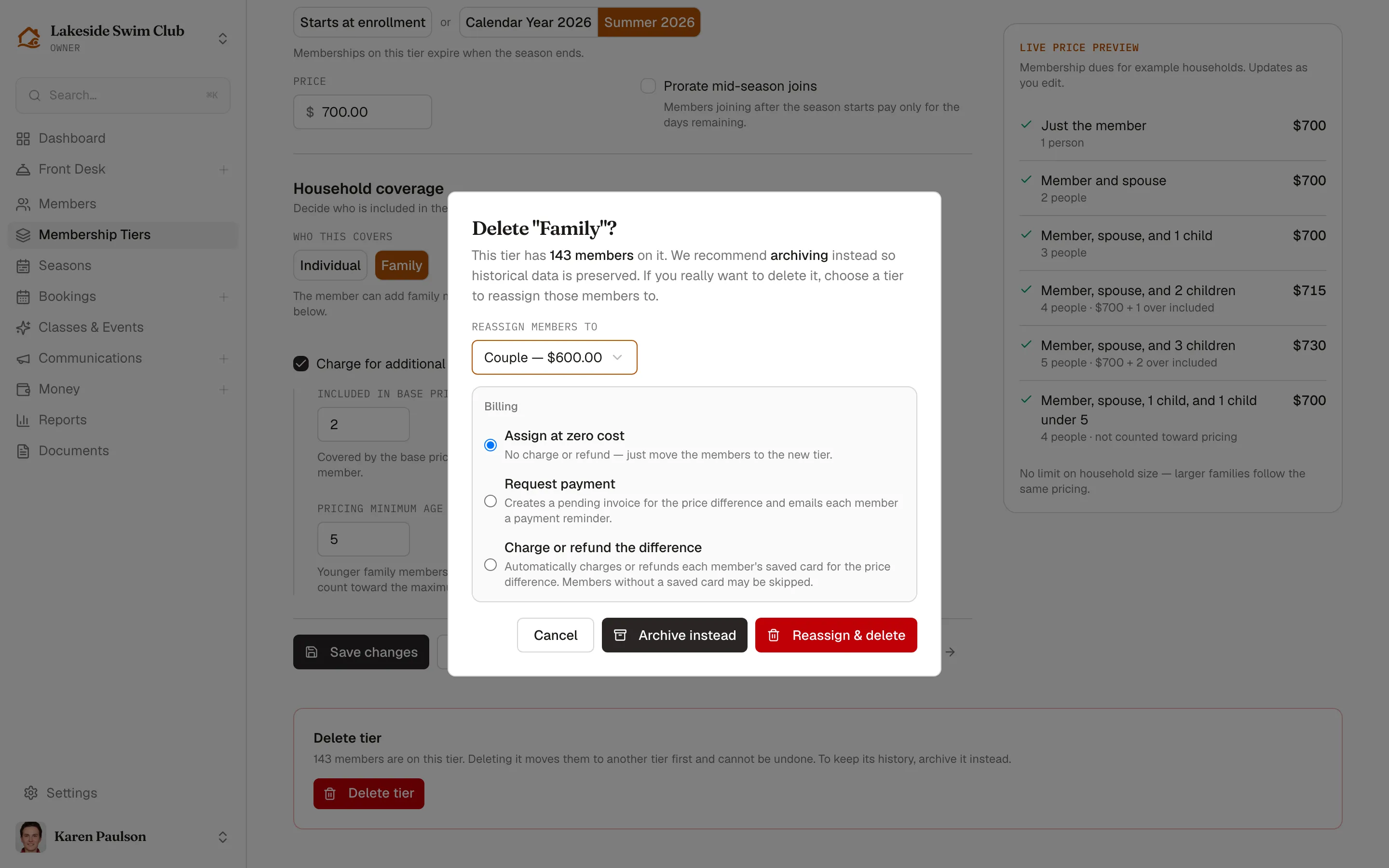
If any member can’t be reassigned, nothing is deleted and the dialog lists what went wrong. Only live tiers are offered as reassignment targets — a past season’s tier is never one.
Past-season tiers are historical records; their cards do not offer an edit page or delete button.