

Custom fields
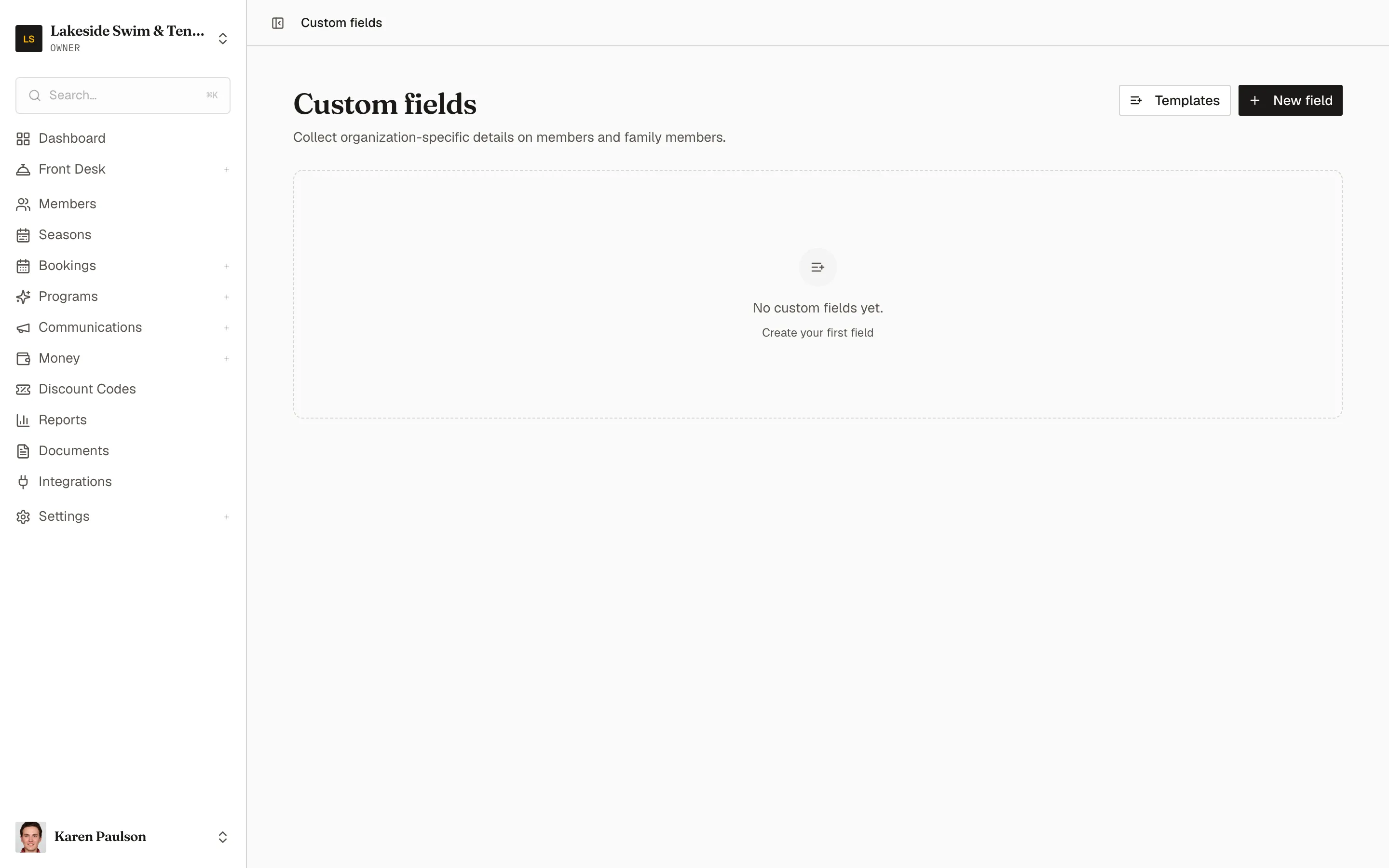
Custom fields collect the details Memberley doesn’t ask for out of the box — lot numbers, emergency contacts, t-shirt sizes. You define each field once, then choose where it appears: registration, the member’s profile, the staff record, and the roster’s columns, filters, and exports. Open the manager with Members, then Manage fields.
Create a field
Section titled “Create a field”- Click New field — or pick a starter from the Templates menu (Emergency contact name, Emergency contact phone, Lot / unit number, Dietary restrictions, T-shirt size, Photo consent). Templates prefill the form; nothing saves until you review it.
- Enter a Label and pick a Type: Short text, Long text, Number, Select (one of a list), Date, or Yes / No. Select fields take Options; text and number types take optional length or min/max/step constraints. Member-facing label, Placeholder, and Help text are optional.
- Under Who it applies to, choose one subject — The primary member, Family members, or This season’s membership. Membership fields attach to the membership record itself (a parking sticker, a locker), live only on the staff record, and start blank when the member re-registers next season.
- Check Membership tiers to scope collection to specific tiers, or leave all unchecked to collect from every tier.
- Under Member experience, toggle Ask at registration (optionally Required to register) and Show on their profile — with Members can edit or Read-only access, and an optional Required on profile completion nudge that can apply to new joiners only or all members.
- Under Staff tools, toggle Show on the staff member record and the roster placements: Roster column, Roster filter, and CSV export.
- Click Create field.
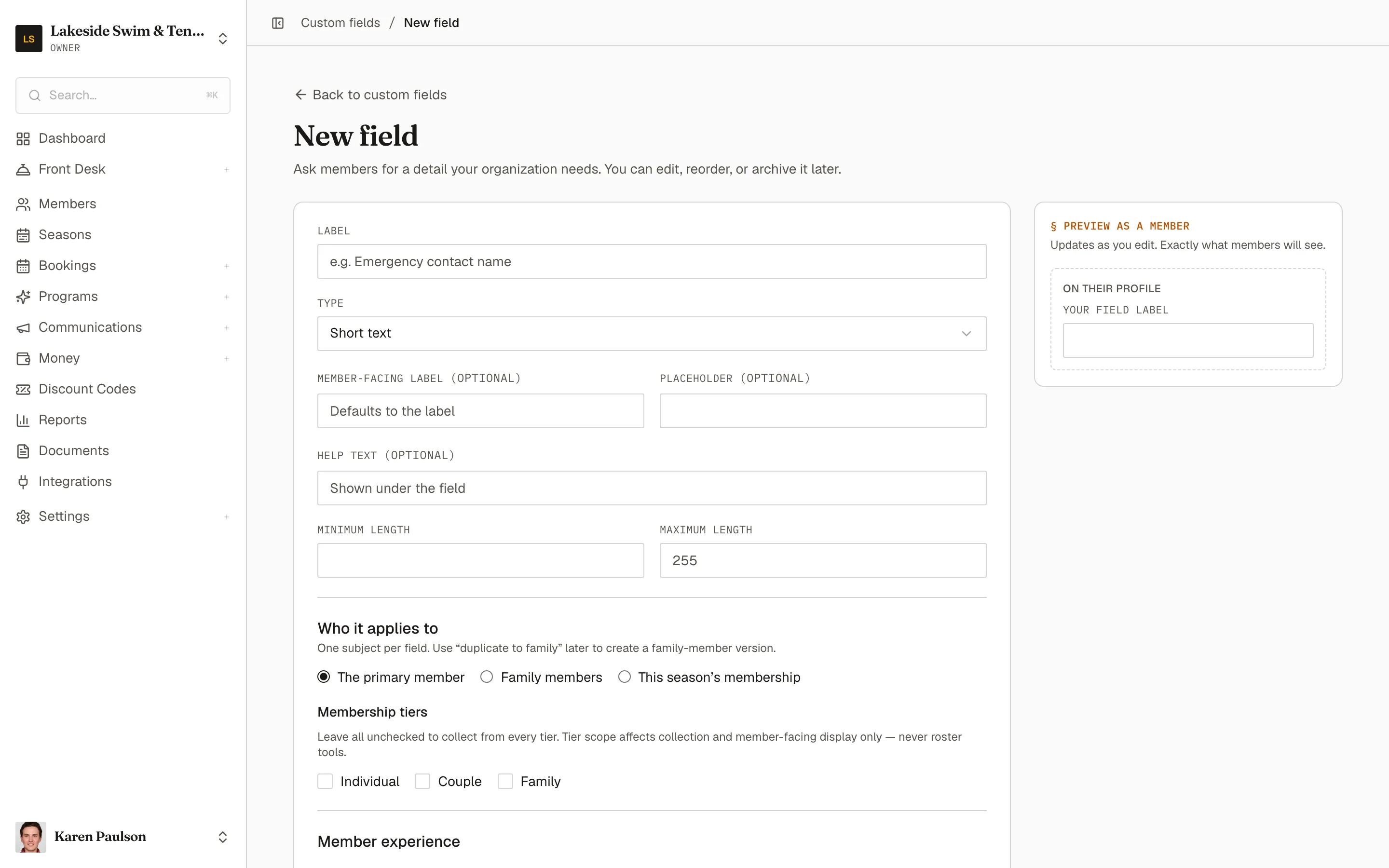
The Preview as a member panel beside the form renders the field exactly as members will see it, updating as you type. The form warns you if the label duplicates a built-in attribute (name, email, phone, birthday are already on every account) and when registration would ask more than 5 custom questions — long forms depress signups.
Sensitive fields
Section titled “Sensitive fields”Check Sensitive data for anything you wouldn’t want in a spreadsheet — medical notes, for example. Sensitive values are encrypted at rest and excluded from roster columns, filters, CSV exports, and logs; only the registration, profile, and staff-record surfaces can show them. The flag locks once the field has stored answers, as does the field’s type.
Reorder, edit, and archive
Section titled “Reorder, edit, and archive”The index groups fields under Member fields, Family member fields, and Membership fields (this season only). Drag the handle or use the arrows to set the order members and staff see everywhere. You can keep up to 50 active fields; the footer shows how many you’ve used.
Editing a field is safe at any time: labels, options, and placements change freely while the field’s key and stored answers stay stable. Removing a select option that’s in use archives it rather than deleting answers. A Duplicate for family members link on a member field’s edit page opens a prefilled create form for the mirror-image family version.
Archiving a field removes it from forms, completion checks, and imports immediately, while stored answers stay on record for staff — Restore brings it back whenever you want. Narrowing a field’s tier scope similarly hides existing answers rather than deleting them; the form warns you exactly how many members and answers are affected.
Where the answers show up
Section titled “Where the answers show up”- Registration — in the “A few more details” section when someone joins.
- Member profile — under “Additional information” in the member portal.
- Staff record — the Details tab on the member’s profile, where staff edit answers directly.
- Roster — as extra columns, filter chips, and export columns on the member roster.
- CSV import — non-sensitive member fields can be filled in bulk, keyed by the field key shown on this page. See Adding & importing members.
Questions asked when registering for a class or event are configured on the offering itself — see Classes & events.